By Derek V. Mackown | IT Technician & Display Hardware Specialist
The fans are spinning. The keyboard lights are on. You might even hear the Windows startup chime. But the screen is completely, stubbornly black.
This is one of the most disorienting laptop failures I work on, because the machine is clearly functioning, the display simply isn’t. And unlike a crash or a blue screen, there’s no error message pointing anywhere. The fix depends entirely on where in the display chain the failure is occurring, which is why the physical tests below come before any software steps.
Read Your LED Indicators First
Before touching any setting, check the physical LED indicators on your laptop body. They communicate power state, battery status, and sometimes display diagnostics and they tell you whether the system has actually booted or is stuck before POST.
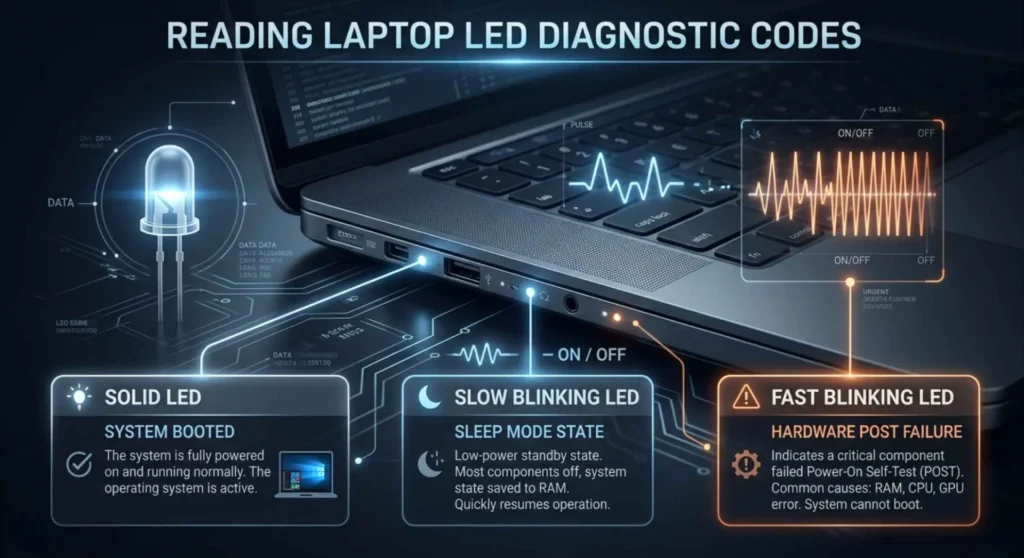
| LED Pattern | What It Means | Where to Start |
|---|---|---|
| Power LED solid on, no display | The system booted, but the display pipeline failed. | Flashlight test → Fix 2 |
| Power LED blinking (slow) | Suspended/sleep state not waking correctly | Hold power 10 sec, force restart → Fix 1 |
| Power LED blinking (fast) | POST failure — hardware not initialized | RAM reseating, not a display fix |
| No LEDs at all | Power delivery failure — not a display issue | Check charger and battery first |
| Charging LED on, power LED on, black screen | Display initialization failure | External monitor test → Fix 2 |
For HP laptops specifically: A series of LED blinks on startup can indicate POST error codes. Count the blink sequence and cross-reference with HP’s support page for your model number. Five blinks typically indicates a pre-video error that requires hardware inspection.
Two Physical Tests That Define Your Diagnosis
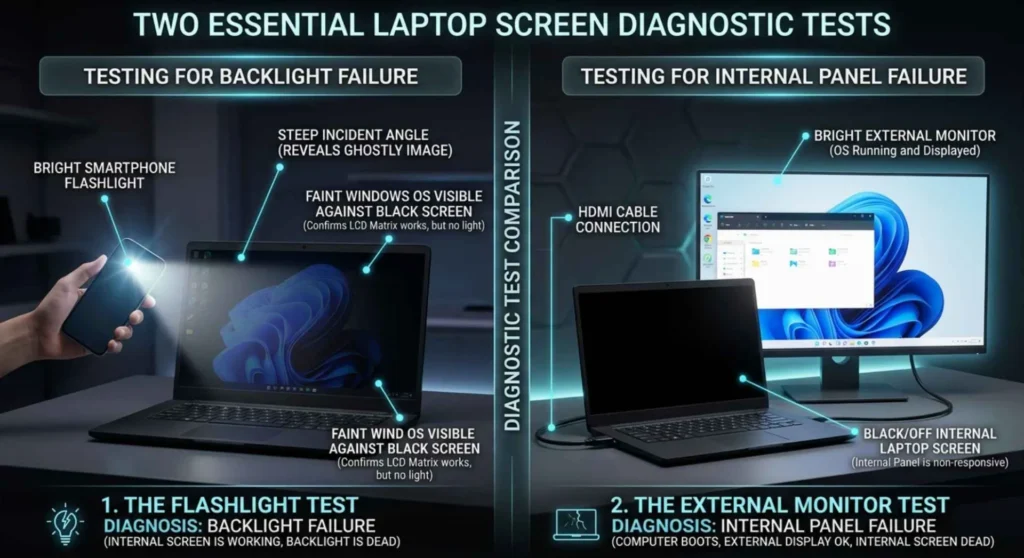
Run both of these before any software fix.
Test 1 | The Flashlight Test
Power on the laptop. Darken the room. Shine a bright flashlight directly against the screen at a steep angle.
- If you can faintly see your desktop, cursor, or login prompt: the panel is receiving a signal and the display controller works. Only the backlight has failed. This is a hardware repair—backlight or full panel replacement depending on the model.
- If you see nothing at all: either no signal is reaching the panel, or the panel itself has failed.
Test 2 | The External Monitor Test
Connect an HDMI or DisplayPort cable to an external monitor or television.
- If the external display shows your desktop: your GPU is fully functional. The problem is isolated to the internal panel, the display cable, or the driver mapping of that output.
- If the external display is also black: the GPU is not initializing its display output. Driver corruption or, less commonly, GPU hardware failure is the cause.
These two tests reduce a 12-variable problem to a 3-variable one. Record your results and use them to navigate the fixes below.
Fix 1 – Force a Full Power Cycle and Eliminate Fast Startup
Windows’ Fast Startup feature stores a partial hibernate state on shutdown to accelerate the next boot. When that state file becomes corrupted or when hardware changes after it was written. Windows boots into a saved state that may not include correct display initialization.
Hard reset first:
- Hold the power button for 10 seconds until the machine shuts completely off
- Wait 30 seconds – allow capacitors to fully discharge
- Power on normally and observe
If this doesn’t resolve it, disable Fast Startup:
- Boot into Safe Mode (press F8 or Shift+F8 during startup, or force three interrupted boots to trigger Windows Recovery)
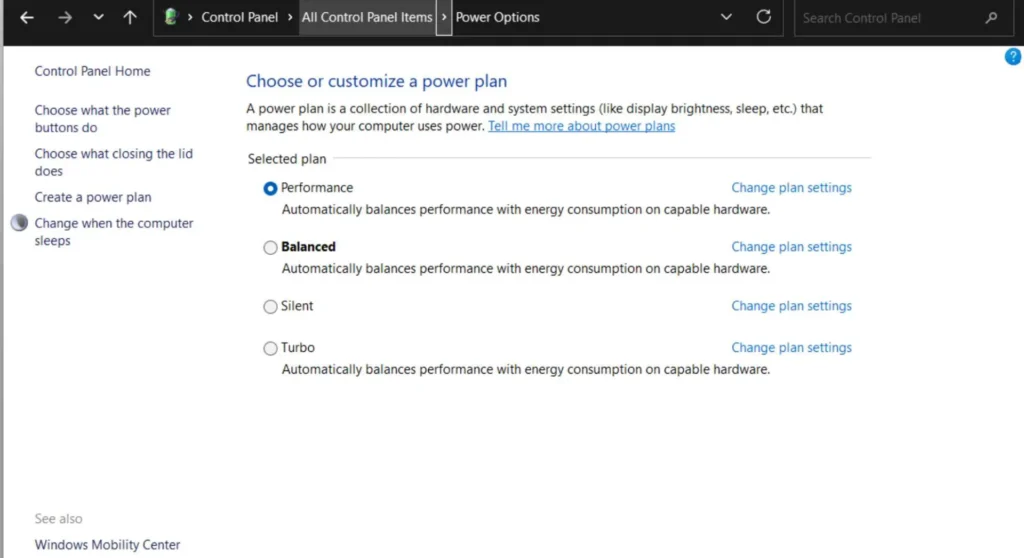
- In Safe Mode: Control Panel → Power Options → Choose what the power buttons do
- Click Change settings that are currently unavailable
- Uncheck Turn on fast startup
- Save changes and restart normally
Why Safe Mode works here: Safe Mode loads a generic Microsoft display driver that bypasses any corrupted OEM driver. If your screen displays correctly in Safe Mode but not during normal boot, the display driver is confirmed as the cause; proceed directly to Fix 3.
Fix 2 – Use Keyboard Shortcuts to Recover the Display
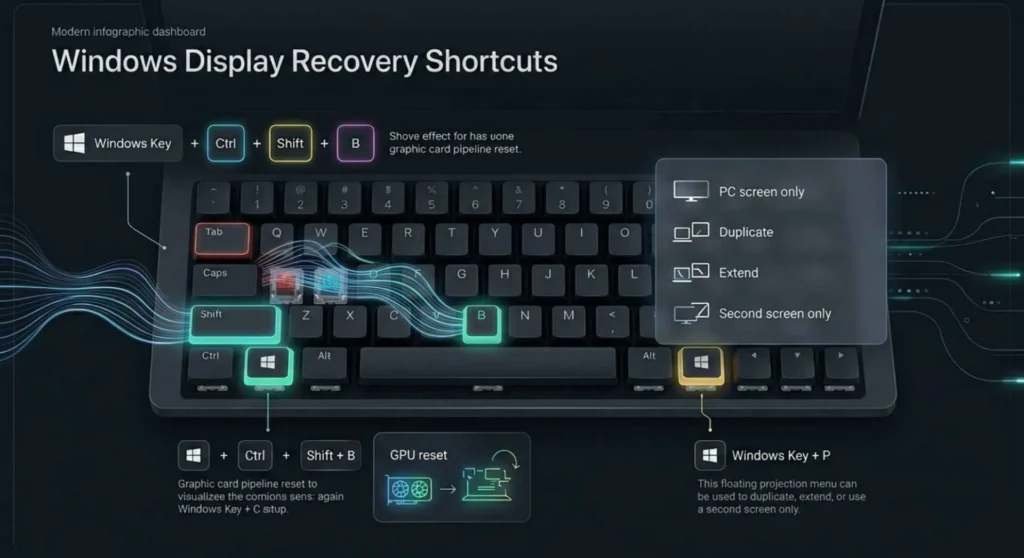
If Windows has booted correctly, the display output is mapped incorrectly, sent to an external display that isn’t connected, or sent to a second output port. These keyboard shortcuts can recover the screen without restarting.
With the laptop powered on (screen black):
Windows + P — opens the display projection menu. Wait 2 seconds, then press the left arrow key once and Enter. This selects “PC screen only” and redirects output to the internal display.
Windows + Ctrl + Shift + B — resets the video subsystem and refreshes the display driver pipeline. A short beep confirms the reset executed. On driver-related black screens, this frequently restores display output immediately.
Windows + Ctrl + Enter — activates Narrator, which produces an audible confirmation that Windows is running and responsive.
If you hear the narrator begin speaking, Windows has booted successfully. The display pipeline failure is confirmed as the issue and not a boot or system failure.
Fix 3 – Boot Into Safe Mode and Reinstall the Display Driver
Safe Mode is the correct environment for display driver repair because it loads a basic Microsoft display driver that functions correctly regardless of OEM driver state. Your screen will display at low resolution. That’s expected and confirms the panel and cable are functional.
- Enter Safe Mode:
- Method A: Hold Shift while clicking Restart in the Start menu → Troubleshoot → Advanced options → Startup Settings → Restart → press 4
- Method B: Power on and force shutdown 3 times during the Windows logo, the fourth boot enters. Recovery automatically
- In Safe Mode, open Device Manager → expand Display adapters
- Right-click your GPU → Uninstall device → check the box to delete driver software → confirm
- Restart normally—Windows will install a basic driver on boot, restoring display at low resolution
- Download the correct OEM driver from your laptop manufacturer’s support page (not from Nvidia or AMD directly—OEM drivers are tested against your specific panel and BIOS configuration)
- Install, restart, and confirm display output
For HP laptops: Use HP Support Assistant or navigate to hp.com/support → enter your model number → Software and Drivers → select your OS → download the graphics driver package. HP-specific drivers include panel initialization parameters that generic GPU manufacturer drivers may not contain.
Fix 4 – Check and Reseat the Display Cable
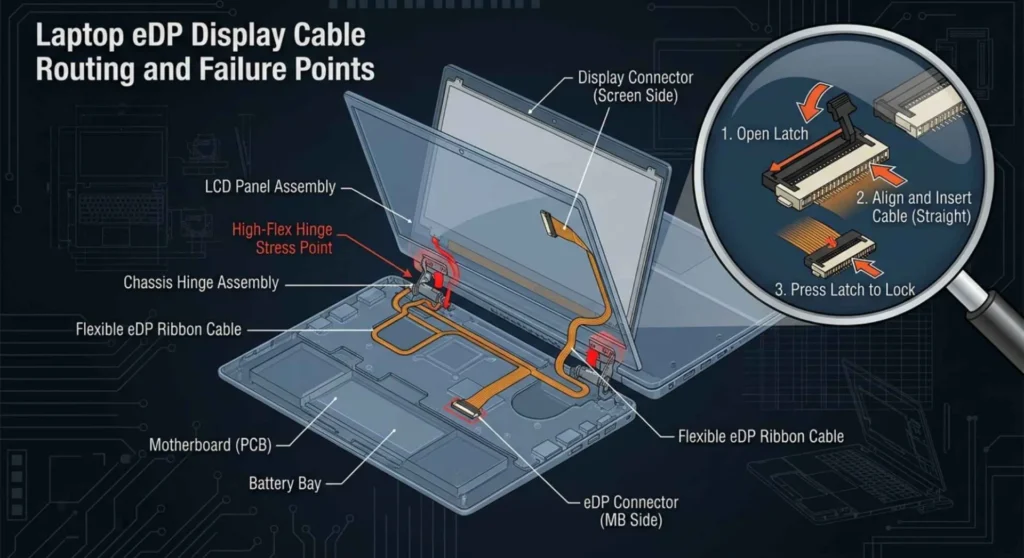
If the external monitor displays correctly, Safe Mode displays correctly, but normal Windows boot produces a black internal screen and a fresh driver installation hasn’t resolved it, the display cable is the next physical component to inspect.
The eDP (embedded DisplayPort) ribbon cable runs from the motherboard through the laptop hinge to the display panel. It is the most mechanically stressed component in any laptop’s display assembly. Every lid open and close cycle puts it through a stress point. Laptops that have been used heavily for 2+ years, dropped, or routinely opened past their natural stop angle are particularly vulnerable to cable degradation.
Before opening the laptop:
- Open and close the lid slowly while the laptop is powered on and connected to an external monitor
- Watch whether the external monitor flickers during lid movement and if it does, the cable is affecting GPU output, not just panel input, which changes the diagnosis
- If the external monitor stays stable: cable damage is limited to the internal panel path
Accessing the cable:
Search specifically for: [your exact model number] display cable replacement iFixit
On most consumer laptops, the cable is accessible after removing the bottom panel or keyboard surround, typically with 8 – 14 screws and plastic clips. The cable itself costs $8 – 20 and the repair time is 20 – 45 minutes on most models. A technician’s quote for this repair should be $60 – 120 including labor.
Reseat the connectors at both ends (motherboard and panel) before ordering a replacement cable. A partially unseated connector can produce an identical black screen to a damaged cable and takes 5 minutes to rule out.
Fix 5 – BIOS Reset and Firmware Update
Certain BIOS configurations, particularly display output priority settings and hybrid graphics mode on dual-GPU laptops, can prevent the internal display from initializing correctly after updates or configuration changes.
BIOS reset:
- Power off the laptop completely
- Power on and immediately press your BIOS key repeatedly — F2, F10, or Esc depending on manufacturer (HP uses F10; Dell uses F2; Lenovo uses F1)
- If the BIOS appears on an external monitor but not the internal screen: the BIOS output is routed to the external port. Navigate to: Advanced → Display → Primary Display and set it to Internal Display or Auto
- Save and exit (F10 in most BIOS menus)
BIOS firmware update:
An outdated BIOS can contain display initialization bugs that were patched in a later firmware release. On HP laptops: open HP Support Assistant → Updates → check for BIOS updates. Alternatively, download the latest BIOS directly from hp.com/support for your model. BIOS updates should be installed while plugged into AC power and should not be interrupted.
Warning: Never interrupt a BIOS update. A failed BIOS flash can make a laptop unbootable, requiring professional recovery or motherboard replacement.
When Hardware Replacement Is the Answer
If all five fixes above produced no improvement, the flashlight test showed no image, the external monitor is also non-functional, and Safe Mode displays nothing on the internal screen, then the display pipeline has failed at the hardware level.
The failure point is one of three components: the GPU (if the external monitor also fails), the LCD panel (if the flashlight test shows nothing and the external monitor works) or, in rare cases, the motherboard display output circuit.
Contact your manufacturer’s support line with your model number and symptom description before purchasing parts. On machines still under warranty, a black screen failure with a running system is typically covered under hardware defect terms.
Frequently Asked Questions
Q: My screen is black only on battery, not when plugged in. What does that mean?
The display backlight or GPU is not receiving sufficient voltage under battery power delivery. Check power options first and set the power plan to Balanced or High Performance and retest. If the issue persists, the battery, charging circuit, or power management firmware may need service.
Q: The screen is black, but I can see and move the cursor. What happened?
Windows booted but the Windows Explorer shell crashed or failed to load. Press Ctrl + Alt + Del → open Task Manager → File → Run new task → type explorer.exe → press Enter. This restarts the shell, and your desktop should appear.
Q: Can RAM cause a black screen on boot?
Yes. Faulty or improperly seated RAM can prevent POST from completing, which produces a black screen with running fans but no display output, similar in appearance to a display failure. If LED diagnostics indicate a pre-video error (see the LED table at the start of this guide), reseat the RAM module by removing and firmly reinserting it before proceeding to display-specific fixes.
Q: Does a black screen mean my GPU is dead?
Not necessarily, and assuming so leads to expensive, incorrect repair decisions. A dead GPU typically produces artifacts, fails POST with error codes, or produces a black screen on both internal and external displays simultaneously. A black screen with a running system and a functional external monitor output is far more commonly a driver, cable, backlight, or panel failure. Work through the fixes in this guide before drawing conclusions about GPU health.