By Derek V. Mackown | IT Technician & Display Hardware Specialist
If you’re reading this guide, you’ve already noticed it, a ghost of something that used to be there. A navigation bar outline. A status indicator. A keyboard shadow. The kind of image that only appears on certain backgrounds and in certain lighting conditions, but once seen, cannot be unseen.
Here’s what I tell every client before we go further: Burn-in and image retention are two different conditions with two different prognoses. Mixing them up leads to wrong expectations and wasted effort. Correctly identifying what you’re dealing with takes under five minutes and determines everything that follows.
Retention or Burn-In? Do This First.
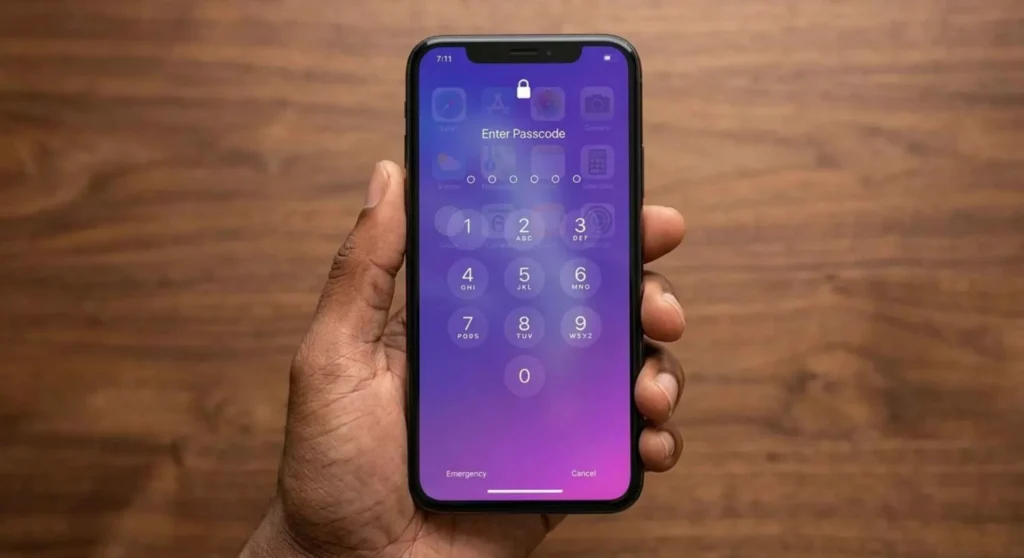
Display a solid white or light grey image full-screen, open a blank document, or navigate to a white webpage. Darken the room slightly if possible.
Examine the area where you see the ghost.
| What You Observe | Diagnosis | Outlook |
|---|---|---|
| Faint, slightly soft-edged shape, shifts slightly with viewing angle | Image retention | Fully reversible – will self-correct |
| Sharp, high-contrast shape, visible from straight-on, appears darker than surroundings | Permanent burn-in | Partially reducible, not fully reversible |
| Shape has a color cast (blue/red tint) relative to the surroundings. | Advanced burn-in | Subpixel degradation confirmed – management only |
If it’s retention: Display dynamic, varied content (a video or a slideshow) for 1-2 hours. It will fade on its own. The rest of this guide is primarily for confirmed burn-in.
Why OLED Burns: The Physics Behind It
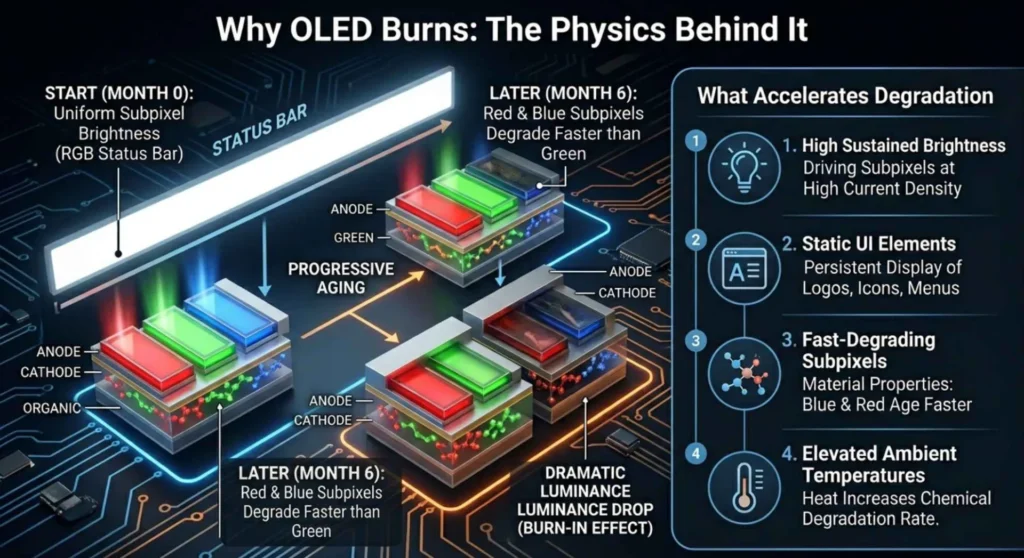
Every pixel in an OLED and AMOLED display is an individual organic light-emitting compound. Those compounds degrade with use, and they degrade unevenly based on how hard they’re worked.
A pixel displaying a bright white status bar for 10 hours a day degrades significantly faster than the pixels around it. Over months, that pixel becomes measurably dimmer at the same drive current than its neighbors do. That differential luminance is what you see as burn-in. The display isn’t malfunctioning, it’s accurately showing you its usage history.
What accelerates degradation:
- High sustained brightness – the most significant accelerator by a wide margin
- Static UI elements: navigation bars, taskbars, notification areas, always-on displays, game HUDs
- Blue and red subpixels degrade faster than green in most OLED formulations; advanced burn-in often carries a color cast for this reason
- Elevated ambient temperatures speed up the electrochemical degradation at the emitter layer
Fix 1 – Run Your Device’s Built-In Pixel Refresh Cycle
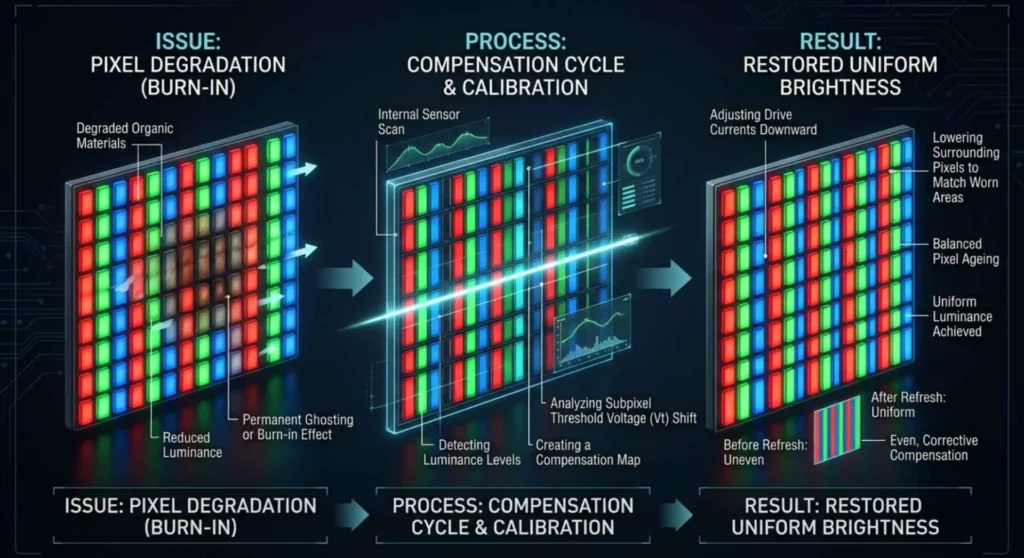
Most OLED devices include a calibration or compensation cycle that measures residual luminance degradation across all pixels and adjusts drive current accordingly. This makes degraded pixels appear more uniform relative to their neighbors, reducing the visible contrast of burn-in without repairing the underlying organic degradation.
Run this with the device plugged in and left undisturbed.
| Device | Path to Pixel Refresh |
|---|---|
| Samsung Galaxy (Android) | Settings → Device Care → Diagnostics → Screen → Screen burn-in fix |
| LG OLED TV | Settings → Support → OLED Care → Device Self Care → OLED Panel Care → Pixel Refresher |
| Sony OLED TV | Settings → Device Preferences → Picture → Advanced → Pixel Shift (enable and run) |
| LG OLED Monitor | OSD → Picture → OLED Care → Pixel Cleaning |
| Samsung OLED Monitor | OSD → System → OLED Protection → Pixel Refresh |
For devices without a native tool, JScreenFix (jscreenfix.com) runs a rapid, multicolored pixel cycling animation in the browser over the burned area. This exercise leaves residual organic activity in degraded subpixels and can reduce mild to moderate burn-in visibility by 20 – 40%.
Two cycles, spaced several days apart, typically produce the maximum benefit. Beyond that, additional cycles show diminishing returns on true burn-in.
Fix 2 – Reduce Display Brightness Immediately
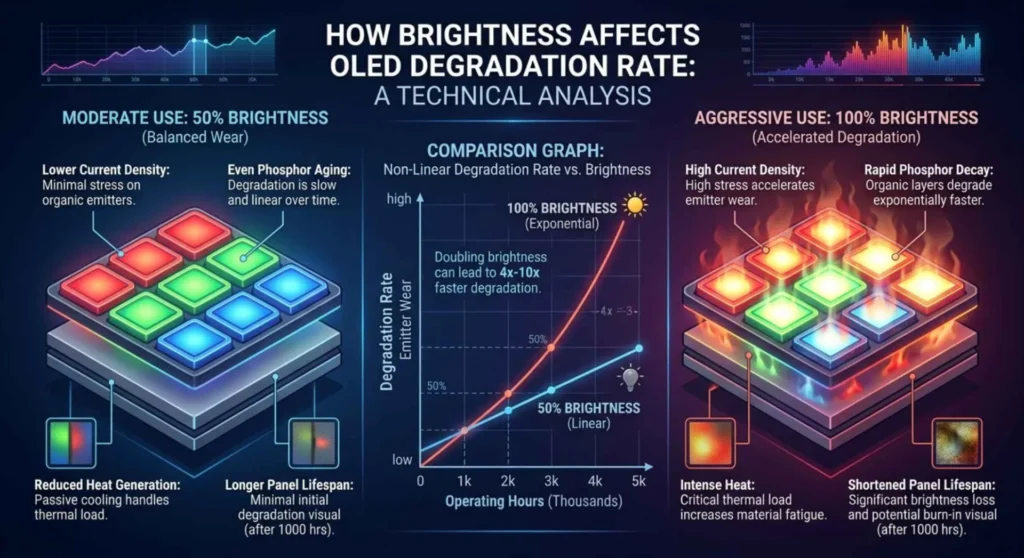
This is simultaneously the least exciting and most impactful intervention available. Every hour at 80% brightness versus 50% brightness accelerates organic degradation in already-stressed pixel regions. The relationship is not linear, high brightness degrades OLED compounds at a significantly faster rate than moderate brightness.
Target brightness levels by usage environment:
| Environment | Recommended Brightness | Notes |
|---|---|---|
| Dark room | 20 – 40% | Anything higher causes eye strain and excess degradation |
| Indoor office/home | 40 – 60% | Auto-brightness handles this well on phones |
| Bright office with windows | 60 – 70% | Avoid 100% unless necessary |
| Direct sunlight (phone) | As needed | Minimize duration at peak brightness |
Enable auto-brightness on phones if not already active. Modern adaptive brightness algorithms keep brightness consistently lower than most people would manually set it, without sacrificing readability.
On monitors and TVs: set a brightness cap in the OSD. For calibrated indoor viewing, 100 – 150 nits is the industry standard. Most monitors arrive from the factory at 200 – 300 nits, a setting optimized for showroom floors, not living rooms.
Fix 3 – Apply Dark Theme and Content Masking
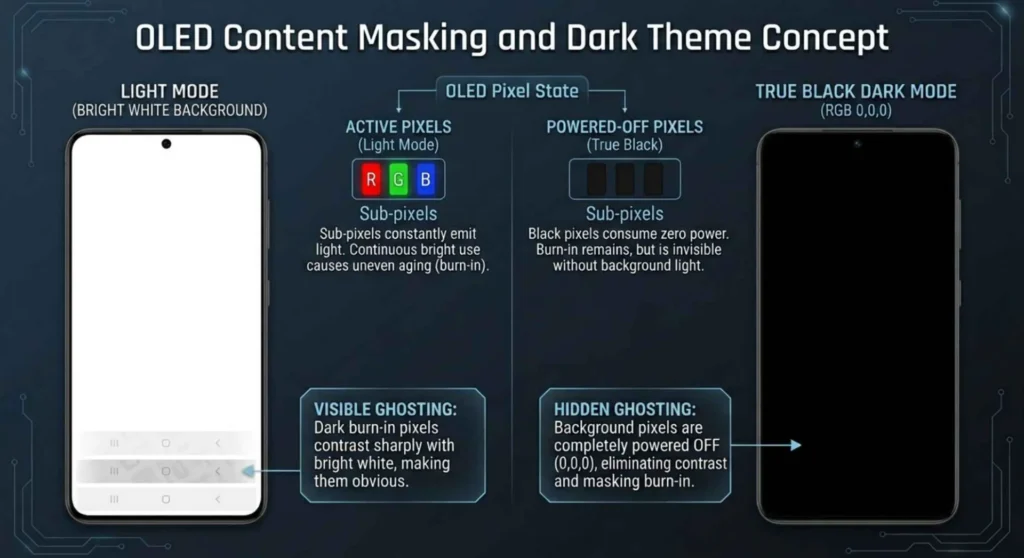
This is practical damage management rather than a repair, but for daily usability, it is often the most immediately effective intervention.
Burned-in areas that are darker than their surroundings become invisible when the surrounding content is also dark. On true-black OLED displays, black pixels are completely off, no light emitted, no degradation visible. Designing your usage environment around this physics is sound strategy.
On Android phones:
- Settings → Display → enable Dark theme system-wide
- Replace wallpaper with a true black or deep dark image (pure black: RGB 0,0,0)
- Switch to gesture navigation to eliminate the persistent navigation bar that caused burn-in in the first place
On Windows laptops/monitors:
- Settings → Personalization → Colors → Dark mode
- Right-click taskbar → Taskbar settings → enable Automatically hide the taskbar, this eliminates the most common source of monitor burn-in going forward
On OLED TVs:
- Avoid letterboxing content (4:3 content on a 16:9 panel) for extended periods
- SDR content at high OLED light output settings accelerates burn-in in frequently lit areas reduce OLED light/brightness in picture settings
Fix 4 – Enable Pixel Shift and Display Timeout Protection
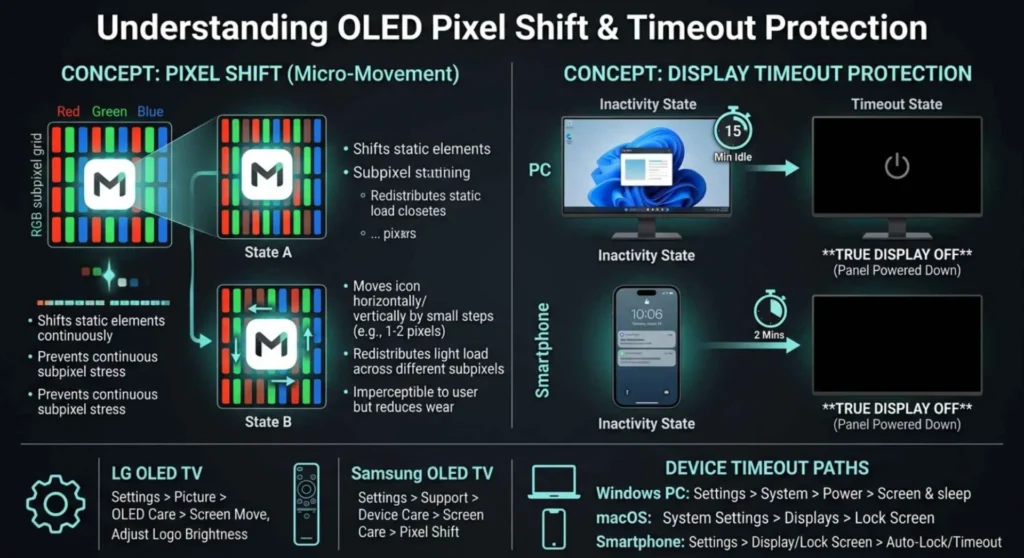
Pixel shift micro-moves the entire displayed image by 1 – 2 pixels at set intervals. The movement is imperceptible during normal viewing, but it ensures no single pixel is continuously displaying the same color state indefinitely.
Enable pixel shift on your device:
| Device | Setting Name | Path |
|---|---|---|
| LG OLED TV | Pixel Shift | Settings → All Settings → Picture → Additional Settings |
| Samsung OLED TV | Screen Move | Settings → General → Panel Care |
| ASUS OLED Monitor | OLED Care | OSD → System → OLED Care → On |
| LG OLED Monitor | Pixel Cleaning | OSD → Picture → OLED Care |
For computers: configure your display to turn off (not screensaver off) after 5 – 10 minutes of inactivity. A powered-off OLED pixel is not degrading. Even a black screensaver still keeps some pixels illuminated; true display off is the correct setting.
On phones: set screen timeout to 30–60 seconds. The cumulative daily hours a phone spends at a static lock screen with a bright notification bar are higher than most people realize, this single setting change is among the most effective long-term burn-in prevention measures available.
Fix 5 – Third-Party Pixel Exercise Tools
For monitors and computers where no native compensation cycle exists, several tools provide manual pixel cycling:
JScreenFix (jscreenfix.com) – browser-based, no installation. Runs flashing RGB pixels over a selected area for 10 – 30 minutes. Most effective on mild to moderate retention; produces partial improvement on early-stage burn-in.
OLED Pixel Refresher apps on Android (search “OLED burn-in fixer” on the Play Store) run multi-color fullscreen cycling animations. Most effective when run at reduced brightness over 30+ minute sessions.
UDPixel (Windows) – primarily designed for stuck pixels but includes a flash cycling mode useful for addressing retention on PC monitors.
Realistic expectations: No third-party tool repairs permanent burn-in at the organic compound level. What these tools do is exercise residual organic activity in degraded pixels, improve current distribution across affected areas, and trigger the display’s own compensation calibration. The result is reduced visibility of burn-in, not elimination. Moderate burn-in: 20 – 50% improvement is realistic. Severe burn-in with deep color cast: minimal visible improvement.
The Usage Habits That Actually Prevent This
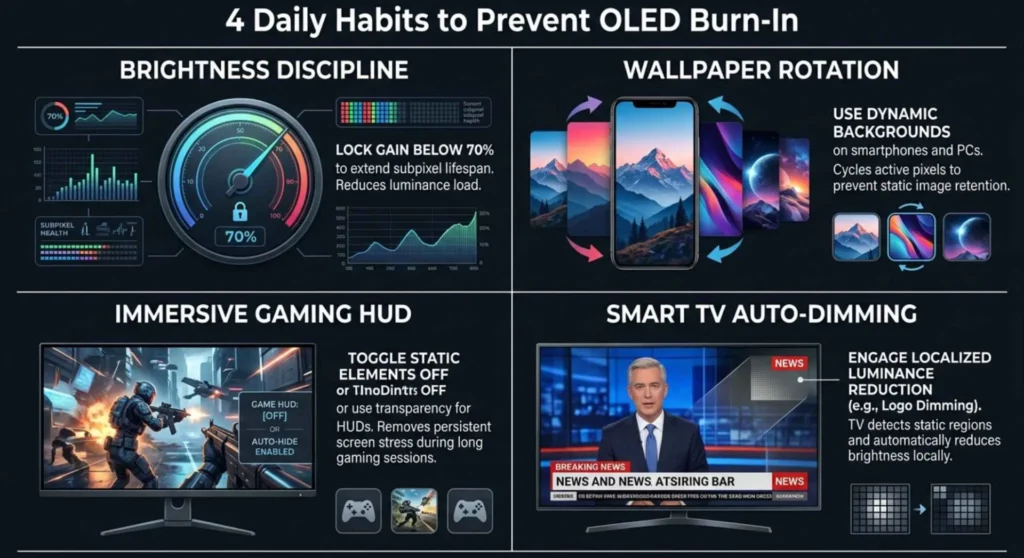
The single most effective prevention strategy is not a setting or a tool, it’s brightness discipline. Running any OLED display at 70% or below for daily tasks extends the organic compound lifespan significantly compared to running at full brightness.
Rotate your wallpaper periodically on phones. Static wallpapers create static stress patterns on pixels. A wallpaper rotation schedule (daily or weekly) distributes wear across the panel.
For gaming: disable persistent HUD elements when not actively needed. Health bars, minimaps, and objective markers sitting in the same screen position for hundreds of hours are the most common source of gaming monitor burn-in I see in practice.
For TVs: enable auto-dimming features for static content. Most modern OLED TVs detect logo patterns and letterbox bars and automatically dim those specific regions. These features are often disabled by default in vivid or cinema modes, check your picture mode settings and enable them.
Frequently Asked Questions
Q: Can OLED burn-in be fully reversed?
Permanent burn-in, where organic emitters have degraded, cannot be fully reversed. Pixel refresh cycles and brightness reduction reduce its visual prominence, sometimes dramatically in moderate cases. Severe burn-in with a confirmed color shift is generally unrecoverable to a level most users would find acceptable. Image retention is a temporary effect from prolonged static display and fully reversible with dynamic content exposure.
Q: Do OLED TVs burn in faster than OLED phones?
They degrade differently. Phones run at higher relative brightness in smaller form factors and experience more thermal stress per unit area, they tend to show burn-in faster. TVs run more static content (network logos, news tickers, sports overlays) for longer continuous durations. In practice, phone burn-in appears sooner; TV burn-in appears in more frustrating locations and is harder to mask contextually.
Q: Is AMOLED more resistant to burn-in than standard OLED?
AMOLED (Active Matrix OLED) uses a different drive circuit architecture than older passive-matrix OLED, but both use the same organic emitter technology. Samsung’s AMOLED engineering includes modest longevity improvements over standard OLED formulations, but the fundamental degradation mechanism is identical. The difference in real-world burn-in resistance between AMOLED and OLED is far smaller than the difference created by usage habits, brightness level and static content exposure are the dominant variables.