By Derek V. Mackown | IT Technician & Display Hardware Specialist
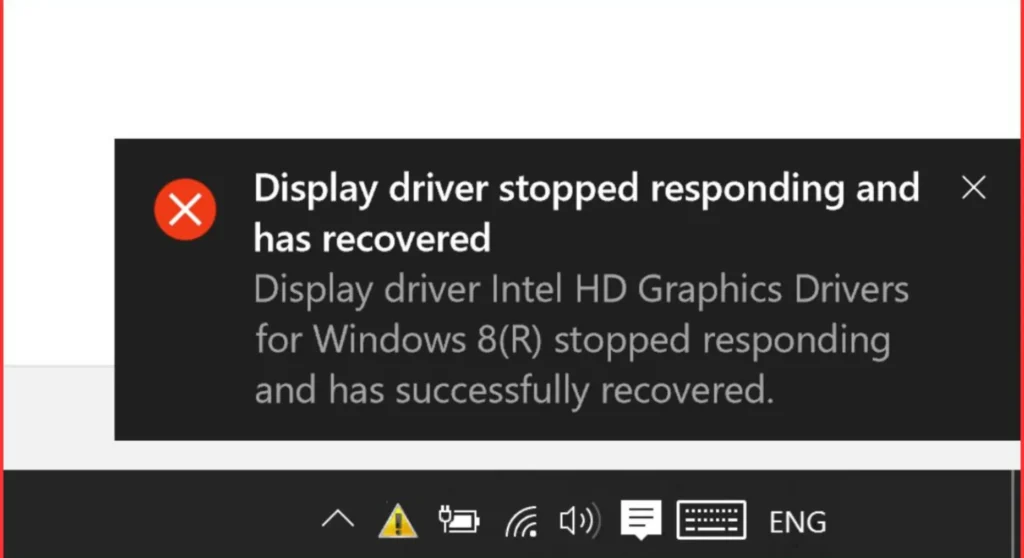
The notification is deceptively calm: “Display driver stopped responding and has successfully recovered.” Windows presents it like a minor inconvenience. But if you’ve seen it more than once, especially if recovery is taking longer each time or the screen is starting to stay black, something in your graphics stack is under genuine stress.
This error has a technical name: a TDR event (Timeout Detection and Recovery). It means Windows detected that your GPU stopped communicating for longer than its tolerance threshold (2 seconds by default) and forcibly reset the driver rather than let the entire system freeze. The recovery is real. The underlying cause is not going away on its own.
Identify Your TDR Pattern First
Not all TDR events have the same cause. The pattern of when it happens tells you where to look.
| When It Occurs | Most Likely Cause | Start Here |
|---|---|---|
| Only during heavy games or GPU load | Overheating or unstable overclock | Fix 1 – Temperature Check |
| Immediately after a Windows Update | Driver corruption or version conflict | Fix 2 – Clean Driver Install |
| Random, no load pattern | PSU voltage instability | Fix 4 – PSU Verification |
| Increasing in frequency over weeks | GPU hardware degradation | Fix 5 – VRAM Stress Test |
| On specific applications only | DirectX/runtime conflict | Fix 3 – TDR Registry + Runtime |
Use this table before proceeding. The most common mistake is jumping to driver reinstallation when the real cause is thermal or vice versa.
The Hardware Causes
GPU overheating is the first hardware cause I check because it’s measurable in minutes and more common than people expect. When a GPU hits its thermal junction limit, it throttles clock speeds aggressively. During that time, it can miss Windows’ 2-second response window, triggering TDR without any actual driver fault. The driver takes the blame for a temperature problem.
Acceptable GPU temperatures under sustained load:
| GPU Platform | Safe Core Temp | Warning Zone | Critical |
|---|---|---|---|
| Nvidia (RTX 30/40 series) | Below 83°C | 83 – 90°C | Above 90°C |
| Nvidia (RTX 20 series) | Below 80°C | 80 – 88°C | Above 88°C |
| AMD (RX 6000/7000 series) | Below 95°C junction | 95 – 105°C | Above 105°C |
| Intel Arc (A series) | Below 100°C | 100 – 105°C | Above 105°C |
Unstable overclocks – even modest ones become problematic under simultaneous thermal, bandwidth, and shader load. A core clock offset that ran stably for months can start causing TDR events after summer arrives and ambient temperatures rise.
Aging or undersized PSU is the most overlooked hardware cause. GPU power draw spikes are sharp. A GPU drawing 300W on average can spike to 400W+ in a single frame. An aging PSU with degraded capacitors produces voltage sags during those spikes, which the GPU interprets as power loss. TDR events that occur during peak GPU load scenes and stop when you reduce in-game settings are a strong indicator of PSU strain.
Fix 1 – Measure GPU Temperature Under Load
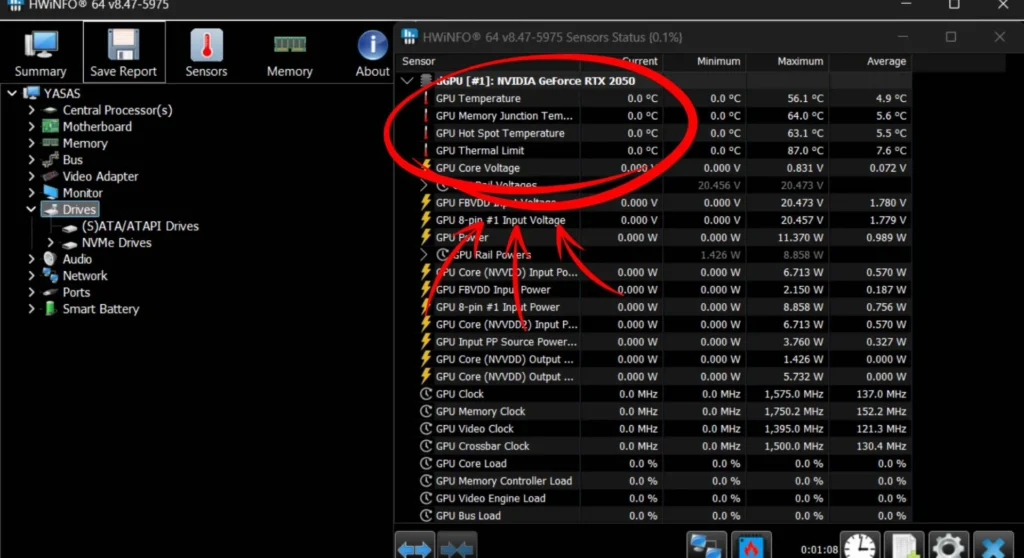
Before reinstalling anything, confirm whether heat is the actual cause.
- Download and install HWiNFO64 (free) from hwinfo.com
- Open HWiNFO in Sensors-only mode
- Run a GPU stress test → launch a demanding game or run FurMark from geeks3d.com for 10 – 15 minutes
- Monitor GPU Temperature and GPU Hot Spot Temperature in HWiNFO while under load
- Cross-reference readings with the threshold table above
If temperatures are in the warning or critical zone: Clean GPU heatsink fins and case fans with compressed air. Improve case airflow by removing cable obstructions near the GPU intake. If the card is 3+ years old, consider repasting the GPU cooler. Thermal paste degrades, and its replacement is one of the highest-impact, low-cost maintenance tasks I perform on aging cards.
If temperatures are within safe limits, heat is ruled out. Move to Fix 2.
Fix 2 – Perform a Clean GPU Driver Installation
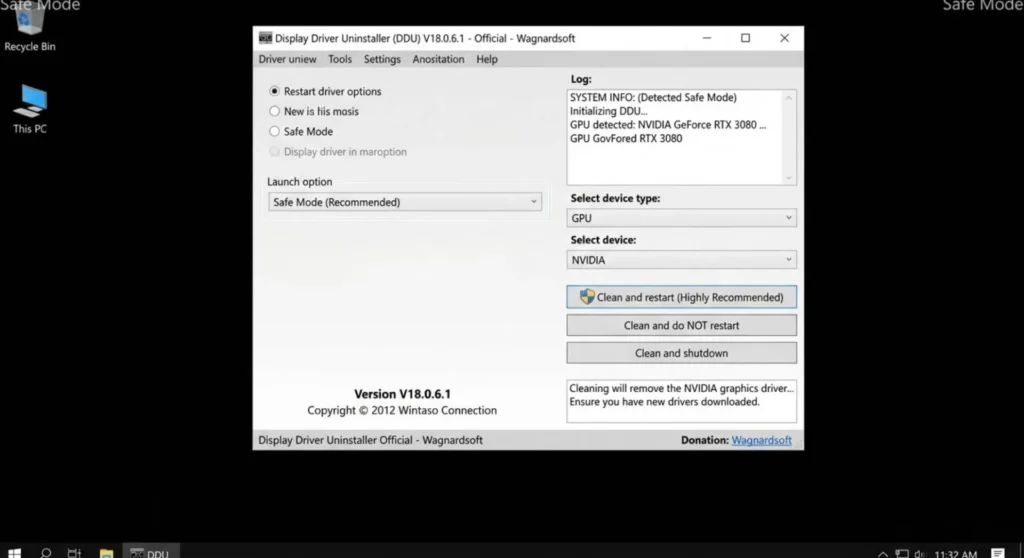
Standard driver updates don’t remove previous driver files, they install on top. Registry fragments and residual binary files from old versions create conflicts in the driver stack that surface under load. The fix is a complete wipe using Display Driver Uninstaller (DDU).
- Download the correct driver for your GPU from nvidia.com or amd.com, do not install it yet
- Download DDU from guru3d.com
- Enter Safe Mode: Settings → System → Recovery → Advanced startup → Troubleshoot → Advanced options → Startup Settings → Restart → press 4
- In Safe Mode: open DDU → select your GPU manufacturer → select Clean and restart
- After restart, immediately install the driver downloaded in step 1, disconnect from the internet briefly to prevent Windows from auto-installing a different version
Important: Use Safe Mode for the DDU process. Running DDU in normal Windows mode leaves some driver components in use and cannot fully remove them. Safe Mode is non-negotiable for a complete clean.
Restart and test under the same load conditions that previously triggered TDR.
Fix 3 – Adjust TDR Timeout and Repair Runtimes
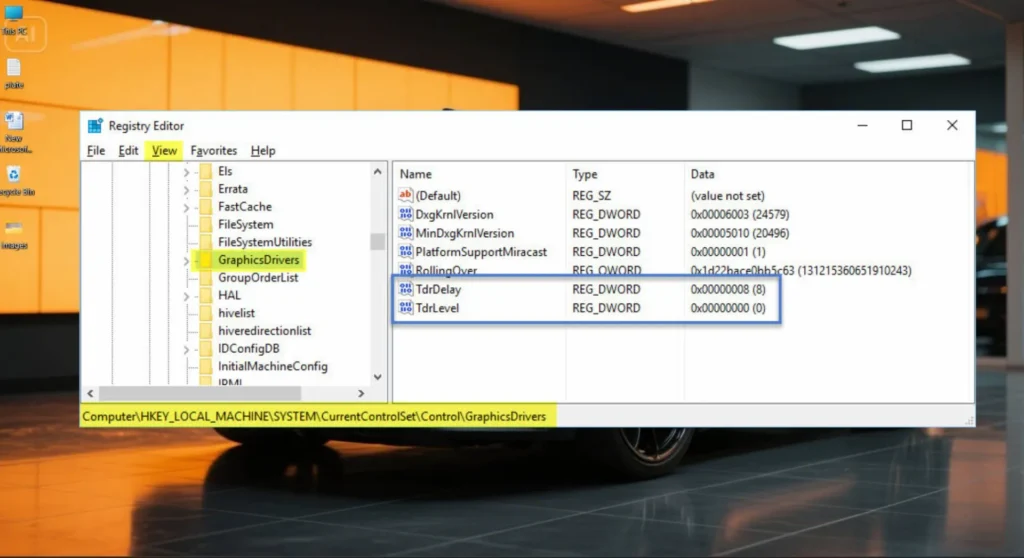
For workloads involving 3D rendering, GPU-accelerated video encoding, or specific Vulkan/DirectX 12 applications, the default 2-second TDR window is genuinely too short. Certain processing tasks legitimately exceed it. Extending the timeout prevents false positive TDR events for heavy but legitimate GPU tasks.
Extending the TDR delay:
- Press Windows + R → type
regedit→ press Enter - Navigate to:
HKEY_LOCAL_MACHINE\SYSTEM\CurrentControlSet\Control\GraphicsDrivers
- Right-click empty space in the right pane → New → DWORD (32-bit) Value → name it
TdrDelay - Double-click it → select Decimal → enter
8 - Create a second DWORD named
TdrDdiDelay→ set it to8as well - Restart
Caution: This fix extends the window before Windows resets a frozen driver, it doesn’t eliminate TDR events. If the underlying cause is hardware failure, the system will now take 8 seconds (instead of 2) to recover from each event. Use this in combination with other fixes, never as a standalone solution.
Repairing DirectX and Visual C++ runtimes:
Open Command Prompt as administrator and run the following:
DISM /Online /Cleanup-Image /RestoreHealth
sfc /scannow
Then reinstall the latest Visual C++ Redistributables from Microsoft’s official download page. Corrupted runtime libraries cause driver initialization failures that Windows logs as TDR events.
Fix 4 – Remove Overclocks and Test PSU Stability
Removing overclocks:
- Open your overclocking utility – MSI Afterburner, EVGA Precision X1, or your manufacturer’s tool
- Click Reset to return all values to default: core clock offset, memory offset, voltage, power limit
- Save the default profile and restart
- Test under the same load. If TDR events stop, the overclock was unstable at operating temperatures
Testing PSU stability:
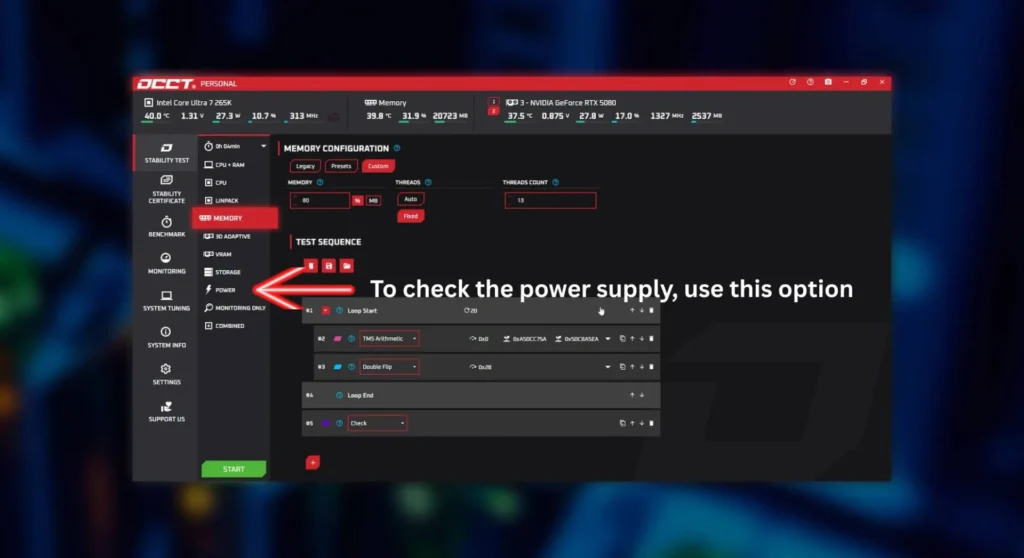
- Download OCCT (free) from occt.net
- Run the Power supply test for 30 minutes, this maximizes simultaneous CPU and GPU power draw
- Watch for TDR events, system instability, or unexpected reboots
If instability appears only during the OCCT power test and not the GPU-only FurMark test, the PSU is the bottleneck. A 12V rail that sags below 11.4V under combined load confirms a PSU fault. Replacement with a unit sized 20 – 30% above your system’s calculated peak draw is the only solution.
Fix 5 – VRAM Stress Test for Hardware Degradation
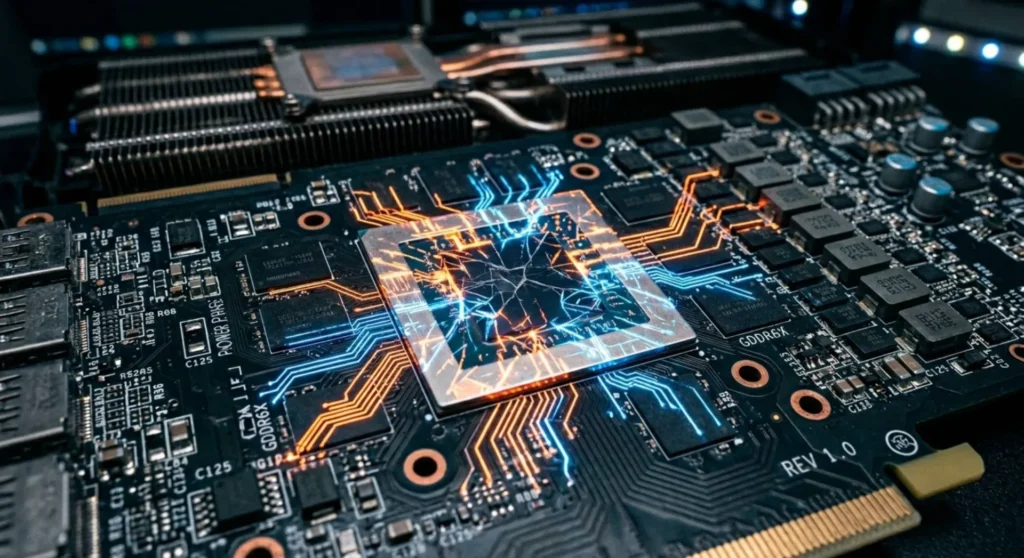
If TDR events have been escalating in frequency over several weeks despite clean drivers, stable temperatures, and no overclocks, the failure pattern points toward GPU hardware degradation, specifically failing VRAM.
- Download OCCT from occt.net → run the GPU VRAM test for 30–60 minutes
- Alternatively, run Video Memory Stress Test (VMST) for a more targeted VRAM error scan
- Any reported errors during VRAM testing confirm hardware-level failure
If VRAM errors are confirmed: Check your GPU warranty immediately, Nvidia and AMD both offer warranty coverage on reference cards, and most AIB partners cover 2 – 3 years. File a claim before the card fails completely. If out of warranty, GPU replacement is the only path forward.
Keeping TDR Events From Returning
Monitor GPU temperature alongside framerates. Use HWiNFO’s sensor overlay or RivaTuner Statistics Server to display core temperature in-game. Catching a temperature trend before it reaches critical saves you from the TDR cycle entirely.
Use DDU for every major driver version jump – moving between major Nvidia or AMD driver series warrants a full clean install, not an update over the top of the previous version.
Never ignore the first TDR event. Windows’ “successfully recovered” message creates false confidence. Treat the first occurrence as a warning and run Fix 1 and Fix 2 before the events escalate.
Upgrade PSUs proactively when upgrading GPUs. A PSU that handled a previous GPU comfortably may not have headroom for a newer, higher-TDP card. Check the GPU’s rated TDP and confirm your PSU provides at least 20% headroom above total system draw.
Frequently Asked Questions
Q: Does a TDR event damage my GPU?
The TDR recovery mechanism itself doesn’t damage hardware, it’s a protective reset. What damages hardware is the underlying cause. Sustained thermal stress from repeated TDR events caused by overheating accelerates degradation of the GPU die over time. The event is safe; the condition producing it often isn’t.
Q: Why does this only happen in games, not on the desktop?
Desktop use draws 5 – 15% GPU utilization at most. Games push 90 – 100% utilization while simultaneously demanding peak memory bandwidth and thermal output. Marginal instabilities, a slightly unstable overclock, a PSU that sags under peak load, and a heatsink barely managing thermals are invisible at idle and exposed under full load. The GPU wasn’t stable; it just hadn’t been stressed enough to show it.
Q: I reinstalled the driver three times, and TDR events continue. What now?
If clean driver reinstalls haven’t resolved it, driver corruption is ruled out as the primary cause. Proceed in order: temperature verification (Fix 1), overclock removal (Fix 4), PSU testing (Fix 4), and VRAM stress testing (Fix 5). Escalating frequency despite all software fixes points toward hardware failure. Run the VRAM test and act on the results.