By Derek V. Mackown | IT Technician & Display Hardware Specialist
Your desktop background turned black. You didn’t change it. You haven’t touched the wallpaper settings in months. It just went black possibly overnight, possibly after an update, possibly for no reason you can identify.
Here’s what makes this problem more interesting than it sounds: there are at least seven different places in Windows 11 where something can cause your wallpaper to disappear and be replaced with a flat black desktop. Seven. For a wallpaper. Some of these settings are buried so deep that most people don’t know they exist. One of them is in Accessibility settings of all places.
The good news is that once you know where to look, each one takes about thirty seconds to check and fix. You’re probably three minutes away from your wallpaper being back.
Check the Obvious Thing First – But Not Where You Think
Before anything else: is the wallpaper actually gone, or is it just not visible?
Right-click the desktop → Personalize → Background. What does it show?
If it shows your wallpaper image selected but the desktop is still black, the image path is broken. Windows is pointing to a file that no longer exists where it used to be. Skip to the Registry Fix section.
If it shows “Solid color” selected and the color is black, something changed your wallpaper setting to solid black. This could be a Windows Update reset, a power event, or a policy. Set it back to Picture or Slideshow and select your image. If it keeps reverting to black after restarts, a policy is overwriting it, see the Group Policy section.
If it shows your image correctly selected but the preview shows black, the Transcoded Wallpaper cache is corrupted. See that section below.
If Background shows nothing, or the section is grayed out, a policy or Ease of Access setting is actively blocking wallpaper. Read the next section immediately.
Hidden Location 1 – Ease of Access Has a Setting That Removes All Backgrounds
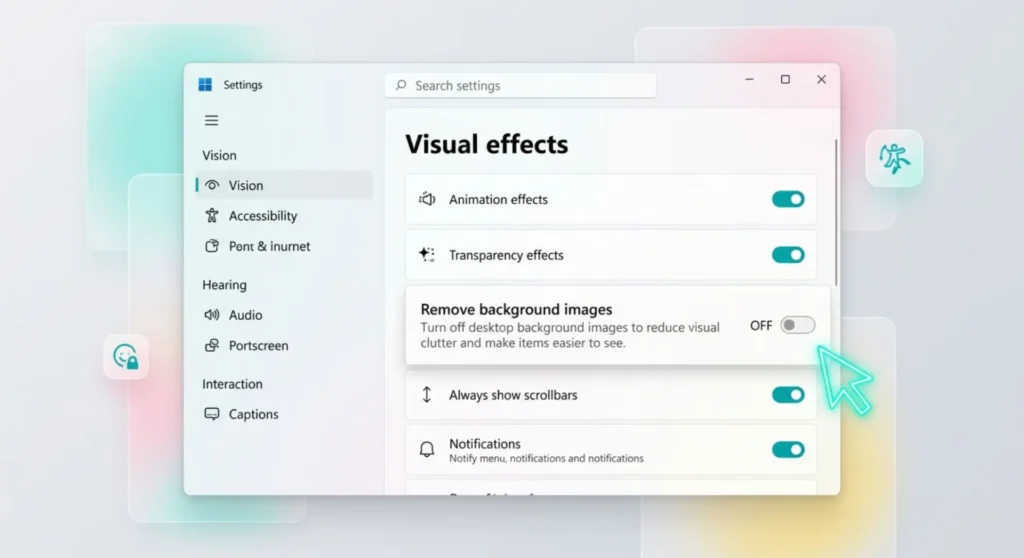
This is the cause nobody expects and almost everyone misses. Windows 11 has an accessibility feature called “Show transparency effects” and a related setting called “Always use dark background / Remove background images” and if the latter is enabled, Windows removes your wallpaper and replaces it with a flat color. Permanently. Without any notification.
The maddening part: this setting lives in Accessibility, not in Personalization. Nobody looks for wallpaper controls in Accessibility.
Find it:
Settings → Accessibility → Visual effects → look for “Transparency effects” toggle and more importantly, a setting labeled “Always use dark background” or “Remove background images.”
If “Remove background images” is toggled on: turn it off. Close Settings. Your wallpaper returns immediately.
On some Windows 11 builds, this setting appears under: Settings → Accessibility → Contrast themes, if a High Contrast theme is active, it overrides your wallpaper with a solid color background. Switch back to a standard theme: Settings → Personalization → Themes → select any non-high-contrast theme (Windows, Windows Dark, or a custom theme). The wallpaper restores as soon as the theme switches.
This single setting is responsible for a disproportionate number of “my wallpaper turned black” calls. If you’ve never intentionally enabled high contrast or an accessibility theme, something an update, an accidental keyboard shortcut, a setup process may have enabled it without your awareness.
The keyboard shortcut that enables high contrast accidentally: Windows has a built-in shortcut – Left Alt + Left Shift + Print Screen, that toggles High Contrast mode. It’s remarkably easy to hit accidentally, especially on compact keyboards. If your wallpaper went black at the same time as your screen colors looked inverted or harsh, this shortcut is a likely culprit. Press it again to toggle off or disable the shortcut in Settings → Accessibility → Keyboard → Sticky Keys and Filter Keys (the shortcut can be disabled from there).
Hidden Location 2 – The Transcoded Wallpaper Cache Is Corrupted
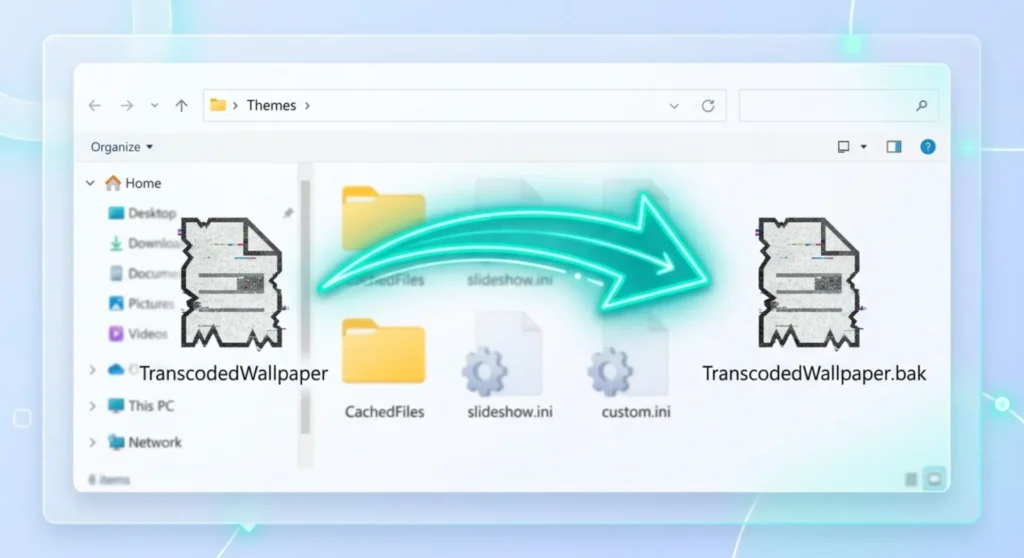
When you set a wallpaper, Windows doesn’t just point to the original image file, it creates a processed copy in a system cache folder and displays that copy. This cached file is called TranscodedWallpaper and it lives in:
C:\Users\[YourUsername]\AppData\Roaming\Microsoft\Windows\Themes\
When this cached file becomes corrupted, which happens after abrupt shutdowns, disk errors, or failed Windows updates, Windows tries to display the cached wallpaper, finds it’s invalid, and falls back to a black desktop. The original image file is completely fine. Windows just can’t use its cached copy.
Fix:
- Open File Explorer → navigate to the path above (paste it in the address bar – App Data is hidden by default)
- Find the file named TranscodedWallpaper (no extension)
- Rename it to TranscodedWallpaper.bak – don’t delete it yet, just rename as a safety net
- Find the file named settings.ini in the same folder → delete it
- Right-click the desktop → Personalize → Background → reselect your wallpaper image
Windows regenerates both files fresh when you reselect the wallpaper. The new TranscodedWallpaper file is clean, the wallpaper displays correctly, and if everything worked you can delete the .bak file.
If the wallpaper appears correctly but goes black again after a restart: the TranscodedWallpaper is being corrupted on every write, which suggests a disk write error in that AppData path. Run CHKDSK on the drive containing your Windows installation to check for and repair disk errors.
Hidden Location 3 – Battery Saver and Power Plans Can Kill Wallpaper
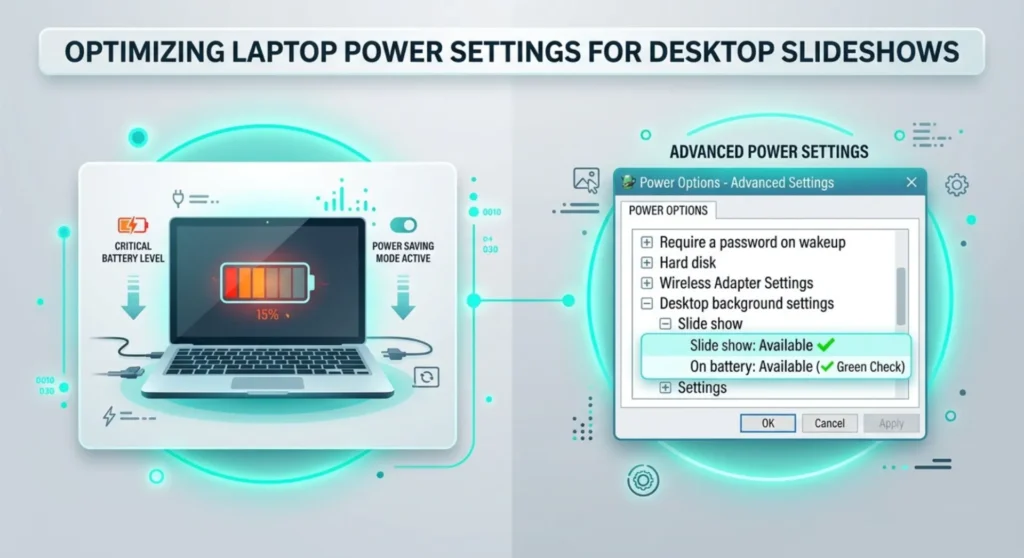
Windows has a long-standing behavior, present since Windows 7 and surviving into Windows 11, where certain power-saving configurations disable desktop wallpaper to reduce GPU memory usage. This almost always surfaces when battery saver activates, or on systems with aggressive power plans.
Check 1 — Battery Saver:
Settings → System → Power & battery → under Battery saver, look for a setting related to display or background → confirm “Turn off wallpaper in battery saver” is not enabled.
On some Windows 11 builds this appears as: Settings → System → Power & battery → Battery saver → “Lower screen brightness when using battery saver” – this doesn’t directly disable wallpaper, but on certain hardware configurations the battery saver state clears the wallpaper as part of aggressive power reduction.
Check 2 — Power Plan Settings:
Right-click the battery icon → Power and sleep settings → Additional power settings (or search “Power Options” in Control Panel) → click Change plan settings on your active plan → Change advanced power settings → expand Desktop background settings → expand Slide show → confirm it’s set to Available rather than Paused.
If Slide show is set to Paused: Windows is not applying wallpaper updates while on this power plan. Set to Available. This doesn’t sound like it would affect a static wallpaper, but Windows’ wallpaper application pipeline uses the slide show timer even for single images, pausing it effectively freezes the wallpaper at whatever state it was in when the plan activated, which can be black if the timing was wrong.
Hidden Location 4 – Group Policy or MDM Is Actively Preventing Wallpaper
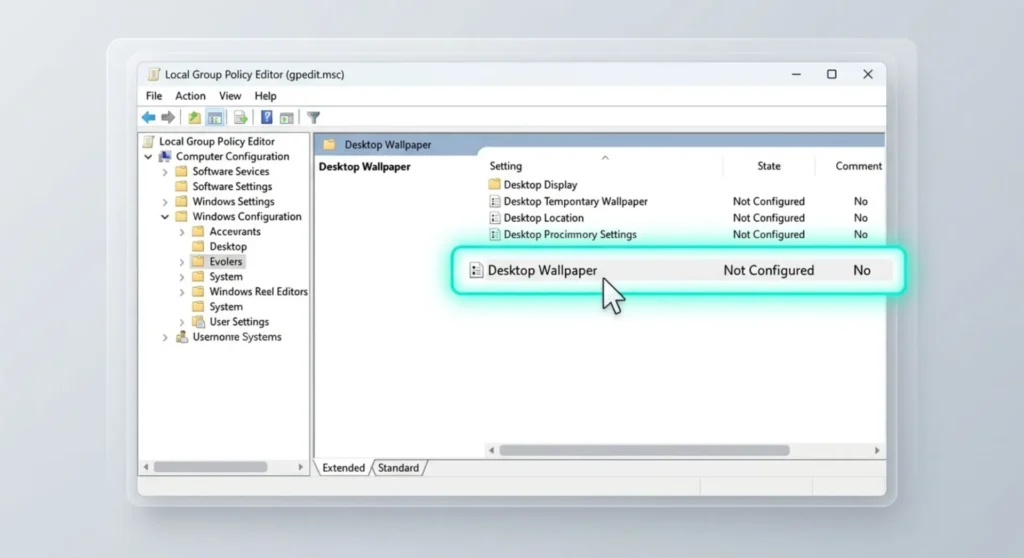
If your PC was previously joined to a domain, recently set up from an enterprise image, or had MDM configuration applied through a work account, Group Policy settings may be preventing wallpaper from loading or enforcing a blank background.
This is particularly common on:
- PCs that were previously managed by an employer and then repurposed for personal use
- Systems set up through a work Microsoft account that had MDM policies pushed to them
- PCs where a previous user ran Windows configuration scripts
Check via Group Policy Editor:
Press Windows + R → type gpedit.msc → Enter (Windows Pro and above only).
Navigate to: User Configuration → Administrative Templates → Desktop → Desktop
Look for these policies:
- “Desktop Wallpaper” – if enabled, it specifies a wallpaper path. If the path is blank or points to a deleted file, the desktop goes black.
- “Prevent changing desktop background” – if enabled, blocks users from setting any wallpaper and may force the current (possibly black) background to persist.
Set any enforcing policies to Not Configured. Close Group Policy Editor. Restart.
For Windows Home users (no Group Policy Editor):
Registry Editor → navigate to:
HKEY_CURRENT_USER\Software\Microsoft\Windows\CurrentVersion\Policies\System
and
HKEY_LOCAL_MACHINE\SOFTWARE\Microsoft\Windows\CurrentVersion\Policies\System
In both locations, look for a DWORD value named NoChangingWallPaper with a value of 1. Right-click → Delete. Also look for a key named Wallpaper in HKEY_CURRENT_USER\Control Panel\Desktop, if it exists and points to an empty string or a non-existent file path, that’s the policy-set wallpaper path causing the black desktop.
Hidden Location 5 – The Registry Wallpaper Path Is Broken
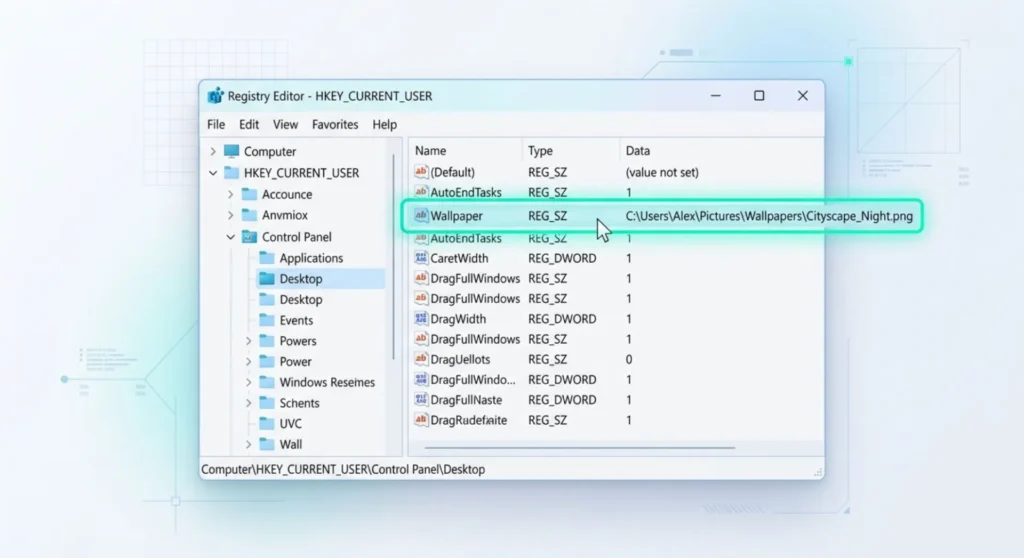
This is the fix for a wallpaper that used to work but went black after you moved, renamed, or deleted an image file or after a Windows Update that reorganized user profile paths.
Windows stores the active wallpaper path in the registry at:
HKEY_CURRENT_USER\Control Panel\Desktop
Inside this key, find the value named Wallpaper. Double-click it and look at the path it contains.
Common broken path patterns:
- The path points to a file that no longer exists (you moved or deleted the original image)
- The path contains a username or folder name that changed
- The path is completely empty (a Windows Update or profile migration cleared it)
- The path contains garbled or truncated text (rare corruption case)
Fix:
Change the Wallpaper value to the full path of your desired wallpaper image for example:
C:\Users\YourName\Pictures\wallpaper.jpg
Make sure the path uses backslashes, not forward slashes, and that the file actually exists at that exact location. Close Registry Editor, then either restart or right-click the desktop → Refresh. The wallpaper should appear immediately.
Alternatively, just use the Settings UI: Personalize → Background → Browse → navigate to your image → Set as desktop background. This updates the registry key automatically and is the easier path if the image file is accessible.
Hidden Location 6 – Wallpaper Slideshow Is Stuck on a Missing Image
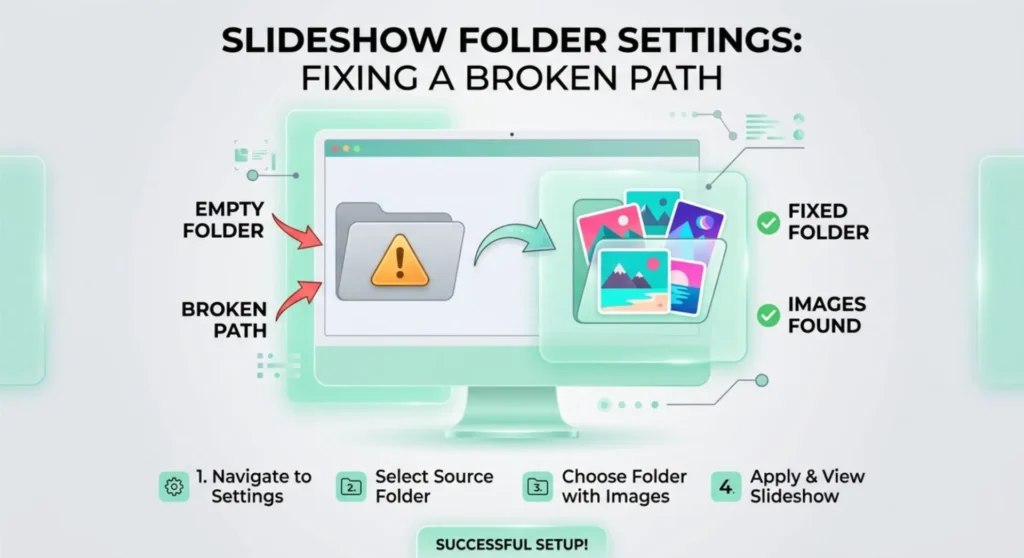
If your wallpaper was set to a slideshow and the folder containing the images was moved, renamed, or cleared or if individual images in the slideshow folder were deleted. Windows can get stuck trying to display an image that doesn’t exist and falls back to black.
Fix:
Right-click desktop → Personalize → Background → if the option shows “Slideshow,” click the folder path shown, it may be pointing to a deleted or moved folder.
Either update the folder path to the correct new location of your images, or switch from Slideshow to Picture and select a single image. The slideshow mode is more brittle than a single image setting because it depends on the folder contents being stable.
If the folder exists but images were deleted from it: either add images back to the folder or point the slideshow to a different folder with content. Windows needs at least one valid image in the slideshow folder to display a wallpaper, an empty folder produces a black desktop.
Hidden Location 7 – A Windows Update Reset Your Personalization
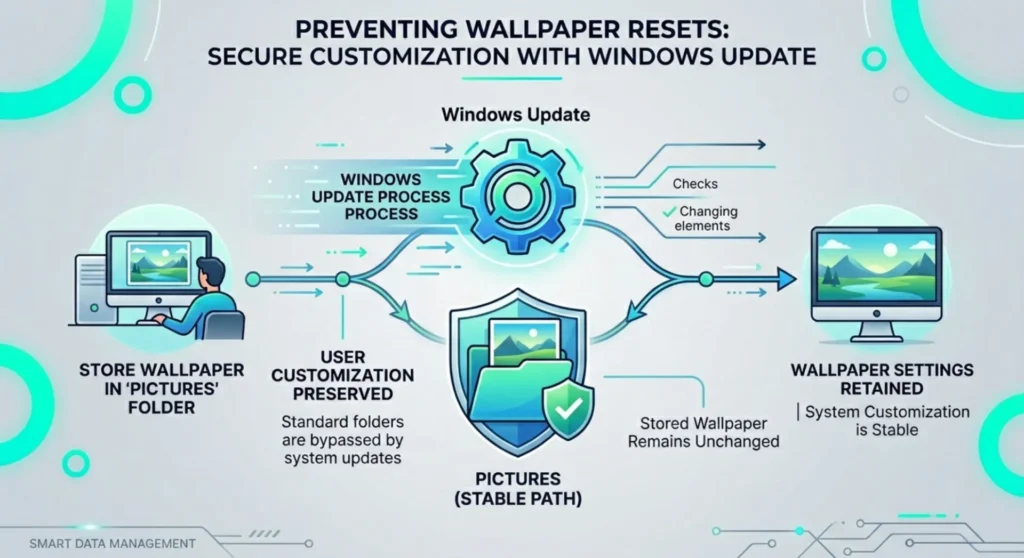
Windows Feature Updates, the major twice-yearly updates are documented to occasionally reset personalization settings including wallpaper, particularly when the update involves significant changes to the user profile infrastructure or when the update includes a sign-in session migration.
This is one of the most straightforward causes: the update happened, the wallpaper went black, nothing else changed.
The immediate fix:
Personalize → Background → set your wallpaper again. This is quick to do the wallpaper was cleared by the update, but the setting itself is simple to restore.
Making it more resilient:
Save your preferred wallpaper image in a stable location – C:\Users\YourName\Pictures or a OneDrive-synced folder, rather than in Downloads, on an external drive, or in a location that could be cleared during system maintenance. Windows Feature Updates sometimes clear user-set paths that were in temporary or unusual locations while preserving paths in standard user folders.
Set your wallpaper from that stable location. Future updates that reset the path will default to… nothing (still annoying), but restoring from a known stable path takes ten seconds.
When Nothing Works – Resetting Windows Personalization Entirely
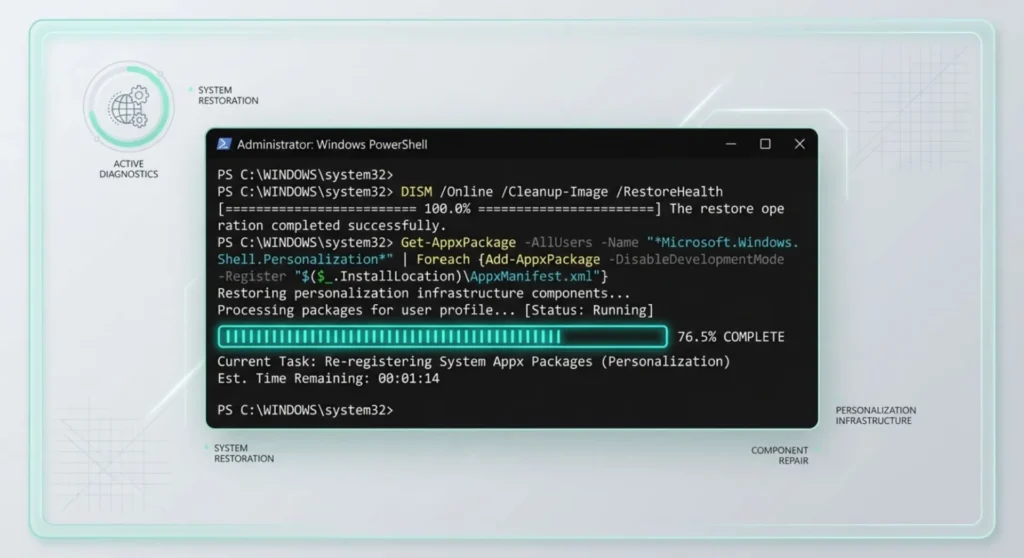
If every location above has been checked and the wallpaper still won’t stick, appearing briefly and then reverting to black, the personalization service itself has a problem.
Restart the Desktop Window Manager:
Task Manager (Ctrl + Shift + Esc) → Details tab → find dwm.exe → right-click → End task. Windows restarts DWM automatically within a second. This resets the Desktop Window Manager, the component responsible for compositing the desktop including wallpaper rendering, without requiring a full system restart.
Re-register the wallpaper settings via PowerShell:
Open PowerShell as administrator (search “PowerShell” → right-click → Run as administrator):
Get-AppxPackage -AllUsers Microsoft.Windows.Photos | Foreach {Add-AppxPackage -DisableDevelopmentMode -Register "$($_.InstallLocation)\AppXManifest.xml"}
Then:
DISM /Online /Cleanup-Image /RestoreHealth
The first command re-registers the Windows Photos app, which handles wallpaper image processing. The second runs Windows component repair that can restore corrupted personalization infrastructure files.
After both commands complete, restart and set your wallpaper fresh.