By Derek V. Mackown | IT Technician & Display Hardware Specialist
You open Device Manager, expand the Monitors section, and see it: Generic PnP Monitor. Not your monitor’s actual name. Not its model number. Just a generic placeholder that tells you Windows has met your display, recognized it exists, and then decided it has no idea what it actually is.
The symptoms that follow from this are specific. Your refresh rate is stuck, you can’t select 144Hz or 165Hz or 240Hz even though your monitor is rated for it. The resolution list might be incomplete. HDR doesn’t appear in Display Settings even though your monitor supports it. Your monitor is fully functional and the image looks fine, but Windows is treating it like a dumb rectangle that shows pixels rather than a sophisticated display device with specific capabilities.
The fix is a monitor driver installation and here’s what most people don’t realize: monitors have their own drivers, completely separate from your GPU driver. Installing a new Nvidia or AMD driver does nothing for Generic PnP Monitor because the GPU driver and the monitor driver are two separate things in Windows. Understanding why clears up why the usual “update your drivers” advice doesn’t work here.
Two Drivers, One Display – What Windows Actually Needs
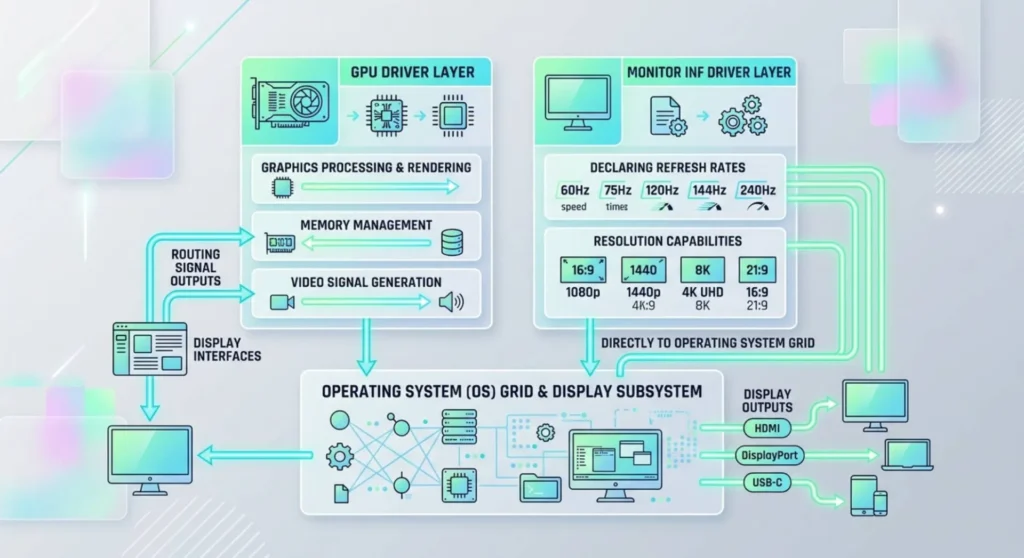
Your display setup in Windows involves two completely separate driver layers working together.
The GPU driver (Nvidia, AMD, Intel) tells Windows how to use the graphics processor to render images and output signals through the HDMI or DisplayPort connection. This is what most people mean when they say “update your display drivers.”
The monitor driver (the INF file specific to your monitor model) tells Windows what the connected display is capable of its supported resolutions, its supported refresh rates, whether it supports HDR, what color spaces it can handle. Windows reads this information and uses it to populate the options you see in Display Settings.
When Windows installs the Generic PnP Monitor driver, it means it received EDID data from your monitor (it knows the display exists), but it couldn’t match that EDID to a known monitor INF profile in its database. So it falls back to a generic capability profile, which is conservative by design. The generic profile won’t claim HDR support it can’t verify. It won’t offer refresh rates it can’t confirm. It offers what it’s certain every monitor can handle: basic resolutions and 60Hz.
Your monitor has more capability than that. Windows just doesn’t know about it yet.
First – Confirm You Actually Have This Problem
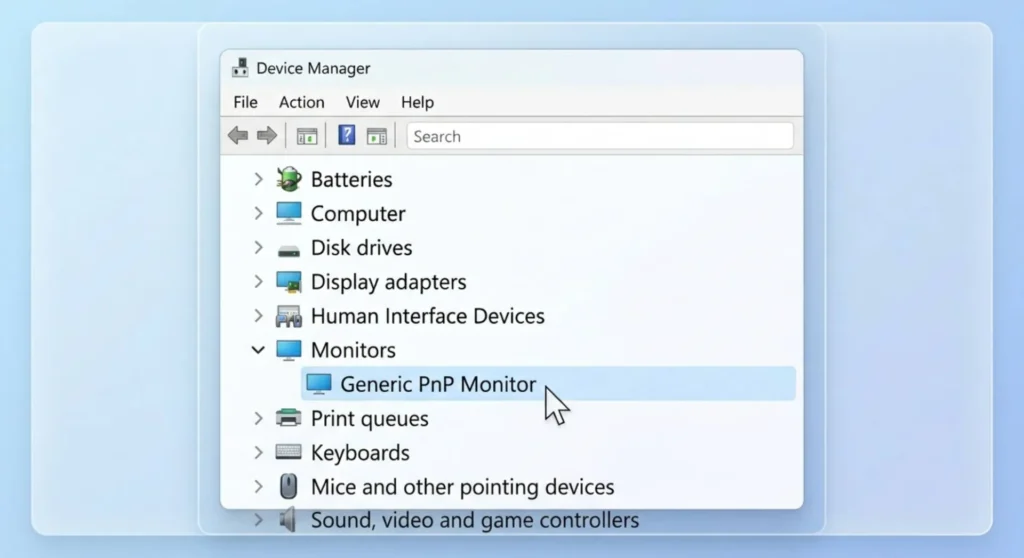
Device Manager is the confirmation tool. Press Windows + X → Device Manager → expand Monitors.
What you want to see there is your monitor’s actual model name, something like “ASUS VG279QM” or “LG 27GP950-B” or “Dell S2722DGM.” What Generic PnP Monitor means is Windows is using the fallback.
One important distinction before proceeding: Generic PnP Monitor and Generic Non-PnP Monitor are different problems.
Generic PnP Monitor – Windows received EDID data and is using a generic driver because no specific INF was available. The monitor is detected and working; the driver is just wrong.
Generic Non-PnP Monitor – Windows couldn’t read EDID at all. Often caused by a bad cable or a connection that can’t carry EDID signal data. If you see this label instead, replace your cable first, the EDID communication line isn’t functioning, and no driver installation will fix it until the cable carries data reliably.
Confirmed you have Generic PnP Monitor? Good. Here’s how to fix it, from simplest to most thorough.
Fix 1 – Let Windows Find the Right Driver Automatically
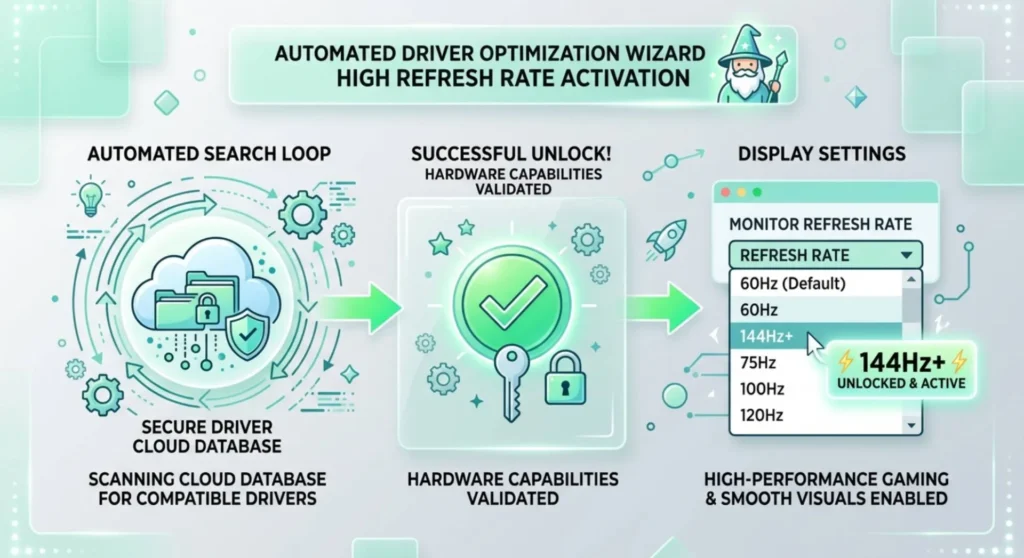
This takes two minutes and works surprisingly often, especially for popular monitor models that Microsoft has included in its driver catalog.
In Device Manager → expand Monitors → right-click Generic PnP Monitor → Update driver → Search automatically for drivers.
Windows searches its local driver cache and Windows Update for a matching monitor INF. If your monitor model is in Microsoft’s catalog, it installs the correct profile and replaces Generic PnP Monitor with your monitor’s actual name.
After the update: right-click desktop → Display Settings → Advanced display → check what refresh rate options are now available. If 144Hz, 165Hz, or your monitor’s rated maximum now appears in the dropdown, the driver installed correctly and your monitor is now recognized.
If the search returns “The best drivers for your device are already installed”, Windows doesn’t have a profile for your specific monitor in its current catalog. Move to Fix 2.
Fix 2 – Download and Install the Monitor’s INF Driver Directly
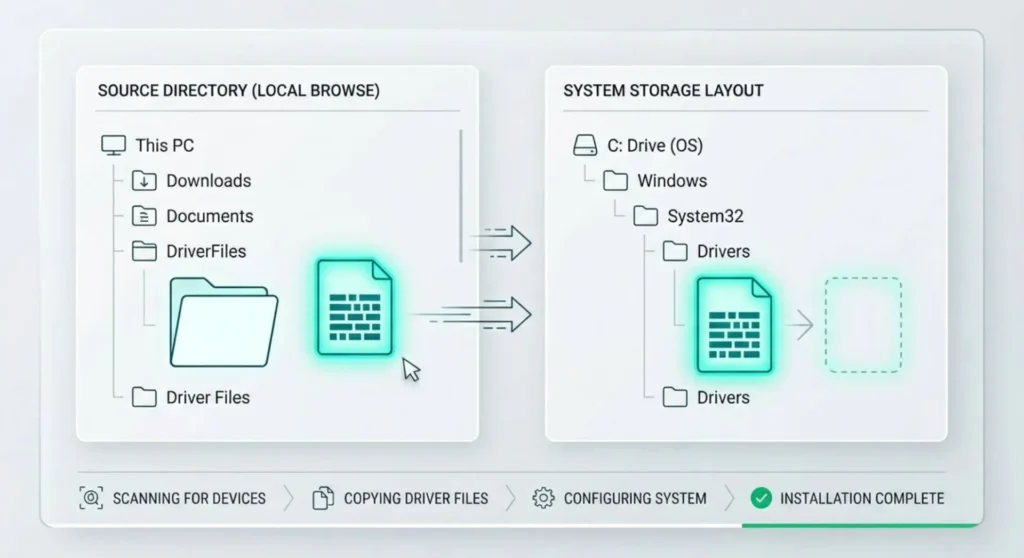
Every major monitor manufacturer publishes INF driver packages on their support website. These files tell Windows precisely what the monitor can do its full resolution list, every supported refresh rate, HDR capabilities, color gamut data, everything. Installing the manufacturer’s INF is the most complete fix and the one that unlocks every capability your monitor supports.
Finding your monitor’s INF driver:
Go to your monitor manufacturer’s support page and search by model number. Every major brand hosts these:
| Manufacturer | Support URL |
|---|---|
| ASUS | asus.com/support → search model number → Drivers & Tools → Monitor |
| Dell | dell.com/support → enter Service Tag or model → Drivers → Monitor |
| LG | lg.com/support → search model → Software & Drivers |
| Samsung | samsung.com/support → search monitor model → Downloads |
| BenQ | benq.com/support → product → Software |
| Acer | acer.com/support → search serial number → Drivers |
| ViewSonic | viewsonic.com/us/service-and-support → search model |
| AOC / AGON | aoc.com/support → search model |
| MSI | msi.com/support → search monitor model |
Download the monitor driver package, it’s usually a small ZIP file containing an INF file and sometimes a CAT (catalog) file. Extract it to a folder you can find.
Installing the INF:
- Device Manager → Monitors → right-click Generic PnP Monitor → Update driver
- Select Browse my computer for drivers
- Click Browse → navigate to the folder containing the extracted INF file → click OK
- Make sure “Include subfolders” is checked
- Click Next
Windows installs the INF. The monitor entry in Device Manager updates from Generic PnP Monitor to your monitor’s actual model name and number. You’ll see the change happen live in Device Manager.
Restart Windows after installation. Some monitor driver capabilities, particularly HDR and high refresh rate enablement, don’t fully apply until after a restart allows Windows to reinitialize the display stack with the new profile.
After restarting: Display Settings → Advanced display. Your monitor’s full rated refresh rate should now appear in the dropdown. Settings → System → Display → HDR should now show your monitor’s HDR capability if it supports it.
Fix 3 – The Manual Uninstall and Rescan Method
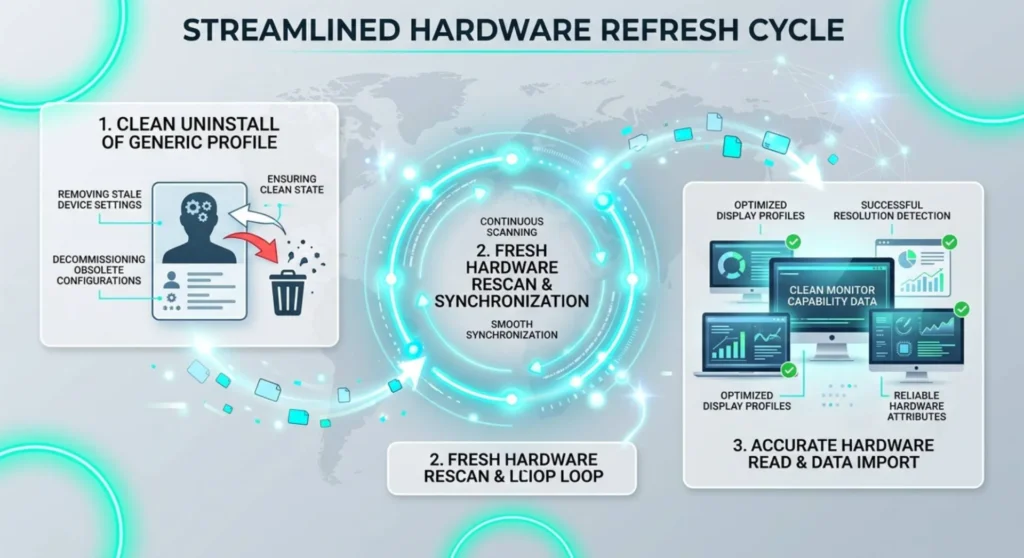
If Fix 2 installed but Windows reverted to Generic PnP Monitor after a restart or if you’re getting “Windows could not find a driver for your device” during the INF installation, this method forces Windows to rebuild the monitor detection from scratch.
- Device Manager → Monitors → right-click Generic PnP Monitor → Uninstall device → confirm
- At the top of Device Manager: Action → Scan for hardware changes
Windows detects the monitor connection again and performs a fresh EDID read and driver matching attempt. If the INF driver from Fix 2 was correctly installed to Windows’ driver store, it will be matched and applied automatically during this rescan.
If Windows rescans and reinstalls Generic PnP Monitor again, the INF isn’t in the driver store yet. In this case: instead of right-clicking and selecting Update driver, try right-clicking → Properties → Driver tab → Update Driver → Browse → navigate to the INF folder. This approach forces Windows to write the INF to the driver store before the rescan, so it persists.
Fix 4 – Force the Refresh Rate Through the GPU Control Panel
This is a parallel fix rather than a replacement for the driver installation, it directly unlocks the refresh rate even while Generic PnP Monitor is still installed, and it confirms whether the monitor hardware is capable before the driver issue is fully resolved.
Nvidia Control Panel:
Right-click desktop → Nvidia Control Panel → Display → Change resolution → select your monitor from the left panel.
Under Refresh rate, open the dropdown. Click Customize at the bottom → Create Custom Resolution → enter your monitor’s rated resolution and refresh rate (e.g., 2560×1440 at 165Hz) → Test. If the screen accepts the test resolution cleanly for 15 seconds, click OK and it’s added to the dropdown. Select it as your active resolution.
This works because the Nvidia driver can drive your monitor at any resolution and refresh rate the hardware supports, regardless of what the Windows monitor driver profile says. The GPU doesn’t need the monitor INF to output at 144Hz, but Windows Display Settings does need it to expose that option in its UI. The GPU control panel bypasses that requirement.
AMD Radeon Software:
Radeon Software → Display → Custom Resolutions → click the + button → enter your target resolution and refresh rate → Save. The custom resolution becomes available in the Display tab and in Windows Display Settings.
Important: After creating a custom resolution, go to Windows Display Settings → Advanced display and confirm the custom resolution appears in the dropdown. If it does, you’ve unlocked the refresh rate through the GPU side. This doesn’t replace the INF driver installation, HDR and other monitor-specific features still need the correct INF, but it gets your refresh rate working immediately while you complete the driver installation.
Fix 5 – Prevent Windows Update from Reinstalling Generic PnP
Windows Update can silently reinstall Generic PnP Monitor over your correct INF driver, particularly after Windows Feature Updates that rescan and reassign monitor drivers from the Windows catalog. If you’ve installed the correct INF and Generic PnP Monitor keeps coming back, Windows is overwriting it.
Pin your monitor driver against Windows Update:
Download the “Show or hide updates” troubleshooter from Microsoft (search “wushowhide.diagcab” on Microsoft’s support site). Run it → Hide updates → look for any monitor-related driver update in the list → hide it. Windows Update will no longer replace your installed monitor INF with the generic version.
Alternatively, via Group Policy (Windows Pro and above):
Press Windows + R → gpedit.msc → Computer Configuration → Administrative Templates → System → Device Installation → Device Installation Restrictions → Prevent installation of devices not described by other policy settings → set to Enabled. This prevents Windows from automatically installing or changing drivers for any device not explicitly covered by your policies, including overwriting your monitor INF.
For Windows Home users:
The Group Policy path above isn’t available. The wushowhide.diagcab tool is the practical alternative for hiding the specific Generic PnP Monitor driver update that keeps reinstalling.
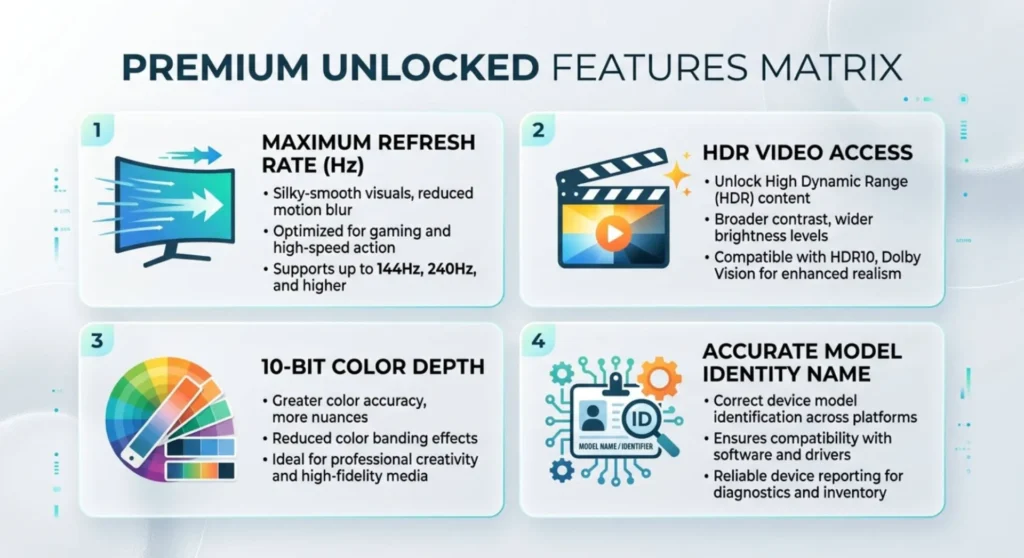
What Gets Unlocked When This Is Fixed
It’s worth knowing exactly what changes when Generic PnP Monitor is replaced with your monitor’s actual driver, because some of these improvements aren’t immediately obvious.
Refresh rate options: The most visible change. Your monitor’s rated maximum refresh rate appears in Display Settings → Advanced display → refresh rate dropdown. If you’ve been stuck at 60Hz on a 144Hz monitor, this is the fix.
HDR access: Windows only enables HDR in Display Settings when the monitor driver explicitly declares HDR capability. Generic PnP Monitor doesn’t declare HDR. Installing the correct INF for an HDR-capable monitor makes the HDR toggle appear in Settings → System → Display → HDR.
Color depth options: The correct INF unlocks 10-bit color output on monitors that support it. This matters for photo editing and video work, without the correct driver, Windows may only offer 8-bit color through the Generic PnP profile.
Accurate display name: Every application and utility that references your display by model name, including Windows itself in the Display Settings page will show your monitor’s actual identity rather than the placeholder. Nvidia Control Panel, AMD Radeon Software, and third-party monitor calibration tools all work better when Windows correctly identifies the connected display.