By Derek V. Mackown | IT Technician & Display Hardware Specialist
“No Signal” on a monitor connected to a desktop PC that’s clearly running, fans spinning, lights on, keyboard lit up is one of the most disorienting things to see when you sit down to use your computer. The machine is alive. The monitor just isn’t seeing it.
Before anything else: this is almost always a hardware issue sitting between the PC and the monitor. Not Windows, not a driver, not a software setting, because Windows hasn’t even loaded yet. “No Signal” means the monitor is getting power but not receiving a video signal from the GPU. Everything that needs to be fixed is physical.
The six steps below go from the easiest and least invasive to the most hands-on. Most people find their problem in the first three without touching the inside of the PC at all. If you’ve already done the basics and you’re still stuck, Steps 4 through 6 are where the real hardware fixes live.
What Your Monitor Is Telling You Right Now
Before Step 1, spend thirty seconds reading what’s actually on your screen. The exact message and LED state on your monitor narrows the problem significantly.
“No Signal” text on screen with LED amber/orange: The monitor is powered, it’s actively looking for a signal, and it’s not finding one. The PC either isn’t sending a video signal at all, or it’s sending on a port the monitor isn’t set to receive on. This is the most common scenario and the most fixable.
Black screen, no text, LED amber/orange: Same electrical situation as above, monitor is in standby waiting for signal. The “No Signal” text may just not have appeared yet, or your monitor doesn’t display that message.
Black screen, no text, LED off: The monitor itself has no power. Check the power cable at both ends before reading any further, this isn’t a PC problem yet.
“No Signal” appears briefly then goes black repeatedly: The GPU is sending something intermittently, usually a sign of a loose cable connection or a GPU that’s partially seated. The monitor handshakes momentarily and then lose the connection. Step 1 and Step 4 are your targets.
Screen shows the monitor’s own logo then “No Signal”: The monitor is fully functional; it’s showing its startup splash and then reporting correctly that nothing is arriving from the PC. The problem is entirely on the PC side.
Step 1 – Check the Cable and the Monitor’s Input Source
This fixes it for more people than any other step and takes two minutes.
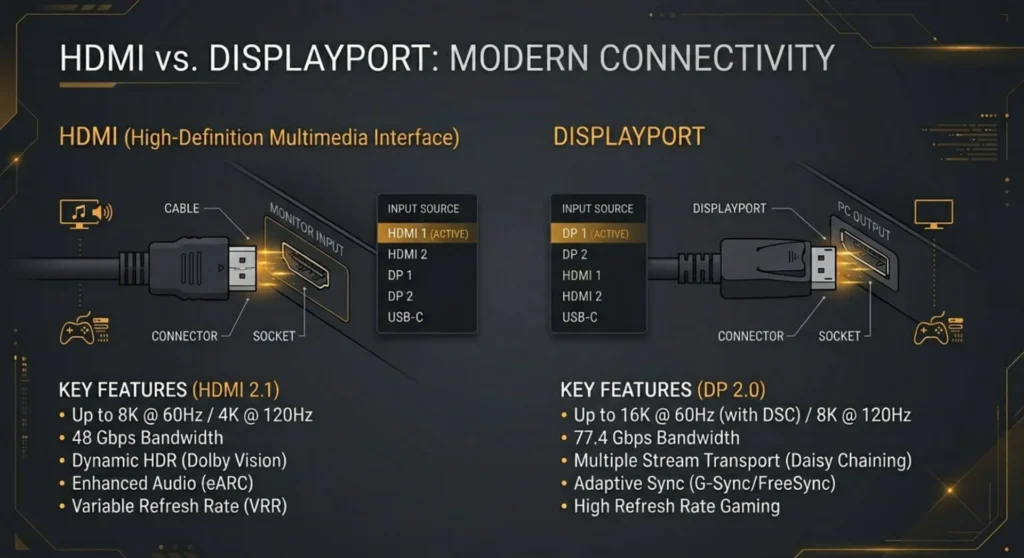
Check the physical cable first. Push both ends of the cable firmly into their ports, the GPU end and the monitor end. HDMI and DisplayPort connectors can feel seated when they’re actually a millimeter short of full engagement. Unplug completely, blow any dust out of the ports, and reconnect with deliberate pressure. If the cable is HDMI, confirm the connector clicks or sits flush without play.
Try a different cable if you have one. HDMI cables in particular fail internally without any visible damage. A cable that worked for two years can develop a micro-fracture that looks fine but stops carrying signal. If you have another cable, borrow one if needed, swapping it is the fastest possible test.
Check the monitor’s input source setting. The monitor has physical buttons on its body, usually on the side or bottom edge. Press the menu button and look for “Input,” “Source,” or “Signal.” Confirm it’s set to the correct input type for the cable you’re using, HDMI 1, HDMI 2, DisplayPort 1, DisplayPort 2, whatever matches your actual connection. A monitor set to HDMI 2 while the cable is in the HDMI 1 port will show “No Signal” regardless of everything else being correct.
This last point solves roughly one in five “No Signal” calls I receive. People add a second monitor, swap a cable, or buy a new monitor and forget to set the input source. Check it every time.
Step 2 – Make Sure You’re Using the Right Port on the PC
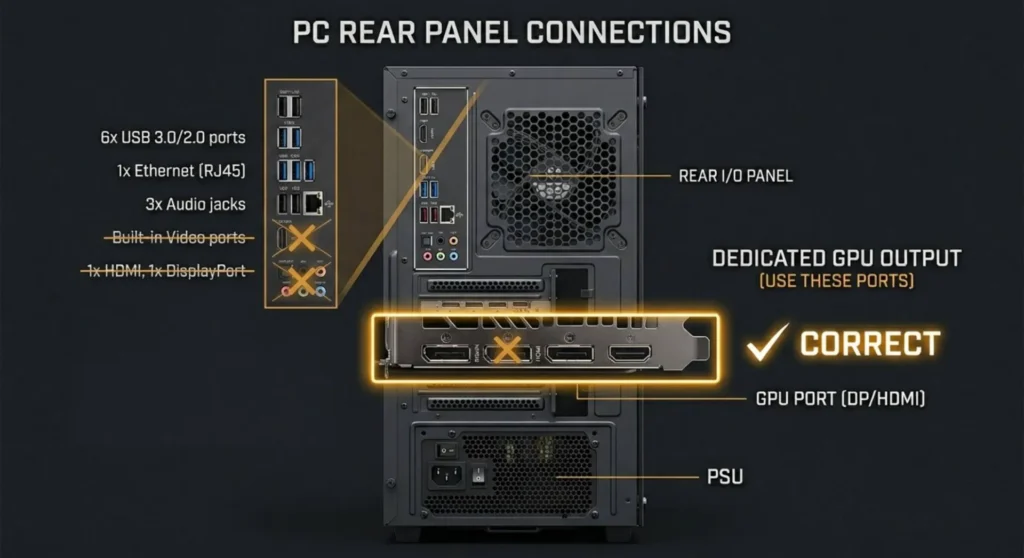
This is the single most common hardware mistake and it produces exactly this symptom: the PC runs, the monitor shows “No Signal,” everything looks connected.
Are you plugged into the motherboard or the GPU?
Most desktop PCs have two sets of display ports, one set on the back of the GPU (the graphics card that slots into the motherboard) and one set directly on the motherboard itself (integrated graphics). They look similar from the outside. They are not interchangeable if you have a dedicated GPU.
If you have a dedicated graphics card installed Nvidia, AMD or Intel Arc, you must plug your monitor into the GPU, not the motherboard. The GPU is always the larger component with its own fan(s), sitting in a PCIe slot in the lower half of the case. Its display ports are usually slightly recessed in a metal backplate below the main motherboard ports.
Plugging into the motherboard ports when a dedicated GPU is installed produces “No Signal” in most setups because the motherboard’s integrated graphics are disabled automatically when a dedicated GPU is detected.
How to tell them apart from the back of the PC:
The motherboard’s display ports sit alongside the USB ports, audio jacks, and ethernet in the top cluster of ports. The GPU’s display ports are lower down, in their own row, usually with a distinctive array of HDMI and DisplayPort connectors sitting together behind the GPU’s metal bracket.
If you look at the back of your PC and see two groups of display ports, one near the top alongside USB/audio, one lower down on its own, use the lower group. That’s the GPU.
If you’re not sure whether you have a dedicated GPU:
Look through the side panel of the case (or look at the purchase specifications). If there’s a separate card installed in the motherboard with its own fans and heat sink, that’s a dedicated GPU. If the display ports are the only ones available and they’re in the main cluster alongside USB ports, you have integrated graphics only, which is fine, that’s where you plug in.
Step 3 – Power Cycle the PC and Monitor Together
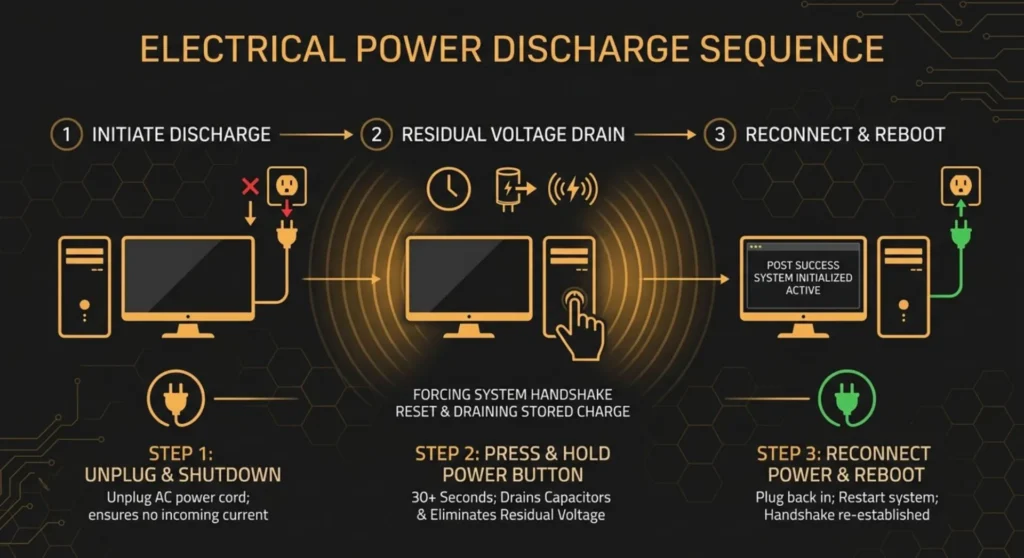
Sometimes the GPU and monitor fail to complete their initial handshake, the exchange of display capability information that happens when a connection is first established. A full power cycle forces both devices to restart that handshake from scratch.
The full power cycle:
- Turn the monitor completely off using its power button, not just standby, fully off
- Shut the PC down through Windows if you can access it, or hold the power button for 5 seconds to force it off if you can’t
- Unplug the display cable from both ends
- Wait 30 seconds, this allows any residual charge in the GPU’s display output circuitry to discharge
- Reconnect the cable firmly at both ends
- Power on the monitor first, then the PC
Powering the monitor on before the PC means the monitor is already actively looking for a signal when the GPU initializes, which can prevent a missed handshake that sometimes occurs when the PC starts before the monitor is ready.
This step resolves situations where everything is correctly connected but the GPU and monitor got into a state where they stopped communicating, common after power outages, sudden shutdowns, or cable reconnections with the PC still running.
Step 4 – Reseat the Graphics Card
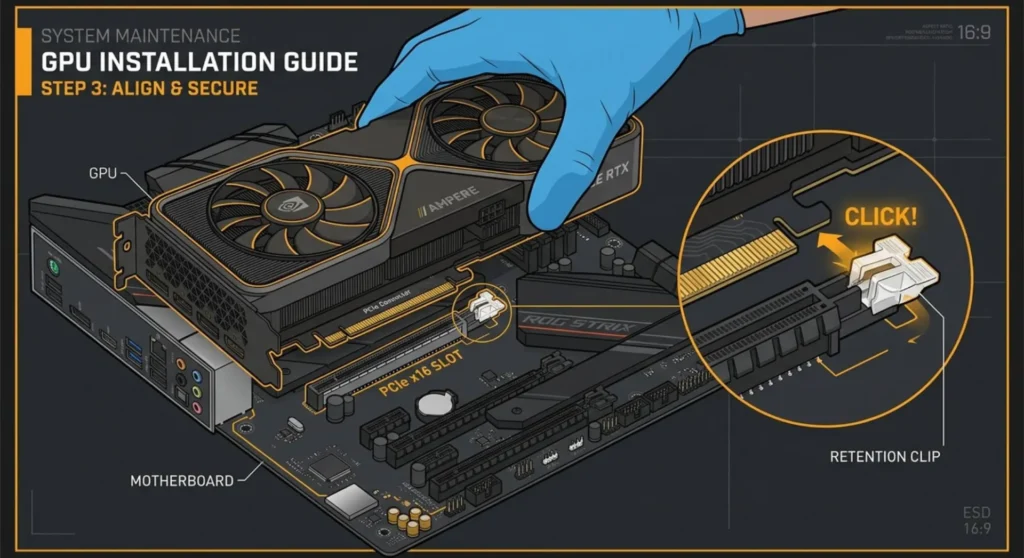
If Steps 1-3 haven’t resolved it, the GPU may not be making proper electrical contact with the motherboard’s PCIe slot. This is more common than you’d expect, thermal cycling (the GPU expanding and contracting with temperature changes over years of use), physical movement of the PC, or simply a card that was never fully seated initially can all cause partial contact that produces intermittent or permanent “No Signal.”
Before opening the case:
Make sure the PC is completely powered off and the power cable is unplugged from the back of the PC. Not just turned off, unplugged from the wall outlet. Touch the metal PC case frame to discharge any static electricity before touching components inside.
Reseating the GPU:
- Open the side panel of the PC case — usually two thumbscrews at the back or a sliding mechanism
- Locate the GPU — it’s the largest expansion card, sitting in the PCIe x16 slot (the longest PCIe slot, usually the topmost one)
- Disconnect the PCIe power cables from the GPU if present — these are 6-pin or 8-pin connectors plugged directly into the card’s side or top
- Press the small retention clip at the end of the PCIe slot (it’s usually a plastic tab that snaps outward) — this releases the GPU
- Pull the GPU straight out, smoothly and evenly — it slides out along the slot
- Look at the gold contacts on the GPU’s edge — they should be clean and undamaged. If they look dirty or tarnished, gently wipe them with a dry pencil eraser and remove any residue with a dry cloth
- Re-insert the GPU firmly and evenly — press down until the retention clip clicks back into place. You should feel and hear the click
- Reconnect the PCIe power cables
- Close the case, plug in the power cable, power on
A GPU that was slightly unseated often produces exactly this symptom, the PC runs because the partial contact provides power, but the PCIe data lanes aren’t fully connected so no video signal is generated.
Step 5 – Reseat the RAM
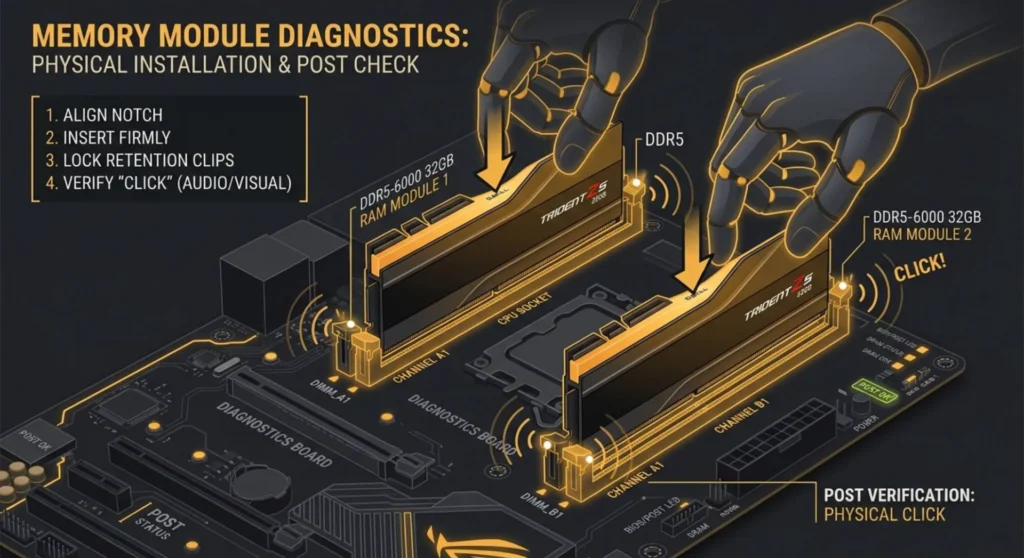
This one surprise people because RAM seems unrelated to display output. But “No Signal” is frequently a symptom of a PC that isn’t completing POST (Power-On Self-Test), the hardware initialization that happens before Windows loads. If POST fails, no video signal is generated because the system never reaches the point of initializing the GPU for output.
RAM is the most common cause of POST failure on desktops. A RAM stick that’s partially unseated or has developed dirty contacts will cause POST to fail silently, the PC appears to be running (fans spin, lights come on) but nothing actually initializes, and the monitor sees no signal because the GPU was never told to start.
How to identify if RAM is the cause:
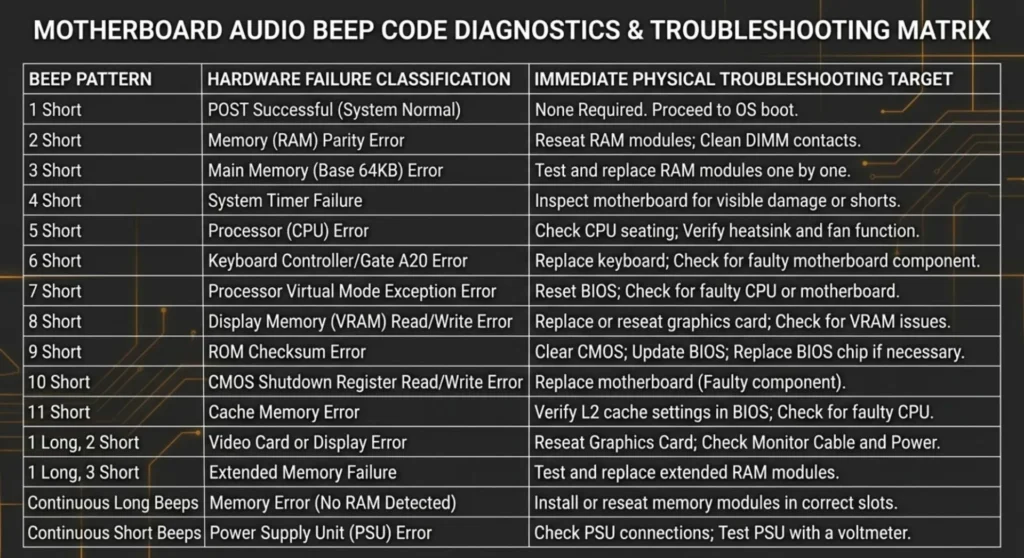
Many motherboards signal POST errors through beep codes, listen carefully when the PC starts. Repeated beeps, or a specific pattern of beeps, while the screen shows “No Signal” indicates a POST error rather than a display problem. Common patterns:
| Beep Pattern | Common Meaning |
|---|---|
| 1 long, 2 or 3 short | Video error (GPU or display) |
| 3 long beeps | Memory (RAM) error |
| Continuous short beeps | RAM not detected or not seated |
| No beeps, no display | Possible RAM failure or motherboard issue |
Reseating the RAM:
- With the PC powered off and unplugged, open the side panel
- RAM sticks sit in upright slots near the CPU — they’re held in by clips at each end
- Press both clips outward simultaneously — the RAM stick pops up slightly
- Pull it straight out
- Look at the gold contacts along the bottom edge — clean with a dry pencil eraser if tarnished
- Re-insert firmly, pressing straight down until both clips click back into place
- If you have two RAM sticks, reseat both
- If your motherboard has four RAM slots but you’re using two sticks, confirm the sticks are in the correct slots — check your motherboard manual for the recommended dual-channel configuration (usually slots 2 and 4, or slots A2 and B2 as labeled)
After reseating, power on and listen for beep patterns. Clean POST with RAM correctly seated should either produce one short beep (success) or no beep on newer systems that use LED indicators instead.
Step 6 – Test with Integrated Graphics and Reset BIOS
If Steps 1 – 5 haven’t resolved it, you need to determine whether the GPU itself has failed or whether there’s a configuration issue in the BIOS preventing video output.
Test with integrated graphics:
Remove the dedicated GPU from the PCIe slot entirely (the same process as Step 4, but don’t reinstall it). Connect your monitor directly to the motherboard’s display ports, the ones in the main port cluster alongside USB and audio.
Power on the PC.
If you get a display through the integrated graphics port: the GPU has likely failed, or there’s a BIOS setting directing output to the discrete GPU even when one isn’t present. You have a working system, just not with the dedicated GPU.
If you still get no signal even through the integrated graphics port: the problem is deeper than the GPU, the motherboard itself, the CPU, or a fundamental power issue. A PC that shows no signal through integrated graphics and no POST beeps with RAM correctly seated and CPU seated is exhibiting symptoms of a failed motherboard or CPU.
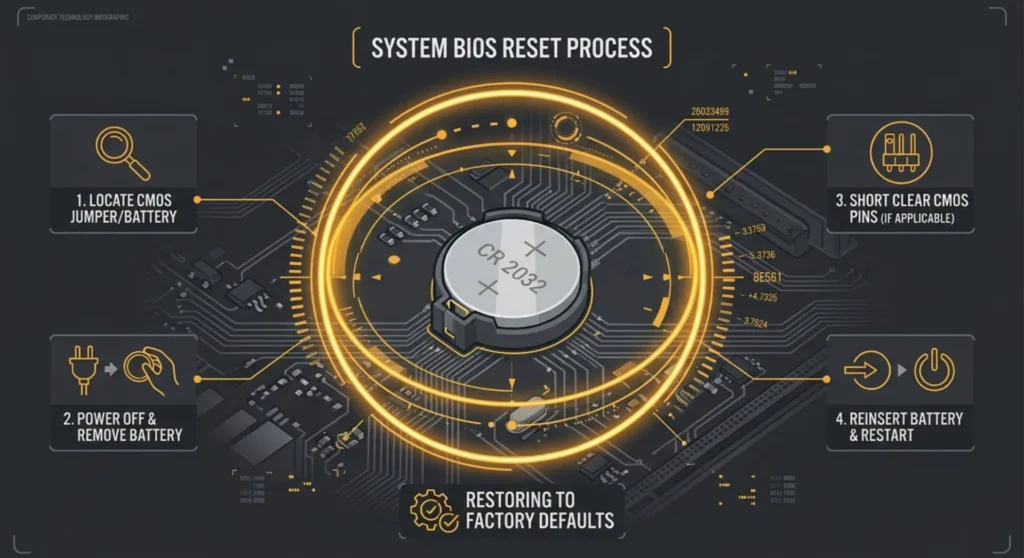
CMOS reset – clearing the BIOS to defaults:
Sometimes a corrupted BIOS setting, particularly display output priority or GPU initialization settings can prevent video output even when all hardware is correctly installed. Resetting the BIOS to factory defaults clears any such settings.
Method 1 – CMOS jumper: On the motherboard, locate the CMOS jumper (usually labeled CLR_CMOS, JBAT1, or CLEAR CMOS near the coin cell battery). With the PC powered off and unplugged, move the jumper from pins 1-2 to pins 2-3 for 10 seconds, then move it back. This clears the BIOS memory.
Method 2 – Remove the CMOS battery: The round coin cell battery (CR2032) on the motherboard holds BIOS settings. With the PC powered off and unplugged, remove the battery, wait 60 seconds, and reinsert. This resets all BIOS settings to factory defaults.
After either method: reconnect your GPU, connect the monitor to the GPU ports, and power on. The PC will boot with default BIOS settings which prioritize the dedicated GPU for display output.
When to Check the PCIe Power Cables Specifically
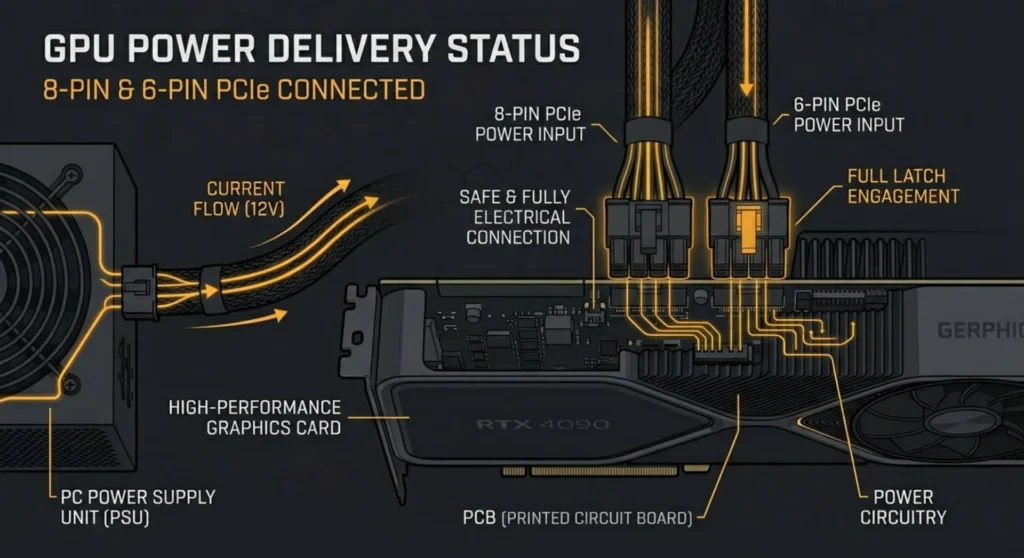
This deserves a specific mention because it’s easily missed in a general hardware check.
Modern dedicated GPUs require direct power connections from the PSU, separate from the PCIe slot itself. These are 6-pin or 8-pin cables (sometimes 6+2 pin for flexibility) that connect to the side or top of the GPU. A GPU that isn’t receiving adequate power through these cables can initialize partially. Enough for the PC to “see” the card and power the fans, but not enough to generate a display signal.
Check that all PCIe power connectors specified for your GPU are connected. A 3080 that requires two 8-pin connectors but only has one connected will often power on without display. Check your GPU model’s power requirements and confirm the cables from your PSU match.
Also check: some PSUs have multiple PCIe cables that share a connector on the PSU end. Using two PCIe cables from the same PSU connector is less ideal than using cables from separate connectors, separate connectors ensure each provides independent voltage, reducing stress on the PCIe power delivery circuit.