By Derek V. Mackown | IT Technician & Display Hardware Specialist
Screen tearing in games is one of those things that has a correct fix, but which correct fix depends entirely on your setup. Apply the wrong one and you trade tearing for stuttering, or you add input lag that makes your aim feel like you’re playing through syrup.
Most guides tell you to turn on V-Sync. That’s not wrong, exactly. It’s just incomplete. Traditional V-Sync solves tearing and introduces two other problems in the process. There are better options now, Fast Sync, Enhanced Sync, frame rate caps and the right combination depend on whether you have an adaptive sync monitor, how powerful your GPU is relative to the game you’re playing, and whether you’re prioritizing competitive feel or visual quality.
This guide is organized by setup type. Find your situation, read your section, apply your settings. Each configuration is complete, not just “turn this on” but the full combination of settings that actually works.
Why V-Sync Adds Input Lag | The Thing You Need to Understand First
Before any configuration, this one piece of context changes everything.
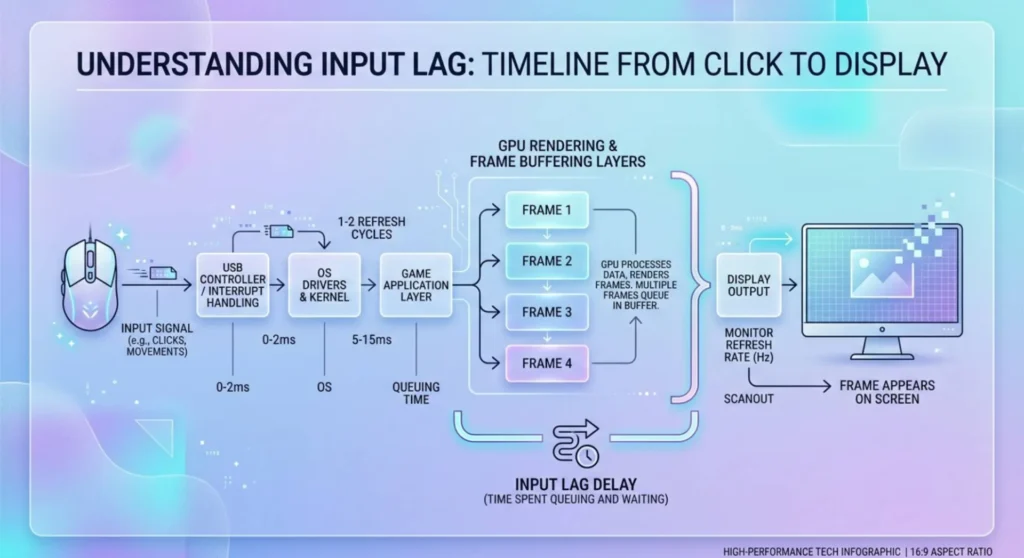
Traditional V-Sync works by forcing your GPU to wait before delivering a new frame. The GPU finishes rendering a frame. Instead of immediately handing it to the monitor, V-Sync holds it until the monitor has finished drawing the current frame and is ready for the next one. That waiting period is input lag, delay between your mouse movement or button press and the frame that reflects it appearing on screen.
How much lag? At 60Hz with V-Sync on and the GPU maintaining 60fps cleanly, roughly 16ms of added latency. Not catastrophic for single-player games. Noticeable in competitive shooters where you’re already working around network latency. But the worst case is when your framerate drops below the monitor’s refresh rate, say you’re getting 55fps on a 60Hz monitor with V-Sync on. V-Sync can’t maintain 60fps so it halves the display rate to 30fps, creating a jarring stutter that’s far more noticeable than the tearing it was preventing.
That’s the fundamental trade-off. Tearing happens when frames are delivered faster than the monitor refreshes. V-Sync prevents that, but it does it by making the GPU wait, and when the GPU can’t keep up, it staggers badly.
Everything below is about finding solutions that minimize or eliminate tearing without paying that latency and stutter penalty unnecessarily.
Configuration 1 – You Have a G-Sync or Free Sync Monitor
This is the best situation to be in and the configuration is the most straightforward.
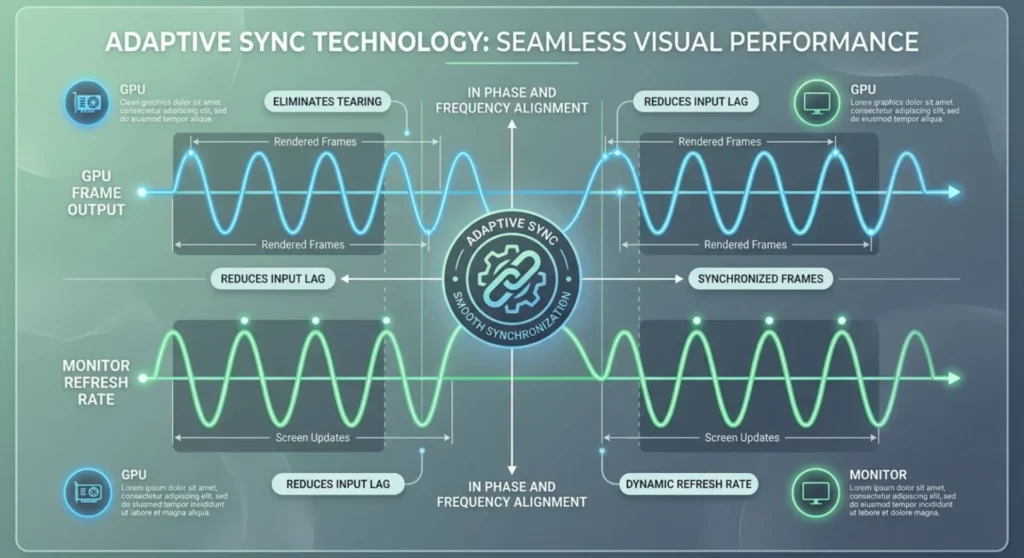
Adaptive sync monitors handle tearing at the hardware level. The monitor’s refresh rate dynamically matches your GPU’s output rate, so the frame is always delivered exactly when the monitor is ready for it. No waiting, no stutter, no tearing. The detailed setup procedure for this is in the G-Sync/Free Sync guide elsewhere in this series. But even with adaptive sync enabled correctly, there’s a specific V-Sync configuration that makes it work at its best.
The correct V-Sync setting with adaptive sync:
In Nvidia Control Panel → Manage 3D Settings → V-Sync → set to “Fast”.
In AMD Radeon Software → Graphics → Wait for Vertical Refresh → set to “Enhanced Sync” (or leave on AMD’s recommended setting if FreeSync is active).
Here’s why these matters: adaptive sync eliminates tearing within its VRR frequency range. But when your GPU pumps out frames above your monitor’s maximum refresh rate, say 180fps on a 144Hz display. You’ve left the adaptive sync range and tearing can return. Fast Sync and Enhanced Sync handle this overage without the full input lag penalty of traditional V-Sync.
The frame cap:
Cap your in-game framerate at 3-5fps below your monitor’s maximum refresh rate. On a 144Hz display, cap at 141fps. This keeps the GPU operating within the adaptive sync range at all times, so the tearing-above-ceiling situation rarely occurs. Use RTSS (RivaTuner Statistics Server, part of MSI Afterburner) for the most accurate frame cap, in-game limiters are less precise and sometimes allow brief spikes past the cap.
With adaptive sync enabled, Fast or Enhanced Sync set, and a frame cap 3-5fps below your monitor’s ceiling: you essentially have zero tearing in all scenarios and near-zero added input lag.
Configuration 2 – You Have a Standard 60Hz or 75Hz Monitor Without Adaptive Sync
This is where the traditional V-Sync dilemma is most acute, because at 60Hz, the latency and stutter penalties are at their most noticeable.
If your GPU consistently maintains framerates above your monitor’s refresh rate, say you’re getting 80-90fps in a game on a 60Hz monitor. You’re seeing tearing because frames are arriving faster than the monitor can display them.
Option A – Fast Sync (Nvidia) or Enhanced Sync (AMD):
These are the modern replacements for traditional V-Sync and they’re what you should be using if your GPU is comfortably outpacing your monitor.
Nvidia: Control Panel → Manage 3D Settings → V-Sync → Fast
AMD: Radeon Software → Graphics → Wait for Vertical Refresh → Enhanced Sync
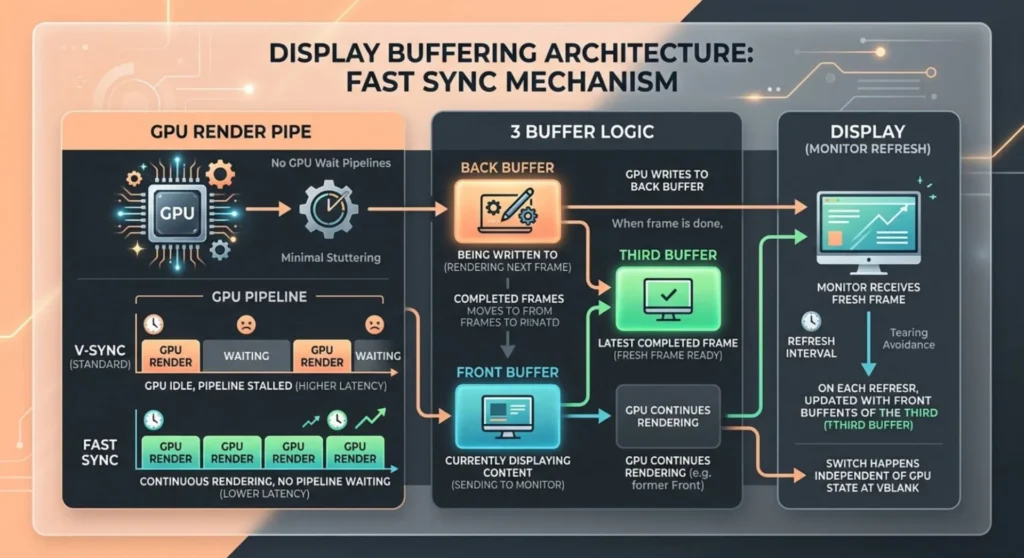
Fast Sync works differently than traditional V-Sync. Instead of making the GPU wait for the next refresh cycle, the GPU renders frames as fast as it can and keeps three buffers, one being shown, one being written to, one complete and waiting. When the monitor is ready for a new frame, it grabs the most recently completed one. The GPU never waits. Tearing is eliminated at the monitor level rather than by throttling the GPU.
The result: no tearing, no stutter, minimal added latency compared to traditional V-Sync. The catch is that Fast Sync only works well when your framerate is significantly above your refresh rate, ideally 2× or more. If you’re at 70fps on a 60Hz monitor, Fast Sync’s triple buffering doesn’t have enough frames to work cleanly, and you may see occasional stuttering. The solution is either to lower graphics settings until you’re well above 120fps, or use Option B.
Option B – Traditional V-Sync with a framerate cap:
If your GPU is hovering near your monitor’s refresh rate rather than well above it, this is actually the more stable configuration. Enable V-Sync in the game settings (or Nvidia/AMD control panel) and add an in-game framerate cap at exactly your monitor’s refresh rate.
The cap prevents the GPU from producing more frames than the monitor can display, so V-Sync never has frames queued up waiting, which is what causes the latency spike. And the cap prevents the framerate from dropping close enough to the refresh rate that V-Sync staggers to half-rate. Set the cap at your monitor’s exact refresh rate, aim to actually hit that cap through graphics settings tuning, and the experience is clean.
This configuration doesn’t give you competitive-level latency. But for single-player games on a 60Hz monitor, it eliminates tearing with minimal visual compromise.
Configuration 3 – You Have a High Refresh Rate Monitor (144Hz+) Without Adaptive Sync
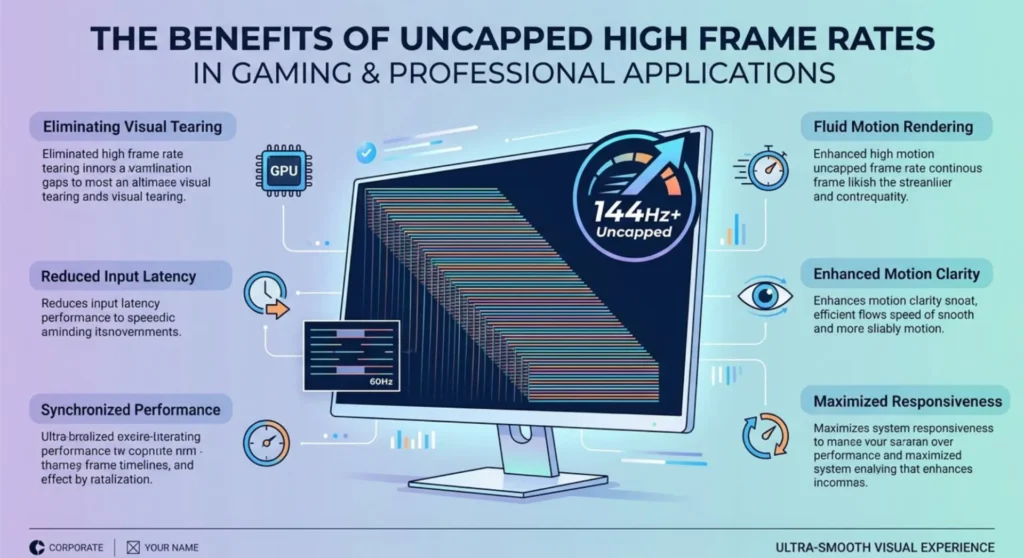
High refresh rate without adaptive sync is a genuinely good situation for competitive gaming, because at 144fps and above, tearing is much less visually disruptive even when it occurs, and the lower latency from running without V-Sync is more valuable.
For competitive games where every millisecond of latency matters:
Turn V-Sync off entirely. Let the GPU run uncapped. Yes, you’ll see some tearing at 144Hz the horizontal split moves fast enough that it’s far less noticeable than at 60Hz, and the latency savings are real. Most competitive players at 144Hz+ accept light tearing as the price of the fastest possible input response.
If you find the tearing genuinely distracting even at high framerates: enable Fast Sync (Nvidia) or Enhanced Sync (AMD) rather than traditional V-Sync. At the framerates a capable GPU produces in competitive titles often 200fps+ at 1080p low settings, these technologies work very well and the tearing elimination at the monitor level feels clean.
For single-player or visually intensive games at 144Hz+:
Either the above Fast/Enhanced Sync setup or enable your monitor’s overdrive and cap at your refresh rate minus a few fps. At 144Hz, even traditional V-Sync’s latency penalty shrinks to around 7ms, acceptable for non-competitive play and the stutter problem is much less likely because your GPU is more easily maintaining 144fps than it would 60fps in a demanding title.
Configuration 4 – You’re Seeing Tearing Despite Having Adaptive Sync Enabled
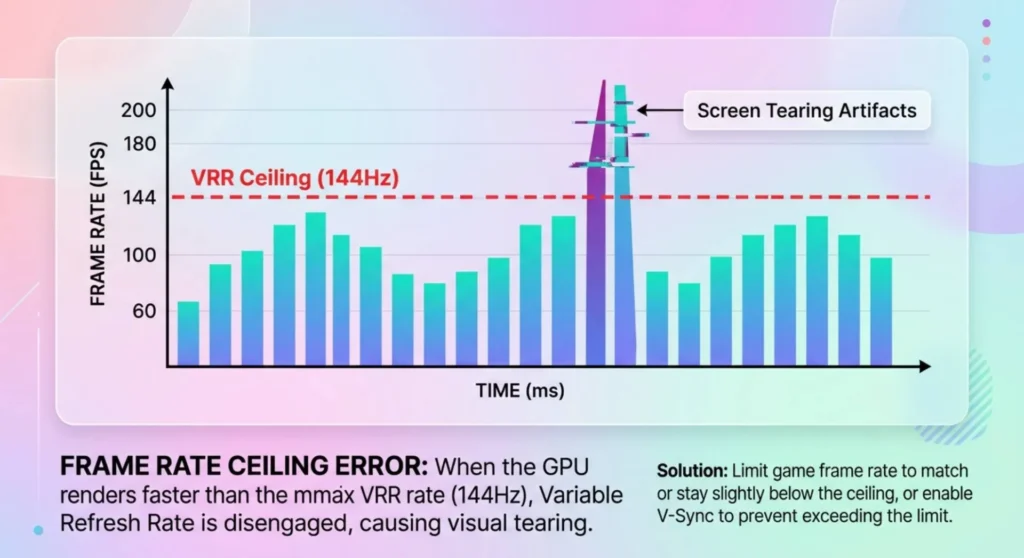
This specific scenario is worth its own section because it confuses people who thought enabling G-Sync or FreeSync would eliminate tearing completely.
Adaptive sync eliminates tearing within its VRR frequency range. Outside that range, either above the maximum or below the minimum, tearing can return.
Tearing above the maximum refresh rate:
The GPU is producing more frames than the monitor can display even at its ceiling. The fix is the frame cap: set it 3-5fps below your monitor’s maximum refresh rate as described in Configuration 1. If you’ve already done this and tearing persists, your in-game frame limiter may be inaccurate. Switch to RTSS for frame capping, it operates at a lower system level and is significantly more precise than most in-game limiters.
Also check: is V-Sync set to “Fast” rather than “Off” in Nvidia Control Panel? With adaptive sync active, “Off” allows unrestricted frames above the ceiling and tearing occurs there. “Fast” catches the above-ceiling overflow.
Tearing below the minimum VRR frequency:
If framerates drop into demanding scenes below your monitor’s minimum sync frequency often around 48Hz, adaptive sync disengages and tearing or stuttering returns until the framerate climbs back. Two solutions: lower graphics settings to keep framerates above the minimum floor consistently or check whether your monitor supports LFC (Low Framerate Compensation), which effectively doubles or triples slow frames to keep them within the VRR range. Free Sync Premium monitors include LFC. Check your monitor’s specification sheet.
Adaptive sync not engaging at all despite being configured:
This happens when the game is running in windowed or borderless windowed mode and adaptive sync is set to fullscreen only. In Nvidia Control Panel → Set up G-Sync → confirm “Enable for windowed and full screen mode” is selected. Also confirm the monitor’s OSD adaptive sync setting is on the GPU-side configuration alone is not sufficient if the monitor’s hardware hasn’t been activated.
The Settings You’re Actually Changing | Quick Reference by GPU
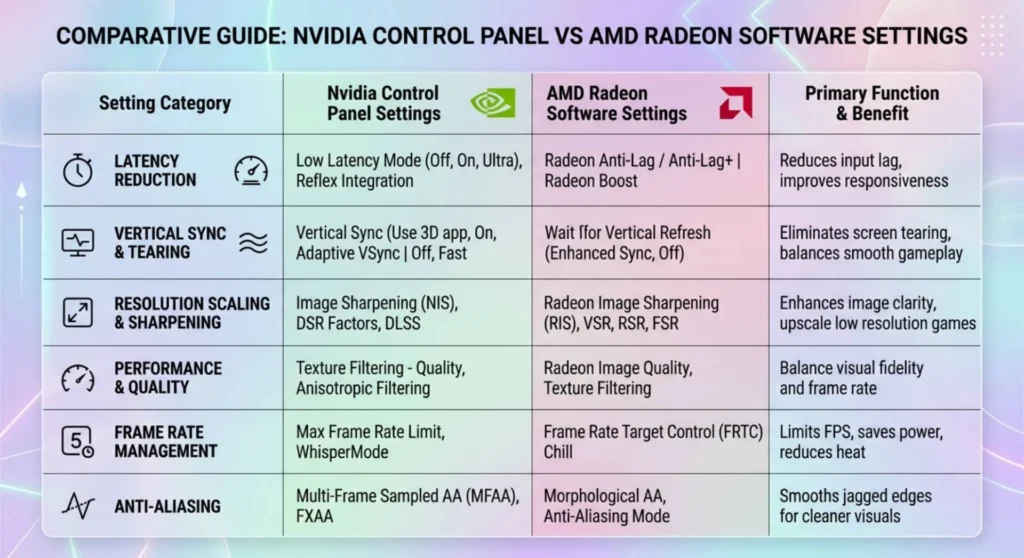
Nvidia Control Panel (right-click desktop → Nvidia Control Panel):
Navigate to → 3D Settings → Manage 3D Settings → Program Settings tab (to apply per-game) or Global Settings (applies everywhere)
| Setting | Recommended Value | Why |
|---|---|---|
| Vertical Sync | Fast | Handles above-ceiling frames without latency penalty |
| Max Frame Rate | Set to monitor refresh rate minus 3-5 | Keeps GPU in VRR range, prevents above-ceiling tearing |
| Low Latency Mode | Ultra | Reduces pre-rendered frame queue, lowers input latency alongside V-Sync |
| Power Management Mode | Prefer Maximum Performance | Prevents GPU clock drops that can cause framerate instability |
AMD Radeon Software (right-click desktop → AMD Radeon Software → Gaming tab):
| Setting | Recommended Value | Why |
|---|---|---|
| Wait for Vertical Refresh | Enhanced Sync | Fast Sync equivalent for AMD, handles overflow frames |
| Radeon Anti-Lag | Enabled | Reduces input latency, works well alongside Enhanced Sync |
| Radeon Chill | Disabled (for gaming) | Can interfere with consistent frame delivery |
| Frame Rate Target Control | Set to monitor refresh rate minus 3-5 | AMD’s built-in frame cap |
The Tool That Makes Frame Capping Actually Work | RTSS
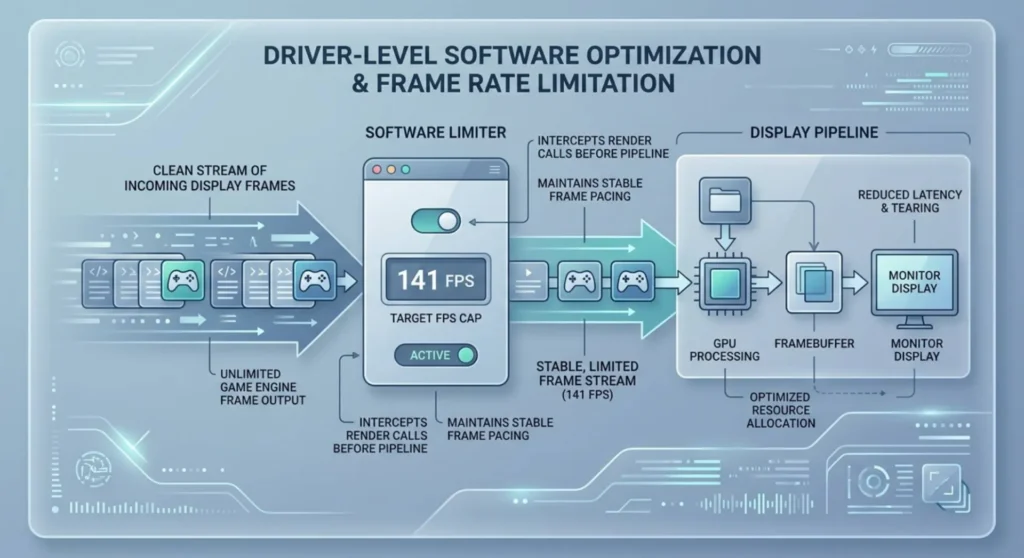
RivaTuner Statistics Server is free, runs alongside MSI Afterburner (though it works without it), and provides frame limiting at a level below the game engine. This matters because in-game frame limiters work at the application level. They tell the game to stop producing frames past a limit. RTSS works at the driver level, it intercepts frames before they reach the display pipeline.
The practical difference: RTSS frame caps are more consistent, more accurate, and don’t interfere with GPU-side settings like Fast Sync. In-game limiters sometimes allow brief bursts past the cap that disengage adaptive sync for a frame or produce a tearing flash. RTSS eliminates those bursts.
How to set it up:
Download MSI Afterburner from msi.com. RTSS installs automatically alongside it. You don’t need to use Afterburner’s GPU monitoring features if you don’t want them. Open RTSS from the system tray → find your game in the list or set it in the global profile → set the framerate limit field to your monitor’s refresh rate minus 3-5 (so 141 for a 144Hz display, 162 for 165Hz).
That’s it. RTSS runs in the background and applies the limit to every game you open.
The Tearing That Isn’t Actually Tearing
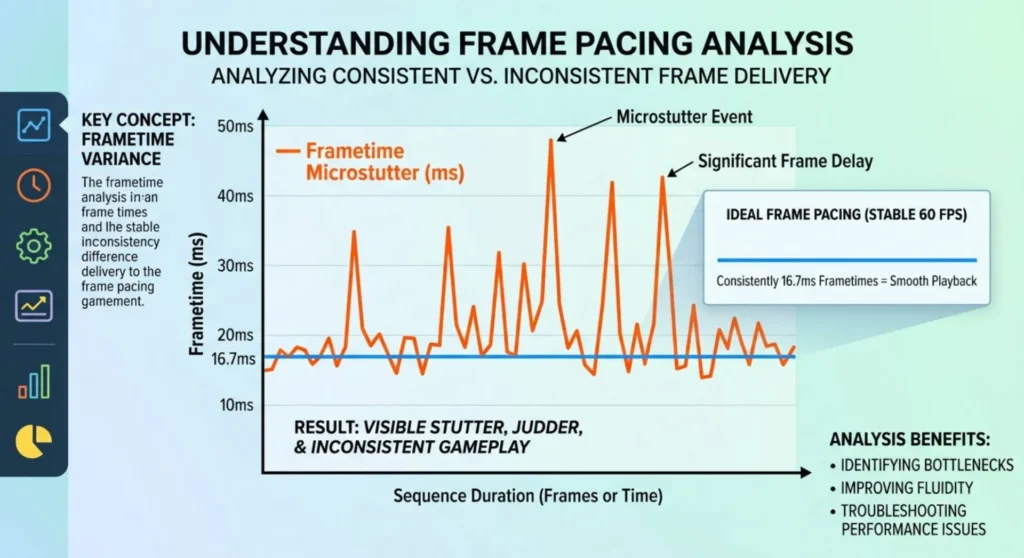
One more thing worth flagging because I see people troubleshoot it as tearing when it isn’t.
Micro stutter – a rapid, irregular variation in frame delivery timing, looks similar to tearing but causes slightly different symptoms. Instead of a clean horizontal split, micro stutter produces a juddering, inconsistent motion that makes fast movement look choppy even when your average framerate is high. It’s caused by frame pacing irregularities rather than synchronization mismatches.
Common causes: dual-GPU setups (SLI/Crossfire) where the two GPUs don’t deliver frames in perfect sync, game engine issues with inconsistent frame time, or background processes interrupting GPU delivery timing.
V-Sync and frame caps don’t fix micro stutter because it’s not a tearing problem. If your screen looks inconsistent and you’ve confirmed V-Sync is working correctly, check your 1% low and 0.1% low framerate alongside your average, significant drops in those numbers while the average looks healthy indicate frame pacing instability rather than tearing. RTSS’s frame time graph (the overlay shows a frame time line) makes this visible immediately.