Physical Address
3260 College Rd, Fairbanks, Alaska

By Derek V. Mackown IT Technician & Tech Blogger | 10+ Years in Display Hardware & Software
Table of Contents
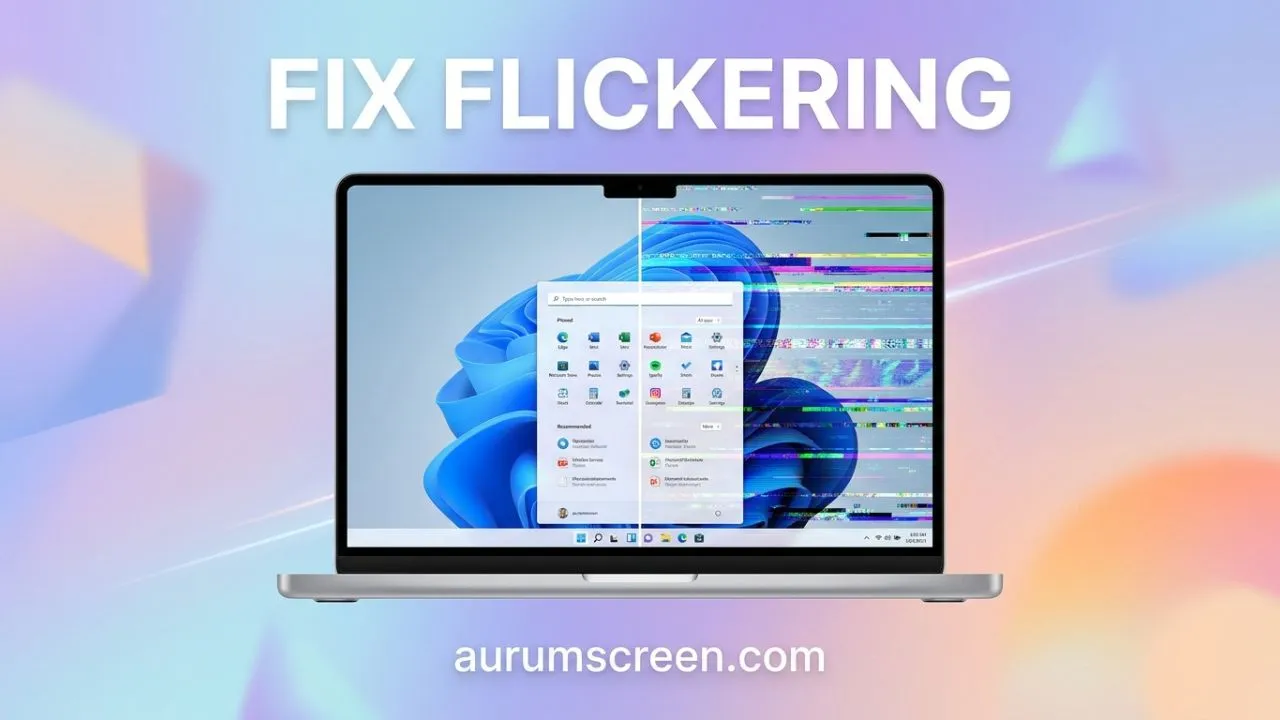
ToggleYou’re mid-presentation, deep in a spreadsheet, or just watching something after a long day, and then it starts. That rhythmic, maddening flash. Your screen flickers like a dying fluorescent tube, and suddenly the whole machine feels unreliable.
I’ve personally diagnosed hundreds of flickering display issues across laptops from Dell, HP, Lenovo, ASUS, and more. What frustrates most users isn’t just the flicker itself, it’s not knowing whether to panic about a dying screen or simply update a driver. The good news: in roughly 80% of cases I’ve handled, this is entirely fixable in software. The other 20%? Hardware and I’ll help you identify that too.
This guide covers every realistic cause and every actionable fix, from the simplest software tweak to diagnosing physical display failure.
Before touching a single setting, you need to know why your screen is flickering. The cause determines the cure.
Software-side culprits are by far the most common:
Hardware-side culprits tend to produce constant, unresponsive flickering:
Quick diagnostic test: Open Task Manager (Ctrl + Shift + Esc). If Task Manager flickers along with everything else, the problem is likely a driver or hardware issue. If Task Manager stays stable while the rest of the screen flickers, a specific application or the Windows Explorer shell is responsible.
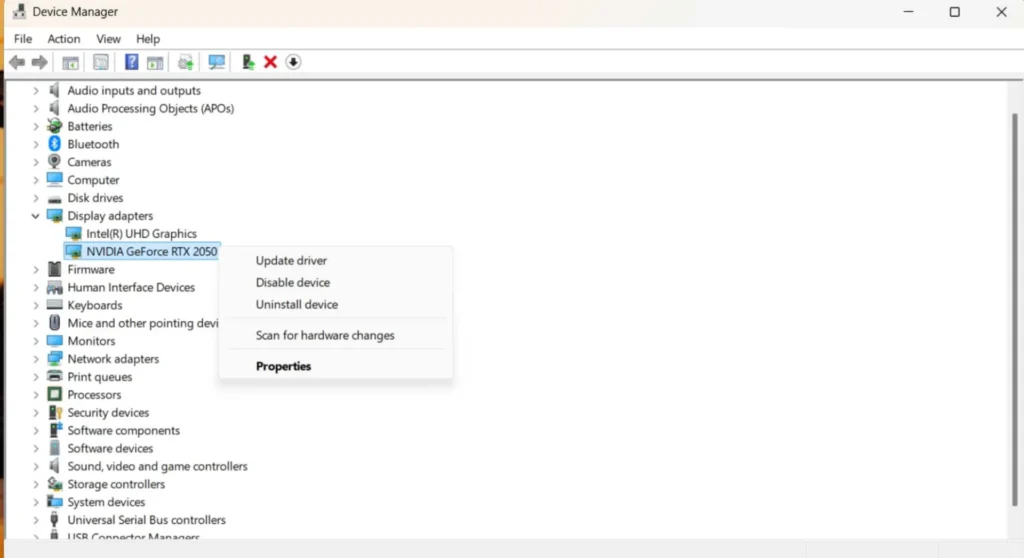
Why this works: Your display driver is the software bridge between Windows 11 and your GPU. An outdated, corrupted, or incompatible driver is the single most common cause of laptop screen flickering, particularly after a Windows update.
For Nvidia users, download drivers directly from nvidia.com rather than relying on windows update, manufacturer-direct drivers are always more stable.
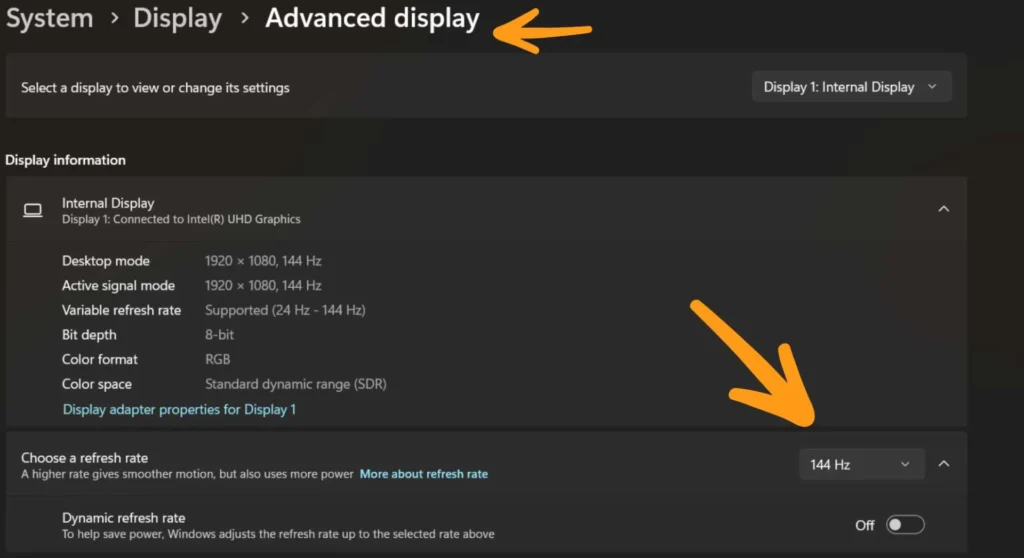
Why this works: Windows 11 occasionally resets your monitor’s refresh rate, particularly after feature updates. A mismatch between the set rate and what your panel hardware actually supports causes a persistent, rhythmic flicker.
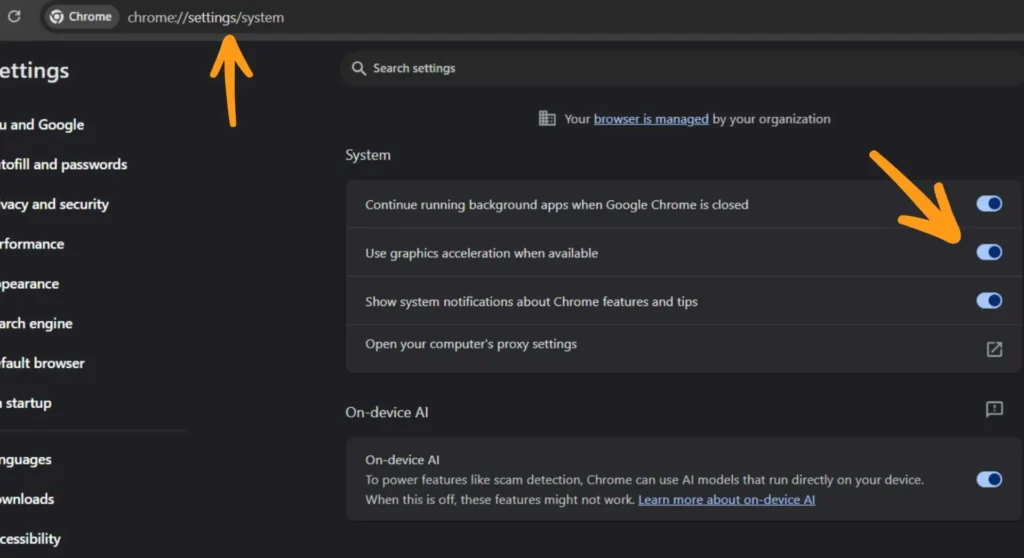
Why this works: Many modern applications – Chrome, Discord, Teams, Spotify use GPU hardware acceleration to render their interfaces. When your display driver is in a compromised state, this can cause those specific apps to trigger flickering while the rest of your desktop remains stable.
If your flickering disappears after doing this in the app that was open when it started, you’ve found your culprit. This is a temporary fix, the permanent solution is a proper driver update.
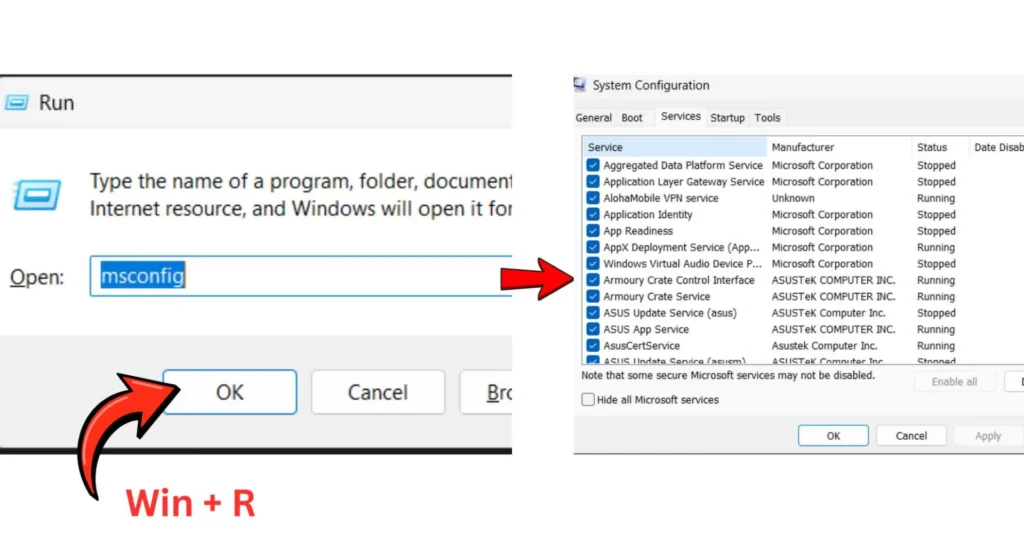
Why this works: Certain applications modify how Windows renders the display or inject themselves into the graphics pipeline. This category includes some antivirus tools, screen overlay software (GeForce Experience, Discord overlay), and RGB keyboard utilities.
msconfig, and press Enter.This process takes patience, but it’s a reliable isolation method I’ve used professionally more times than I can count.
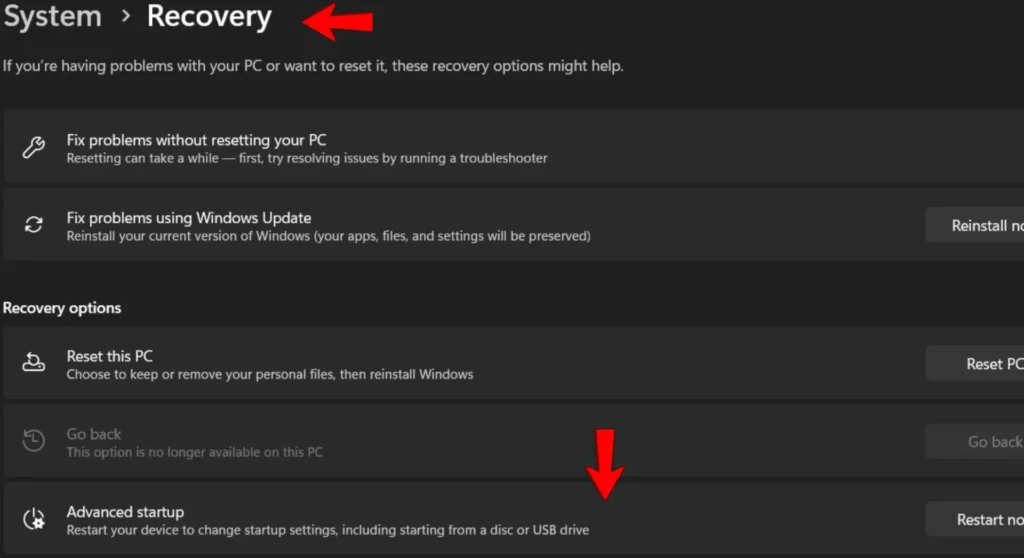
Why this works: Standard driver updates don’t always fully replace old driver files. Residual fragments from a previous installation can conflict with new ones, causing instability that a simple update won’t resolve. Display Driver Uninstaller (DDU) removes everything cleanly before reinstalling.
This is the nuclear option, and it resolves the overwhelming majority of driver-related flicker issues that simpler methods miss.
Fixing the flicker is one thing. Keeping it from coming back is another.
Pause Windows updates before major work sessions. Feature updates routinely push generic display drivers. Go to Windows Update settings and use the “Pause updates” option during critical work periods, then update during low-risk downtime.
Always download GPU drivers from the manufacturer. NVIDIA, AMD, and Intel all maintain their own driver portals. These are consistently more stable and better tested than what Windows Update delivers.
Check your hinge and cable integrity once a year. If you regularly open and close your laptop at extreme angles, the display ribbon cable wears gradually. A small amount of cable management awareness extends its lifespan significantly.
Keep your laptop cool. GPU thermal throttling and overheating can produce display artifacts that look identical to driver flickering. Clean your laptop’s vents every 6 to 12 months with compressed air.
Avoid beta or pre-release driver versions unless you’re specifically troubleshooting a known bug. Stable release drivers exist for a reason.
Q: My screen only flickers when I move the lid. Is this a hardware problem?
Almost certainly yes. Flickering that correlates directly with lid movement points to a damaged or loose eDP (embedded DisplayPort) cable, the ribbon that runs from the motherboard up through the hinge to the display panel. This is a physical repair. A technician can replace the cable for a relatively low cost, though on some ultra-slim laptops access requires more labor.
Q: Could a Windows 11 update have caused my screen to start flickering?
Absolutely, and this is one of the most frequently reported causes I see. Windows 11 Feature Updates can overwrite a stable OEM display driver with a generic Microsoft-certified one, which may not support your specific panel correctly. Rolling back the driver (Fix 1) or performing a clean install (Fix 5) resolves this in most cases.
Q: How do I know if my laptop screen needs to be physically replaced?
If all five software fixes above produce no improvement, the flicker persists in Safe Mode (which loads minimal drivers), and there’s visible physical damage, dead zones, discoloration, or flickering that changes with panel pressure, then the LCD panel itself is failing. At that point, screen replacement is the only real path forward. Get a quote from the manufacturer and a reputable third-party repair shop before deciding.
Derek V. Mackown is an independent IT technician and tech blogger specializing in display hardware diagnostics and Windows performance optimization. He has provided enterprise-level tech support across industries for over a decade.

Derek V. Mackown is a veteran IT Technician and Display Hardware Specialist with over a decade of hands-on experience troubleshooting complex software-hardware interface glitches. He specializes in Windows OS display architecture, driver calibration, and panel diagnostics. Driven by a passion for pixel-perfect performance, he writes highly analytical, step-by-step guides to help everyday users achieve absolute display clarity at AurumScreen.com.