Physical Address
3260 College Rd, Fairbanks, Alaska

By Derek V. Mackown | IT Technician & Display Hardware Specialist
Night Light is one of those Windows features that works invisibly for months, maybe years quietly shifting your screen toward warmer tones at sunset, doing its small, good deed for your sleep quality without asking for any attention. And then one day it just stops. The toggle is grayed out. Or it’s on but the screen stays ice-cold blue at 11pm. Or the setting disappears from Display entirely. Or it used to work and a Windows update quietly killed it.
There’s something specifically frustrating about a comfort feature failing. It’s not dramatic. Nothing crashed. You can still work. But the screen is cold and you know it’s supposed to be warm and there are approximately seven different reasons it might not be working and Windows gives you precisely zero diagnostic information about which one applies to you.
I’ve fixed this across dozens of machines. The causes span from HDR being enabled (which silently disables Night Light without telling you) to a corrupted sensor service to a display driver that doesn’t support the color transformation Night Light needs. Let’s find yours.
Table of Contents
Toggle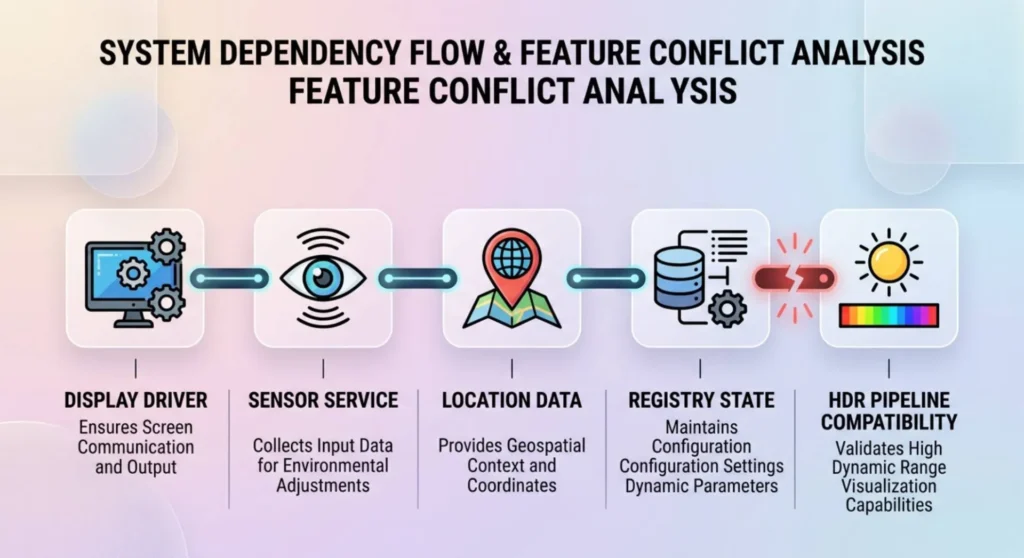
Before the self-triage, one minute of context that makes every fix below immediately obvious.
Night Light in Windows 11 is not a simple toggle. It’s a feature that depends on five separate system components all being functional and compatible simultaneously:
Link 1 — The display driver color path. Night Light works by applying a gamma ramp adjustment, a color transformation that pushes the display output toward warmer color temperatures. This requires the display driver to support the Windows Color System (WCS) color transformation interface. A driver that doesn’t support this interface, a generic Microsoft driver, certain older OEM drivers, simply cannot apply the adjustment. Night Light grays out entirely.
Link 2 — The Sensor service. Night Light’s automatic scheduling uses Windows’ location and time-zone awareness to calculate local sunrise and sunset. This runs through the Sensor Monitoring Service (SensrSvc). If this service is stopped or disabled, which some aggressive Windows optimization tools do. Night Light loses its ability to auto-schedule, and on some configurations, grays out the entire feature.
Link 3 — Location services. For “sunset to sunrise” timing, Windows needs to know your location. Not precisely, just enough to calculate solar times. If Location Services are disabled globally or for Windows specifically, Night Light falls back to a manual schedule. If no manual schedule is configured, the feature appears to do nothing.
Link 4 — The registry Night Light state. Windows stores Night Light’s active state, schedule configuration, and current color temperature offset in the registry. When this data becomes corrupted, which can happen after Windows updates, user account changes, or profile migrations. Night Light loads in a broken state from that corrupted baseline.
Link 5 — HDR compatibility. This is the most commonly overlooked link and the most frequent culprit on modern gaming setups. Windows Night Light and HDR are incompatible by design. When HDR is enabled on a display, Windows hands color management to the HDR pipeline, which operates in a color space that Night Light’s gamma ramp adjustments cannot reach. Night Light doesn’t just stop working silently, it grays itself out with no explanation, leaving most users to assume a driver problem when it’s actually a display feature conflict.
Break any one of these links and Night Light fails. The symptom of how it fails tells you which link broke.
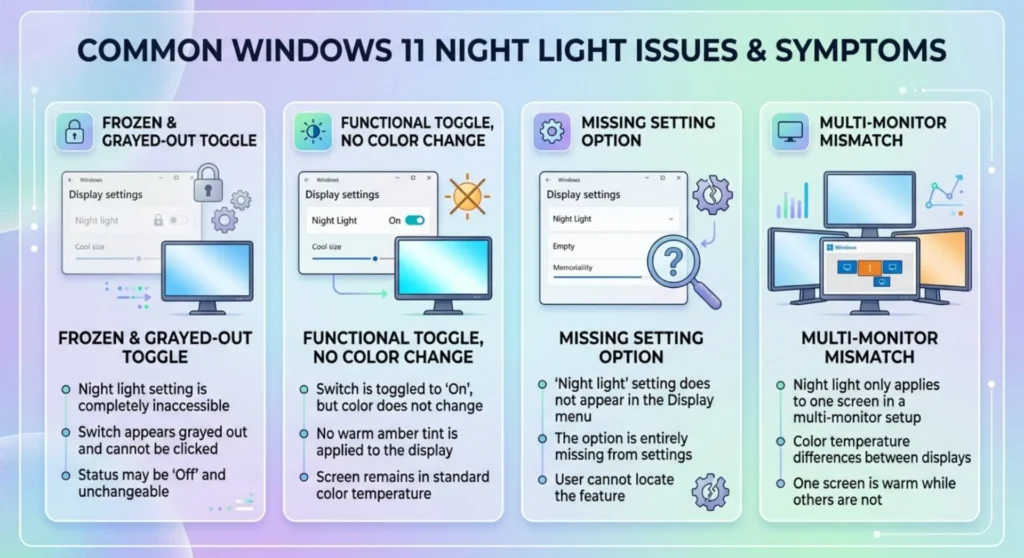
Don’t start fixing until you’ve identified your specific symptom. Night Light fails in four distinct ways that require completely different interventions.
The Night Light toggle is grayed out – unclickable.
Settings → System → Display → Night Light toggle is present but frozen. You can see it. You cannot interact with it.
This is either Link 1 (display driver doesn’t support color transformation) or Link 5 (HDR is enabled). These are the two conditions that lock the toggle completely. Check HDR first, it takes ten seconds. Settings → System → Display → HDR. If HDR is on and your screen goes to Normal when you turn it off: that was it. Night Light will be interactive immediately.
If HDR is already off and the toggle is still gray: the display driver is the problem. Jump to the Driver section.
Night Light is toggled ON but the screen doesn’t change color at all.
The toggle works, the schedule is set, Night Light appears to be active, but the screen remains cold and white at midnight. You watch the clock hit the scheduled time and nothing happens.
This is Link 3 (location services disconnected from scheduling), Link 4 (registry state corruption), or a manual schedule that isn’t correctly configured. The feature is enabled in the UI but the color transformation isn’t reaching the display. Jump to the Scheduling and Registry sections.
The Night Light option has disappeared from Display Settings entirely.
Not grayed out, completely absent. No toggle, no schedule, nothing. As if the feature was uninstalled.
This is either the display driver running in a Basic Display Adapter state (no WCS support, so Windows removes the UI element entirely) or a Windows build issue where the feature registration became corrupted. Jump to the Driver section, and if the driver is correct, the Windows Feature section.
Night Light works on one monitor but not another in a multi-monitor setup.
One display shifts to warm tones correctly. The other stays cold.
Night Light applies per-display based on each monitor’s color capability profile. If one monitor’s display driver supports WCS color transformation and the others doesn’t or if one is connected through a pathway that bypasses the color transformation (certain USB-C docking stations, HDMI switches, some capture cards) Night Light can selectively apply only to the displays with compatible pathways. Jump to the multi-monitor section.
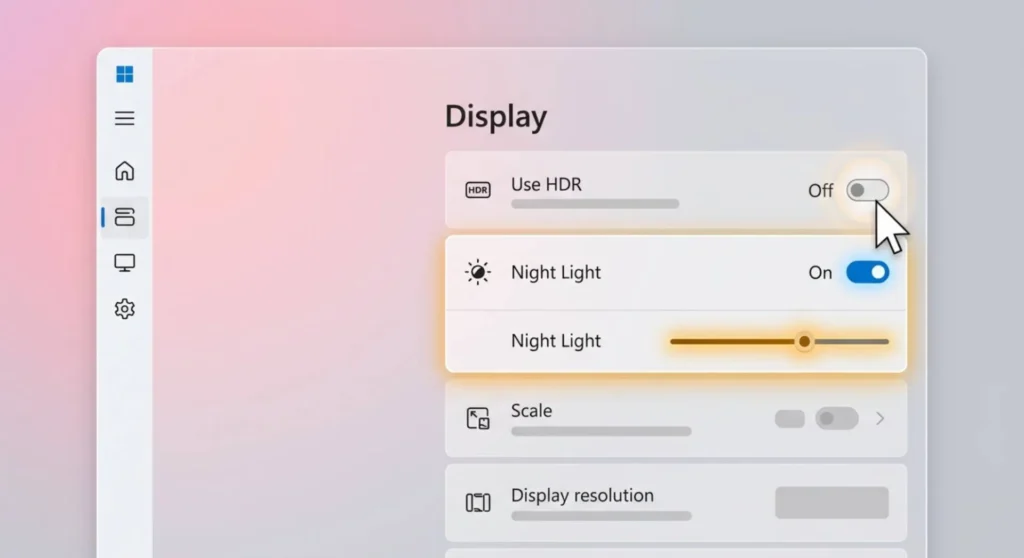
This is where a disproportionate number of Night Light problems live, and I’ll say it plainly: Windows should tell you that Night Light is disabled because HDR is on. It doesn’t. It just grays out the toggle and offers nothing. This design choice has confused more people than it should.
Settings → System → Display → look for HDR or Use HDR → confirm it’s set to Off.
If you see “Windows HD Color” instead of a simple HDR toggle: click it → toggle Use HDR to Off.
After disabling HDR, return to Night Light settings. The toggle will be interactive immediately.
If you use HDR for gaming or media and don’t want to disable it permanently: HDR can be toggled per-session with Windows + Alt + B. A keyboard shortcut that switches HDR on and off without opening Settings. Set your display to SDR for evening work sessions when Night Light matters to you, and switch back to HDR when you launch content that benefits from it. Night Light and HDR simply cannot coexist in the current Windows color architecture, you choose one.
Why they conflict: Night Light modifies the display’s gamma ramp, a color transformation applied in the SDR color pipeline. HDR bypasses the SDR pipeline entirely and operates through a separate high-dynamic-range color path. The gamma ramp adjustment that Night Light applies doesn’t exist in the HDR pipeline. Windows’ solution to this architectural incompatibility is to disable the inaccessible feature rather than attempt an incomplete implementation. It’s technically correct. It’s also terrible UX.
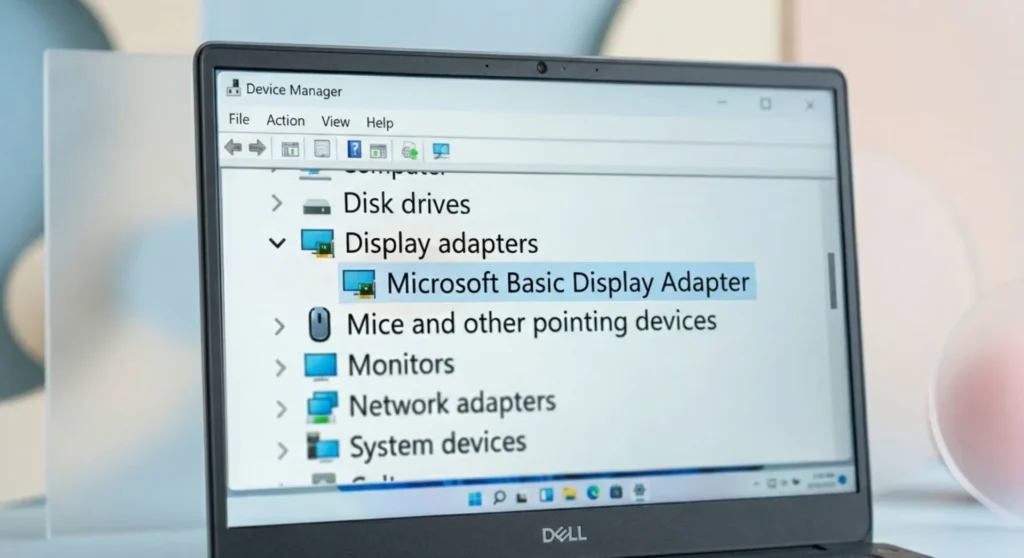
If HDR is off and Night Light is still grayed out or missing, the display driver doesn’t support the color transformation interface Night Light requires.
Confirm which driver is active:
Press Windows + X → Device Manager → expand Display adapters.
| What You See | What It Means |
|---|---|
| Your GPU by name (RTX 4070, RX 6800, Intel Iris Xe) | Driver is installed – But may be outdated or wrong version |
| “Microsoft Basic Display Adapter” | No real driver – Night Light cannot work here |
| GPU name with yellow warning triangle | Driver installed but faulted – Reinstall needed |
If Microsoft Basic Display Adapter is showing:
Night Light is completely inaccessible without a real display driver. Install the correct driver from your GPU manufacturer’s site (nvidia.com, amd.com, intel.com) or your laptop manufacturer’s support page. Night Light will appear and function immediately after a successful driver install and restart.
If the correct GPU is showing but Night Light is still grayed out:
The driver version may be outdated enough to lack WCS color transformation support, or the driver installation is partially corrupted. Run a clean driver reinstall:
After a clean driver install, if Night Light is still grayed out with HDR confirmed off, there is a display driver level incompatibility specific to your GPU and driver version. Check your GPU manufacturer’s known issues page or community forums for your specific GPU and Windows build version. Some driver releases have documented Night Light regressions that subsequent updates fix.
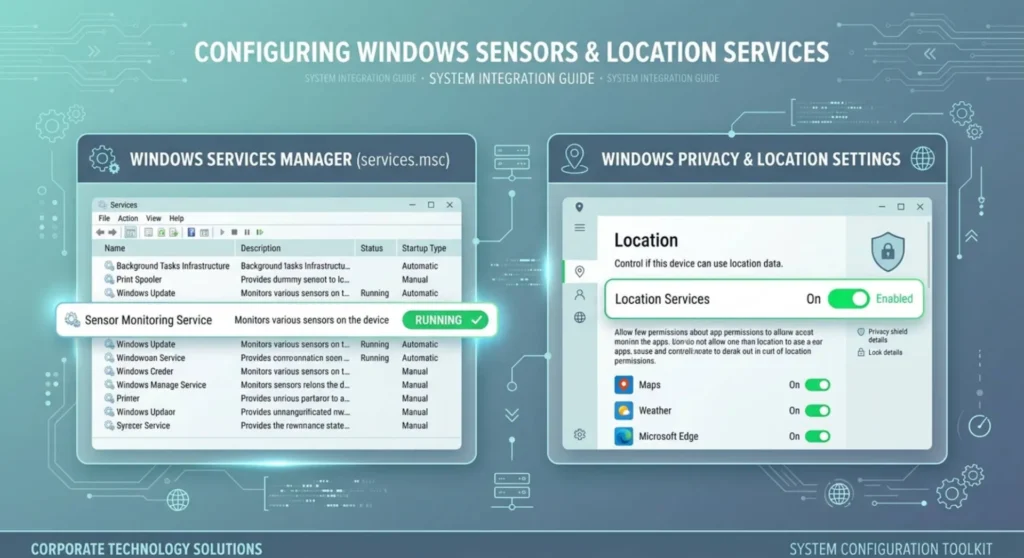
The Sensor Monitoring Service Feeds Windows’ awareness of time and location context that Night Light uses for automatic scheduling. When it’s stopped, Night Light loses its scheduling capability and on some Windows 11 builds, this causes the toggle itself to become unresponsive even when HDR is off and the driver is correct.
Check the service state:
Press Windows + R → type services.msc → Enter → scroll to Sensor Monitoring Service.
If the Status column shows anything other than “Running” – right-click → Start.
Then scroll to Sensor Data Service and confirm it’s Running as well. Both services feed the same context pipeline that Night Light’s scheduler depends on.
After starting both services, test Night Light without restarting first, the toggle should become responsive immediately if this was the cause.
Make the fix permanent:
If either service was stopped and Night Light works after starting them, right-click each service → Properties → Startup type → change from Disabled or Manual to Automatic. Click Apply. This ensures they start with Windows automatically rather than waiting to be manually triggered.
Why these services get disabled: Aggressive Windows “optimization” guides and debloating scripts routinely disable sensor services as part of batch operations targeting services, they consider unnecessary. The Sensor service genuinely uses minimal resources and disabling it saves nothing meaningful but it’s listed as “non-essential” in many optimization templates. If you’ve ever run a Windows debloat script or used an optimization tool, check these services first.
Night Light’s “Sunset to Sunrise” mode calculates local solar times using your device’s location. Location Services being off doesn’t prevent Night Light from working with a manual schedule, but it does prevent auto-scheduling, and on some configurations, it causes “Sunset to Sunrise” to silently fail, making Night Light appear to activate and deactivate at random or not at all.
Check Location Services:
Settings → Privacy & security → Location → Location services → toggle On.
Below that, scroll to Let apps access your location → confirm it’s On.
Further down the list, find Time zone or Windows Time Service and ensure Windows is allowed to use location for time zone auto-detection.
After enabling Location Services, return to Night Light settings → Schedule → if “Sunset to sunrise” was selected and your location is now accessible, Windows will calculate your local solar times and display them next to the setting. If the times shown match your actual location’s sunrise and sunset, the location feed is working.
If you prefer not to enable Location Services:
Switch Night Light to a manual schedule. Settings → System → Display → Night Light → Schedule → select Turn on at a set time → configure your preferred hours. Night Light will activate and deactivate at those fixed times regardless of location or sunrise/sunset data.
Manual scheduling is more reliable than auto-scheduling for users who work unusual hours or in locations with extreme day/night variation and it eliminates the location service dependency entirely.
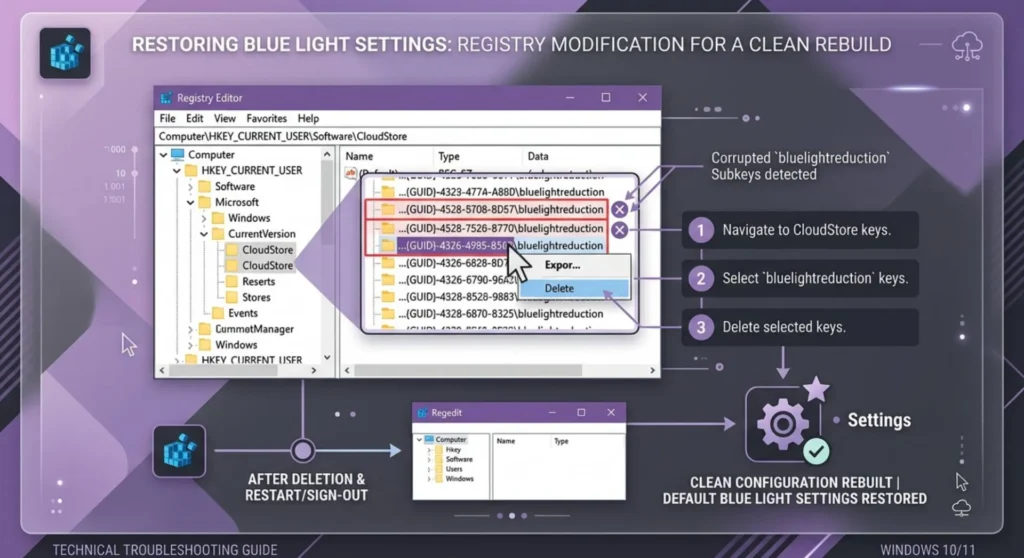
This is the fix for Night Light that toggles, shows as active, has a schedule configured and simply doesn’t change the screen color at all. The UI is functional. The actual color transformation isn’t happening. The registry data Windows uses to track Night Light’s active state has become inconsistent.
Windows stores Night Light configuration in two registry locations:
HKCU\Software\Microsoft\Windows\CurrentVersion\CloudStore\Store\DefaultAccount\Current\default$windows.data.bluelightreduction.bluelightreductionstate
HKCU\Software\Microsoft\Windows\CurrentVersion\CloudStore\Store\DefaultAccount\Current\default$windows.data.bluelightreduction.settings
These keys contain binary data encoding Night Light’s active state, scheduled hours, and current color temperature value. When this data becomes corrupted, after a Windows update that changes the data schema, after a user account migration, or after a profile sync issue. Night Light reads the corrupted baseline and cannot apply the correct transformation.
The fix – delete and regenerate the keys:
regedit → EnterHKEY_CURRENT_USER\Software\Microsoft\Windows\CurrentVersion\CloudStore\Store\DefaultAccount\Current\
default$windows.data.bluelightreductionWindows regenerates these registry keys fresh when Night Light is configured through Settings. The fresh keys contain valid data and the color transformation will apply correctly.
Before deleting: If you want to be cautious, right-click each key → Export → save a backup to your Desktop. If the deletion causes any unexpected behavior, you can restore the original keys by double-clicking the exported .reg files.
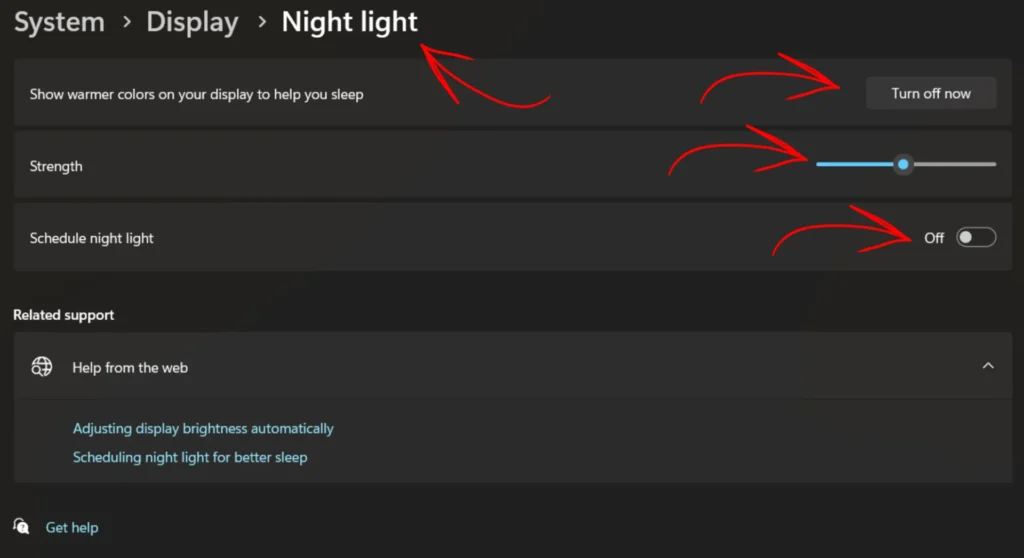
Before going to the registry, try this softer reset that accomplishes a similar result without touching registry keys directly.
This forces Windows to rewrite the Night Light configuration from a clean state. For corrupted settings that aren’t severe enough to require registry deletion, this surface-level reset clears the inconsistency.
If this doesn’t work and the registry fix above also hasn’t helped: the corruption is deeper, proceed to the Windows build fix below.
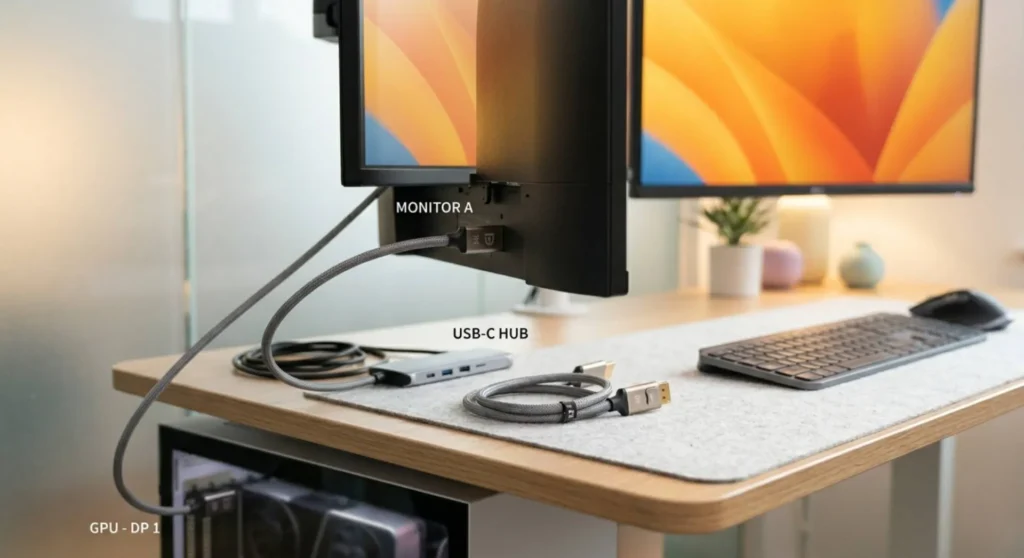
One screen warm, one screen cold. This specific symptom has a specific cause: each display in Windows is processed through its own color transformation pipeline, and Night Light’s gamma ramp applies independently to each display’s pipeline.
The selective application diagnosis:
Which monitor is staying cold? If it’s the one connected through HDMI rather than DisplayPort, or through a USB-C hub rather than directly to the GPU: the color transformation pipeline for that connection may not support WCS gamma ramp adjustments. Certain connection paths, USB-C DisplayLink adapters, HDMI audio extractors, some docking stations with their own display processing, insert intermediate signal processing that breaks the color transformation chain.
Tests in sequence:
Connect the non-responding monitor directly to the GPU with a direct DisplayPort cable bypassing any hub, dock, or adapter. Test Night Light.
If Night Light now applies to both monitors: the intermediate device in the previous connection path was breaking the color pipeline. Either use a direct GPU connection for that display, or replace the intermediary device with one that passes color transformation data without modification (Thunderbolt docks from major manufacturers generally preserve color pipelines better than generic USB-C DisplayLink docks).
The manual-per-monitor Night Light workaround:
Windows 11 doesn’t expose per-monitor Night Light control natively. If one monitor consistently resists Night Light due to its connection path and a direct GPU connection isn’t practical, f.lux (free, justgetflux.com) provides per-monitor color temperature control with far more granular settings than Windows Night Light, including per-display adjustments, custom color temperature curves, and profiles that work independently of Windows’ color pipeline.
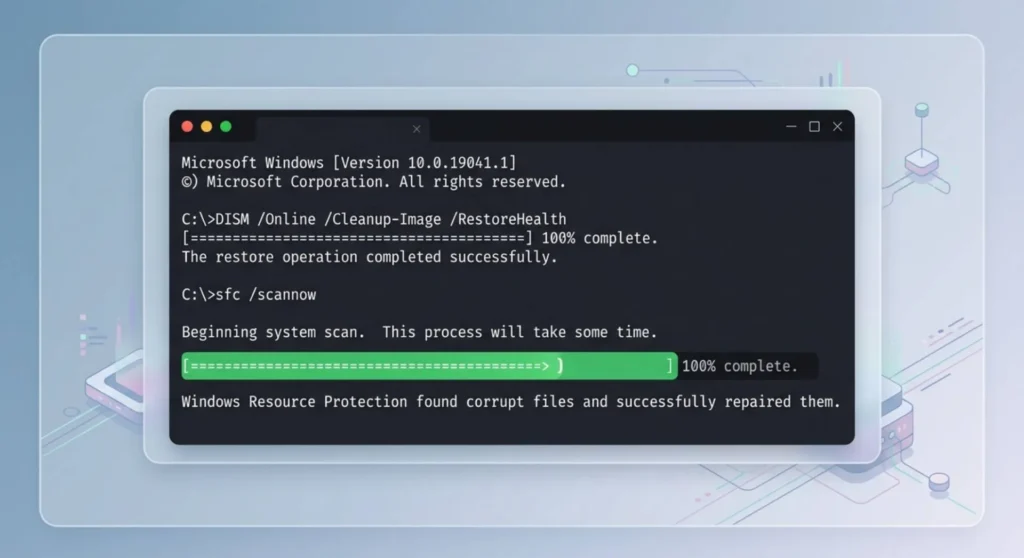
If every fix above has failed, HDR off, driver clean-installed, services running, location on, registry regenerated and Night Light is still absent or non-functional, the feature registration itself is corrupted in this Windows installation.
Run the Windows component repair:
Open Command Prompt as administrator (search “cmd” → right-click → Run as administrator):
DISM /Online /Cleanup-Image /RestoreHealth
Wait for this to complete, it takes 5 – 15 minutes. Then:
sfc /scannow
Both commands scan and repair Windows component files. Night Light’s display transformation component is part of the Windows Display Infrastructure, if a component file was corrupted during a Windows update or drive error, these commands restore it from the Windows Component Store.
After both commands complete, restart and test Night Light.
If the feature is still absent after component repair:
The Windows installation may have a deeper corruption that survived the repair commands. At this point, a Windows 11 in-place upgrade repair, which reinstalls Windows without removing your files is the definitive solution. Settings → System → Recovery → Reset this PC → Keep my files → Cloud download (reinstalls Windows from Microsoft’s servers, ensuring fresh component files). This is the last resort, but it resolves Night Light absence caused by installation-level corruption in 100% of cases.
If you want the fastest possible path through everything above:
bluelightreduction keys under CloudStore → deleted and regenerated.Work through them in that order. Most people are done by step 1 or 2.

Derek V. Mackown is a veteran IT Technician and Display Hardware Specialist with over a decade of hands-on experience troubleshooting complex software-hardware interface glitches. He specializes in Windows OS display architecture, driver calibration, and panel diagnostics. Driven by a passion for pixel-perfect performance, he writes highly analytical, step-by-step guides to help everyday users achieve absolute display clarity at AurumScreen.com.