By Derek V. Mackown | IT Technician & Display Hardware Specialist
Your phone was fine yesterday. You let it update overnight. You picked it up this morning and the screen is flickering.
That’s a specific kind of frustrating, because you didn’t do anything wrong. You just let your phone do what phones are supposed to do. And now the screen is stuttering, flashing, or pulsing in a way that makes it almost uncomfortable to look at.
Here’s the good news: when flickering starts right after an update, the cause is almost always something the update changed in software. Not a broken screen. Not failing hardware. Something the update touched that disagreed with your phone’s display. That means it’s fixable usually without too much effort.
I’ve dealt with this more times than I can count, especially after big Android version bumps. Let me show you what to check.
First – A Quick Test to Confirm It Really Is the Update
Before anything else, let’s make sure the update is actually to blame and not something else that happened to coincide with it.
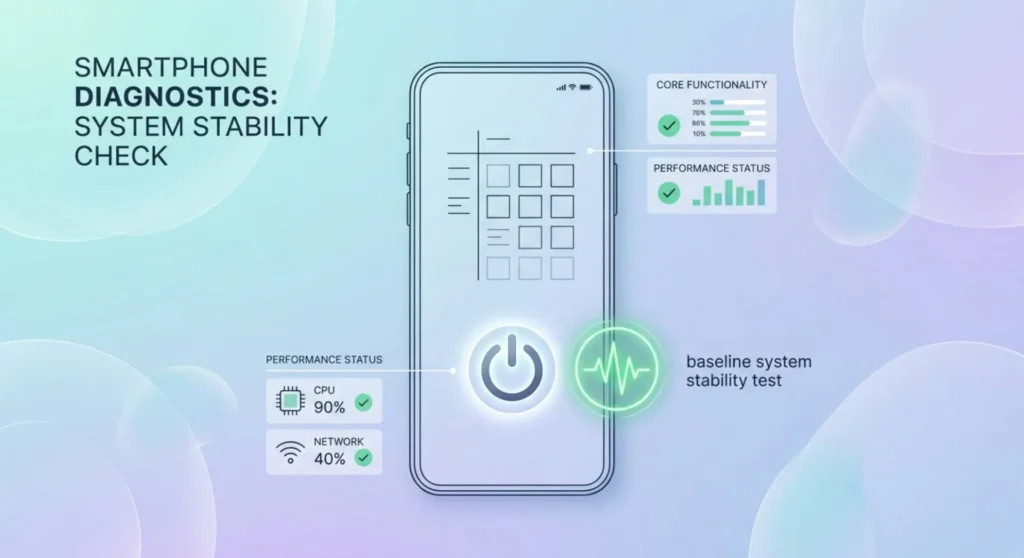
Restart your phone properly. Hold the power button, tap Restart, wait for it to come back up. Then watch the screen for a minute or two before opening any apps.
If the flickering happens on the lock screen or home screen with nothing running, it’s almost certainly the update. The display system is misbehaving at a basic level.
If the flickering only happens inside specific apps, it might be those apps conflicting with something the update changed. We’ll cover that.
If the flickering started at the same time, you installed a new app (not just the update) – uninstall that app first. App and update at the same time muddies the diagnosis.
Assuming it’s the update: here’s what to work through.
The Refresh Rate Got Reset
This is the first thing I check after any Android update and it fixes the problem more often than you’d think.
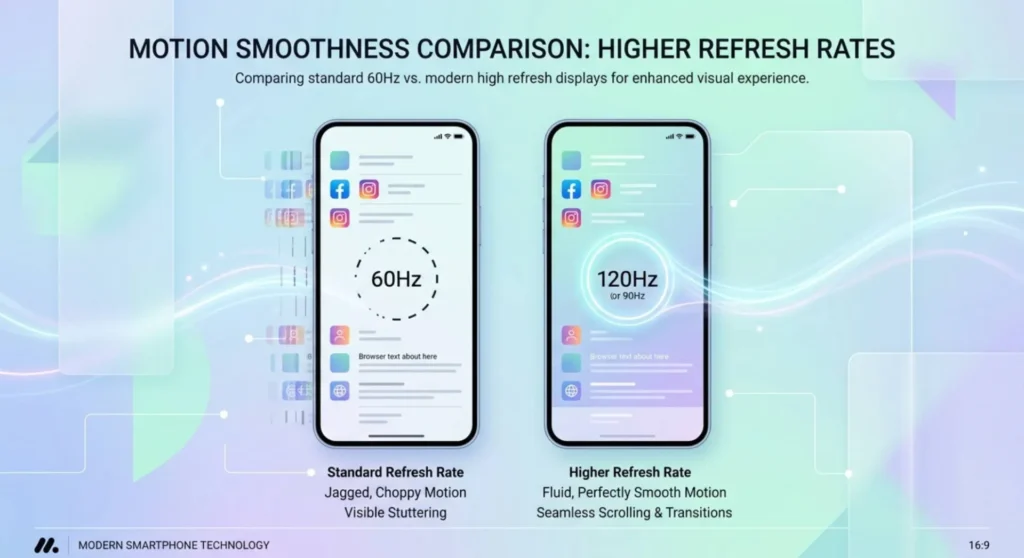
Android updates, especially bigger ones have a habit of resetting your display settings back to defaults. If your phone supports a high refresh rate (90Hz, 120Hz, or higher) and the update reset it down to 60Hz, the screen can look like it’s flickering or stuttering because it’s running slower than you’re used to. It’s not technically flickering, it’s just that your eyes adjusted to smoothness and now everything looks choppy in comparison.
The fix: go to Settings → Display → Motion smoothness (Samsung) or Settings → Display → Refresh rate (most other Android phones) and make sure it’s set to your phone’s highest option.
While you’re there, if there’s a setting called “Adaptive refresh rate” or “Auto select” – that’s your phone automatically switching between refresh rates based on what you’re doing. Sometimes after an update this feature gets glitchy and switches at weird times, which looks like flickering. Try setting a fixed refresh rate instead of adaptive and see if the flickering stops.
The Display Driver Got Updated and Is Now Unhappy
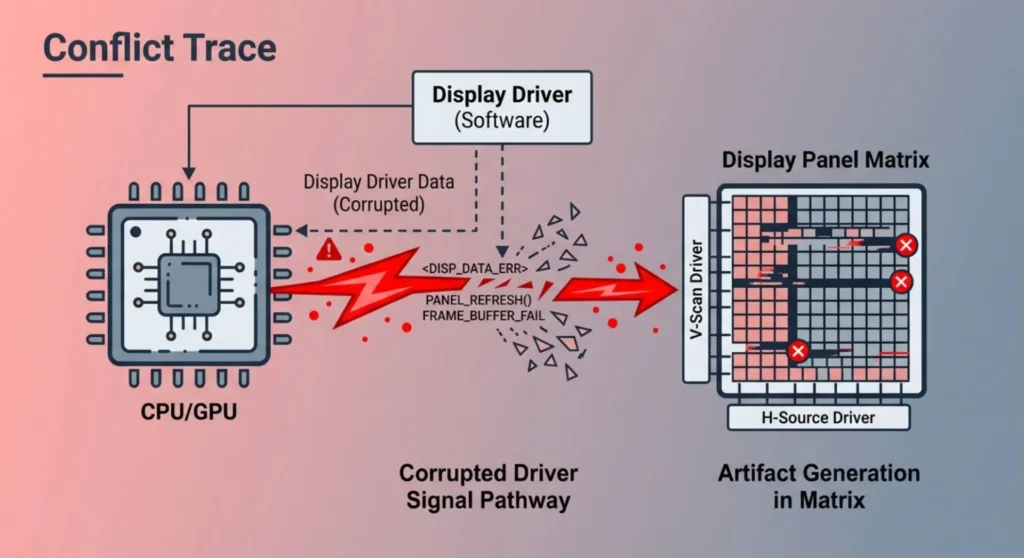
Inside every Android update there’s usually a new version of the code that runs your display. It tells the screen how to draw things, how to handle color, how to talk to the processor. When this gets updated, it usually works fine. Sometimes it doesn’t.
When the display driver is the problem, the flickering tends to look a specific way, it often affects the whole screen at once rather than just parts of it, and it usually happens during transitions like scrolling or switching apps rather than when the screen is totally still.
You can’t directly reinstall or roll back the display driver on Android the way you can on a computer. But there are two things that help.
Try clearing the display-related system cache:
On most Android phones: turn off the phone completely. Then hold the power button and volume down button together until you see a recovery menu. (The exact button combo varies by brand. I’ll list them at the end.) Once you’re in recovery, look for “Wipe cache partition” or “Clear system cache.” Select it, wait for it to finish, then reboot.
This doesn’t delete your data. It just clears temporary system files, including ones the display driver uses. So, they get rebuilt fresh on the next boot. It takes about two minutes and fixes a surprising number of post-update glitches.
Turn off and back on hardware acceleration for the browser:
Sometimes the display driver update breaks how certain apps draw their content. Browsers are the most common victim. If the flickering is mainly happening inside Chrome, Firefox, or another browser:
- Chrome: type chrome://flags in the address bar → search “GPU rasterization” → change it from Default to Disabled → relaunch Chrome.
- Firefox: tap the three dots → Settings → Performance → uncheck “Use recommended performance settings” → uncheck “Use hardware acceleration.”
If the flickering clears up in the browser after this, the display driver and hardware acceleration are conflicting. Chrome and Firefox both update regularly so this often resolves itself within a week or two with the next browser update.
Developer Options | Three Settings Worth Checking
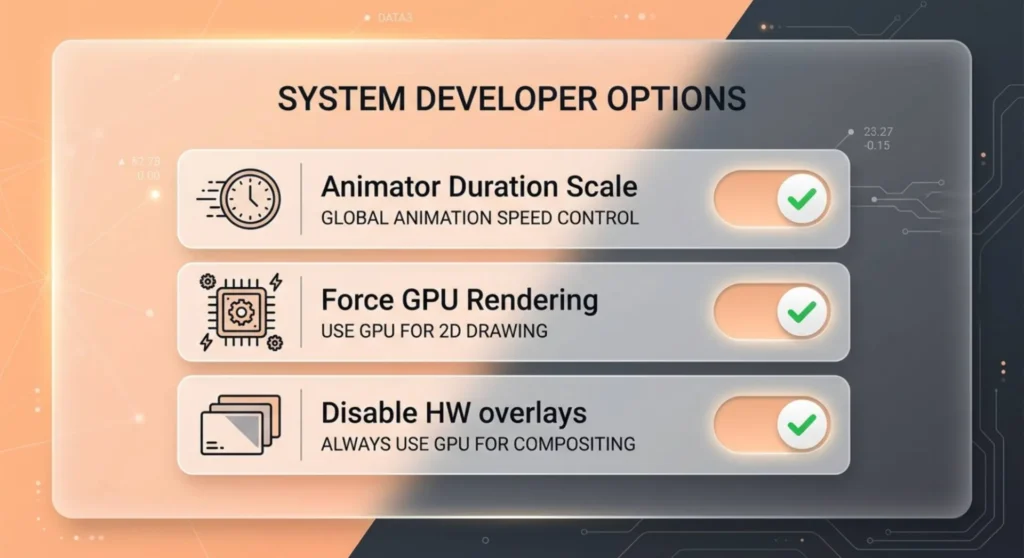
If you have Developer Options enabled on your phone, an update can reset things in there that affect how your screen renders everything. If you don’t have Developer Options turned on, skip this section, it won’t apply.
To check if you have it: Settings → System → Developer options. If it’s not there, you haven’t enabled it.
The three settings to look at:
Window animation scale, Transition animation scale, Animator duration scale – all three are under Developer options. If any of these got set to “off” or “10x” after the update, everything on screen will look wrong. “Off” makes transitions disappear entirely which can look like flickering. “10x” makes them painfully slow which creates a stuttering effect.
Set all three to 1x. That’s the normal speed.
Force GPU rendering – also in Developer options. This forces all apps to use the GPU to draw their interface. Sometimes after an update this causes flickering because the new display code and GPU rendering conflict. Try turning this off if it’s on. Then restart and test.
Disable HW overlays – same section. This one forces the GPU to do more work compositing the screen. If it was turned on by a previous optimization guide you followed, it can cause flickering after a display driver update. Turn it off.
Safe Mode | The Fastest Way to Know If an App Is Involved
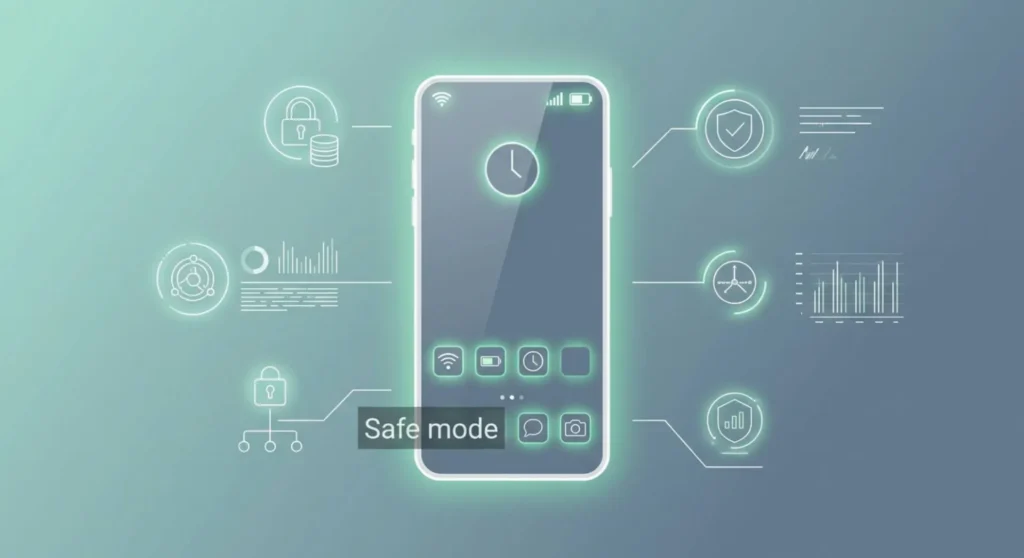
Here’s the thing: sometimes an update changes something that breaks a third-party app you already had installed, and that broken app is what’s causing the flickering. The update isn’t directly at fault; it just changed something the app depended on.
The quickest way to test this is Safe Mode. In Safe Mode, Android loads without any third-party apps running. If the flickering stops in Safe Mode, one of your installed apps is the problem.
To get into Safe Mode:
Hold the power button until the power menu appears. On most Android phones, long-press the “Power off” option. You’ll see a prompt asking if you want to reboot into Safe Mode. Tap yes.
The phone will restart and you’ll see “Safe mode” written in the corner of the screen. Now watch for the flickering.
No flickering in Safe Mode? An app is causing it. To figure out which one: exit Safe Mode (just restart normally), then uninstall apps one by one starting with the ones you installed most recently before the update. Test after each removal. When the flickering stops, that’s your culprit.
Still flickering in Safe Mode? It’s not an app. The problem is at the system level, keep going with the fixes below.
The Nuclear Option | Clearing Everything and Starting Fresh
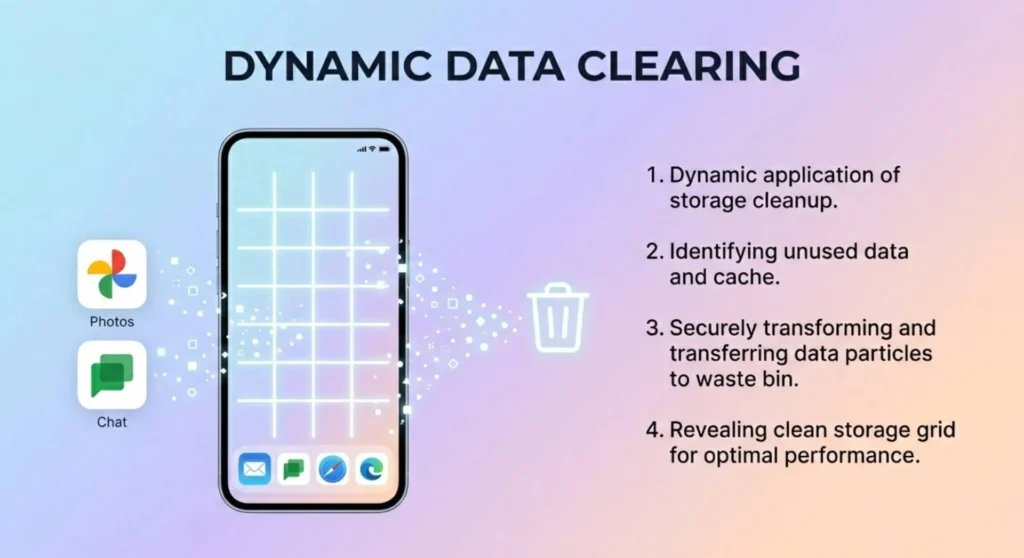
I usually save this for last because it’s the most annoying fix to deal with. But when nothing else works, it works.
Before you do this: back up your phone. Google Photos for photos, Google backup or Samsung Cloud for your other data. Do it before anything else.
Option A — Clear all app cache:
This is less drastic than a factory reset. On Samsung: Settings → Device care → Storage → Clean now. On most other Android phones: Settings → Storage → Cached data → clear it. This clears temporary files from all apps without deleting your data, and sometimes that’s all it takes.
Option B — Factory reset:
Settings → General management → Reset → Factory data reset (Samsung). Settings → System → Reset options → Erase all data (most other Android). This wipes everything and starts completely fresh with the current Android version. If the flickering is a software bug introduced by the update, starting fresh usually gets rid of it, because a lot of the system files that got corrupted or misconfigured during the update get replaced.
After the factory reset, watch the screen before restoring any backup. If the flickering is gone right after reset and comes back when you restore your backup, there’s corrupted data in the backup itself. Set the phone up as new and reinstall apps manually rather than restoring from the backup.
What If You Want to Roll Back the Update?
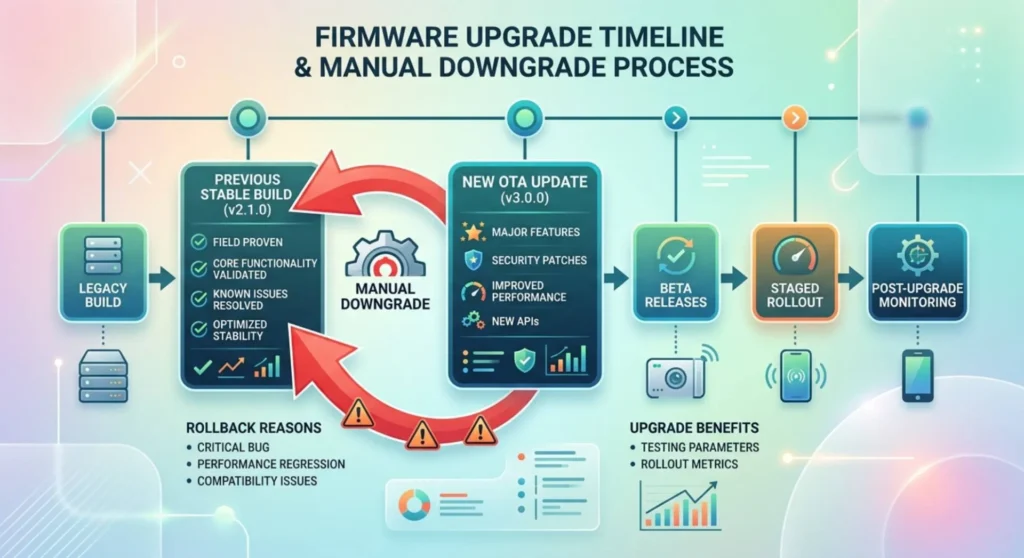
This is the question a lot of people ask and the answer is honestly: it’s complicated, and for most people it’s not worth it.
On most Android phones, you can’t easily roll back an OTA (over-the-air) update the way you’d roll back a Windows driver. The update rewrites system partitions and there’s no built-in undo.
The exception: Google Pixel phones include a feature called Android Recovery that sometimes allows downgrading to a previous build through the bootloader. It requires some comfort with technical steps, your bootloader to be unlocked, and downloading a factory image from Google’s website. If you have a Pixel and you’re comfortable doing this, it’s a legitimate path.
For everyone else: The better approach is to report the bug and wait for the next update, which usually fixes whatever the previous one broke. Here’s how to do that for your specific brand:
- Samsung: Settings → Samsung Members → Error reports → submit a report with a description of the flickering
- Google Pixel: Settings → Tips & support → Send feedback
- OnePlus: Settings → Help & Feedback → Feedback
- Xiaomi: Settings → About phone → Feedback
Manufacturers do read these. A flickering bug that gets reported by enough users usually shows up in the next security patch or point release.
Brand-Specific Recovery Menus (for the Cache Wipe Step)
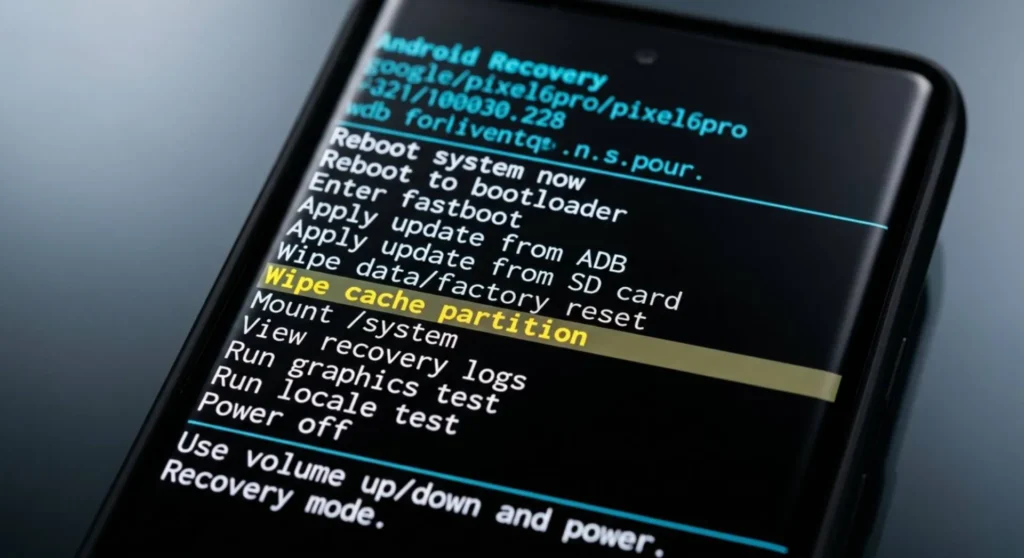
Getting into recovery mode is different on every brand. Here’s the quick reference:
Samsung Galaxy: Turn off completely → hold Volume Up + Power button together until the Samsung logo appears → let go of Power but keep holding Volume Up → recovery menu appears.
Google Pixel: Turn off completely → hold Volume Down + Power button → when you see the Android robot, use volume buttons to navigate to “Recovery mode” → press power → tap the screen to “Wipe cache partition.”
OnePlus: Turn off completely → hold Volume Down + Power button → use volume buttons to find “Wipe cache partition” → press power to select.
Xiaomi / POCO / Redmi: Turn off completely → hold Volume Up + Power button → MIUI Recovery appears → use volume to navigate to “Wipe cache” → confirm with power button.
Motorola: Turn off completely → hold Volume Down + Power button → Fastboot mode appears → use volume to navigate to Recovery → power to select → once in recovery, Volume Up + Power to access menu.