Physical Address
3260 College Rd, Fairbanks, Alaska

By Derek V. Mackown | IT Technician & Display Hardware Specialist
The first thing I do when a laptop arrives on my bench with lines on the screen isn’t open Device Manager. It isn’t run a diagnostic tool. It isn’t even turn it on. I look at it from three angles in ambient light before touching the keyboard.
Lines on a laptop display carry information in how they behave, not just that they exist. A line that changes when you tilt the lid is a completely different problem from a line that stays perfectly static regardless of what you do to the machine. A line visible on the boot screen before Windows loads is speaking a different language than a line that only appears after you log in. A cluster of horizontal bands that shifts when you press lightly on the panel bezel is telling you something specific about which physical component is under stress.
Every one of those behaviors points to a different component and a different fix. This guide is built around reading those signals, because fixing display lines correctly starts with knowing what kind of lines you’re actually dealing with.
Table of Contents
ToggleGive yourself 60 seconds before attempting any fix. Observe the lines with the laptop running and note every characteristic. This observation determines your entire repair path.
Tilt the lid slowly forward and backward through its range of motion.
Does the line change flicker, shift, thicken, temporarily disappear as the lid angle changes? Or does it remain completely static regardless of position?
Press very lightly on the panel surface with two fingers one on each side of the line.
Apply barely perceptible pressure while watching the line.
Check whether the lines exist before the operating system loads.
Restart the laptop and watch the screen from the moment power is applied during the manufacturer logo, during POST, before Windows begins loading.
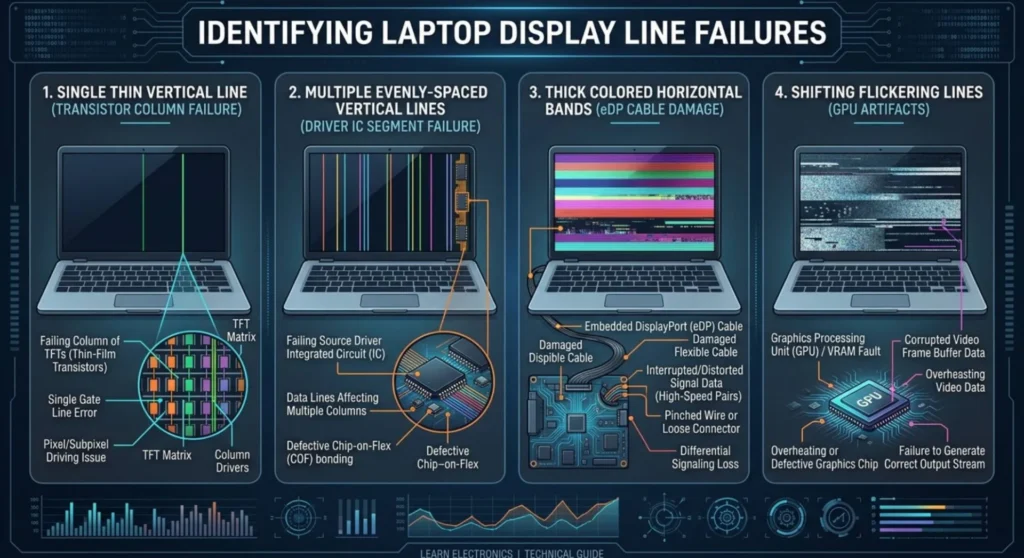
Laptop display lines aren’t all the same phenomenon. The physical appearance tells you which layer of the display assembly has failed.
Single thin vertical line (one pixel wide, full height of screen)
This is transistor column failure identical in mechanism to the green line failure covered in the smartphone context, but occurring on a laptop LCD or OLED panel. A single column of thin-film transistors has failed to respond to the row driver’s signal. On LCD panels this typically appears white, black, or a single color depending on which subpixel failed. On OLED laptop panels it appears as a bright colored line. Software cannot fix a dead transistor column.
Multiple thin vertical lines in a regular pattern
Periodic multiple lines evenly spaced, same color, indicate a failed section of the gate driver IC embedded along the panel edge. These often appear in groups of 8, 16, or 32 lines because the driver IC operates on the panel in byte-width segments. This is panel-level hardware failure.
Horizontal bands thick colored stripes across the width of the display
Horizontal bands are characteristically caused by eDP cable damage or a partially seated cable connector. The cable carries horizontal scan line data in parallel, when signal integrity degrades across the cable, entire horizontal scan regions receive corrupted data. This is the failure mode most responsive to cable reseating or replacement.
Scattered, irregular lines that shift or flicker
Unstable, shifting lines that don’t hold a fixed position are almost always GPU output problems, driver corruption, overheating GPU throttling, or a failing GPU producing malformed display signals. These are the lines most likely to respond to software fixes.
Full-width discoloration bands that are stable but not sharp lines
Gradual color banding across the screen regions that are subtly too warm, too cool, or too bright is typically panel backlight non-uniformity or display controller calibration failure, not line failure per se. A different category handled differently.
If your lines appeared after a Windows update, only occur inside the OS (not during boot), shift or flicker inconsistently, or appeared without any physical event run these two checks before opening the machine.
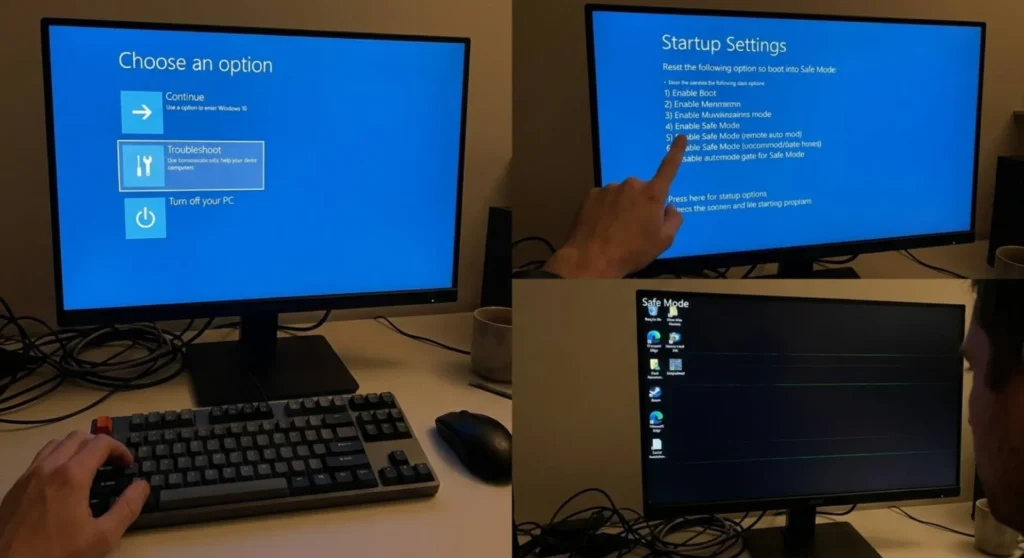
Safe Mode loads a generic Microsoft display driver and disables all third-party software. It’s the cleanest isolation test available for software-caused display artifacts.
| Result in Safe Mode | Interpretation | Next Step |
|---|---|---|
| Lines completely gone | Display driver or third-party app is responsible | Update or clean-reinstall the display driver |
| Lines reduced or changed | Driver instability is contributing — hardware may also be involved | Driver fix first, then reassess |
| Lines identical to normal mode | Software is not the cause | Proceed to hardware diagnosis |
| Lines worse or new lines appeared | Generic driver is exposing a hardware issue the OEM driver was compensating for | Hardware diagnosis — do not continue with driver fixes |
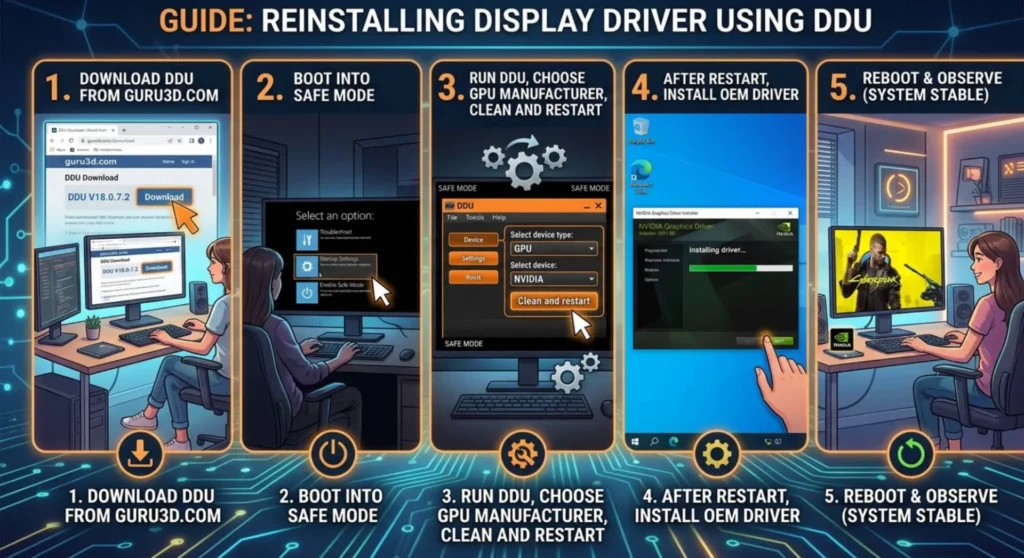
If Safe Mode confirmed a driver cause or if lines appeared immediately after a Windows update with no physical event, a clean driver reinstall is the correct first hardware-free intervention.
For specific laptop brands:
- Dell: dell.com/support → enter Service Tag → Drivers & Downloads → Video
- HP: hp.com/support → enter model or serial number → Software and Drivers → Display
- Lenovo: support.lenovo.com → enter model → Drivers & Software → Display and Video Graphics
- ASUS: asus.com/support → enter model → Driver & Tools → VGA
- Acer: acer.com/support → enter serial number → Drivers → Graphics
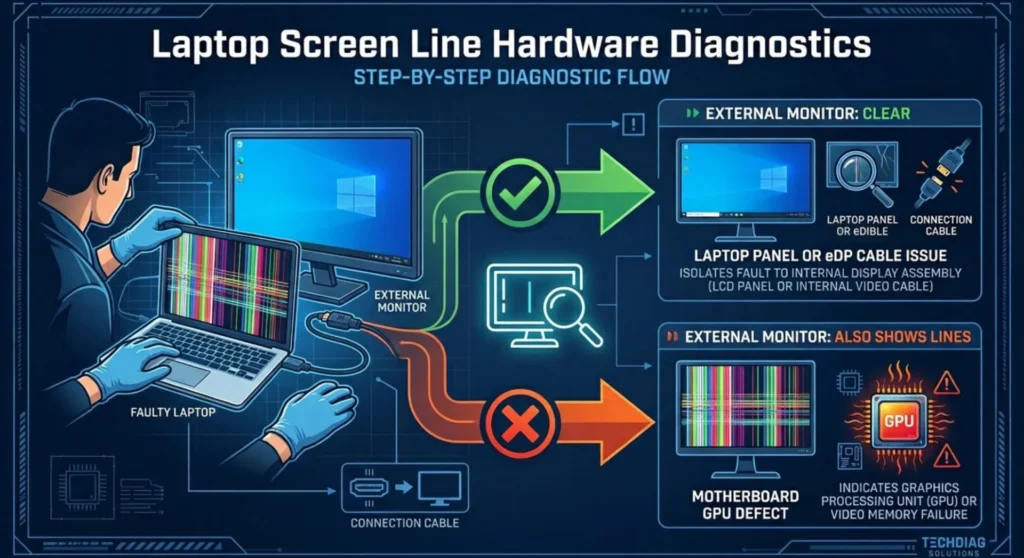
If lines are present during boot (before Windows loads), identical in Safe Mode, and unchanged after a clean driver install, the fault is hardware. The following physical checks identify which component.
Connect your laptop to an external monitor via HDMI or DisplayPort. Observe the external display while your laptop screen shows lines.
| External Monitor Result | What It Confirms |
|---|---|
| External display is clean with no lines | GPU is functional. Fault is in the laptop’s internal display panel, the eDP cable, or the eDP connector |
| External display shows the same lines | GPU is producing corrupted output. Driver reinstalls confirmed as needed or GPU hardware failure if software fails |
| External display shows different lines | GPU and panel are both producing artifacts. Multiple failure points complex diagnosis, likely requires service |
If the external display is clean: you have definitively isolated the fault to the internal display chain. Proceed to the cable and panel checks below.
The eDP (embedded DisplayPort) ribbon cable is the data highway between your laptop’s motherboard and the display panel. It runs from the GPU output on the motherboard, through a routing path along the chassis wall, up through the hinge, and connects to the panel at the top of the display assembly.
This cable fails in two specific ways: physical damage to the ribbon (kinks, cuts, or micro-fractures from repeated hinge cycling) and connector-level partial disconnection (the press-fit ZIF connectors at each end work slightly loose over time).
How to access and reseat the cable (general procedure):
⚠️ Before proceeding: Check your warranty status. On laptops under manufacturer warranty, opening the bottom panel may void coverage on some brands. HP, Dell, and Lenovo business-class laptops (EliteBook, Latitude, ThinkPad) explicitly allow user-accessible bottom panel access without voiding warranty. Consumer lines vary. Verify your specific model’s terms at your manufacturer’s support site before opening.
Cable replacement cost and sourcing:
eDP cables are model-specific. The same cable that fits a Dell XPS 15 9520 will not fit a Dell XPS 15 9500. Source by exact model number.
| Source | Approximate Cost | Notes |
|---|---|---|
| iFixit (ifixit.com) | $12 – $35 | Verified compatibility, quality control |
| eBay (OEM pulls) | $8 – $25 | Variable quality – check seller feedback |
| Amazon | $10 – $30 | Confirm exact model number compatibility before ordering |
| Manufacturer parts portal | $25 – $60 | Guaranteed OEM spec, slower shipping |
Replacement labor at a repair shop if you don’t want to DIY: $60–$120 including the cable on most consumer models.
If the external display is clean, the eDP cable has been reseated or replaced without improvement, and the lines persist, the panel itself has failed. This is the correct diagnosis for:
LCD vs. OLED panel replacement – what to know before ordering:
Most consumer laptops use LCD (IPS or TN) panels. A growing number of premium laptops Dell XPS, ASUS ProArt and Zenbook OLED, HP Spectre OLED, Lenovo ThinkPad Z series use OLED panels. The replacement cost is significantly different.
| Panel Type | Typical Replacement Cost (Part Only) | Notes |
|---|---|---|
| IPS LCD (1080p, standard) | $40 – $90 | Wide availability, straightforward sourcing |
| IPS LCD (1440p, high refresh) | $80 – $150 | Model-specific — confirm exact panel model number |
| OLED (consumer laptop) | $180 – $350 | Higher cost, fewer aftermarket sources |
| OLED (premium/thin-and-light) | $250 – $500 | Some models require full display assembly |
| Glossy vs. matte — same panel, different coating | Add $10 – $30 for matte variants | Affects glare and viewing angle — match original |
To identify your exact panel model: install HWiNFO64 → System Summary → Panel Model ID. This reports the manufacturer panel code (e.g., LG LP156WFG-SPB2) which you can source directly.
Before paying for any hardware repair, confirm whether the failure is covered under warranty or a manufacturer service program.
Display line failures on laptops under warranty are typically covered as manufacturing defects if there is no physical damage (cracked screen glass, liquid damage indicators triggered, frame deformation). Contact your manufacturer’s support before ordering parts or paying a repair shop.
| Manufacturer | Warranty Support | Service Portal |
|---|---|---|
| HP | hp.com/support | HP Support Assistant or 1-800-HP-INVENT |
| Dell | dell.com/support | Enter Service Tag → Get Support |
| Apple (MacBook) | checkcoverage.apple.com | Apple Store or Apple Authorized Service Provider |
| Lenovo | support.lenovo.com | Lenovo Vantage app or phone support |
| ASUS | asus.com/support | MyASUS app → Customer Service |
| Acer | acer.com/support | Serial number → Contact Support |
Extended display defect coverage: Dell’s Premium Panel Guarantee covers a single pixel defect-related replacement within the first year, including line failures, at no charge even without proof of hardware cause. Check whether your specific Dell model is enrolled. Apple’s consumer protection rights in many regions also extend coverage beyond the standard 1-year warranty for manufacturing defects.
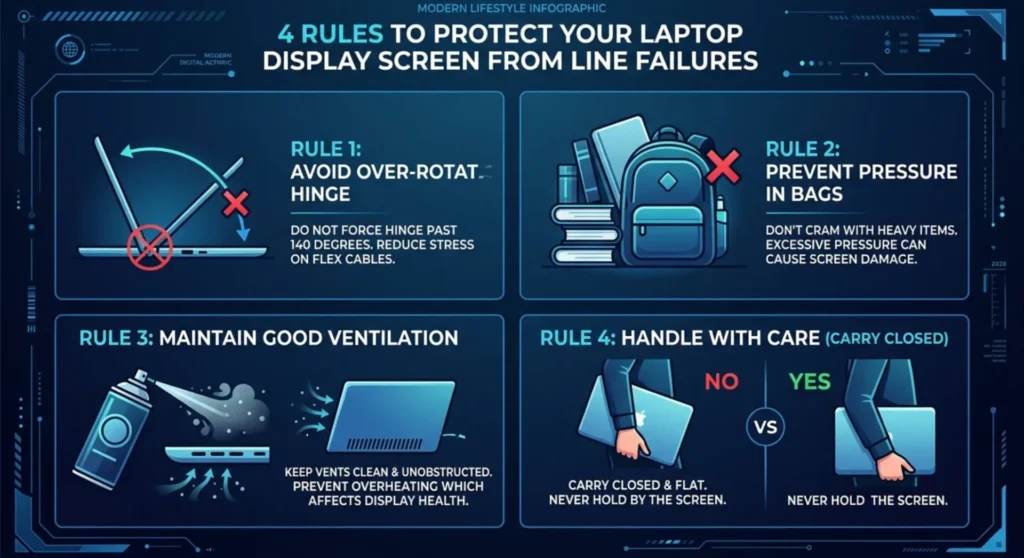
The eDP cable is the most preventable source of display line failures. The habits that protect it cost nothing.
Never force the lid past its natural stop. Every laptop lid has a mechanical stop angle determined by the hinge, typically 135°–140°. Forcing past this point cycles the hinge hardware and the cable inside it past their design tolerances. Chronic over-extension is the leading cause of cable micro-fracture failure I see in practice.
Store the laptop in a padded case that doesn’t compress the display. A laptop slid into a tight bag slot with heavy items against the lid panel is under sustained compression that stresses the LCD cell layer and the cable connectors simultaneously. Over months, this produces line failures that appear spontaneous but aren’t.
Clean your vents every 6 months. A GPU thermal throttling under load produces erratic, shifting line artifacts that look like panel failure but resolve entirely when temperatures return to safe levels. I’ve seen laptops sent for screen replacement that needed compressed air and nothing else.
When transporting, close the lid fully and carry the laptop flat or at a slight angle, not vertical in a bag, which puts the full display assembly weight on the hinge. Vertical transport is particularly damaging for thin-and-light laptops where the hinge is the structural weak point.
Q: The lines appeared after my laptop was in my bag all day. No drops, no obvious damage. How?
Sustained compressive pressure in a bag is a documented cause of both eDP cable connector unseating and LCD cell layer damage. The mechanism is slow, pressure deforms the connector latch microscopically over hours or days, and the connection degrades incrementally rather than failing at once. Lines that appear the morning after the laptop was in a tight bag are almost always cable connector displacement. Reseating the eDP cable resolves this in the majority of cases without cable replacement.
Q: The lines are only visible on white or light-colored backgrounds. Does that mean it’s less serious?
No, visibility on specific background colors is a characteristic of the failure type, not its severity. Most display line failures involve specific subpixels or subpixel channels that produce their strongest visible contrast against certain background colors. A line visible only on white is typically producing a color offset that white backgrounds reveal, the underlying column or row failure is just as complete as a line visible on all backgrounds. It will not self-resolve.
Q: Can a software conflict actually produce lines that look exactly like a hardware failure?
Yes, in specific cases. GPU driver corruption or a partially failed GPU can produce stable-looking vertical or horizontal bands that persist across reboots and look completely hardware-caused. The definitive test is Safe Mode: if lines disappear or change meaningfully in Safe Mode with a generic driver, the cause is software. If Safe Mode produces identical lines, hardware is confirmed. The external monitor test is the second confirmation, GPU-caused lines appear on both the laptop screen and external monitor simultaneously.
Q: I have lines only in one corner of the screen. Is this different from lines across the full display?
Partial-screen lines confined to one corner or one quarter of the display usually indicate a panel delamination or localized cell failure rather than a row/column driver fault. Row and column driver failures almost always produce lines that run the full width or height of the panel. Corner-confined artifacts suggest internal physical damage to the LCD cell or OLED layer, often from an impact that didn’t crack the glass but stressed the panel internally. This is hardware failure requiring panel replacement; no software or cable intervention will affect it.
Q: The lines got worse after I updated Windows. Is that a coincidence?
Not necessarily. A Windows Feature Update that pushed a generic GPU driver can make a marginal display issue significantly worse by removing the OEM driver’s panel-specific compensation parameters. Lines that were barely visible under an OEM driver can become pronounced under a generic one. This doesn’t mean the update caused the hardware fault, the fault was already developing. But rolling back or clean reinstalling the OEM driver (the process described in the Software Gate section) will often return the lines to their pre-update level of visibility, and in some cases to invisibility if the underlying hardware fault is minimal.

Derek V. Mackown is a veteran IT Technician and Display Hardware Specialist with over a decade of hands-on experience troubleshooting complex software-hardware interface glitches. He specializes in Windows OS display architecture, driver calibration, and panel diagnostics. Driven by a passion for pixel-perfect performance, he writes highly analytical, step-by-step guides to help everyday users achieve absolute display clarity at AurumScreen.com.