Physical Address
3260 College Rd, Fairbanks, Alaska

By Derek V. Mackown | IT Technician & Display Hardware Specialist
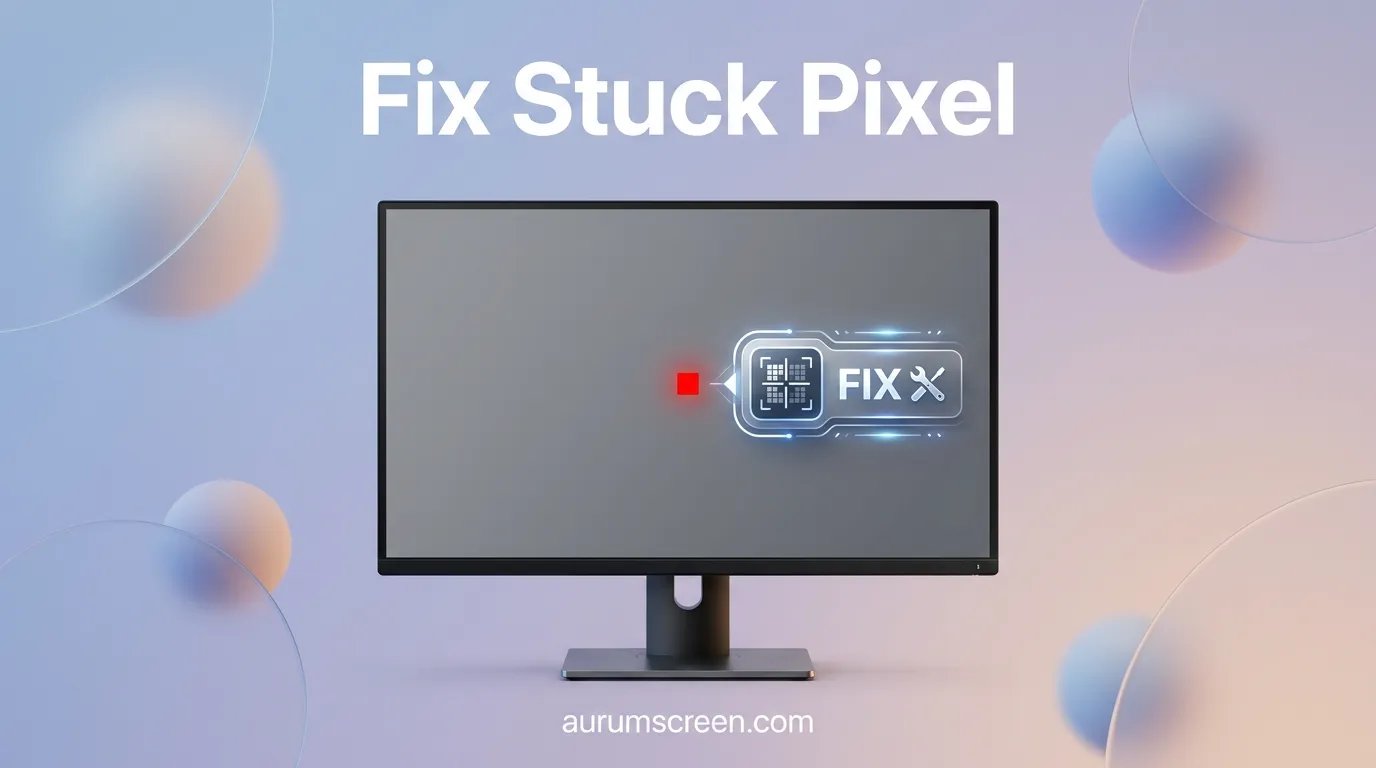
Stuck pixels are one of the few display problems where the success rate of the fix varies so dramatically that knowing the odds upfront changes how much effort you should invest. I’ve resolved stuck pixels on gaming monitors, professional color grading displays, and televisions for over a decade. Some respond in thirty seconds. Some require an hour-long cycling treatment, and some specific category of pixel failure will never respond to any software tool, no matter how long you run it.
The difference comes down to what kind of pixel failure you actually have. That distinction takes two minutes to determine, and it determines whether the next hour of your time is well spent or entirely wasted.
Start there.
Table of Contents
Toggle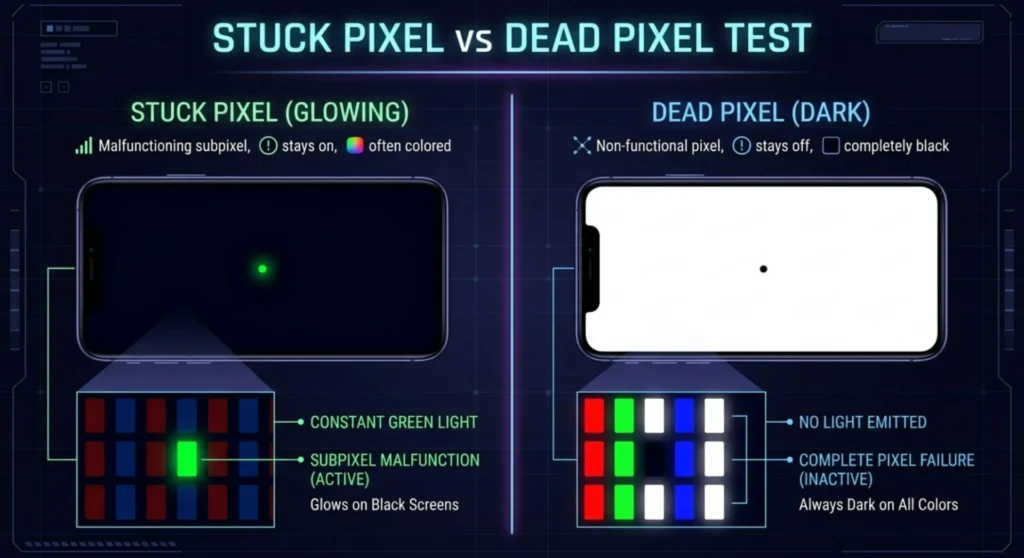
Display a solid black full-screen image – download a pure black wallpaper (RGB 0,0,0) or use a full-screen black browser tab with the browser in full screen mode (F11). Darken your room and look at the suspect pixel.
Then switch to a solid white full-screen image and observe again.
| What You See on Black | What You See on White | Pixel Type | Fixable? |
|---|---|---|---|
| Bright dot (red, green, blue, white, or cyan) | Dot disappears or is barely visible | Stuck pixel — transistor partially on | Yes — high success rate |
| Dot visible, same color on both backgrounds | Dot visible, same color on both backgrounds | Stuck pixel — transistor locked at state | Yes — moderate success rate |
| Nothing — pixel invisible on black | Dark or black dot visible on white | Dead pixel — transistor completely off | Rarely — very low success rate |
| Pixel changes color erratically | Pixel changes color erratically | Hot pixel / flashing pixel | Yes — often self-resolves or responds to cycling |
| Cluster of affected pixels together | Same cluster | Panel delamination or physical damage | No — hardware repair or replacement |
Dead pixels on LCD panels are transistors that have failed completely, no electrical signal reaches them. Software pixel-cycling tools exercise pixel transitions, which requires the transistor to be functional. A transistor that isn’t responding to any signal cannot be cycled back to life by sending more signals through it. This is an important realistic expectation: if your test above confirmed a dead pixel, the fixes below may still be worth attempting, a small percentage of apparent dead pixels are actually stuck pixels that are simply locked at their off state, but the probability of recovery is genuinely low.
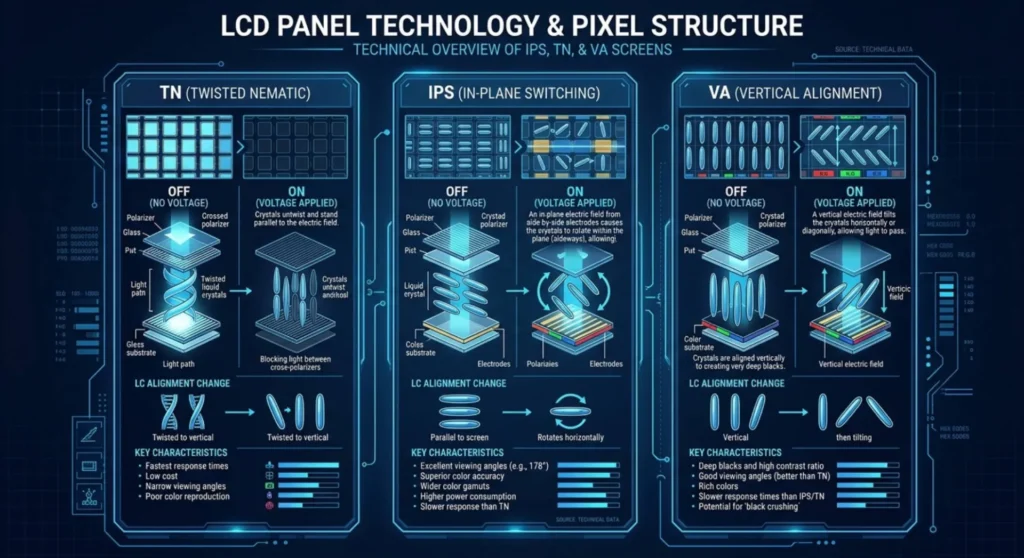
Not all LCD and LED gaming monitors respond equally to pixel-cycling treatment. The panel type affects how likely it is that the stuck state is a temporary charge imbalance versus a structural failure.
| Panel Technology | Stuck Pixel Mechanism | Response to Cycling Treatment | Common in Gaming Monitors |
|---|---|---|---|
| IPS (In-Plane Switching) | Liquid crystals stuck due to charge accumulation | High — IPS crystals respond well to electrical cycling | Yes — mid to high-end |
| TN (Twisted Nematic) | Crystal alignment locked by failed charge state | Moderate — faster crystal rotation aids recovery | Yes — budget to mid-range |
| VA (Vertical Alignment) | Crystals vertically stuck in intermediate state | Moderate to low — VA crystals are harder to dislodge | Yes — high contrast panels |
| IPS with local dimming | Backlight zone interaction complicates pixel state | Variable — depends on whether fault is in panel or dimming circuit | Some high-end monitors |
IPS panels produce the best outcomes with stuck pixel treatment in my experience, both with software cycling and the physical pressure method. TN panels respond adequately. VA panels are the most stubborn, particularly in dark scene stuck states.

This is the starting point for every stuck pixel. The approach: rapidly cycle the stuck pixel through thousands of color transitions per second, which can dislodge a crystal locked in a partially on state by disrupting the accumulated electrical charge keeping it there.
JScreenFix (jscreenfix.com) is the tool I use and recommend first. Browser-based, no installation, no download. It generates a small window of rapidly cycling pixels that you drag over the stuck pixel’s location.
Practical note on positioning: JScreenFix’s cycling window is small. Identify the exact screen location of your stuck pixel by using a solid red, then green, then blue full screen image, the stuck pixel’s position will be clearly visible against each background. Mark the approximate screen coordinate mentally (or with a non-permanent marker on a piece of paper laid against the screen border) before launching the tool.
UDPixel (Windows application, free) is the alternative for users who prefer a desktop tool over a browser-based solution. Download from udpix.free.fr. It allows you to specify the exact pixel coordinates and generates a smaller, more precisely targeted cycling window than JScreenFix.
PixelHealer (free, from Aurelitec) is the third option, the one I use for gaming monitors specifically because it allows you to set the cycling window to full screen, which treats all potentially affected areas simultaneously rather than one pixel at a time.
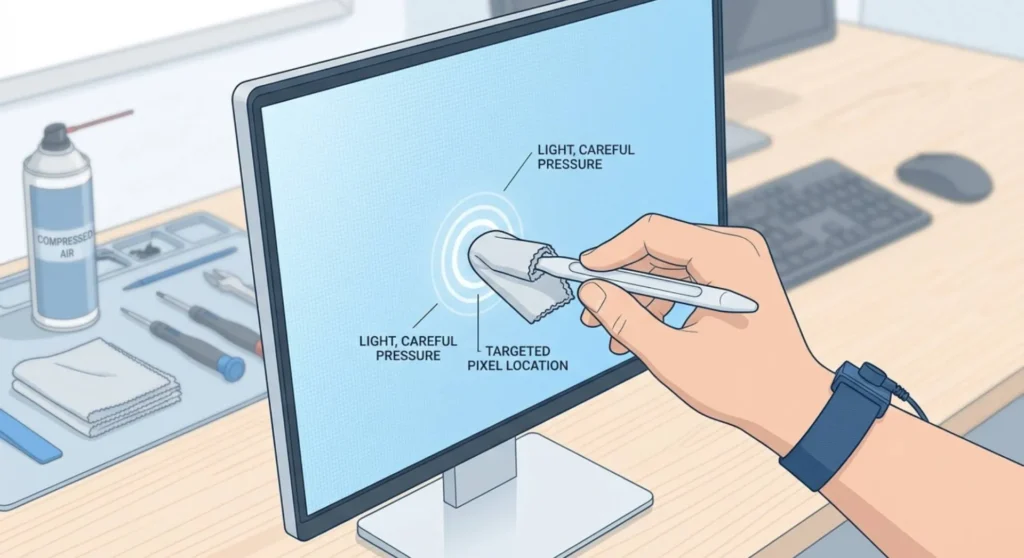
The pressure method applies gentle, focused mechanical force to the stuck pixel area. The mechanism: physical pressure on the LCD panel surface temporarily redistributes the liquid crystal alignment in that cell, which combined with the electrical cycling that the display is always performing can break a crystal free from its locked orientation.
This method requires care. Done incorrectly, it causes more stuck pixels rather than fixing one.
What you need: a soft cloth (microfiber) and one blunt-tipped object, a stylus cap, the eraser end of a pencil, or a rounded pen cap. Never use a fingernail, a sharp object, or anything that concentrates force to a point smaller than 2 – 3mm diameter.
Procedure:
⚠️ Critical warnings for gaming monitor panels: High-refresh IPS panels (144Hz, 165Hz, 240Hz) use thinner LCD cell gaps than standard panels to achieve faster response times. This makes them slightly more pressure-sensitive than standard monitors. Apply less force than you think is necessary, if the display shows a spreading pressure ripple around your application point (the familiar “pushing on an LCD” rainbow ripple), you’re applying too much force. Ease off immediately.
Never apply pressure to an IPS panel with FALD (Full Array Local Dimming) without knowing the location of the dimming zone boundaries. Pressure over a zone boundary can displace the dimming diffusion layer, creating a visible seam that is permanent.
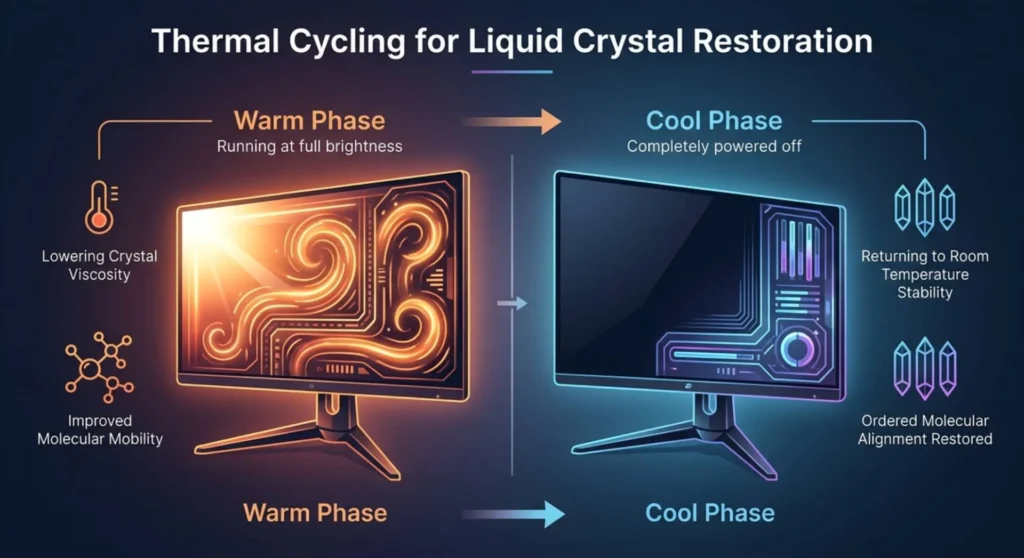
Liquid crystals are thermally sensitive materials. Their viscosity changes with temperature, warmer crystals flow more freely and can sometimes escape a stuck alignment state more readily than crystals at room temperature.
This is a passive fix, not an active one. It doesn’t involve heat application (never use a heat gun or hair dryer near a monitor panel). It involves running the monitor at normal operating temperature for an extended period while pixel cycling software runs.
I’ve seen this approach resolve pixels that didn’t respond to multiple cycling sessions alone. The thermal cycling appears to matter particularly on IPS panels where the crystal flow properties are more temperature-dependent than TN or VA.
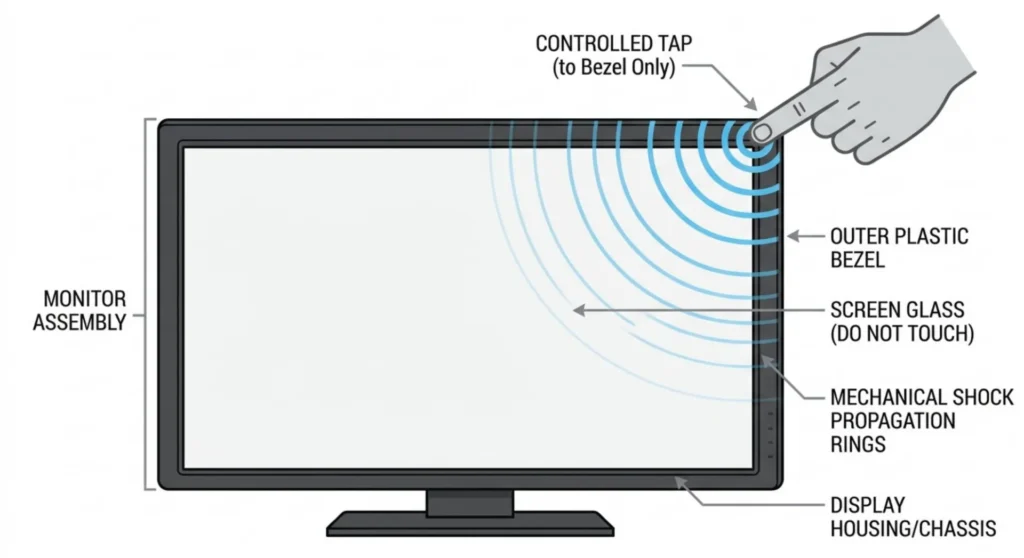
More aggressive than the pressure method and less precise, I include it because it genuinely works on a subset of stuck pixels that don’t respond to sustained pressure. The mechanism is mechanical shock rather than sustained force: a brief impulse that can jolt a crystal cluster out of its locked state.
Why the bezel and not the panel: Tapping the panel surface directly risks creating pressure damage across multiple pixels. Tapping the bezel transmits a controlled mechanical impulse through the panel housing to the panel cell without concentrating force at the panel surface.
This method has a lower success rate than the pressure method but produces faster results when it works, a single tap sometimes resolves a pixel that an hour of cycling didn’t. Don’t tap more than 8 – 10 times without improvement. If there’s no response, the pixel is not going to respond to mechanical methods.
If targeted fixes haven’t worked, a sustained full-panel cycling session is the last software option before concluding the pixel is permanently stuck or dead.
PixelHealer fullscreen overnight run:
Running fullscreen rather than targeting only the stuck pixel exercises the entire panel’s pixel drive circuitry simultaneously. On monitors that have been displaying the same static content (a desktop wallpaper, an always-on display) for months, a sustained fullscreen cycling session can resolve multiple pixels that had gradually drifted into stuck states without the user noticing.
After the overnight session: check immediately in a darkened room with solid black and white test images. Check again 24 hours later, some pixels that partially responded to overnight cycling complete their recovery over the following day as the panel returns to normal thermal equilibrium.
Not every stuck pixel resolves. This is the realistic outcome distribution based on my experience and the documented outcomes of pixel-cycling tool developers:
| Pixel State | Treatment Applied | Approximate Recovery Rate |
|---|---|---|
| Stuck pixel — hot (always bright) | Software cycling 30 min | 60 – 70% |
| Stuck pixel — hot (always bright) | Cycling + pressure method | 75 – 85% |
| Stuck pixel — locked state, IPS | Cycling + pressure + temperature | 70 – 80% |
| Stuck pixel — locked state, VA | Cycling + pressure + temperature | 40 – 55% |
| Apparent dead pixel (actually stuck-off) | Full overnight cycling | 10 – 20% |
| True dead pixel (transistor failed) | Any software method | Less than 5% |
| Cluster of pixels (panel damage) | Any method | Not applicable |
If you’ve run a 2 hour targeted cycling session, the pressure method three times, and an overnight full screen run and the pixel is unchanged, the probability of any further treatment succeeding drops below 5%. At that point, the question becomes warranty and manufacturer policy.
Most monitor manufacturers apply an ISO 13406-2 or ISO 9241-307 defect threshold before covering pixel failures under warranty. These standards classify displays into classes and define how many defective pixels must be present before a replacement is warranted.
In practice, this means a single stuck pixel may not qualify for warranty replacement on many monitors, even under an active warranty. The threshold varies by manufacturer and product tier.
| Manufacturer | Pixel Defect Policy | Zero Dead Pixel Guarantee? |
|---|---|---|
| Dell (UltraSharp line) | Zero bright pixel defect guarantee | Yes — one bright pixel qualifies for replacement |
| ASUS (ProArt line) | Zero bright pixel defect on ProArt monitors | Yes — for designated ProArt models only |
| BenQ (professional line) | Class II ISO standard (3 bright pixels) | No — threshold applies |
| LG (UltraGear gaming) | Standard ISO Class II threshold | No |
| Samsung (Odyssey gaming) | Standard ISO Class II threshold | No |
| Acer (Predator / Nitro) | Standard ISO Class II threshold | No |
| MSI (gaming monitors) | Standard ISO Class II threshold | No |
Gaming monitors specifically: The majority of gaming-focused monitors ASUS TUF, MSI Optix/G-Series, Acer Nitro, Samsung Odyssey, LG UltraGear — apply the standard ISO Class II threshold, which permits up to 2 bright pixel defects and up to 5 dark pixel defects before warranty replacement is required. A single stuck pixel on a gaming monitor generally does not qualify for free replacement under standard warranty terms.
The exception: If your gaming monitor is under warranty and you have 2 or more stuck or dead pixels in close proximity, or any defective pixels in the center zone of the display (defined as the central 1/3 of the screen area), contact the manufacturer directly. Many manufacturers apply more favorable criteria for central-zone defects than their published policy states.
Stuck pixels on LCD gaming monitors cluster around two causes: sustained static image display at high brightness, and physical panel stress.
Run a screen saver or display-off timer when your gaming session ends. A gaming monitor left displaying a static desktop or game lobby screen at 300 – 400 nits for hours daily is continuously stressing the same pixel states. Pixel cycling tools work precisely because the pixels need to be exercised, the monitor does this automatically when displaying dynamic content and stops doing it when displaying static content.
Calibrate your monitor’s brightness to a reasonable operational level, 120 – 150 nits for typical indoor gaming environments rather than the factory-default 200–300 nits. Lower brightness reduces the electrical stress on liquid crystal cells and backlight components simultaneously.
Handle your monitor without pressure on the panel surface. The most common cause of sudden stuck pixel clusters I see in gaming setups is cleaning, applying paper towels with circular pressure to the panel surface. Clean your panel with a dry or very lightly dampened microfiber cloth, using light parallel strokes rather than circular pressure. Never use a paper-based product directly on an LCD panel surface.
Keep the monitor in a stable thermal environment. Monitors stored or shipped in cold environments and then powered on immediately are more likely to develop stuck pixels as the cold-affected liquid crystals transition unevenly. Allow a cold monitor to reach room temperature before powering it on.
Q: I tried JScreenFix for two hours and nothing changed. Should I try it again?
A third session is unlikely to produce a different result if two didn’t, the law of diminishing returns applies quickly beyond two full cycles. Before running a third session, try the pressure method during a cycling session (Fix 2) and then the tap method (Fix 4). If those don’t produce any change, you’re likely dealing with a transistor failure rather than a charge-state stuck pixel, and additional cycling will not help.
Q: The stuck pixel disappeared and came back a week later. What’s happening?
A pixel that recovers and then restucks is exhibiting instability in the transistor’s charge-holding behavior, it can reach the correct state temporarily but can’t maintain it. This is an early-stage transistor degradation pattern. The pixel will likely continue this cycle and eventually fail permanently. Note the current date, document with a photo, and check whether you’re within warranty, a pixel that has already demonstrated instability is more likely to meet a manufacturer’s replacement criteria if it fails completely within the warranty window.
Q: My monitor has one dead pixel right in the center of the screen. The manufacturer says it doesn’t qualify for replacement. What are my options?
Legally and practically: check your country’s consumer protection laws. In the EU and UK, consumer protection regulations often provide broader defect coverage than a manufacturer’s stated warranty policy particularly for defects in prominent display locations. In the US, credit card purchase protections from Visa and Mastercard sometimes extend warranty coverage and apply different defect thresholds than the manufacturer. Document the pixel with a photo showing its location relative to the screen center before contact. Present the photo when engaging support policies are more often applied favorably for center-zone defects than the written threshold suggests.
Q: Is a stuck pixel the same as a hot pixel?
Similar but technically distinct. A hot pixel is a transistor that is stuck in an over-driven on state, it emits light beyond its correct level and often appears white or very bright in color. A stuck pixel is a transistor locked at a specific color state that isn’t responding to the display controller’s signals. Hot pixels tend to respond to cycling treatment more readily than stuck pixels and sometimes self-resolve during the first few hours of monitor operation. If you see a bright white or intensely bright colored dot that appeared when you first unboxed the monitor, give it 4 – 6 hours of normal use before treating it, a meaningful percentage of hot pixels stabilize on their own.
Q: Can a stuck pixel spread to neighboring pixels?
On LCD panels, stuck pixel failures don’t spread. The failure mechanism charge accumulation or transistor state lock, is localized to the individual cell. A stuck pixel doesn’t affect its neighbors electrically. However, if the stuck pixel is a symptom of panel delamination or physical damage, neighboring pixels may subsequently develop issues from the same underlying cause. Watch the area around the stuck pixel over the following weeks. A spreading cluster is a delamination indicator, not a simple stuck pixel.

Derek V. Mackown is a veteran IT Technician and Display Hardware Specialist with over a decade of hands-on experience troubleshooting complex software-hardware interface glitches. He specializes in Windows OS display architecture, driver calibration, and panel diagnostics. Driven by a passion for pixel-perfect performance, he writes highly analytical, step-by-step guides to help everyday users achieve absolute display clarity at AurumScreen.com.