By Derek V. Mackown | IT Technician & Display Hardware Specialist
Here’s a question before we start: how do you actually know your screen is at maximum brightness?
Not the slider. Not the keyboard key. Not the percentage in Settings. I mean the screen itself, the physical light output coming off the panel. Because here’s what most people don’t realize until they’ve sat across from me in a diagnostic session: the Windows brightness slider and your panel’s actual light output are two completely separate things. The slider is a request. What the panel delivers depends on at least four independent systems and any one of them can override the request without telling you.
The brightness slider says 100%. The ambient light sensor says the room is dim, so it overrides to 60%. Windows faithfully shows 100% because that’s where the user control sits. The screen looks like tissue paper. And you’ve been staring at Settings wondering what you’re missing.
That gap between what the slider shows and what the panel actually outputs is where this entire problem lives. Every fix in this guide targets one layer of that gap specifically. And before any fix, you’re going to measure the actual output so you can verify whether each fix made a real difference or just felt like it did.
Take This Measurement Before Touching Anything
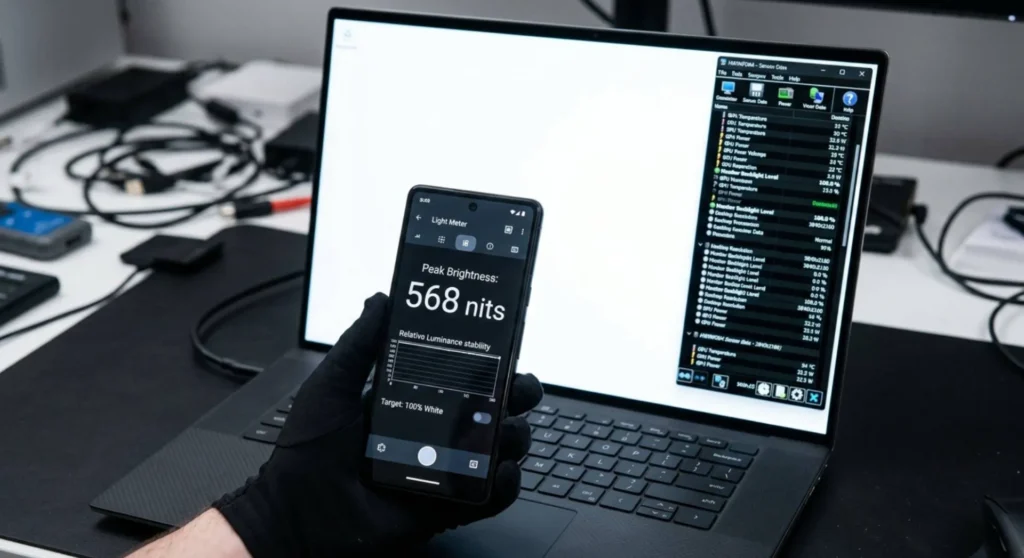
Open your browser and go to displayhdr.org/test-your-display Run the peak brightness test or simply display a pure white full screen window and use your phone’s camera pointed at the screen to observe relative brightness. Better: download HWiNFO64 → open Sensors → locate Backlight Level or Display Brightness, this shows your panel’s actual hardware output level as a percentage independent of Windows.
Write down that number.
You’ll come back to it after each fix. If the number moves, the fix did something. If it doesn’t move, the fix didn’t apply to your situation, and you move to the next one. This measurement-first approach cuts through the guesswork that makes brightness troubleshooting so frustrating, you’ll know exactly which layer was responsible, not just that “it got better.”
What your number means: A laptop panel rated at 300 nits showing 45 – 55% hardware output at a Windows setting of 100% means something is capping it at roughly half capacity. That’s not a broken screen, that’s a setting. A panel showing 95 – 100% hardware output at Windows 100% that still looks dim means the panel itself is underperforming against its spec, either aging or a hardware fault. Those two situations need entirely different treatments, and the measurement tells you which one you’re in before you waste time on the wrong path.
Fix 1 – Silence the Sensor That’s Quietly Running Your Screen
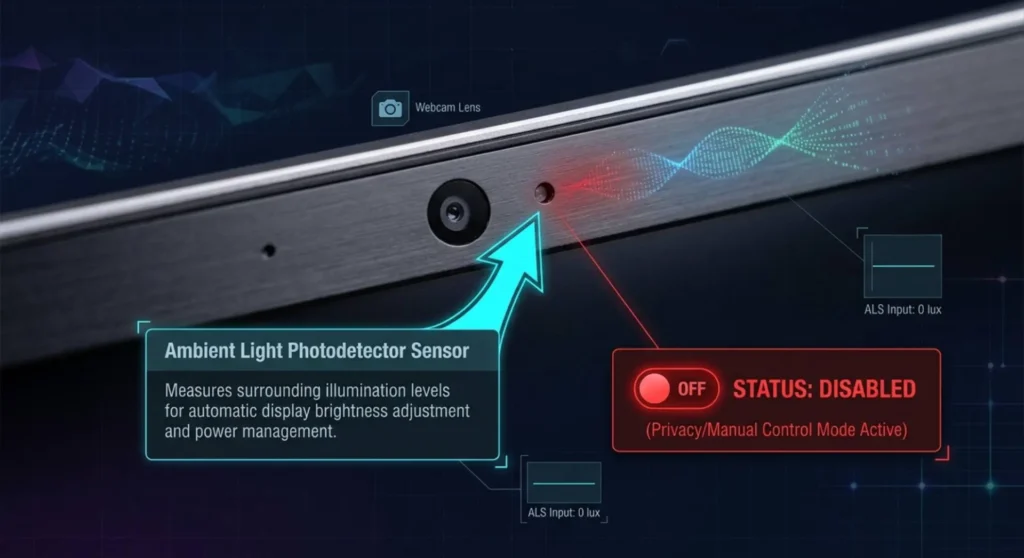
Somewhere in your laptop’s top bezel, almost certainly near the webcam, there’s a photodetector about the size of a pinhead. It reads ambient light levels and tells the display driver how bright the room is. Windows, and most laptop manufacturers, have built an automatic brightness adjustment system around this sensor.
In theory, adaptive brightness is a comfort feature. In practice, it’s the single most common reason a screen sits at 40% output while Windows reports 100% brightness. The sensor sees a dim office, the algorithm decides the screen should match, and it caps the backlight silently, without any notification, while the slider stays wherever you put it.
The fix has three layers because three separate systems can implement the same feature:
Layer one – Windows itself:
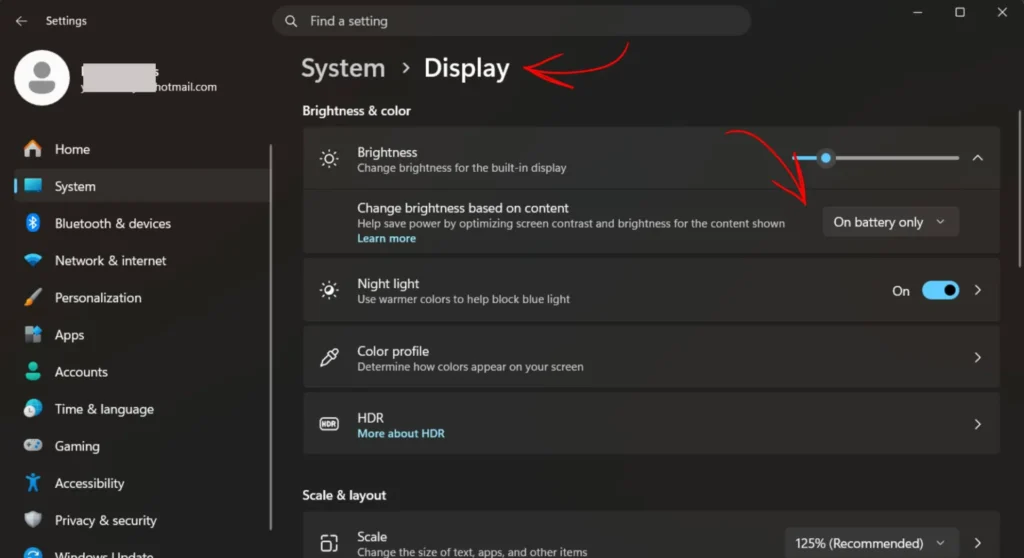
Settings → System → Display → scroll to Brightness → toggle off Change brightness automatically when lighting changes.
If that toggle doesn’t exist on your system, open Control Panel → Power Options → Change plan settings → Change advanced power settings → expand Display → expand Enable adaptive brightness → set both On battery and Plugged in to Off.
Layer two – your manufacturer’s driver:
The toggle above disables Windows-level adaptive brightness. It does not disable the manufacturer’s own implementation, which runs as a separate driver service beneath Windows. These are the paths:
| Laptop Brand | Where to Disable It |
|---|---|
| HP | HP Command Center → Thermal → disable Intelligent Backlight Control |
| Dell | Dell Display Manager → Brightness → disable Auto Brightness Adjust |
| Lenovo | Lenovo Vantage → My Device Settings → Display → toggle off Ambient Light Sensor |
| ASUS | MyASUS → Customization → disable Adaptive Brightness and Splendid Auto mode |
| Acer | Acer Care Center → Settings → disable Adaptive Brightness if listed |
Layer three – the BIOS sensor override:
On HP EliteBook and Dell Latitude business models specifically, the ambient light sensor can be controlled at BIOS level. Enter BIOS (F10 for HP, F2 for Dell) → Advanced or Security → Built-In Device Options → locate Ambient Light Sensor → disable.
After disabling all three layers: restart, push the Windows slider to maximum, and check your HWiNFO reading again. If the hardware output percentage climbed even partially, the sensor was responsible. If the reading didn’t move at all, move to Fix 2.
Fix 2 – Break the Power Plan’s Grip on Your Backlight
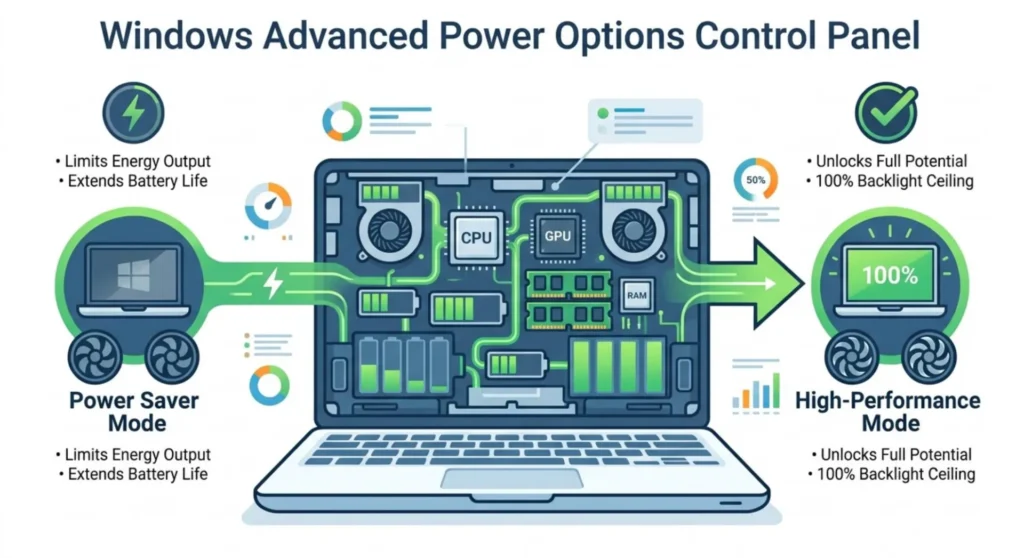
Power plans aren’t just about CPU speed and sleep timers. They contain explicit brightness ceilings that apply at the hardware level, meaning a Power Saver plan set to 40% display brightness will physically limit your backlight to 40% capacity regardless of where the Windows slider sits. The slider still moves. Windows still shows you a percentage. The hardware ignores it.
This is particularly deceptive after Windows updates, which quietly reset power plan settings to their defaults.
The immediate test: Plug your laptop into wall power if it isn’t already. Open Settings → System → Power & battery → Power mode → temporarily switch to Best performance. Check HWiNFO. If the hardware brightness reading jumps, a power plan was capping it. Now fix it properly.
Inside the advanced power settings:
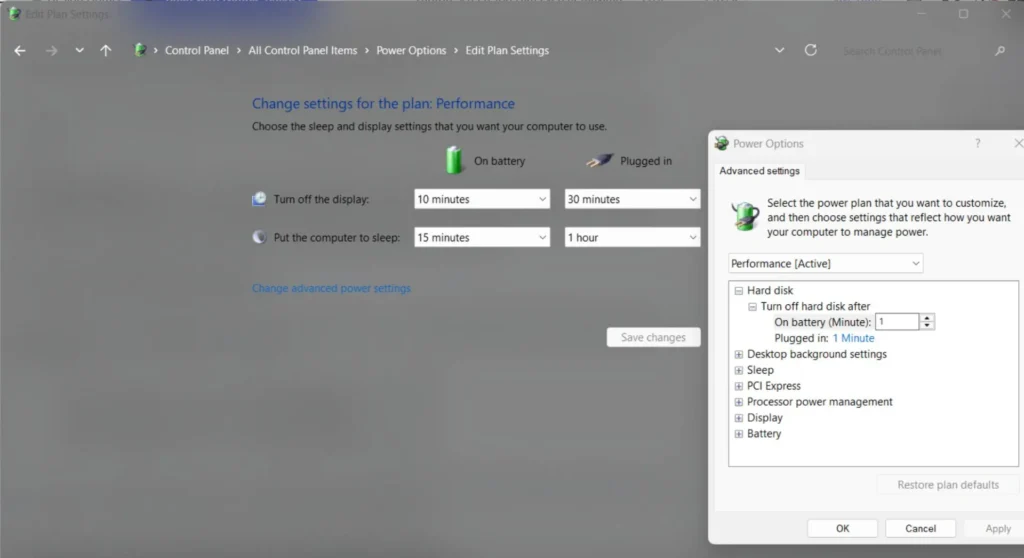
Control Panel → Power Options → Change plan settings → Change advanced power settings. Expand Display and work through every sub-entry:
- Display brightness → set On battery and Plugged in to 100
- Dimmed display brightness → set both to 100
- Display brightness boost → if present, enable for Plugged in
Do this for every power plan you switch between, not just the active one. A plan you switch to at night might have a separate brightness ceiling that reapplies itself later.
Manufacturer conservation modes are a separate layer here too:
Lenovo’s Conservation Mode, ASUS Battery Health Charging, HP’s Battery Health Manager, and Dell’s Primary AC Use Mode all modify the power budget available to the display as a side effect of their battery longevity functions. These are legitimate features, but during brightness troubleshooting, disable them temporarily so they don’t interfere with your measurement.
Check HWiNFO again. Number moved? Power plan was the culprit. Didn’t move? Proceed.
Fix 3 – Find the GPU’s Hidden Dimmer Switch
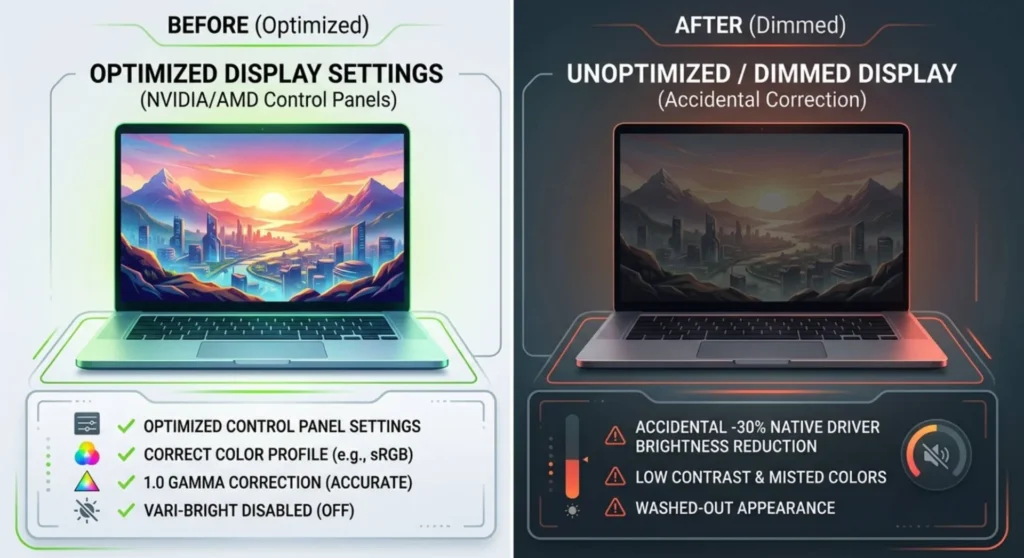
The GPU driver sitting between Windows and your display maintains its own color and output configuration and this configuration can apply a brightness or gamma reduction that operates completely independently of the Windows slider. You can have Windows at 100%, the sensor disabled, the power plan unrestricted, and still have a screen that looks dim because the GPU is applying a 30% brightness correction that nobody set intentionally.
This happens most often after driver updates, which sometimes carry over color profile settings from the previous installation into the new one.
If your laptop uses Nvidia:
Right-click the desktop → Nvidia Control Panel → Display → Adjust desktop color settings → select your laptop display from the list.
Three things to check: Brightness should be at center (0 or neutral). Gamma should be at 1.0. Contrast should be at center. A gamma below 1.0 is the most common offender, it darkens midtones and makes the entire display appear dim without any obvious indication something is wrong.
Also: Manage 3D Settings → Power management mode → if set to Optimal power or Adaptive, switch to Prefer maximum performance while troubleshooting. On some Lenovo and ASUS models, these settings reduce power to the display circuit under light load, affecting brightness.
If your laptop uses AMD:
Radeon Software → Display tab → Color section → confirm Brightness at 0 and Gamma at 1.0.
Specifically check: Vari-Bright. This is AMD’s automatic brightness reduction feature, it dims the display based on content to save power. It can be enabled by default on new driver installs and applies directly to display output level, not the Windows brightness layer. Disable it.
If your internal display runs through Intel integrated graphics:
Open Intel Graphics Command Center or Intel Arc Control → Display → Color → confirm Brightness and Gamma at default values. On hybrid graphics laptops, the internal panel almost always routes through Intel, the Nvidia/AMD settings you see apply to external outputs, not the built-in screen.
HWiNFO check again. A gamma correction or Vari-Bright removal should produce a measurable output increase. If the reading is still the same, move forward.
Fix 4 – Go Into the BIOS and Release the Hardware Ceiling
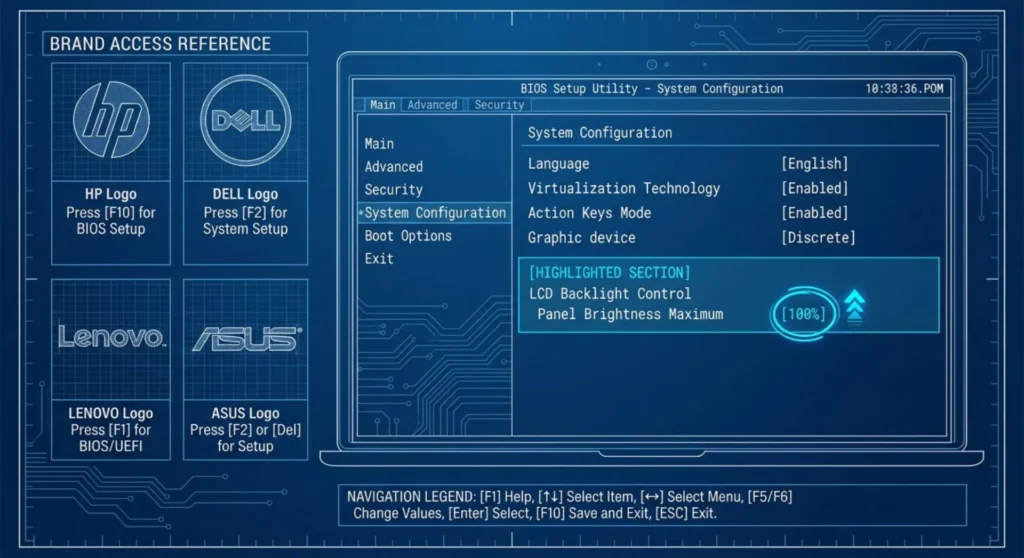
This is the fix that surprises people the most. A setting inside the BIOS firmware not in Windows, not in any driver, not in any application can set a hard ceiling on the maximum power delivered to the display backlight. The OS has no visibility into this ceiling. The brightness slider has no authority over it. No software-layer fix can override a BIOS-level brightness cap because that cap is enforced before any operating system code executes.
This is most prevalent on enterprise and business-class laptops HP EliteBook, Dell Latitude, Lenovo ThinkPad where IT departments sometimes configure reduced brightness as part of a battery life or thermal management policy. But I’ve also seen it on consumer machines where a prior owner, a factory default, or a previous troubleshooting session left a brightness restriction in place.
Getting in:
| Manufacturer | BIOS Entry Key | When to Press It |
|---|---|---|
| HP | F10 | Immediately and repeatedly after pressing power |
| Dell | F2 | Immediately after the Dell logo appears |
| Lenovo | F1, or Enter then F1 | During the initial Lenovo splash screen |
| ASUS | F2 or Delete | Immediately after pressing power |
| Acer | F2 | Immediately after pressing power |
What to look for once inside:
On HP BIOS: Advanced → Built-In Device Options → look for Display Backlight or Panel Brightness Maximum. If a value is set below 100%, raise it.
On Dell BIOS: Video section → LCD Brightness (On AC) and LCD Brightness (On Battery). These are explicit nits or percentage settings, set both to maximum.
On Lenovo BIOS: Config → Display. Also check Power → Battery for any brightness-related power policies on ThinkPad models.
If you don’t find an explicit brightness setting, load BIOS defaults while you’re in there, F9 on most systems. A previous change you’ve forgotten, or a factory misconfiguration, gets cleared. Save with F10 and restart.
Measure immediately after restart, before Windows has time to apply any other settings. If the hardware brightness reading is now higher on a clean boot than it was before, the BIOS was the ceiling.
Fix 5 – Accept What the Panel Is Actually Capable Of
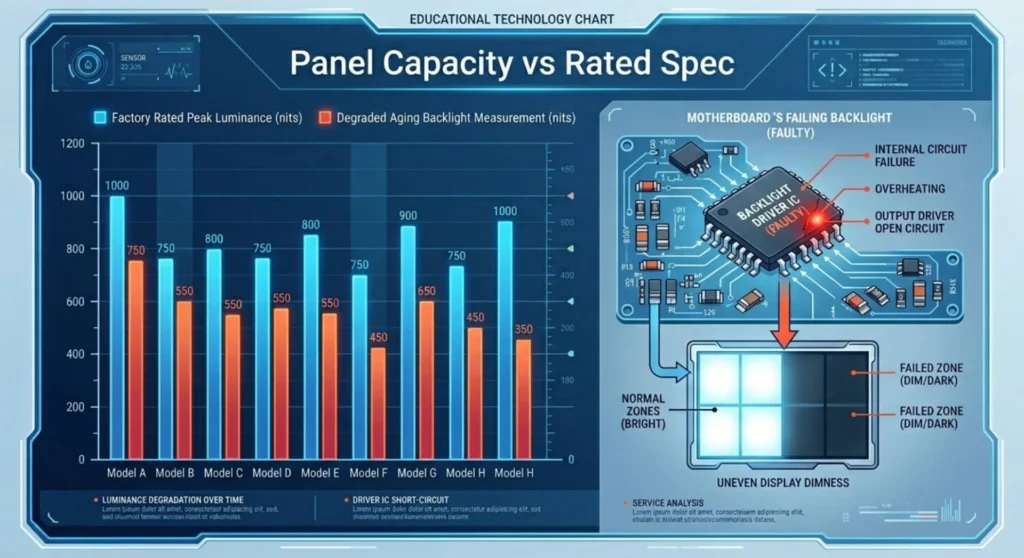
If you’ve worked through Fixes 1 to 4 and HWiNFO shows your panel is genuinely outputting at 90 – 100% of its hardware capacity. But the screen still looks dim, the conversation shifts entirely. The software isn’t the problem. The panel itself is either aging naturally, performing below its rated spec, or has a hardware fault in the backlight circuit.
These are three different conditions and they feel identical from the outside. The measurement tells you which one.
Pull your laptop’s rated peak brightness from the manufacturer spec sheet. Search: [your exact model number] specifications brightness nits. The spec sheet will list a peak brightness in nits, typically 250 – 400 nits for standard panels, 400 – 600 for premium panels, and 1000+ for HDR-capable displays.
Now compare that to what you’re actually getting. The Display HDR Test app (free, Microsoft Store) measures your panel’s actual peak white luminance in nits and gives you a direct comparison point.
| Gap Between Rated and Measured | What It Indicates |
|---|---|
| Less than 15% | Normal tolerance — panel is performing to spec |
| 15 – 30% below rated | Moderate aging — expected after 3 – 4 years of regular use |
| 30 – 50% below rated | Significant aging or early backlight circuit degradation |
| More than 50% below rated | Backlight component failure — uneven dimness usually present |
Uniform dimness across the entire panel that developed gradually over years is LED aging, the organic light efficiency of the LED array decreases with use. It’s not a fault. It’s time. The panel can be replaced; whether that’s worth doing depends on the laptop’s age and value.
Sudden dimness, or dimness concentrated in one area, means a specific backlight component has failed, an LED array segment, the backlight driver IC on the motherboard, or on older CCFL-backlit panels, the inverter. Uneven brightness that has one side or corner noticeably darker than the rest confirms this immediately. This is a repair, not a setting.
The backlight driver IC scenario is worth knowing about because it produces a confusing symptom: a brand-new replacement panel that is also dim. People replace the panel expecting brightness to return, and when the new panel is also dim, they assume they received a defective part. They didn’t. The motherboard’s backlight driver IC, the component supplying power to the panel’s LED array is underperforming or failing. The new panel is running on the same insufficient power budget as the old one. This requires component-level board repair, not another panel swap.
When the Screen Dims on Its Own After a Few Minutes
This symptom is different from persistent dimness and deserves its own explanation because it’s frequently misdiagnosed as a brightness setting issue when it’s almost always something else.
A screen that starts bright and dims after 3 – 10 minutes is typically one of three things: the Dim the display after timer in Power Options is set to a very short interval (Control Panel → Power Options → Change plan settings → check this value, it defaults to 1 – 2 minutes on many laptops), thermal management reducing backlight power as the system warms up under load, or the adaptive brightness sensor responding to the user leaning back from the screen and the room appearing darker from the sensor’s perspective.
Check the dim timer first. It takes 20 seconds and resolves the symptom in the majority of these cases. If the timer is set to Never and dimming still occurs after a few minutes of use, temperature is the next variable: check that the laptop vents are unobstructed and the fan is audible under load.
Frequently Asked Questions
Q: All five fixes made no difference and my panel is measuring well below its rated brightness. Do I just need a new screen?
Before ordering a panel: confirm the backlight driver IC on the motherboard isn’t the limiting factor. A technician with a bench power supply can apply a test voltage directly to the panel’s backlight connector and verify whether the panel itself reaches its rated brightness under correct power. If it does, the motherboard’s driver circuit is the fault, the panel is fine. If the panel is still dim under direct bench power, the panel itself has failed.
Q: My screen is noticeably brighter on battery than when plugged in. This seems backwards, why?
It’s a hybrid graphics switching effect. Many laptops route the internal display through Intel integrated graphics on battery (lower power, drives the panel directly) and switch to discrete Nvidia or AMD GPU output when plugged in. The discrete GPU’s color and brightness settings are often different from the integrated GPU’s settings particularly if the GPU driver was updated without the brightness settings being synchronized. Check Fix 3’s GPU-specific settings while plugged in versus on battery and compare.
Q: Can a Windows Update actually cause a screen to become permanently dim?
Not permanently, but yes, a Feature Update can reset power plan settings, re-enable adaptive brightness, overwrite your GPU color profile with a dimming default, or replace a working OEM display driver with a generic one that handles brightness control differently. If dimness appeared immediately after an update and not before, work through Fixes 1, 2, and 3 in that order, those three settings are the most reliably disrupted by Windows updates.
Q: My brightness keys work but the slider in Settings doesn’t move. Is that a hardware or software problem?
The brightness keys and the Settings slider communicate through different pathways on some laptops. The keys go through the keyboard hotkey driver (HP Hotkey Support, Lenovo Hotkey driver, ASUS ATK Hotkey) and directly address the display brightness API. The Settings slider goes through the display driver. If one works and the other doesn’t, the relevant driver is corrupted or missing. Download the hotkey driver from your manufacturer’s support page and reinstall it. If the slider works and the keys don’t, the hotkey driver is the fault. If the keys work and the slider doesn’t, the display driver needs a DDU clean reinstall.