By Derek V. Mackown | IT Technician & Display Hardware Specialist
Every other article in my troubleshooting workflow eventually points here. Flickering screen? DDU. TDR crashes? DDU. Blurry output after a Windows update? DDU. Stuck at the wrong refresh rate after a driver install? DDU. It comes up constantly because the problem it solves, driver layer contamination from partial or layered installations is behind a disproportionate share of display issues that look unrelated on the surface.
What Display Driver Uninstaller does is deceptively simple to describe and genuinely difficult to replicate manually: it removes every trace of a GPU driver from the Windows registry, file system, and driver store simultaneously, leaving the system in a clean state that a fresh driver installation can build correctly from scratch. A Device Manager uninstall doesn’t do this. Windows Update driver replacement doesn’t do this. Even Nvidia’s and AMD’s own clean installation options don’t fully accomplish it.
This guide is the complete procedure, not the abbreviated version that appears as a step inside another fix. If you’re here because another guide sent you, or because you’re doing this for the first time and want to understand exactly what you’re executing and why, this is what you need.
What DDU Actually Does and Why Standard Uninstalls Don’t
When you install a GPU driver through Device Manager’s update function or through a standard Nvidia/AMD installer, the previous driver isn’t fully removed. It’s overwritten at the binary level, but the registry entries, the Windows Driver Store records, and the cached INF files are layered rather than replaced. Over multiple driver version transitions, which happen frequently on gaming systems where users chase Game Ready updates, this accumulation creates a driver stack with conflicting entries from three, four, or five previous versions simultaneously.
Windows doesn’t report this as an error. The system boots. Games launch. But the driver is running with a partially contaminated configuration space, and that contamination surfaces as instability under specific load conditions, resolution changes, or after GPU hardware swaps.
DDU operates differently at every layer:
Registry: DDU removes Nvidia, AMD, and Intel GPU driver registry keys from HKLM\SYSTEM\CurrentControlSet\Control\Class\{4d36e968-e325-11ce-bfc1-08002be10318} and related branches — entries that standard uninstalls leave partially intact.
File system: DDU removes driver binaries, DLL files, and support applications from C:\Windows\System32\DriverStore\FileRepository – the Windows Driver Store, where driver packages are cached and can be silently reinstalled by Windows even after a Device Manager removal.
Display stack: DDU removes the WDDM (Windows Display Driver Model) components that mediate between the OS and the GPU, ensuring no WDDM artifacts from previous versions persist to contaminate the new installation.
Scheduled tasks and services: DDU removes manufacturer-installed services (Nvidia Display Container, AMD Crash Defender, Intel Arc Control services) that can interfere with a clean reinstallation if left running.
This is why DDU must run in Safe Mode. In normal Windows mode, many of these components are actively loaded and locked by the OS. DDU cannot remove files that Windows has open. Safe Mode loads only the generic Microsoft Basic Display Adapter driver, releasing all GPU driver components for deletion.
Before You Start | The Pre-Flight Checklist
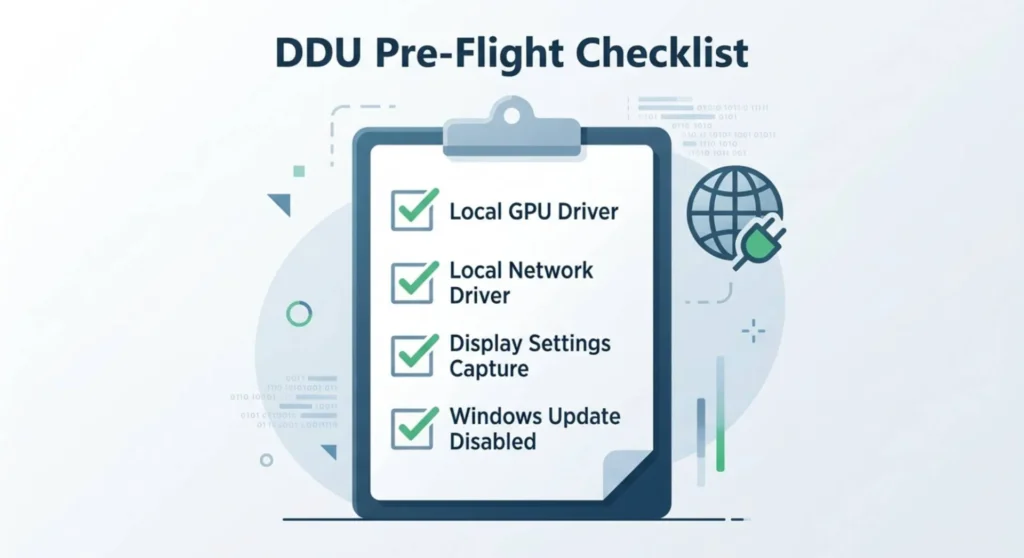
Running DDU without preparation creates two common failure modes: Windows immediately reinstalling the old driver before you can install the new one, and losing network connectivity after the clean because the system doesn’t have a stored driver for your network adapter. Go through this list before entering Safe Mode.
Download these before proceeding – you need them stored locally before the internet connection changes:
Your new GPU driver — downloaded from nvidia.com, amd.com, or intel.com as appropriate. Do not download from Windows Update or any third-party driver site. Store it on your Desktop or in a clearly named folder.
DDU itself — from guru3d.com specifically. The developer (Wagnardsoft) hosts it there and keeps it current. Mirror sites and third-party hosts sometimes distribute outdated versions.
Your network adapter driver — this is the step most guides omit. After a DDU clean, some systems lose Wi-Fi or Ethernet connectivity if the network driver had a dependency on GPU driver components (rare but documented). Go to your laptop manufacturer’s support page or your desktop motherboard manufacturer’s support page, download the network/LAN/WLAN driver for your specific model, and store it locally.
Note your current working display settings — screenshot your Display Settings page showing resolution, refresh rate, and scaling. After a clean install these will reset to defaults and you’ll need to reconfigure them.
Disable Windows Update’s automatic driver installation before entering Safe Mode:
This step is critical and almost universally skipped. Windows Update will detect the missing GPU driver the moment it’s removed and begin downloading a replacement, often a generic Microsoft driver that isn’t what you want. You need to disable this behavior before starting.
- Press Windows + R → type
gpedit.msc→ Enter (requires Windows 10/11 Pro or Enterprise) - Navigate to: Computer Configuration → Administrative Templates → System → Device Installation → Device Installation Restrictions
- Enable “Prevent installation of devices not described by other policy settings” → set to Enabled
- Alternatively, on all Windows editions: Settings → Windows Update → Advanced options → Optional updates, ensure driver updates are not set to install automatically
If you’re on Windows Home without Group Policy access, the practical workaround is to disconnect from the internet (disable Wi-Fi, unplug Ethernet) immediately after the DDU clean completes and before installing your new driver. Reconnect only after the new driver is fully installed and confirmed.
Entering Safe Mode | Three Methods Depending on Your Situation
Method 1 — From a working Windows desktop (standard):
- Hold Shift and click Start → Power → Restart
- Select Troubleshoot → Advanced options → Startup Settings → Restart
- When the Startup Settings menu appears, press 4 for Safe Mode or 5 for Safe Mode with Networking
Safe Mode with Networking is useful if you need to download anything during the process. For DDU specifically, if you’ve followed the pre-flight checklist and have everything downloaded, plain Safe Mode (option 4) is preferable, fewer services running means a cleaner environment.
Method 2 — If the desktop is inaccessible due to display driver failure:
- Force three boot interruptions – power on, wait for the Windows logo, then hold the power button until the machine shuts off. Repeat three times.
- On the fourth boot, Windows automatically enters Recovery Environment
- Select Advanced options → Startup Settings → Restart → press 4
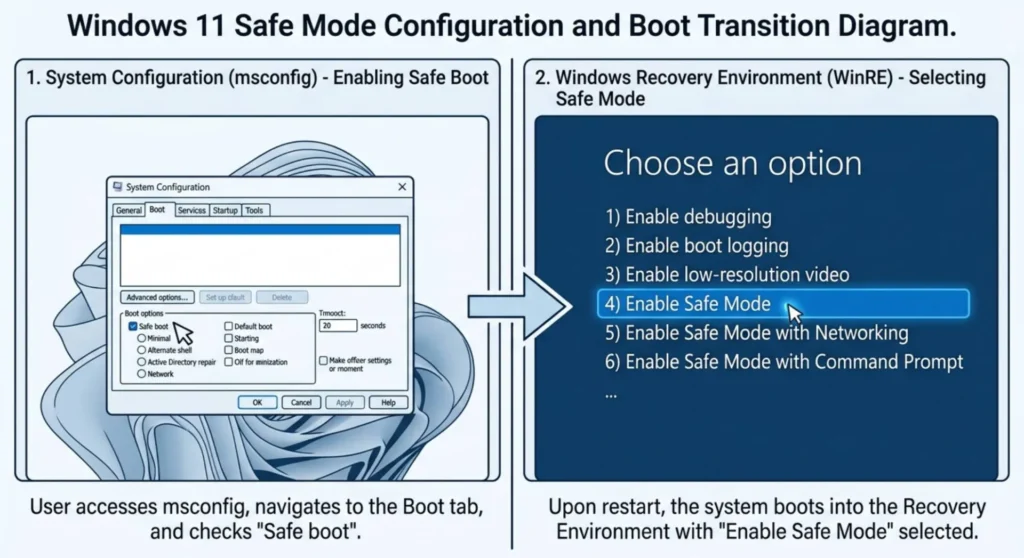
Method 3 — From the System Configuration utility (alternative for systems that boot normally):
- Press Windows + R → type
msconfig→ Enter - Go to the Boot tab → check Safe boot → select Minimal
- Click OK and restart – system boots directly into Safe Mode
- After DDU is complete, return to msconfig and uncheck Safe boot before your final restart
Method 3 caveat: If the DDU clean and driver reinstall fail and you need to troubleshoot further, the system will continue booting into Safe Mode until you return to msconfig and uncheck it. Keep this in mind so you’re not confused by repeated Safe Mode boots.
The DDU Procedure | Nvidia, AMD, and Intel (Each Handled Differently)
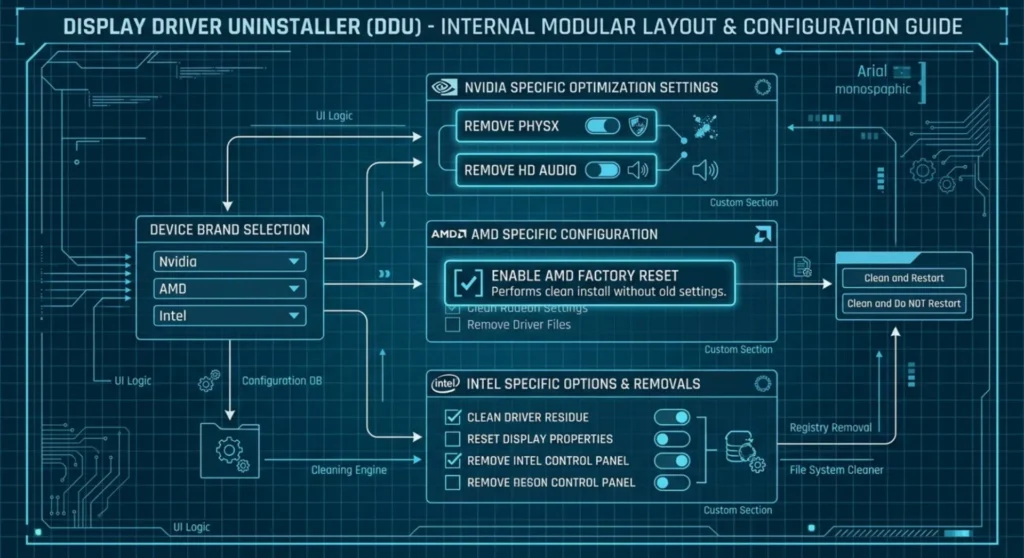
Open DDU after entering Safe Mode. The interface has changed across versions, the current version (as of 2025) uses a left-panel configuration area and a right-panel action area.
Configuration Before Cleaning
In the left panel, locate “Select device type” — set this to GPU.
Below it, “Select device” — this dropdown will show all GPU driver packages DDU has detected. If you have both integrated graphics (Intel) and a discrete GPU (Nvidia or AMD), both will appear here.
Do not clean both simultaneously on your first run. If the system fails to display after a dual-clean, you won’t know which driver removal caused it. Handle the discrete GPU first, then address integrated graphics separately if needed.
For Nvidia GPU Systems
Set the device selection to your Nvidia GPU.
In the Options panel (gear icon, top right in current DDU versions), verify these settings:
- “Remove Nvidia GeForce Experience” — enable this if you don’t use GeForce Experience. If you do use it, disable this option to preserve it. Note: GeForce Experience re-installing its own driver version is a known cause of driver contamination, so removing and cleanly reinstalling it is generally better practice.
- “Remove Nvidia 3D Vision drivers” — enable unless you specifically use 3D Vision hardware (most users do not).
- “Remove Nvidia HD Audio drivers” — enable this. Leaving the audio driver creates a partial Nvidia installation that can conflict with display driver initialization.
- “Remove Nvidia PhysX” — enable this for a complete clean.
Click “Clean and restart” in the right panel. DDU will run its removal sequence, display a progress log, and restart the system automatically.
After restart: The desktop will appear at low resolution (typically 1024×768 or 800×600) with the generic Microsoft Basic Display Adapter active. This is correct.
Immediately open your pre-downloaded Nvidia driver installer. Run it, select Custom installation, check “Perform a clean installation” within the Nvidia installer as well, this adds Nvidia’s own cleanup pass on top of DDU’s work.
After the Nvidia installer completes and the system restarts: verify driver installation via Device Manager → Display adapters (your GPU model should appear with no warning icons) and via Nvidia Control Panel (right-click desktop → Nvidia Control Panel).
For AMD GPU Systems
Set the device selection to your AMD GPU.
In DDU Options, check these AMD-specific settings:
- “Remove AMD HDMI Audio drivers” — enable. Same rationale as Nvidia audio, partial audio driver residue causes initialization conflicts.
- “Remove AMD ReLive / Adrenalin Software” — enable for a complete clean. AMD’s Adrenalin software suite embeds display configuration state that can persist and conflict with a fresh installation.
- “Remove AMD Chipset drivers” — do not enable this unless you are specifically troubleshooting a chipset driver issue. AMD chipset drivers are separate from display drivers and removing them can affect USB, storage, and power management. This option should remain unchecked for standard display driver reinstallation.
Click “Clean and restart”.
After restart, install your pre-downloaded AMD driver package. AMD’s installer includes its own cleanup option, select “Factory Reset” in the AMD installer’s installation type selection. This adds AMD’s own removal pass and installs a fresh Adrenalin configuration database.
After restart: verify via Device Manager and by opening AMD Radeon Software (it will run through initial setup as if freshly installed, which is correct behavior).
For Intel Integrated Graphics (Standalone or alongside discrete GPU)
Intel Arc discrete GPUs and Intel integrated graphics (UHD, Iris Xe) use the same DDU removal process but have specific considerations.
Set the device type to GPU and select the Intel GPU from the device dropdown.
In DDU Options:
- “Remove Intel HD/Iris/Arc Graphics drivers” should be pre-selected.
- “Remove Intel XeTuner / Arc Control” — enable if you have Arc Control installed.
Important for laptop users with Intel + Nvidia/AMD hybrid graphics: DDU handles hybrid graphics configurations correctly when you clean one driver at a time. Clean the discrete GPU driver first (Nvidia or AMD), restart, verify the laptop boots to the integrated Intel display, then run DDU again to clean Intel if needed. Never attempt to clean both in a single DDU session on a hybrid graphics laptop, the system requires at least one functional display driver to render the desktop after the restart.
Click “Clean and restart”.
For Intel integrated graphics: download the driver from your laptop manufacturer’s support page, not from Intel’s generic driver download page. Intel’s generic drivers frequently don’t include the panel initialization parameters that OEM-packaged Intel drivers contain, and on laptops this can produce display output issues that look like driver failure.
After the Install | Verification and Reconfiguration
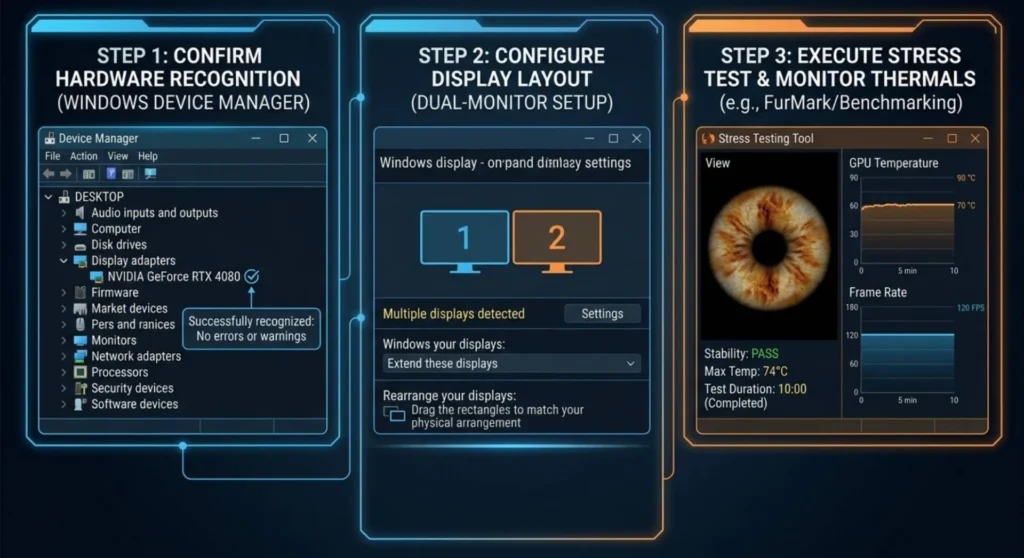
A DDU process is not complete until the new driver has been confirmed functional across all display outputs and use cases. These checks take ten minutes and prevent you from discovering a failed install three days later when something unexpected breaks.
Device Manager check:
Device Manager → Display adapters → your GPU model should appear with no yellow warning triangle, no exclamation mark, and no “Basic Display Adapter” fallback. Right-click → Properties → Driver tab → confirm the driver version matches what you installed. If the version shown doesn’t match your downloaded driver, Windows silently installed a different version, repeat the process with internet disconnected.
Display Settings reconfiguration:
Reset your resolution, refresh rate, and scaling to the correct values. After a DDU clean, Windows resets all display settings to defaults. Right-click desktop → Display settings → Advanced display → confirm refresh rate. On multi-monitor setups, verify each display independently.
GPU Control Panel functional check:
- Nvidia: Right-click desktop → Nvidia Control Panel should open. Navigate to Manage 3D Settings, if this page loads with your GPU listed, the display driver is fully functional.
- AMD: Open Radeon Software – it should show your GPU details, driver version, and display configuration without errors or “driver not installed” messages.
- Intel: Open Intel Graphics Command Center or Intel Arc Control, the display and performance tabs should populate with your hardware data.
Stress test before declaring success:
Run a 10-minute GPU stress test, FurMark (geeks3d.com) or the built-in benchmark in 3DMark (free tier) immediately after reinstallation. If the clean install resolved a TDR crash issue, the stress test will confirm stability. If TDR events recur during the stress test, the cause was hardware or configuration, not driver contamination and no further DDU runs will help.
Critical Mistakes That Undermine the Process
These aren’t theoretical. I’ve seen each of them undo an otherwise correct DDU procedure.
Running DDU in normal Windows mode. The most common mistake. Windows has GPU driver components locked, open DDU cannot fully remove what the OS is actively using. The removal appears to succeed; the log shows completed steps; but orphaned files and registry entries remain in the Driver Store. The resulting install is cleaner than a standard uninstalls but not clean. Always, without exception, run DDU in Safe Mode.
Installing the driver with internet connected and Windows Update unrestricted. Windows Update’s Device Installation service monitors for missing drivers. In the seconds between the DDU restart and your manual driver installation, Windows can detect the absent GPU driver and begin installing its own version. On fast connections, this sometimes completes before your manual install starts. The result is a Windows Update driver version layered under your manual install, the exact contamination DDU was supposed to prevent. Disable automatic driver installation or disconnect from the internet before the DDU restart.
Cleaning AMD chipset drivers alongside AMD display drivers. DDU’s AMD chipset removal option exists for specific troubleshooting scenarios, not standard display driver reinstallation. Removing chipset drivers on AMD systems affects USB controller function, NVMe storage initialization, and CPU power management. On systems where the chipset driver manages storage, removing it can prevent normal boot until the chipset driver is reinstalled.
Reinstalling GeForce Experience before the display driver. GeForce Experience embeds its own driver management layer and will attempt to manage driver versions independently of what you’ve installed. If GeForce Experience is installed after DDU but before the manual driver install, it sometimes initiates its own driver download and install process, overwriting your intended version. Install the display driver first, verify it, then install GeForce Experience if you use it.
Using a third-party or OEM-repackaged driver on a desktop GPU. Laptop GPUs require OEM drivers (from the laptop manufacturer) because OEM packages include panel initialization parameters the generic GPU manufacturer drivers don’t contain. Desktop GPUs are the opposite, use only Nvidia, AMD or Intel official drivers on desktop hardware. System integrator-repackaged drivers (from boutique PC builders, for instance) are sometimes outdated or modified in ways that cause instability.
Not rebooting between the DDU clean and the driver install. DDU performs some of its cleanup during the restart process, certain registry operations and Driver Store record removals are finalized on the way down and the way back up. Installing the new driver without the intermediate restart means installing on top of a not-yet-fully-cleaned state.
How Often Should You Run DDU?
This question comes up in every conversation about display driver maintenance, and the honest answer is: less often than enthusiast forums suggest, but more often than most users do.
Run DDU when:
- Moving between major Nvidia driver series (5xx to 6xx) or AMD Adrenalin major versions, the internal architecture changes enough that layered installation produces measurable instability
- Installing a different GPU brand Intel to Nvidia, AMD to Nvidia, or any cross-brand swap. The previous brand’s driver stack is completely incompatible with the new GPU and must be fully removed
- Troubleshooting persistent display instability TDR events, flickering, incorrect refresh rate behavior, that hasn’t responded to a standard driver update
- After a Windows Feature Update that replaced your GPU driver with a generic Microsoft version and the display is behaving incorrectly
- After a Windows reinstallation where you restored from a backup. Backup images can contain driver state from a previous hardware configuration that conflicts with the current GPU
You do not need DDU for:
- Routine driver updates within the same major version series 566.x to 572.x Nvidia, for instance, where the update installer’s standard procedure is adequate
- Minor point releases that address specific game compatibility issues without changing driver architecture
- Updating GPU firmware separately from driver files
A useful operating principle: if a standard driver update resolves your issue, you didn’t need DDU. If a standard driver update doesn’t resolve it, DDU should be the next step before any other troubleshooting, not the last resort after everything else fails.
Defending Against Windows Update Driver Overwrites After Installation
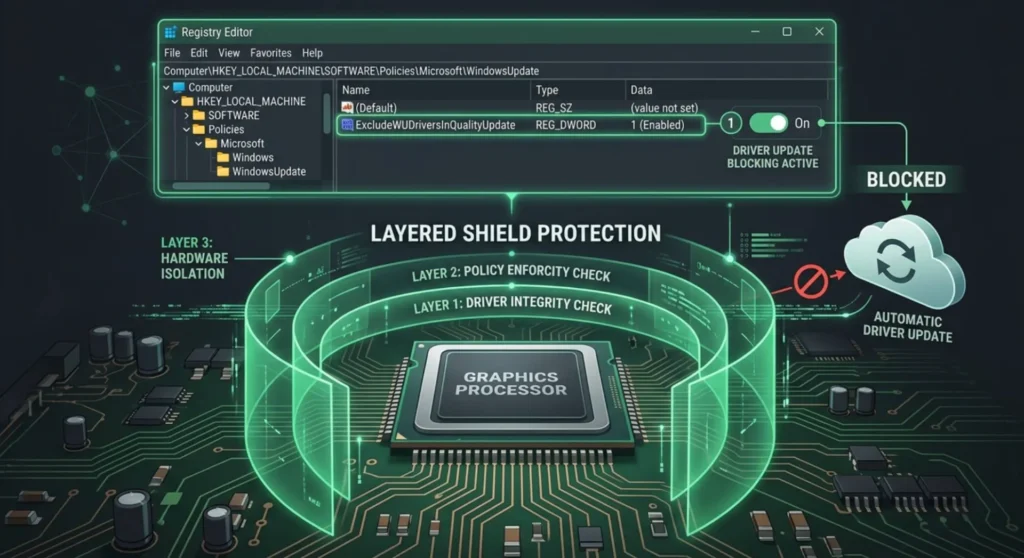
A clean DDU install is only as durable as your Windows Update configuration allows. Windows 11 will overwrite a manually installed GPU driver with whatever version it considers current for your hardware if automatic driver updates are enabled and it does this silently, without a notification, during routine update cycles.
The permanent configuration that prevents this:
In Group Policy (Windows Pro/Enterprise):
gpedit.msc→ Computer Configuration → Administrative Templates → Windows Components → Windows Update → Manage updates offered from Windows Update- Enable “Do not include drivers with Windows Updates” — this prevents Windows Update from delivering any driver updates while still allowing security and OS updates
In Windows Registry (all editions):
HKEY_LOCAL_MACHINE\SOFTWARE\Policies\Microsoft\Windows\WindowsUpdate
Create DWORD value: ExcludeWUDriversInQualityUpdate → set to 1
This registry key applies the same policy as the Group Policy setting above, on all Windows editions including Home.
With this configured, Windows Update delivers OS updates normally but never touches your GPU driver. You remain responsible for driver updates, which is the correct model for any system where display stability matters.
Frequently Asked Questions
Q: DDU finished and now my second monitor isn’t being detected. What happened?
The DDU clean removed the driver that was configuring the multi-display output. After the new driver installs, Windows should detect both monitors automatically. If the second display still isn’t detected after driver installation: right-click desktop → Display settings → scroll to Multiple displays → click Detect. If the monitor appears in Device Manager under Display adapters but not in Display Settings, the display cable connection may have come loose, or the monitor may be on a different input than expected. Check the monitor’s OSD input selection.
Q: Can I run DDU on a laptop with both Intel integrated and Nvidia discrete graphics (Optimus)?
Yes, but with a specific sequence. Clean the Nvidia discrete driver first, the system will fall back to Intel integrated graphics for display output. Verify the laptop is displaying correctly on Intel. Then, only if Intel graphics also needs to be cleaned, run DDU again targeting Intel. Never attempt to clean both simultaneously. If both drivers are removed in a single session, the system has no display output path and will require recovery booting to reinstall.
Q: DDU shows multiple Nvidia entries in the device dropdown. Which one do I clean?
DDU sometimes detects multiple entries if previous driver installs left orphaned records in the Driver Store. Clean the entry that matches your installed GPU model. After the clean, if you run DDU again before installing, you should see only the Generic Display Adapter entry, confirming all Nvidia records were removed. Multiple remaining entries after a clean indicate the DDU run didn’t complete fully, which usually means it wasn’t run in Safe Mode.
Q: Is DDU safe to run on a work laptop or a system I can’t afford to have down?
The DDU process itself is safe, it removes drivers and reboots. The risk is not in DDU, but in what happens after: if the replacement driver fails to install correctly or produces worse behavior than the original, you need to be able to recover. On a work system, I recommend test the identical DDU + driver process on a personal machine with the same GPU first; keep the previous driver installer stored locally as a rollback option; and schedule the process for a time when extended troubleshooting is possible if needed. DDU doesn’t delete data or modify non-driver system files, the worst realistic outcome is a display driver reinstallation loop that takes additional time to resolve.
Q: After DDU and a fresh driver install, my issue returned within a week. Does that mean DDU didn’t work?
Not necessarily, it means the issue has a hardware cause that the driver clean couldn’t fix. DDU resolves driver contamination. If the underlying issue is GPU instability from overheating, failing VRAM, or inadequate PSU power delivery, those conditions will reproduce the same symptoms on a fresh driver because the driver isn’t what’s broken. A successful DDU process that produces temporary improvement followed by return of symptoms is diagnostic information: the driver layer was contributing, but it wasn’t the root cause.