Physical Address
3260 College Rd, Fairbanks, Alaska

By Derek V. Mackown | IT Technician & Display Hardware Specialist
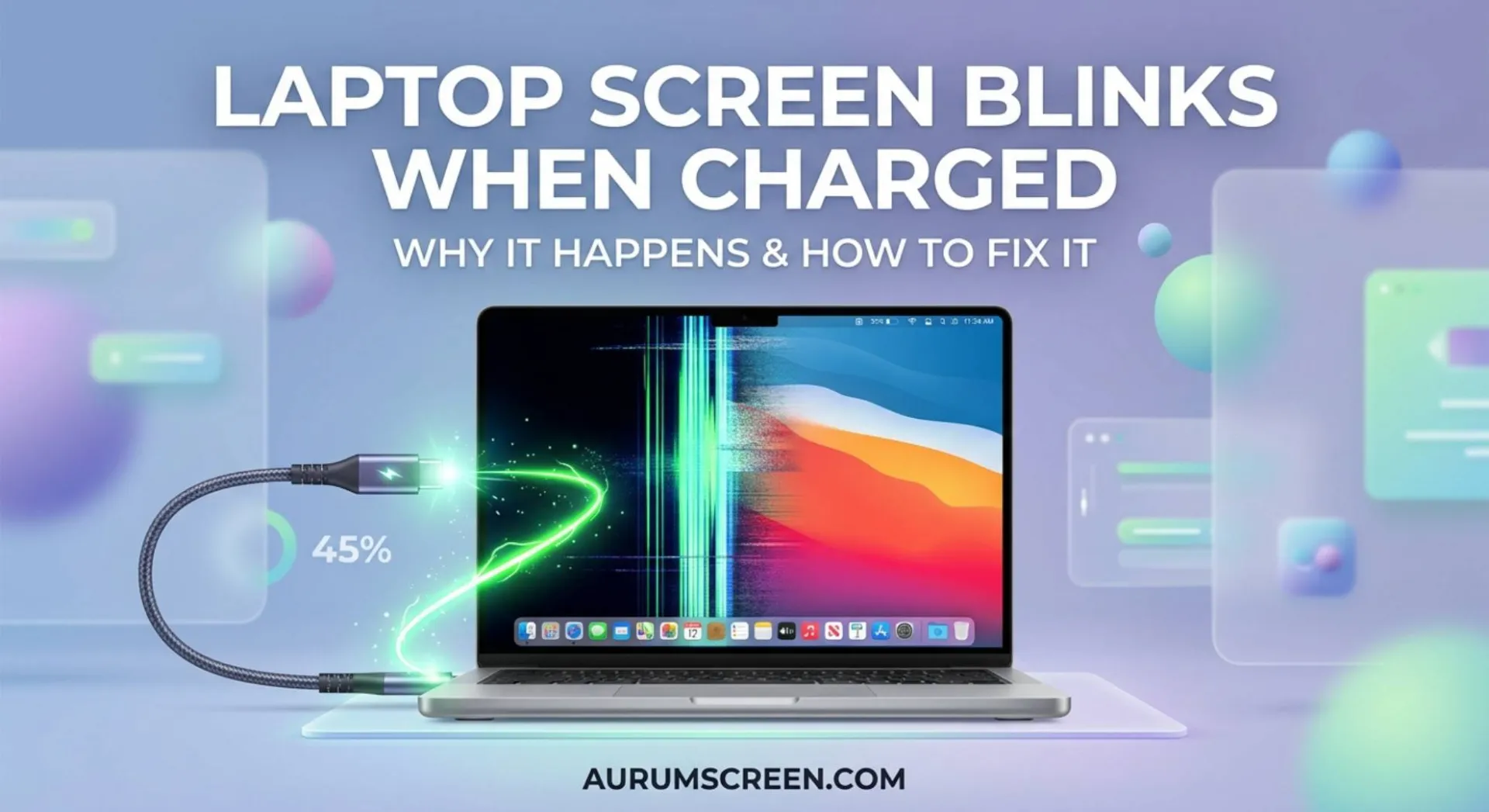
There’s something almost philosophical about this problem. You plug in a charger, not pressing any button, not opening any application, not changing any setting and the screen blinks. A single flash or a rapid series of them, and then it stops. Everything returns to normal.
How does plugging in a cable affect the image on a screen?
The honest answer is that it shouldn’t. Charging and display are, on paper, separate systems that don’t interact. The battery circuit handles power. The display circuit handles image output. Plug in the charger and only the battery system should change.
But that’s on paper. In practice, a laptop is a dense collection of interdependent electrical systems packed into a chassis the size of a hardcover book, and they interact in ways that aren’t obvious until something like this happens. A charger connecting to a laptop introduces several simultaneous changes, a voltage transition, a ground reference shift, a power management mode switch, sometimes a GPU handoff and any one of them can produce a display blink if conditions are wrong.
I find this problem genuinely interesting to diagnose because identifying which of those five different causes is responsible tells you something specific about your laptop’s electrical architecture. Let’s work through them.
Table of Contents
ToggleBefore the causes, one paragraph of context that makes everything clearer.
The moment a charger connects, your laptop doesn’t simply start accepting electricity. It negotiates. The charging circuit identifies the charger, verifies its power delivery capability, and initiates a handshake on modern USB-C PD chargers, this is a literal digital communication protocol. During this 100 – 300 millisecond negotiation window, the laptop’s internal power rails experience a transition: the battery circuit, which was the sole power source, now shares responsibility with the AC input. The voltage on the main power rail shifts fractionally. Ground potential changes as the laptop acquires the earth ground reference from the AC outlet through the charger.
All of that happens in under a third of a second, invisibly. For most laptops, it’s imperceptible. For some, depending on charger quality, ground configuration, power plan settings and backlight design that transition produces exactly one moment of display instability. That moment is the blink.
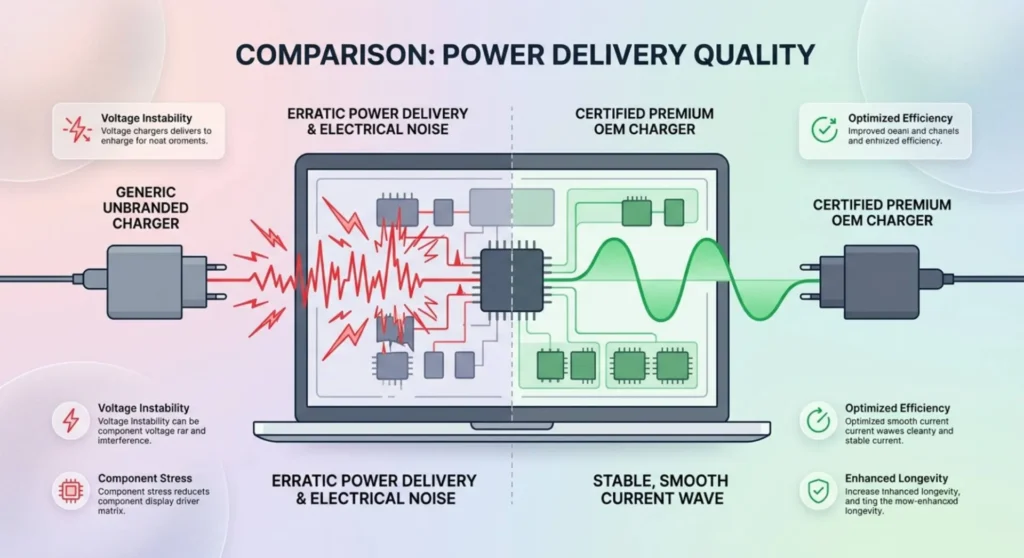
What happens at that exact moment: An improperly filtered charger sends a burst of electrical noise onto the laptop’s power rail at the instant it connects. That noise travels from the power circuit into the display driver circuit, momentarily disrupting the signal driving the backlight or the LCD panel itself.
This is the most common cause of charger plug blinks and the one that explains why the problem appears with one charger but not another.
Every laptop charger converts AC wall power into DC power for the laptop. That conversion process, switching mode power supply operation, generates high frequency electrical noise as a byproduct. A well-designed charger suppresses this noise heavily before it reaches the output. A cheap, uncertified, or damaged charger suppresses it poorly. The noise that passes through travels along the power cable into the laptop, and inside the laptop, the display backlight driver is one of the circuits most sensitive to power rail noise, because it uses a precisely regulated current to drive the backlight LEDs, and any disturbance to that current is immediately visible as a brightness variation.
The test: Try a different charger, ideally the OEM charger that came with the laptop, or a certified replacement from the manufacturer. If the blink disappears with a different charger, the original is the source of the noise.
| Charger Type | Noise Risk | Notes |
|---|---|---|
| OEM manufacturer charger | Low | Designed and tested for your specific model |
| Certified third-party (Anker, Belkin, Ugreen) | Low to moderate | Quality filtering, but not model-specific |
| Generic USB-C PD charger (unbranded) | High | Variable filtering quality, often inadequate |
| USB-C PD via laptop docking station | Moderate | Ground loop risk – see Cause 2 |
| Non-OEM barrel connector charger | High | Voltage matching may be approximate, not exact |
If your laptop blinks with every charger you’ve tried even the OEM one, the cause is elsewhere. The remaining four causes don’t involve charger quality.
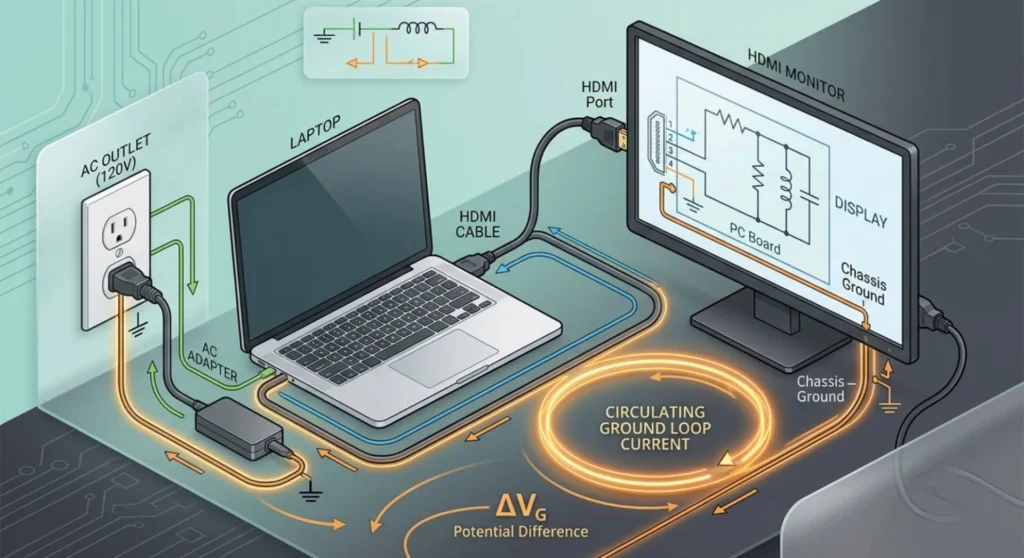
What happens at that exact moment: The laptop, previously floating on battery without a fixed ground reference, acquires the earth ground from the AC outlet through the charger. If that ground reference differs slightly from the potential of another grounded device the laptop is connected to a monitor, a docking station, an external drive a small current flow through the ground path between them. That circulating current is a ground loop, and it runs through the laptop’s display circuitry on its way.
Ground loops are a well-understood problem in audio and video production; they’re the cause of the 50Hz or 60Hz hum that appears when two pieces of equipment share a circuit but have different ground potentials. In laptops, the same phenomenon can produce display interference when the charger’s earth ground creates a potential difference relative to other connected equipment.
How to identify whether this is your cause:
Disconnect every external connection from the laptop HDMI cable, USB devices, external monitor, docking station, headphone cables, so the laptop is connected only to the charger. Plug the charger in.
If the blink stops when nothing else is connected: a ground loop between the charger’s AC earth and one of your external connections is responsible. Plug each device back in one at a time, plugging in the charger after each addition, until the blink returns. The device that causes the blink to reappear is creating the ground potential difference.
Resolution options for ground loops:
Move the laptop charger and the offending external device to the same power outlet or power strip, giving them a shared ground reference rather than potentially different ones from different circuits.
Use a USB isolator between the laptop and USB-connected devices that contribute to the loop. These devices ($15 – $30) break the DC ground connection while passing data, preventing the loop current from flowing through the data cable.
For HDMI-connected monitors: HDMI cables can carry ground loops because the HDMI specification uses the cable’s shield as part of the ground reference. A fiber HDMI cable (which transmits signal optically with no electrical ground path between devices) eliminates this path entirely.
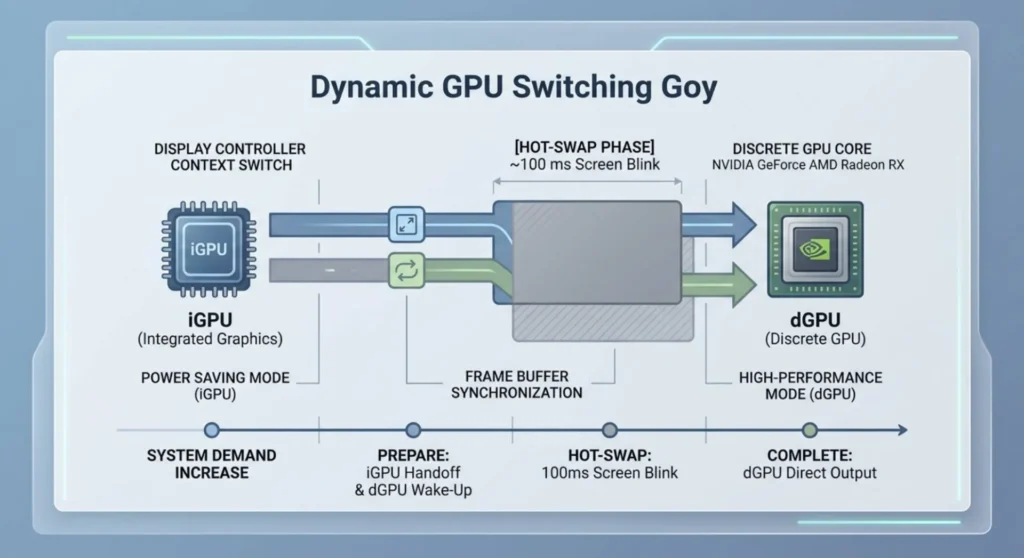
What happens at that exact moment: Your laptop switches from its integrated graphics chip to its discrete GPU or changes how the graphics pipeline is managed, because plugging in the charger triggered a power plan change that permits higher GPU power draw.
This cause is specific to laptops with hybrid graphics (Intel + Nvidia, or AMD CPU + AMD discrete GPU) and a power plan configured to use integrated graphics on battery and switch to the discrete GPU when plugged in. The switch involves a brief re-initialization of the display output pathway, the display signal moves from one GPU’s output to another and that re-initialization is visible as a blink.
Windows’ GPU switching in hybrid graphics configurations is essentially a hot-swap of the display controller. For a fraction of a second, neither GPU has active control of the display output, and the display goes briefly dark.
How to confirm this is the cause:
Open Nvidia Control Panel → Manage 3D Settings → Preferred graphics processor. If it’s set to “Auto-select” or “Integrated graphics” on battery, Windows is switching GPU management at charger connection. Change to “High-performance NVIDIA processor” and observe whether the blink persists on the next charger connection. If the blink stops, the GPU switch was the cause.
For AMD systems: open AMD Radeon Software → Gaming → Global Settings → GPU Workload. Look for any dynamic switching setting and set it to a fixed preference rather than automatic.
Alternatively: change your Windows power plan to use the same GPU profile whether on battery or plugged in. Settings → System → Power & battery → Power mode, set it to Balanced for both states. If the power plan change is what triggers the GPU switch, consistent power plan settings prevent the trigger.
A note on this cause: A single blink during charger connection from GPU switching is technically normal behavior, the display is re-initializing a new output path, not failing. If the blink bothers you, eliminating the automatic GPU switch is the fix. If you can tolerate it, it’s not indicative of any hardware fault.
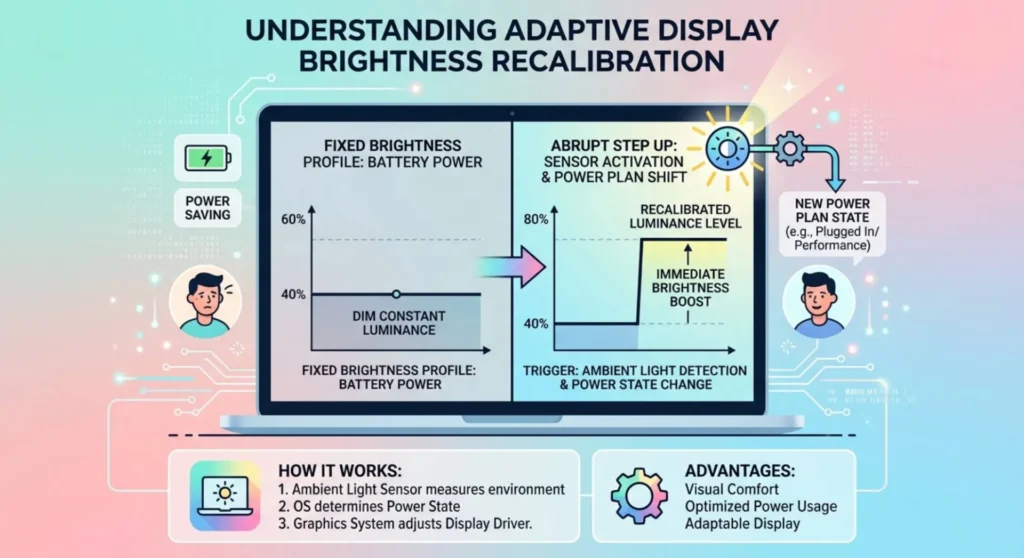
What happens at that exact moment: The laptop’s ambient light sensor and adaptive brightness algorithm receive a signal that the power state has changed, triggering an immediate brightness recalibration. The backlight adjusts, sometimes quite rapidly to a new target brightness level determined by the plugged-in power profile, and if that transition happens faster than the backlight’s PWM control can smoothly implement it, you see a flash rather than a gradual change.
This is more of a visible jump than a true blink, but users describe it as a blink because it happens in under a second. The difference: after this type of “blink,” the screen brightness settles at a different level than before you plugged in. After a true electrical noise blink (Cause 1) or a GPU switch blink (Cause 3), brightness returns to exactly where it was.
Checking whether brightness changed after the blink:
Note your screen brightness level before plugging in. Note it immediately after the blink. If it changed, even by a small amount, adaptive brightness recalibration is responsible.
Resolution: Disable adaptive brightness and set separate fixed brightness levels for battery and plugged-in states.
Control Panel → Power Options → Change plan settings → Change advanced power settings → expand Display → expand Display brightness:
Setting both values to the same percentage eliminates the brightness transition entirely. If you prefer different brightness levels when plugged in versus on battery, setting them as fixed values instead of letting adaptive brightness determine them means the transition happens as a smooth change rather than a sudden jump.
Additionally: Settings → System → Display → Brightness → disable Change brightness automatically when lighting changes. If both the power-plan brightness setting and the adaptive brightness sensor are active simultaneously, they can interfere with each other during power state transitions, producing particularly abrupt brightness changes.
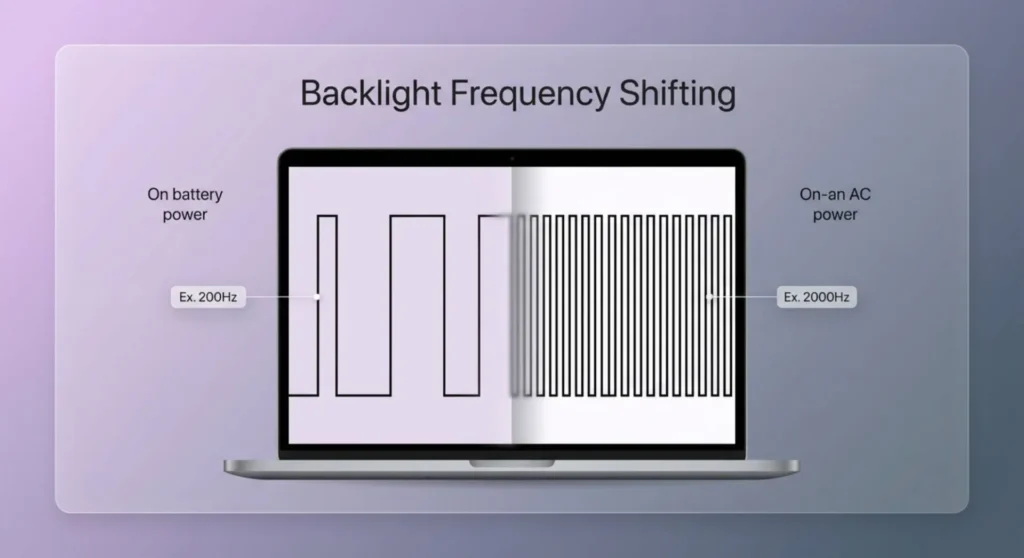
What happens at that exact moment: The laptop’s backlight controller changes its PWM (Pulse Width Modulation) frequency when switching between battery and AC power, and during the transition between frequencies, the backlight produces a brief visible artifact.
This requires a short explanation of PWM because it’s the least intuitive of the five causes.
Most laptop backlights control their brightness not by varying voltage, which would be imprecise but by rapidly switching the backlight on and off at a frequency too fast for the human eye to perceive as flicker. The ratio of time spent on versus off determines the perceived brightness. 50% duty cycle = 50% perceived brightness. This is PWM, and it operates at frequencies between 200Hz and 3000Hz depending on the panel and backlight driver design.
Some laptop backlight controllers use different PWM frequencies at different power states, a higher frequency on AC power (for efficiency and to reduce electrical noise interaction with the charger) and a lower frequency on battery (to extend battery life). The transition between these frequencies during charger connection produces a brief moment where the PWM timing is indeterminate and that moment looks like a blink.
You can detect whether your backlight uses PWM and at what frequency using HWiNFO64 (the sensor section sometimes reports backlight PWM frequency) or by using a slow-motion camera on your phone, point it at the screen and observe whether rapid horizontal bands appear in the slow-motion footage (indicating PWM operation) and whether they change at charger connection.
Resolution: This cause has limited software-accessible fixes because PWM frequency is controlled at the backlight driver hardware level. However, some laptops expose backlight control mode in BIOS settings. Look for options related to display power management or backlight frequency in the BIOS Advanced or Power sections. Setting the backlight to DC control (constant current rather than PWM) if available eliminates the frequency transition entirely, though this option is uncommon on consumer laptops.
The more practical approach: in your GPU control panel, disable or reduce the aggressiveness of any power-saving display settings that might trigger PWM frequency changes at charger connection. Nvidia: Manage 3D Settings → Power management mode → Prefer maximum performance (prevents GPU power-save states that trigger backlight frequency changes). AMD: Radeon Software → Power → set Radeon Chill and power saving options to their least aggressive settings.
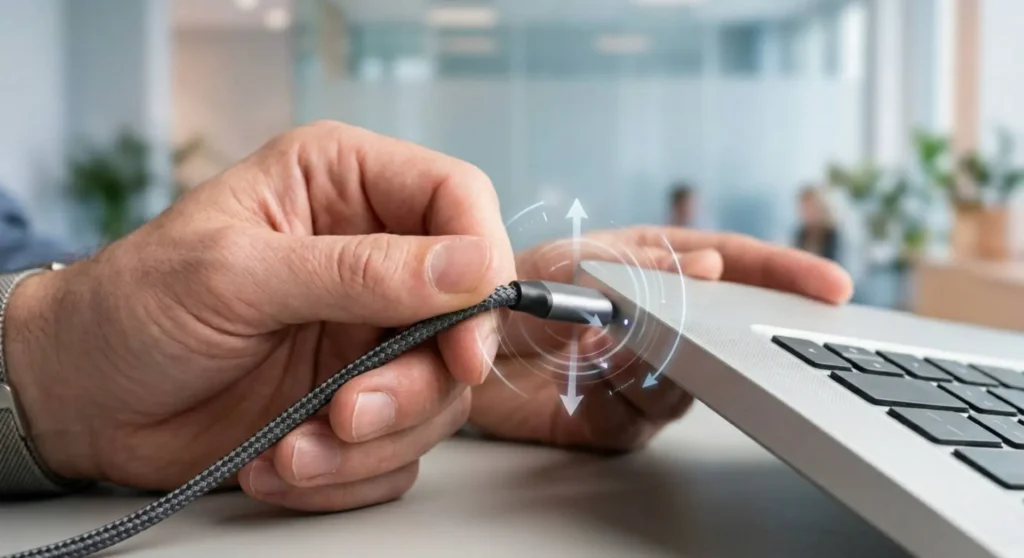
Before working through software settings, do this first. It takes one minute and rules out the simplest physical cause.
With the laptop on and running, slowly plug and unplug the charger connector three or four times, watching the screen each time. Now flex the charging cable near both the laptop end and the brick end while it’s connected and charging.
If the blink correlates with specific positions of the connector and appearing when the plug is at a certain angle but not when firmly seated. The charging port or the connector is making intermittent contact. That intermittent contact produces the same voltage transient as connecting and disconnecting, which is what causes the blink.
If the cable flexing produces blinks, the cable is damaged and needs replacement, not a settings change.
A charger connector that fits loosely, wobbles, or produces a blink when the cable is moved is a hardware issue that no driver update or power plan change will resolve. Replace the cable, or if the laptop’s charging port is the loose component, have the port inspected, a worn charging port often starts with occasional blinks at connection before progressing to intermittent charging failure.
A single blink at charger connection is almost always one of the five causes above. Multiple sequential blinks, or blinking that continues for several seconds after the charger connects, is telling a more complex story.
Two to three blinks in quick succession: The power state transition is triggering multiple sequential events, a GPU switch followed by an adaptive brightness recalibration, for example. Address the causes in order: test a different charger first, then check GPU switching settings, then disable adaptive brightness.
Blinking that continues for 5 – 10 seconds after connection then stops: The charger and laptop are negotiating power delivery, common with USB-C PD chargers where the handshake involves multiple protocol steps. Each step produces a minor power rail event. This is most common with lower-wattage USB-C chargers being asked to power a laptop that requires more wattage than the charger can supply cleanly. The negotiation eventually settles at a lower power delivery level, the rail stabilizes, and the blinking stops. Use a charger rated at or above your laptop’s maximum charging wattage, check the OEM charger’s wattage label.
Blinking that starts at charger connection and never fully stops: The charger is introducing continuous electrical noise onto the power rail. Replace the charger. A blink that becomes continuous flicker under a specific charger is electrical noise that won’t resolve through software settings, it requires a different, better-filtered power source.
A few manufacturers have documented this issue enough that specific guidance applies:
Dell laptops (XPS, Inspiron, Latitude): Dell’s power management system is aggressive about switching power profiles at charger connection, which frequently triggers GPU switches and brightness adjustments simultaneously. Dell’s own recommended fix: open Dell Power Manager → plan settings → configure a consistent display brightness for both battery and AC states. This prevents the dual-transition that causes two-blink patterns on Dell systems.
HP laptops (Spectre, Envy, Pavilion): HP’s Intelligent Backlight Control when enabled, recalibrates at every power state change. Disable it in HP Command Center → Thermal → Intelligent Backlight Control. HP systems also benefit from ensuring the HP Hotkey Support driver is current, as older versions handle power-state transitions with less graceful backlight management.
Lenovo ThinkPad: ThinkPad systems with Hybrid Graphics (discrete + integrated) show this issue most commonly as a GPU switch blink. Lenovo Vantage → My Device Settings → Power → Hybrid Boost, review the GPU allocation settings. The ThinkPad’s “Rapid Charge” feature can also introduce a brief power rail spike at connection; disabling Rapid Charge in Lenovo Vantage and using standard charging eliminates this specific cause.
ASUS ROG and TUF gaming laptops: ROG and TUF models with MUX switch capability sometimes produce a blink when switching between Hybrid and dGPU mode at charger connection. Armoury Crate → GPU Mode → set a consistent mode that doesn’t change with power state.
Q: The blink only happens with one specific charger, but it’s the official OEM charger. If it’s the right charger, why is it causing this?
OEM chargers aren’t immune to aging. The filtering components inside a laptop charger, capacitors, EMI filters, degrade over years of use. An OEM charger that caused no blinks in its first year may begin producing blinks in its third or fourth year as its internal filtering becomes less effective. Test with a new OEM charger or a certified third-party equivalent. If the blink stops with a new charger, your original has aged past its filtering spec.
Q: I tried every software fix and the blink still happens. Is it damaging anything?
A single blink at charger connection, one where the screen recovers immediately and operates normally is not damaging the display hardware. The blink is a symptom of an electrical transition, not a component failure. If you’ve tried a different charger, eliminated external device ground loops, and adjusted GPU switching settings with no change, the remaining cause (most likely PWM frequency transition or minor adaptive brightness adjustment) is a behavioral characteristic of your specific laptop model rather than a fault. Monitor whether it worsens over time. A blink that becomes more frequent, longer, or occurs without charger connection is worth investigating further. A single stable connection blink that has been consistent for months is a quirk, not a crisis.
Q: My screen blinks every time the charger’s LED indicator light flickers. Are they related?
Yes, almost certainly. A charger whose LED indicator flickers is experiencing internal voltage regulation instability. The LED is driven by the same internal power circuit that charges your laptop, and if that circuit is unstable enough to cause LED flickering, it’s producing power rail disturbances large enough to cause display blinks as well. This is a faulty charger; the instability is internal and will not resolve on its own. Replace it.
Q: Could a faulty wall outlet cause this instead of the charger?
It can contribute. A wall outlet with intermittent contact, or a circuit carrying significant electrical noise from other appliances, provides an impure AC supply that even a well-designed charger may not fully filter. Try a different outlet on a different circuit or test with a UPS (Uninterruptible Power Supply) between the wall and the charger, which conditions the AC input. If the blink stops with a UPS in the circuit, the electrical supply from the outlet is contributing to the noise. A quality surge protector with noise filtering provides similar benefit at lower cost.

Derek V. Mackown is a veteran IT Technician and Display Hardware Specialist with over a decade of hands-on experience troubleshooting complex software-hardware interface glitches. He specializes in Windows OS display architecture, driver calibration, and panel diagnostics. Driven by a passion for pixel-perfect performance, he writes highly analytical, step-by-step guides to help everyday users achieve absolute display clarity at AurumScreen.com.