Physical Address
3260 College Rd, Fairbanks, Alaska

By Derek V. Mackown | IT Technician & Display Hardware Specialist
Before anything else, a piece of honesty that most glare guides won’t give you upfront.
You cannot make a glossy screen behave like a matte screen. The glossy coating on your laptop’s panel is a physical property of the glass surface, and short of replacing the panel or applying a permanent film over it, that coating stays. What you can do completely safely, with no risk to your hardware is change the conditions that make glare visible, and when that isn’t enough, apply a surface treatment that modifies how light behaves at the glass interface.
Some of those changes are free. Some cost $15. One of them repositioning where you sit, takes 30 seconds and is the highest-impact glare intervention available. Most people skip it because it doesn’t sound technical enough.
This guide covers every practical approach in the order that makes sense: start with what costs nothing and changes everything, move to what costs a little and works well, and stop wherever the problem is solved. Most readers won’t need to go past the first three sections.
Table of Contents
ToggleUnderstanding this takes one paragraph and makes every solution below more intuitive.
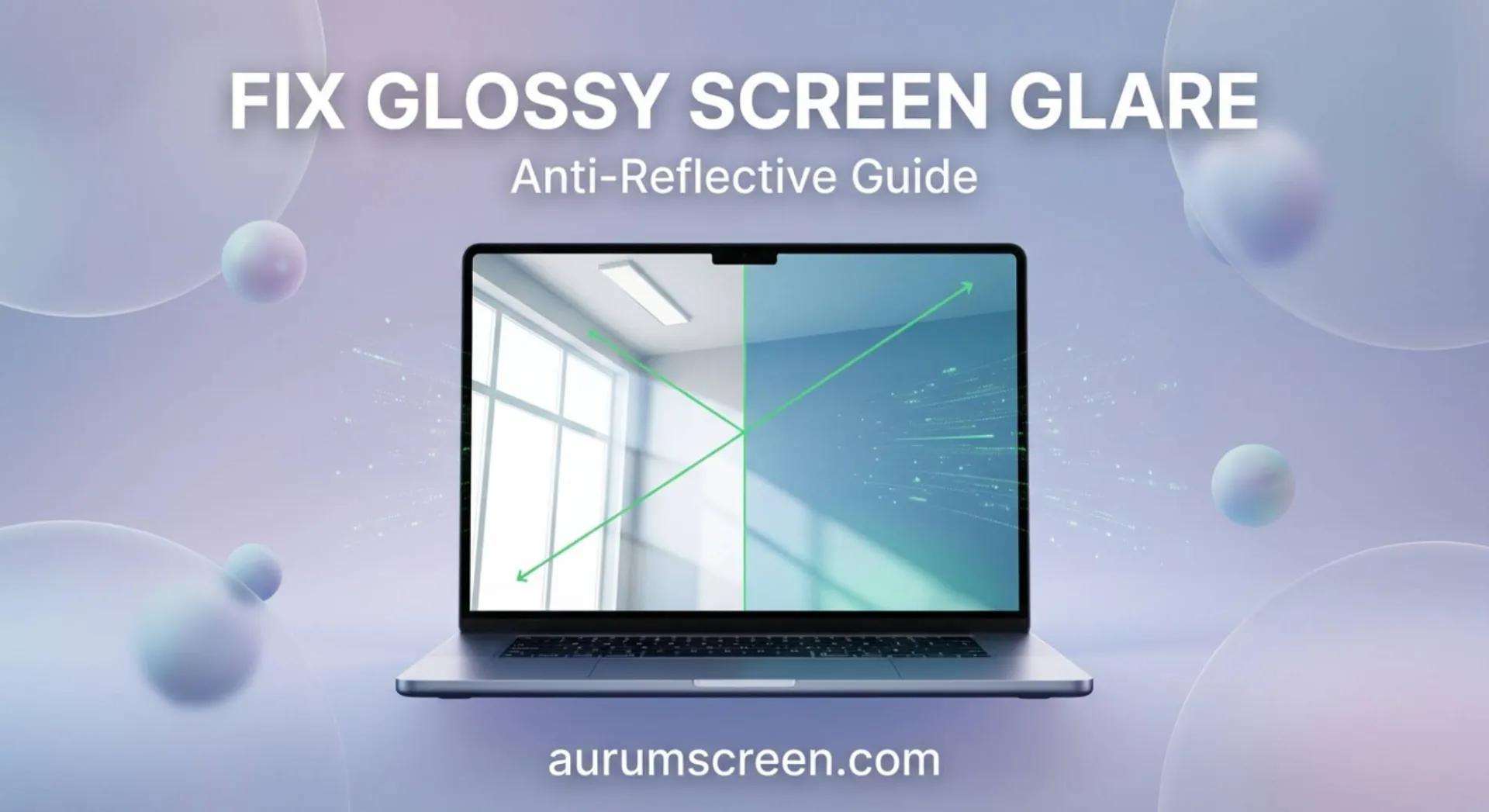
Glossy screens reflect because the outer surface is optically smooth glass, the same material as a window. When light hits a smooth glass surface, some of it passes through (which is how you see the display underneath) and some of it reflects back toward your eyes. The proportion that reflects depends on the angle of incidence and the difference in refractive index between air and glass. At typical viewing angles, a glossy laptop screen reflects approximately 4 – 8% of the light striking it.
That 4–8% sounds small. It isn’t, because the light source being reflected (a window, an overhead fluorescent) is often far brighter than the display itself. A display outputting 250 nits in a room where a window behind you is delivering 5,000 nits of daylight means the reflection, even at 4% of 5,000, is 200 nits of competing light, nearly matching your display’s output in brightness. That’s why glare feels so severe even though the percentage reflected is small.
Matte screen coatings work by introducing microscopic surface roughness that scatters reflected light in many directions rather than reflecting it coherently toward your eyes. You see the scattered light as a slight diffuse haze rather than a mirror-sharp reflection. The tradeoff: that same scattering affects the display’s output slightly, reducing perceived sharpness and saturation compared to glossy. This is why professional photographers and videographers often prefer glossy screens for color accuracy despite the glare challenge, the optical clarity of glossy glass is genuinely superior when reflections are controlled.
Effectiveness: Highest possible. Cost: Zero. Risk: None.
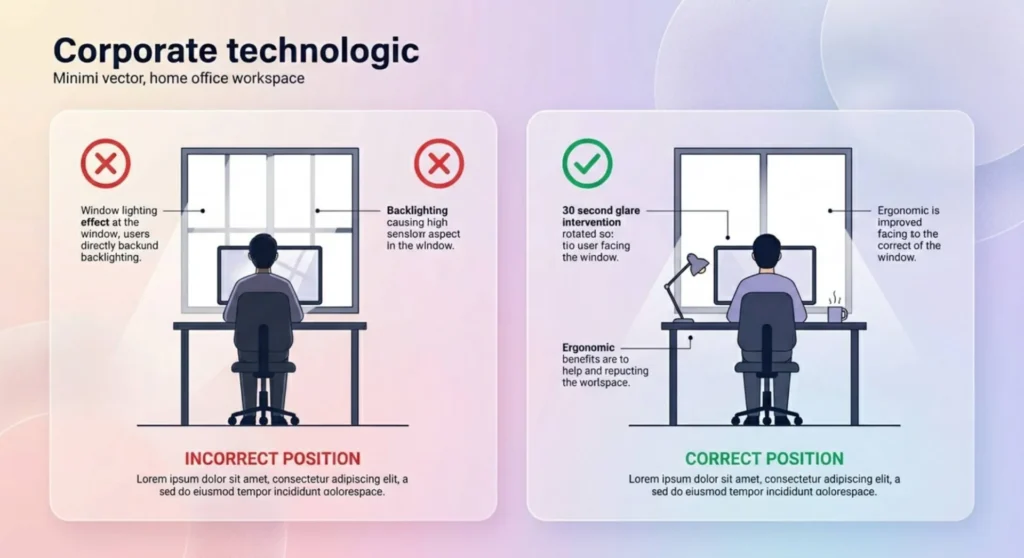
The reflection you’re seeing on your screen is not coming from your screen. It’s coming from a light source somewhere in your environment and bouncing off the screen toward your eyes. Remove or reposition the light source or reposition yourself relative to it and the reflection disappears completely, without touching the screen at all.
The light sources that cause laptop screen glare, in order of how commonly I find them in real situations:
A window directly behind or beside you. This is the cause in the majority of cases. Sit with a window behind you and the glass on your screen acts as a mirror showing you everything behind your head. The fix is to sit facing the window, not with your back to it. Your screen then points toward the window, and the window’s light illuminates your display rather than competing with it. Alternatively, close the blinds or curtains on the side of the room your back faces.
Overhead fluorescent or LED ceiling lights. Overhead lighting positioned directly above and slightly behind your seating position reflects off the top half of your screen at the exact angle your eyes see it. Moving your seating position 30 – 40cm forward or backward changes the angle of incidence and shifts the reflection out of your line of sight. Alternatively, tilting the screen slightly more vertical (reducing its reclining angle from 115° to 100°) changes the reflection angle enough to redirect ceiling light reflections above your eye line.
Desk lamps positioned at screen level. A desk lamp to the side of your laptop at screen height creates a bright point reflection on the glossy surface. Raise the lamp above screen level, positioned to illuminate your desk and keyboard rather than shining across at the screen and the reflection disappears.
The single most effective thing: Turn your chair 90 degrees and see whether the glare improves dramatically. If it does, you’ve identified your light source as being directly behind or to one side of your original position. Rearranging your workspace to eliminate that angle is the complete solution. Zero cost, zero compromise to image quality, permanent.
Working at night with a bright overhead light: The room’s lighting becomes the dominant reflective source when ambient daylight drops. Switch from overhead lighting to a desk lamp positioned above and behind the screen, illuminating you and your workspace but not falling on the screen’s reflective surface at an angle your eyes intercept.
Effectiveness: High for specific glare types. Cost: Zero. Risk: None.
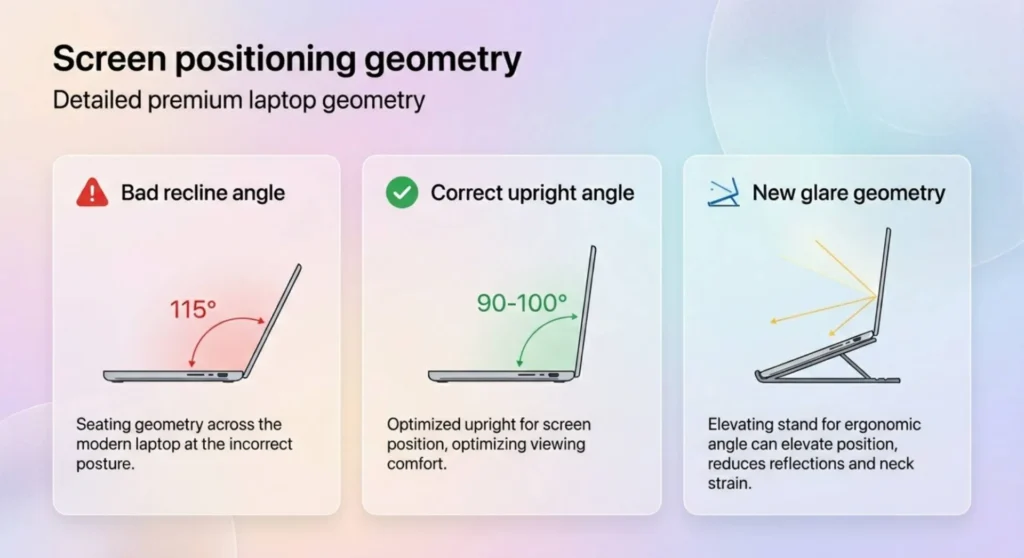
If Level 1 eliminated most of the glare but not all of it, the remaining reflection is either from a diffuse light source that can’t easily be repositioned, or from a light source that’s in front of you (unavoidable in many office environments). The screen’s tilt angle becomes your primary control.
Tilt the screen slightly more upright. Most people use their laptop screens reclined at 100 – 120 degrees from the keyboard plane. Bringing the screen closer to vertical, 90 – 100 degrees change the angle at which ceiling and overhead light reflects toward your eyes. At a steeper angle, ceiling reflections are directed above your line of sight rather than directly into it.
Raise the laptop. A laptop stand that raises the screen 10 – 15cm creates a new reflection geometry. Overhead lights that previously reflected into your eyes now reflect at a downward angle that clears your line of sight. Laptop stands are universally useful for ergonomics anyway; glare reduction is a secondary benefit that comes free.
Move the screen slightly left or right. Glare from a window to your left affects the left half of the screen more than the right. Rotating your laptop 15 – 20 degrees so the screen faces slightly away from the light source reduces the angle of incidence on the more-affected side. In open-plan offices where you cannot control your position relative to windows, this is often the only physical adjustment available.
Dark mode reduces glare’s visual impact without reducing the reflection. This is worth stating clearly: dark mode doesn’t make reflections smaller or less bright. It reduces the contrast between the dark screen content and the bright reflection, making the reflection less visually disruptive even though it’s physically identical. If you work in dark mode and still notice reflections, those reflections are genuinely bright relative to your display output, the screen brightness may need to be increased as a compensating measure.
Effectiveness: Moderate. Cost: Zero. Risk: Slightly faster backlight aging over time.
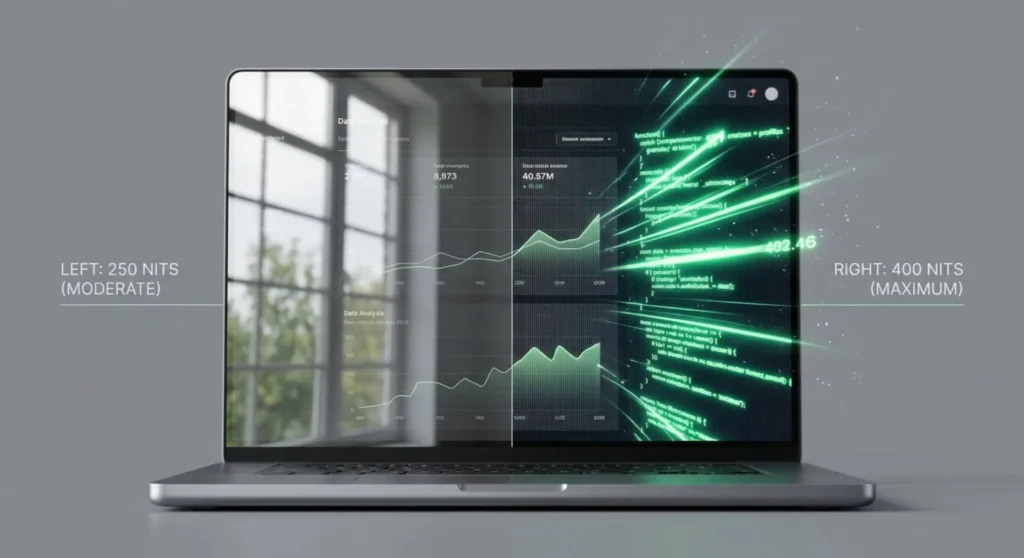
This is the approach most people already use instinctively but rarely think of as a deliberate glare strategy. Glare is a contrast problem, the reflection competes with the display’s output for visual dominance. Increase the display’s output, and the reflection becomes a smaller percentage of what your eyes receive.
The physics: a glossy screen reflecting 200 nits of window light is visually overwhelming on a 250-nit display. On a 400-nit display showing the same reflection, the relative contrast is much lower. The display content is noticeably brighter than the reflection and the eye naturally prioritize the higher-luminance signal.
This approach works, but it has two limitations. First, not all laptops can output enough brightness to outcompete strong direct sunlight or a bright window. Second, running the screen at maximum brightness continuously accelerates backlight aging on LCD and emitter degradation on OLED faster than moderate brightness use. It’s a legitimate strategy for temporary high glare situations, not a permanent high-brightness default.
Practical brightness target for glare compensation: The general rule is that your display should be outputting at least 3 – 4× the luminance of the reflected light to perceive the content cleanly. In a normally lit indoor environment (no direct sunlight), 250 – 300 nits handle most reflections adequately. In bright indoor environments with large windows, 350 – 450 nits are typically needed. In direct sunlight, most standard laptop displays simply cannot outcompete the ambient luminance, a physical solution (Levels 4 or 5) is required.
Effectiveness: High – reduces reflections by 60 – 80%. Cost: $15 – $45. Risk: Minimal, reversible. Trade-off: Slight reduction in perceived sharpness.
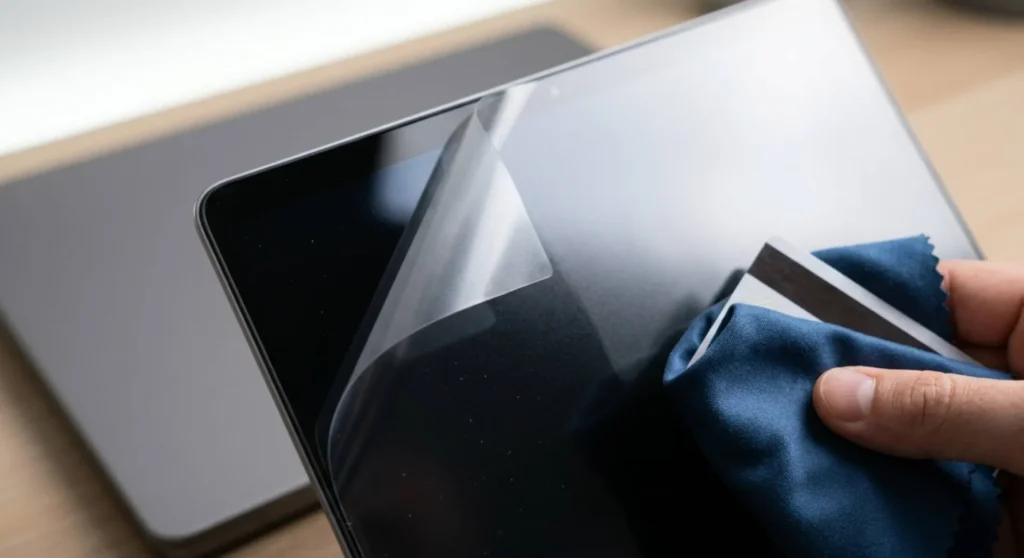
If environmental adjustments aren’t sufficient, because you work in a fixed location with unavoidable light sources, or because your usage involves outdoor or high ambient light environments, an anti-glare screen film is the most practical committed solution. Applied correctly, it converts your screen’s optical behavior from glossy to semi-matte without touching the display hardware.
How anti-glare films work: They apply a layer of microscopically textured coating over the glossy glass surface. Reflected light hitting the textured surface scatters in multiple directions rather than reflecting coherently toward your eyes. The display image is still visible through the film; the transmission loss is minimal (typically 2 – 5% of display luminance). What changes is how strongly reflections are focused.
What to look for when buying:
Haze value, this is the key specification. Haze is a percentage value measuring how much light is scattered versus transmitted. Low haze (10 – 20%): minimal reflection reduction, minimal sharpness loss. Medium haze (25 – 35%): significant reflection reduction, slight softening of fine text. High haze (40%+): strong reflection elimination, noticeable softening, suitable for presentations and video content, not for detailed text work or color-critical applications.
For text-heavy laptop work: target a haze value of 20 – 28%. This range reduces reflections meaningfully while preserving enough optical clarity for fine text to remain sharp.
Optical clarity rating, separately from haze, some films specify optical clarity as a percentage. Higher is better. Films below 90% optical clarity introduce visible haziness in the display image itself, not just in reflections.
Cut accuracy, anti-glare films must be cut precisely to your laptop’s screen dimensions, including cutouts for the webcam. Films cut for “universal sizes” rarely fit correctly and develop edge lift that catches light and looks worse than no film at all. Always buy films cut specifically for your laptop model number.
Reliable brands for laptop anti-glare films:
| Brand | Price Range | Notes |
|---|---|---|
| 3M Laptop Privacy/AG Filters | $25 – $45 | Consistent haze values, precise cuts for most models |
| Photodon | $20 – $35 | Multiple haze options (MXT, MXH designations), excellent clarity |
| ZAGG InvisibleShield | $25 – $40 | Good optical clarity, wide model coverage |
| Generic model-specific cuts (Amazon) | $10 – $20 | Highly variable quality – check haze specs before buying |
Application procedure for a bubble-free installation:
Removing an anti-glare film: Peel from a corner at a low angle. Residue, if any, removes with 90% isopropyl alcohol on a cloth. No screen damage occurs from film removal when done at a slow, steady angle.
Effectiveness: Extremely high for overhead and side light. Cost: $20 – $60. Risk: None. Trade-off: Adds bulk, reduces portability.
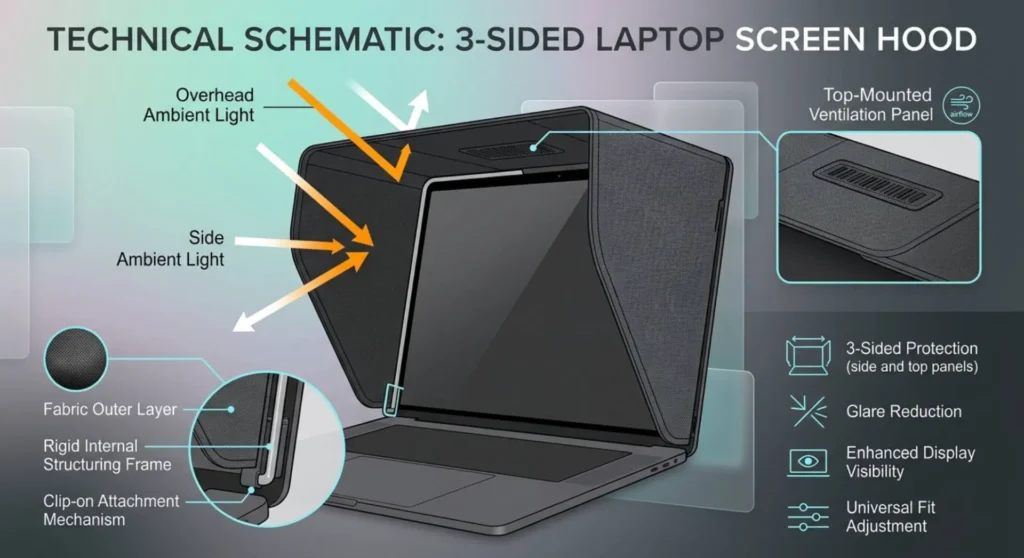
A laptop hood is fabric or rigid frame that attaches to the lid and surrounds the screen on three sides is the approach that professional outdoor photographers and field technicians use when display accuracy under variable ambient light is essential. It eliminates reflections from overhead and side light sources completely by preventing that light from reaching the screen surface.
Laptop hoods are not glamorous. They look slightly awkward. They take 30 seconds to attach and detach. In a coffee shop or outdoor environment where glare is severe and other solutions haven’t been enough, they’re simply the most effective physical option available.
Available options:
Hoodman Laptop Hood ($30 – $50): The most established brand. Adjustable to multiple screen sizes, attaches with a fabric wrap. Designed for outdoor photography review and field video monitoring. Reduces available light at the screen surface by 80 – 90%.
Custom fabric hoods from photography suppliers: Similar function, often cheaper. Look for models with ventilation panels to avoid trapping heat against the screen.
DIY cardboard hood: A piece of stiff cardboard cut and folded into a three-sided surround and held in place by rubber bands or clips is effectively as functional as a commercial hood. Aesthetically undignified but optically identical in performance. Worth testing before buying a commercial version to confirm it actually solves your specific glare situation.
Effectiveness: Very high for specific reflection types. Cost: $30 – $80. Risk: None. Trade-off: Changes viewing angle characteristics.
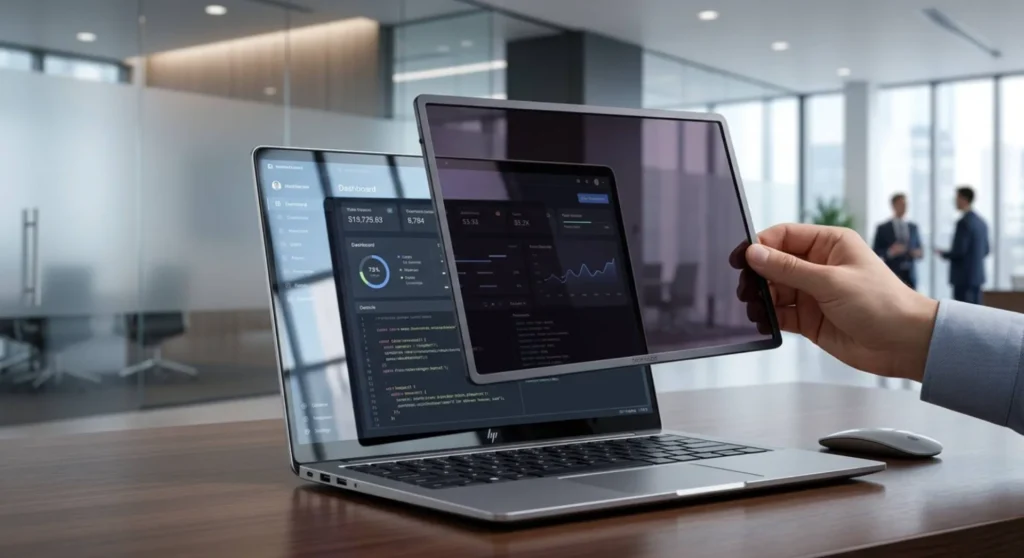
Polarized filters work on a different optical principle than anti-glare films. Light reflecting off a smooth glass surface becomes partially polarized, the reflecting light vibrates predominantly in one orientation. A polarizing filter oriented at 90° to that polarization axis blocks the reflected light specifically without blocking the transmitted display light proportionally.
The practical result: polarization filters can reduce specular reflections (sharp, mirror-like reflections of light sources) more dramatically than anti-glare films, often eliminating them almost completely. The trade-off is that they introduce an orientation-dependent effect: rotating the filter 90° converts it from maximum blocking to maximum transmission, and some laptop displays that use their own polarizing layer can interact with external polarizing filters to produce a darkening effect at certain rotation angles.
Testing before committing: Hold a pair of polarized sunglasses in front of your screen and rotate them slowly. If you see reflections diminish at a specific orientation without significantly darkening the display a polarizing filter will work well for your screen. If the display darkens dramatically at certain rotations, the screen’s own polarizing layer is interfering, and a standard anti-glare film is a better choice.
Some commonly suggested glare remedies either don’t work or introduce new problems worth knowing about.
Applying matte spray paint or a DIY anti-glare spray to the screen. This is irreversible and destroys the panel’s optical clarity. Even sprays marketed as “screen coating” produce uneven haziness that looks significantly worse than the original glare. Do not apply any spray coating to a laptop screen surface.
Olive oil, baby oil, or any liquid coating. Suggested in some forum threads as a way to create a matte effect. These leave residue, attract dust, degrade the oleophobic coating on the glass, and create a worse visual result than the original glare. Do not apply.
Tape over reflective areas. Scotch tape reduces reflections in the taped area while creating visible tape edges that are more distracting than the original glare. Useful only in emergency situations (outdoor presentation, no other option available).
Lowering display brightness to reduce glare. This reduces the display’s output without reducing the reflection, making the contrast between content and reflection worse, not better. The opposite of correct. Lower brightness increases perceived glare; higher brightness reduces it.
OLED laptop panels present a specific glare characteristic that IPS LCD panels don’t share.
OLED panels have no backlight diffuser layer, the light comes directly from the pixel layer, which sits very close to the outer glass surface. This makes OLED screens optically shallower than IPS LCD screens, which means reflections appear in sharper focus relative to the display content. A reflection on an OLED screen looks more like a mirror reflection and less like the slightly diffuse reflection you see on an IPS screen.
The practical implication: OLED glare is more visually disruptive at the same ambient light level than IPS glare. Level 1 and Level 2 environmental adjustments are more important, not less, for OLED laptop screens.
Additionally: apply anti-glare films on OLED screens with extra care. OLED panels are thinner and more flexible than IPS panels, any trapped air bubble creates a visible display artifact because the film is in closer optical proximity to the pixel layer. A professional installation or self-adhesive film specifically designed for OLED panels is preferable to generic anti-glare films on OLED laptop screens.

Derek V. Mackown is a veteran IT Technician and Display Hardware Specialist with over a decade of hands-on experience troubleshooting complex software-hardware interface glitches. He specializes in Windows OS display architecture, driver calibration, and panel diagnostics. Driven by a passion for pixel-perfect performance, he writes highly analytical, step-by-step guides to help everyday users achieve absolute display clarity at AurumScreen.com.