By Derek V. Mackown | IT Technician & Display Hardware Specialist
The screen is completely white. Not flickering. Not cracked. Not black. Just a solid, featureless white, like someone filled the entire display with a blank canvas and left it there.
Your first instinct is probably that the screen has died. And I want to tell you something before you start looking up repair prices: a white screen is one of the most recoverable display failures on a smartphone. That’s not wishful thinking; it’s based on how the display hardware actually works. A screen that’s outputting full white is a screen that’s active and powered. The display controller is running. Every pixel is lit. The problem is that the system is stuck in a state it can’t exit on its own and a well-executed reset often exits it for the system.
I’ve seen white screens come back from force restarts in thirty seconds. I’ve also seen them turn out to be hardware failures that needed a screen replacement. The difference between those two outcomes is almost always which steps you tried first and in what order. Start from the least invasive and work deeper. Most people reading this will be done in under five minutes.
Why a White Screen Is Usually Not a Dead Display
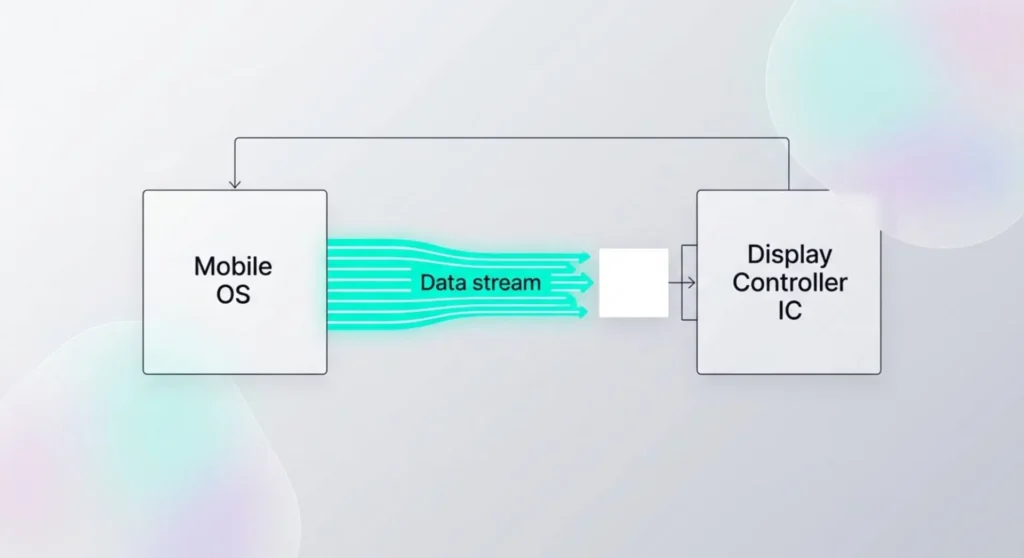
Understanding this makes the resets feel less like a prayer and more like a logical response to a known problem.
Your phone’s display controller, the chip that tells every pixel what color to show receives instructions from the operating system continuously. When those instructions stop arriving, or when the display driver crashes, the controller doesn’t go blank. It holds whatever state it last received. In certain crash conditions, the last instruction is essentially “full brightness, all channels on”, which produces a solid white output.
It’s the display equivalent of a speaker that got stuck playing a loud tone when the audio system crashed. The hardware is fine. The signal driving it is frozen.
This is different from a black screen (where the display got no signal at all) and different from a cracked screen (where the hardware itself is physically damaged). White means something is there, it’s just wrong.
Force restarts work on this because they cut power to the entire system, including the display controller and restart the communication between the OS and the display from scratch. When the connection re-establishes on boot, the controller receives correct instructions and displays your lock screen instead of a white void.
That’s the theory. Here’s the practice.
Rung 1 – The Force Restart (Try This First, Right Now)
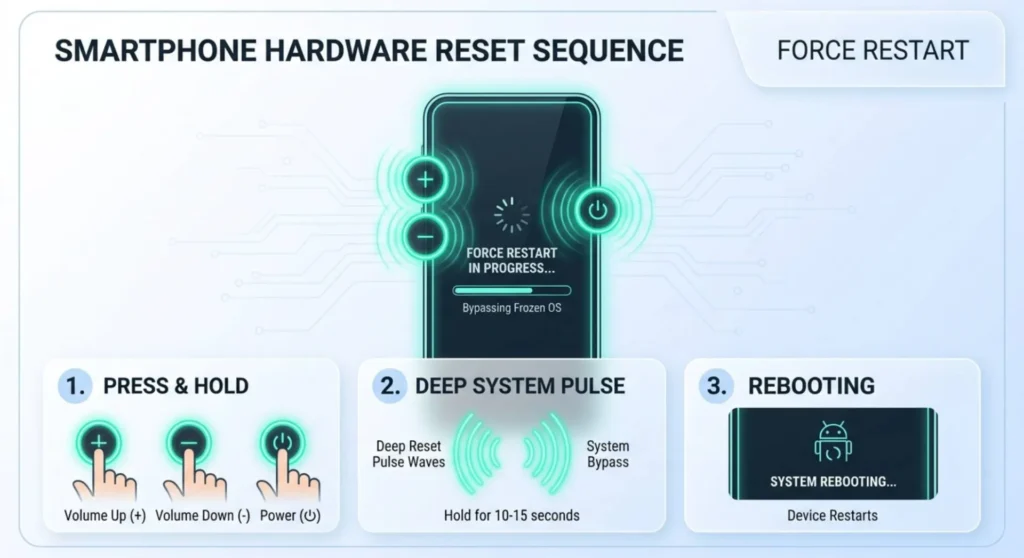
Don’t do anything else before trying this. A force restart is different from a normal restart, it cuts power to the system without requiring the operating system to respond. Since your OS may be frozen (which is often why the screen is white), a force restart bypasses the OS entirely.
This takes about fifteen seconds.
iPhone 8, SE (2nd/3rd gen), and all later iPhones: Press and quickly release Volume Up → press and quickly release Volume Down → press and hold the Side button. Keep holding through the white screen, through any Apple logo that may appear. Hold until you see the Apple logo, then release. The phone reboots.
iPhone 7 and 7 Plus: Press and hold both the Volume Down button and the Sleep/Wake button simultaneously. Hold through the white screen until the Apple logo appears. Release.
iPhone 6s, 6s Plus, and SE (1st gen): Press and hold both the Home button and the Sleep/Wake button together. Hold until the Apple logo appears.
Samsung Galaxy: Press and hold the Power button and Volume Down simultaneously. Hold for 7 – 10 seconds until the screen goes dark and the Samsung logo appears. If the screen doesn’t respond at all, hold for a full 20 seconds, some models require longer.
Google Pixel: Press and hold the Power button for at least 30 seconds. If nothing happens: press and hold Power + Volume Down together for 20 seconds.
OnePlus: Press and hold Power + Volume Down for 8 – 10 seconds.
Xiaomi / POCO / Redmi: Press and hold Power + Volume Down for 8 – 10 seconds.
Huawei / Honor: Press and hold Power + Volume Down for 10 seconds.
What to watch for after the restart: Does the phone boot to the lock screen normally? That’s the white screen resolved. Does it boot back to a white screen? Try the force restart once more, occasionally the first attempt doesn’t fully interrupt the stuck state, and a second restart finishes the job. Still white after two restarts? Move to the next rung.
Rung 2 – Wait It Out (Before Going Deeper)
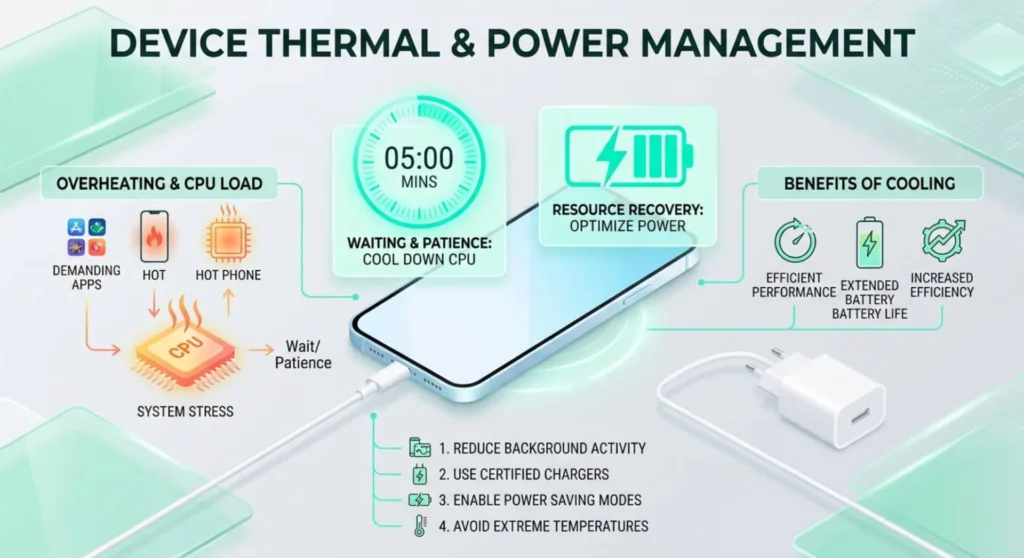
This sounds anticlimactic but it matters.
Some white screen events on smartphones are caused by an app or process that’s consuming all available CPU and memory, leaving the display driver starved of resources. In these cases, the system isn’t truly frozen, it’s overloaded. Given enough time, the process completes or crashes, the system recovers resources, and the display returns to normal.
If the force restart didn’t work on the first attempt, connect your phone to a charger and leave it untouched for 10 – 15 minutes. Don’t press buttons. Don’t try to interact with it. Let any running process finish or time out.
After 15 minutes: try the force restart again. A phone that was overloaded rather than frozen often responds to the force restart cleanly after the CPU load has settled.
This step also matters because some phones have a low-battery white screen state, when the battery is critically depleted on certain Samsung models in particular, the display can output white as a low-power artifact. Connecting to a charger and waiting resolves this specifically, and the force restart that follows once the battery has a small charge will complete the boot normally.
Rung 3 – Boot Into Recovery or DFU Mode
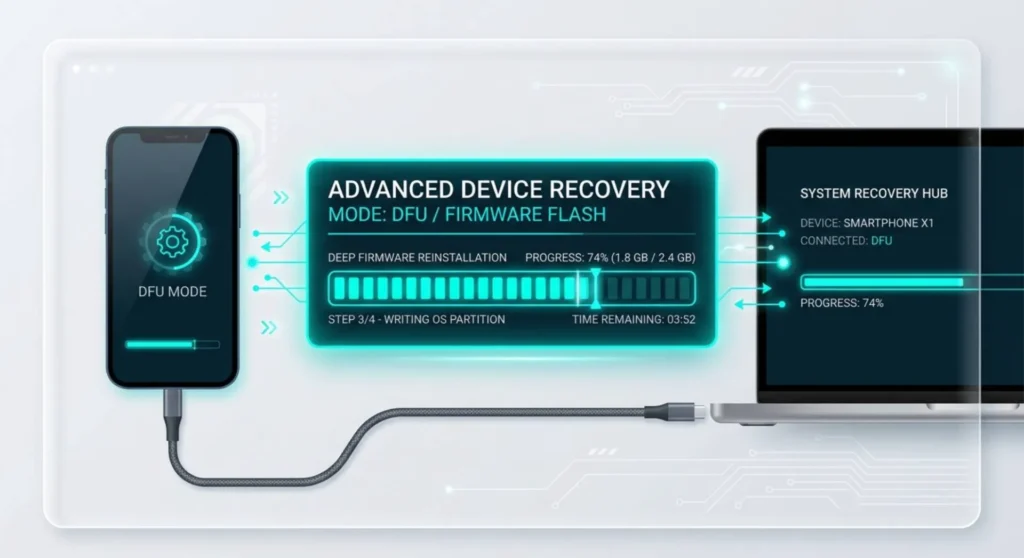
If two force restart attempts and a 15 minute wait haven’t resolved it, the OS itself has a problem that survives power cycling. Either a corrupted system file is causing the display driver to crash on every boot, or an app installed with high system privileges is interfering with display initialization each time the OS loads.
Recovery mode and DFU mode bypass the normal OS boot process and give you access to repair options that the running OS can’t provide.
iPhone – DFU Mode:
DFU (Device Firmware Update) mode is the deepest recovery state on an iPhone, it bypasses the bootloader entirely and gives iTunes or Finder direct access to the device firmware. It’s the closest thing to a truly clean slate for iOS.
You’ll need a computer with iTunes (Windows) or Finder (Mac) and a Lightning or USB-C cable.
- Connect your iPhone to the computer
- Open iTunes or Finder
- Enter DFU mode using the button sequence for your model:
iPhone 8 and later: Quickly press Volume Up → quickly press Volume Down → press and hold Side button → after 3 seconds, while still holding Side button, also hold Volume Down → hold both for exactly 5 seconds → release Side button but continue holding Volume Down for 5 more seconds. The screen stays black during successful DFU mode entry. If the Apple logo appears, you held too long and try again.
iPhone 7/7 Plus: Hold Power + Volume Down for 3 seconds → keep holding Volume Down while releasing Power → hold Volume Down for 10 seconds. Screen stays black.
iPhone 6s and earlier: Hold Home + Power for 3 seconds → keep holding Home while releasing Power → hold Home for 10 seconds.
iTunes or Finder will display “iTunes/Finder has detected an iPhone in recovery mode.” Select Restore iPhone. This reinstalls iOS from scratch while preserving your Apple ID. Note: a full DFU restore erases your data, if you have an iCloud backup, the data restores after the iOS installation completes.
Android – Recovery Mode:
Recovery mode on Android gives access to cache wiping and factory reset options that don’t require the main OS to boot.
Samsung Galaxy: With the phone off: hold Volume Up + Power simultaneously until the Samsung logo appears → release Power but hold Volume Up → when the recovery menu appears, release Volume Up.
Google Pixel: With the phone off: hold Power + Volume Down → when Fastboot menu appears, use volume buttons to navigate to “Recovery mode” → press Power to select.
OnePlus: With the phone off: hold Power + Volume Down until the OnePlus logo appears → use Volume buttons to navigate → Power to select.
Xiaomi / POCO / Redmi: With the phone off: hold Power + Volume Up until MIUI Recovery appears.
Once in recovery: navigate to Wipe cache partition → confirm. This clears temporary system files that may be causing the display driver to crash on boot. Reboot after wiping cache.
If wiping cache doesn’t resolve the white screen on reboot: you’re facing either a corrupted OS installation or a hardware issue. Factory reset from the recovery menu is the next step, it erases all data and reinstalls the OS from the recovery partition. Back up first if you can access the phone through a computer.
Rung 4 – The Hardware Test
If force restarts, DFU mode, and recovery mode haven’t changed anything, the white screen persists through every reset attempt, it’s time to determine whether you’re dealing with software that survived all resets or actual hardware failure.
The brightness response test:
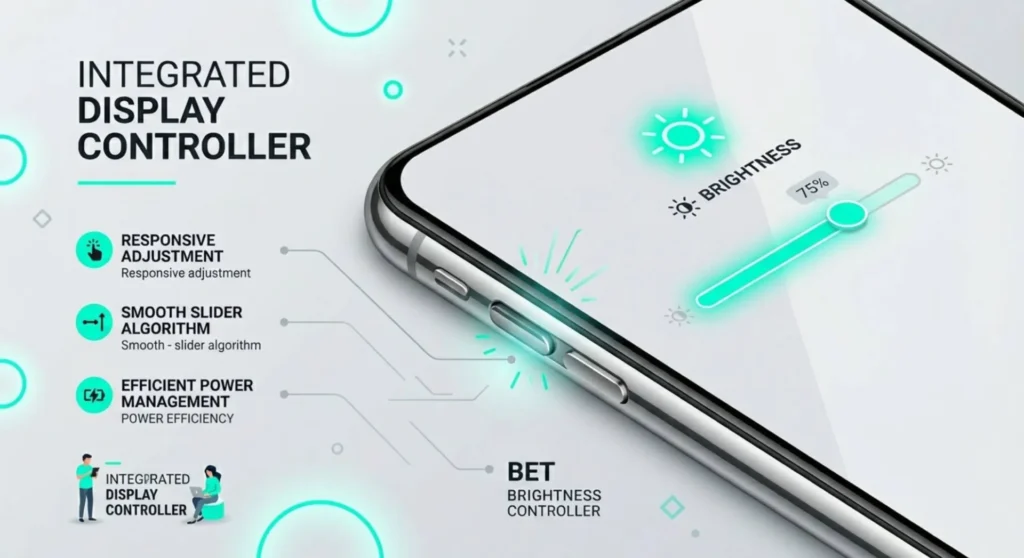
While the screen is white, press the Volume Down button repeatedly. Watch the screen carefully.
Does the white get dimmer as you lower the brightness? Or does it stay at exactly the same intensity regardless of the brightness buttons?
A white screen that responds to brightness changes is a display controller that’s functioning and receiving at least some instructions from the OS. The display isn’t dead, it’s receiving power and backlight commands correctly. The issue is in how the OS is rendering or what it’s rendering. Software is still a viable cause here. A factory reset via recovery mode is the appropriate next step if you haven’t already done it.
A white screen that doesn’t respond to brightness changes at all. Stays identically bright through every brightness button press and indicates the display controller isn’t receiving commands from the OS anymore. The display is running in an autonomous powered state without OS communication. This is hardware territory.
The flex cable check:
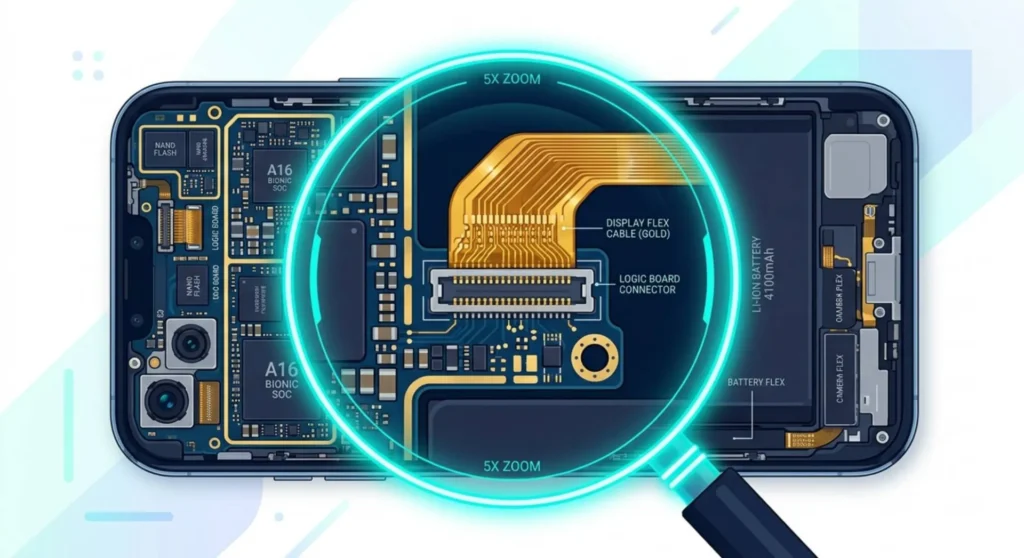
On phones that have been dropped recently, even without visible screen damage, a partially disconnected display flex cable can cause OLED panels to default to white output. The cable carries both power and data to the display. When the data lines become intermittently connected, the display receives power (stays lit) but not display controller instructions (produces white).
Clue: does the screen occasionally flash darker, flicker, or briefly show something other than solid white when you press lightly on specific spots on the phone body? If the white changes at all under pressure even for a fraction of a second, the flex cable connection is the likely hardware cause. A technician can reseat or replace the flex cable for significantly less cost than a full screen replacement.
After Recovery – If the White Screen Came Back
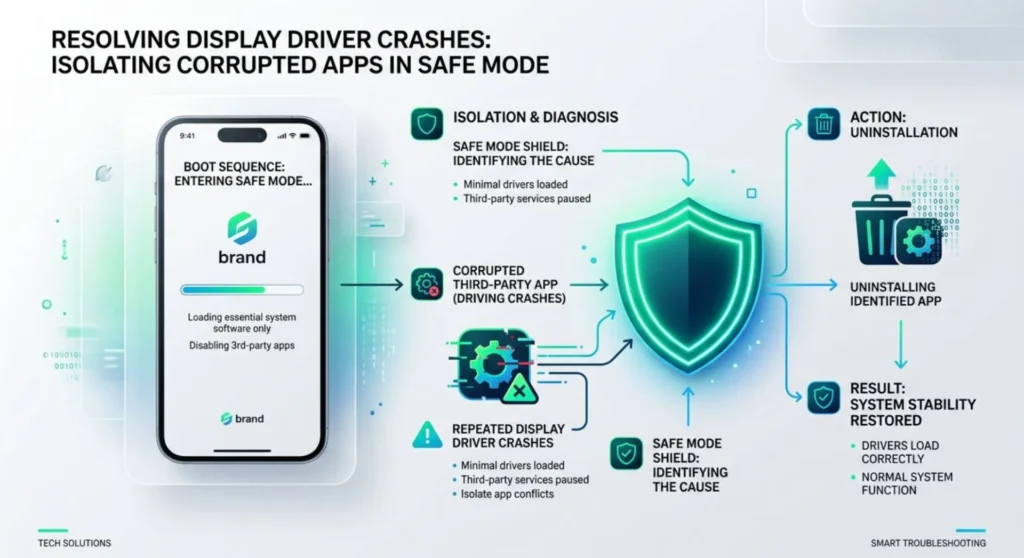
If your phone came back after a reset but the white screen returned hours or days later, you’re dealing with a repeating software or hardware instability rather than a one-time event.
Repeating white screens after app installs: An app installed recently is likely triggering a display driver crash. Boot into Safe Mode (hold Power button until power menu appears → long-press Power Off → tap Safe Mode) and use the phone for a day. If the white screen doesn’t recur in Safe Mode, uninstall recently installed apps one by one until it stops.
Repeating white screens with no pattern: Could be a failing OLED panel beginning its end-of-life process, or an OS installation that survived a reset but contains a corrupted display driver component. A full DFU restore (iPhone) or a fresh OS flash through the manufacturer’s official flash tool (Android), not a recovery factory reset, a complete OS reinstallation from a downloaded firmware package is the deepest software resolution available. If the white screen recurs after a full reflash, hardware failure is confirmed.
Repeating white screens after overheating: Thermal damage to the display flex cable or display IC can cause intermittent white screen events that appear after the phone runs hot and resolve when it cools. This follows a clear pattern, white screen during or after gaming, charging, GPS navigation, or hot environments. The long-term prognosis without repair is progressive worsening. Have the display assembly and flex cable inspected.
Warranty and When to Go to a Technician
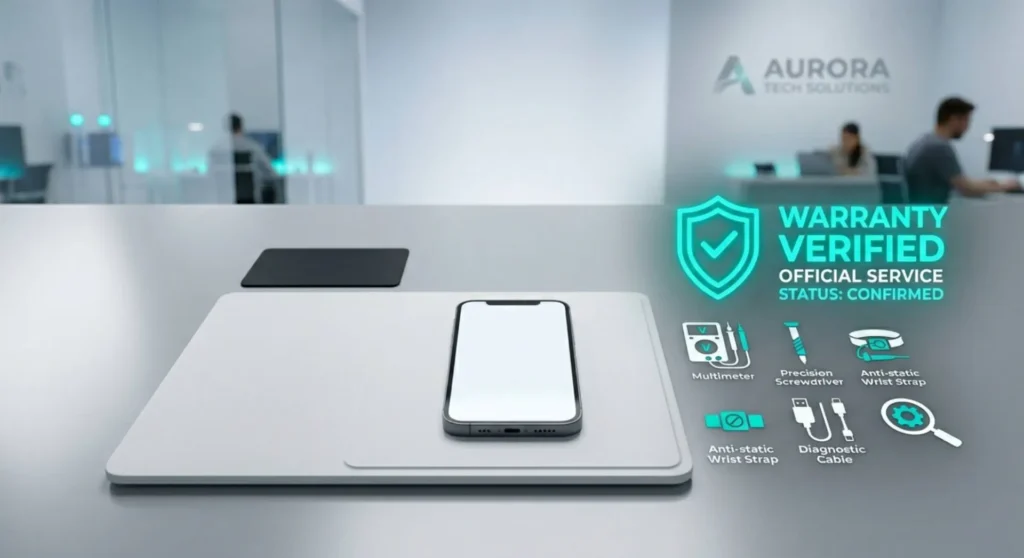
A white screen that doesn’t resolve after force restarts and recovery mode is a display assembly issue on most modern phones, either the flex cable, the display controller IC, or the panel itself.
If your phone is under a manufacturer warranty (typically one year, sometimes two in certain regions) and there’s no evidence of physical damage, no cracked glass, no liquid damage indicator triggered. A white screen that appeared without a drop or impact is a manufacturing defect. Contact your manufacturer’s support before paying for repair.
| Manufacturer | Warranty Support Contact |
|---|---|
| Apple | apple.com/support or Apple Store Genius Bar |
| Samsung | samsung.com/support or Samsung Members app |
| Google Pixel | support.google.com/pixelphone |
| OnePlus | oneplus.com/support |
| Xiaomi | xiaomi.com/support |
Repair cost context if outside warranty:
A white screen from flex cable disconnection costs significantly less to repair than a full panel replacement, a technician receipt of the flex cable runs $30 – $60 on most models. A full display assembly replacement for OLED flagship phones runs $150 – $350 depending on model and repair source. Getting a diagnosis before authorizing a repair matters, a $40 cable reseat and a $280 screen replacement produce the same symptom but are very different interventions.