By Derek V. Mackown | IT Technician & Display Hardware Specialist
Before anything else, describe what you’re actually seeing, as precisely as you can.
Is the shaking rhythmic and consistent, like something oscillating at a fixed frequency? Or is it random and unpredictable, appearing and disappearing without pattern? Does it affect the entire screen at once, or just certain areas? Does it happen only when content is moving. Scrolling a webpage, playing video or does it appear even on a completely still image?
I’m asking because “shaking” and “vibrating” describe several visually similar but technically distinct display problems, and the wrong fix for your specific variant does nothing. Someone whose screen oscillates rhythmically on a still image has a refresh rate mismatch. Someone whose screen shakes only during video has a GPU frame timing issue. Someone whose screen vibrates only near the laptop’s speakers has electromagnetic interference. Same word, different problem, different fix.
Spend ten seconds observing before reading further. The pattern you notice is the fastest path to the right answer.
What Kind of Shaking Is It? Read This First
Rhythmic, wave-like motion on a still image – content appears to shimmer or oscillate at a steady rate: This is almost always a refresh rate problem. Your screen is running at a refresh rate that your panel doesn’t natively support, creating a visible beat frequency between the display’s electrical scan rate and whatever rate Windows is actually driving it at. Go directly to Check 1.
Shaking only when scrolling or during fast movement – still content is fine: This is frame timing instability from the GPU driver. The display is rendering frames at inconsistent intervals rather than smoothly, and the brain perceives the inconsistency as vibration during motion. Go to Check 3.
Full-screen rapid shaking that comes and goes – sometimes stable, sometimes not: This is the same category as general flickering and the Task Manager test from the laptop flickering guide applies here. Open Task Manager while it’s happening. If Task Manager shakes too, it’s driver level. If Task Manager stays stable, it’s an application conflict. Check 2 handles the driver angle; Check 4 handles app conflicts.
Shaking in specific screen regions – one corner, one edge, the center only: Localized shaking that affects only part of the screen is almost never a software issue. It points to a physical panel problem, pressure deformation in the LCD layer, a partially failed display controller, or a damaged area of the eDP ribbon cable. Software checks will not help here; a hardware inspection is needed.
Shaking that started when you moved the laptop or changed its position – worse on certain surfaces: This is electromagnetic interference or physical vibration. See the EMI check at the end of this guide before anything else.
Found your pattern? Good. Here are the checks, each taking two minutes or less.
Check 1 – The Refresh Rate Is Wrong
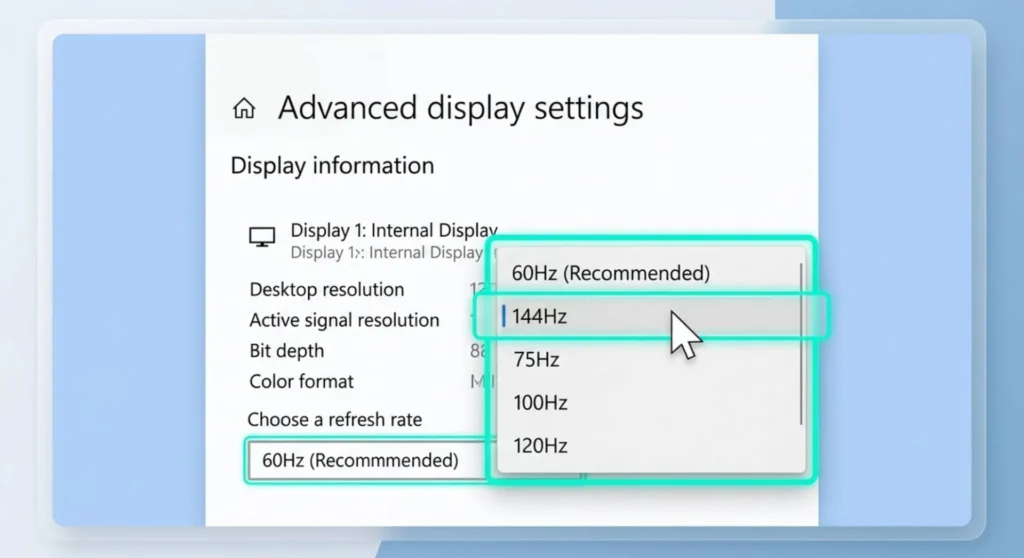
This is the most common software cause of a shaking or vibrating laptop screen and the fastest to fix.
When Windows sets your display to a refresh rate that doesn’t match your panel’s native specification or when it sets an intermediate rate like 50Hz on a panel built for 60Hz. The panel’s internal scan cycle and the Windows display signal fall slightly out of sync. The result is a visible shimmer or oscillation, often described as the screen “breathing” or “waving.” It’s most visible on solid color backgrounds and plain text.
Fix:
Right-click the desktop → Display settings → scroll down → Advanced display → open the Choose a refresh rate dropdown.
Set it to your panel’s native refresh rate. For standard laptop displays, that’s 60Hz. For gaming laptops, it’s whatever your panel is rated for 144Hz, 165Hz, 240Hz. If you’re unsure, try 60Hz first, every laptop panel supports 60Hz natively without compatibility issues.
Apply the change. If the shaking stops immediately, refresh rate was the cause. This happens more often than it should after Windows Feature Updates, which sometimes reset refresh rates to unexpected values without notifying you.
If multiple refresh rates appear and you’re not sure which is correct:
Look for the one marked “(Recommended)”, Windows calculates this from your display’s EDID data, which includes the panel’s native refresh rate specification. The recommended rate is the panel’s intended operating frequency.
Check 2 – The Display Driver Needs Attention
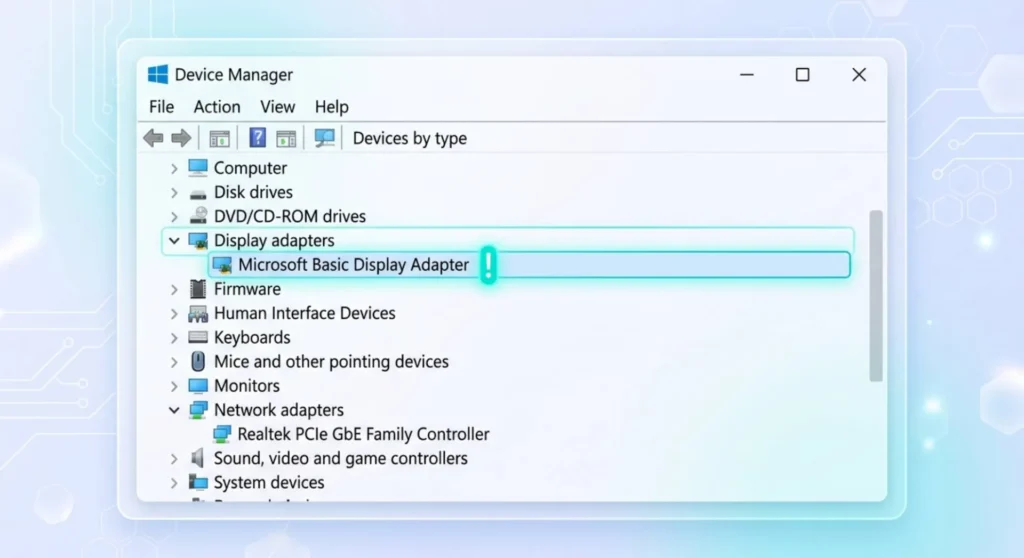
A display driver that’s partially corrupted, outdated, or running as a generic Microsoft fallback can produce inconsistent frame output that the eye reads as vibration. This is especially common after Windows Feature Updates that silently replace working OEM drivers.
Two-minute diagnosis:
Right-click the Start button → Device Manager → expand Display adapters.
If you see “Microsoft Basic Display Adapter” instead of your GPU by name: your real driver isn’t installed. Download the correct driver from your laptop manufacturer’s support page and install it. The shaking will likely resolve on reboot.
If your GPU appears by name but the shaking started after a recent update: roll back the driver. Right-click your GPU → Properties → Driver tab → Roll Back Driver. If this option is grayed out, Windows didn’t preserve the previous version. Instead, go to your GPU manufacturer’s site and download the driver version released before the current one.
After any driver change: restart fully and observe. Driver-related screen shaking almost always resolves completely on the restart following a driver correction.
Check 3 – Resolution Isn’t Set to Native
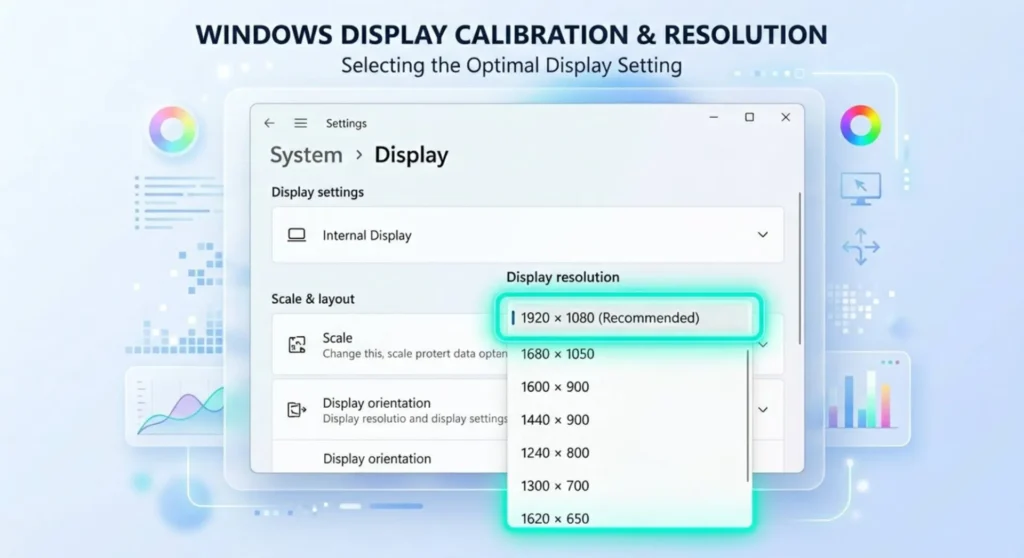
Running a laptop screen at anything other than its native resolution forces Windows to scale the output, stretching or compressing the rendered image to fit the panel’s actual pixel count. This scaling process can introduce visual instability, particularly during motion, that looks like vibration or shaking.
Fix:
Right-click desktop → Display settings → Display resolution dropdown → select the resolution marked (Recommended).
The recommended resolution is always the panel’s native resolution, the one where every rendered pixel maps exactly to one physical pixel on the panel. At native resolution, no scaling engine runs, no interpolation occurs, and a common source of visual instability disappears.
If the screen was previously at a non-native resolution and the shaking appeared only after that change, this is your entire fix. If it was already at the recommended resolution, this isn’t the cause.
Check 4 – An App Is Causing It
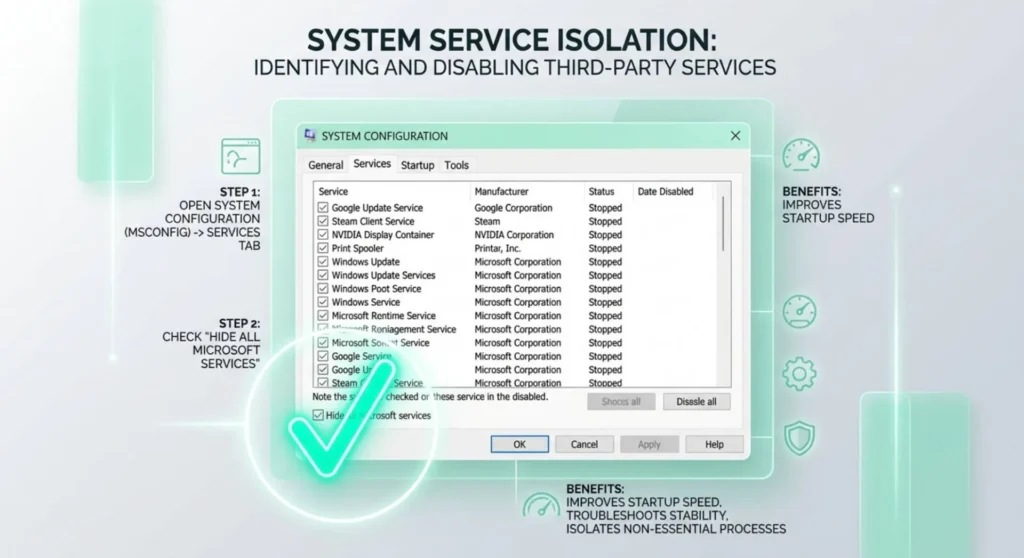
Some applications inject themselves into the display rendering pipeline, screen recorders, streaming tools, color calibration software, antivirus real-time shields, RGB peripheral management tools. When these interact poorly with the current display driver, the result can be rendering instability that appears as shaking.
The isolation test:
Press Windows + R → type msconfig → Enter → Services tab → check Hide all Microsoft services → click Disable all. Go to the Startup tab → open Task Manager → disable every non-Microsoft startup entry. Restart.
If the shaking stops: one of the disabled services or startup entries is the cause. Re-enable them in small batches, restarting after each group, until the shaking returns. That last batch contains the conflict.
Common culprits in my experience: OBS Studio background hook, NVIDIA GeForce Experience overlay, Discord hardware-accelerated overlay, Logitech G Hub, Corsair iCUE, F.lux or SunsetScreen, and real-time antivirus components from Bitdefender, Norton, and McAfee. If you recognize any of these as recently installed or recently updated, start with them.
Re-enable all other services after identifying and addressing the specific conflict, running permanently with non-Microsoft services disabled isn’t a fix, it’s avoidance.
Check 5 – Hardware Acceleration in the Browser or App
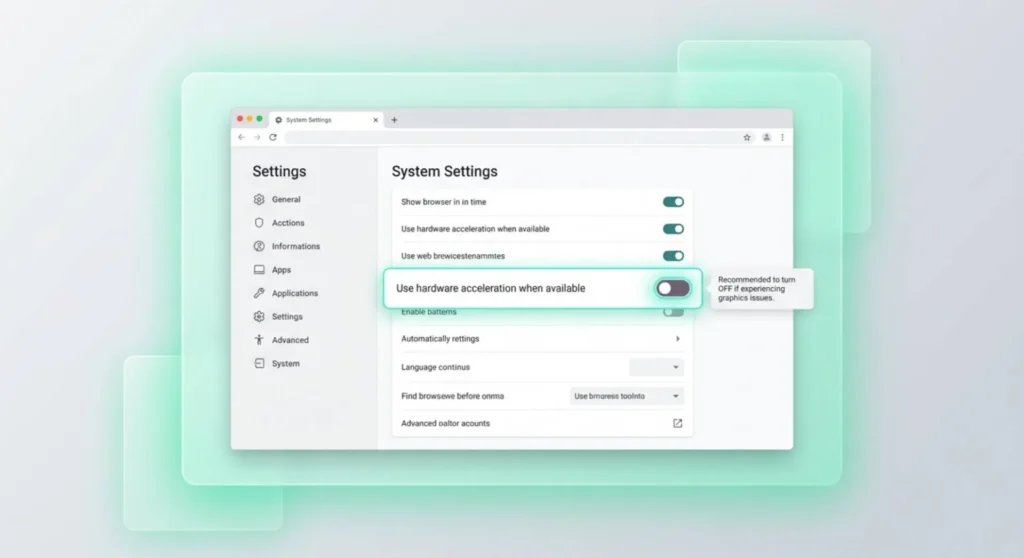
If the shaking happens specifically inside a browser window or inside one particular application while the desktop and other apps are stable, hardware acceleration is the likely culprit. When a GPU driver update changes how hardware acceleration renders content, previously stable applications can produce visual artifacts that look like shaking inside their window.
Chrome: Address bar → type chrome://settings/system → toggle off Use hardware acceleration when available → relaunch Chrome.
Microsoft Edge: Settings → System and performance → toggle off Use hardware acceleration when available → relaunch Edge.
Firefox: Settings → General → Performance → uncheck Use recommended performance settings → uncheck Use hardware acceleration when available.
Microsoft Teams: Settings → General → check Disable GPU hardware acceleration → restart Teams.
If the shaking clears up inside the application after disabling hardware acceleration: the application’s GPU rendering path has a conflict with your current driver version. This is usually a temporary incompatibility that resolves with the next driver update or application update. As a permanent fix, a clean DDU driver reinstall often eliminates the underlying incompatibility.
Check 6 – The Power Plan Is Causing GPU Clock Instability
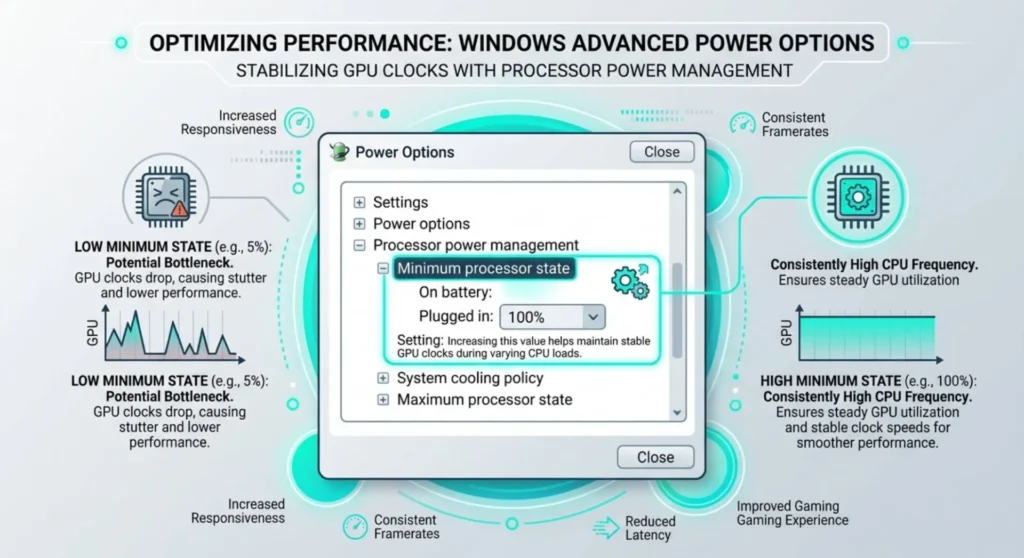
This one is less intuitive, but I’ve seen it enough times to include it. Certain laptop power plans, especially Power Saver and manufacturer-defined battery conservation modes aggressively throttle GPU clock speeds. When the GPU clock drops and rises rapidly trying to respond to display demands, the output timing fluctuates. That fluctuation can produce a subtle but visible screen vibration, particularly during motion and video.
Fix:
Right-click the battery icon in the taskbar → Power and sleep settings → Power mode → change from Power saver or Battery saver to Balanced or Best performance.
Test immediately. If the shaking reduces or disappears while plugged in on a higher performance setting but returns on battery, the GPU clock throttling is the cause.
For more granular control: Control Panel → Power Options → Change plan settings → Change advanced power settings → expand Processor power management → set minimum processor state to at least 50% for On battery. This prevents the GPU from receiving instruction to drop to near-zero clock states that create display instability.
Check 7 – Safe Mode Confirmation
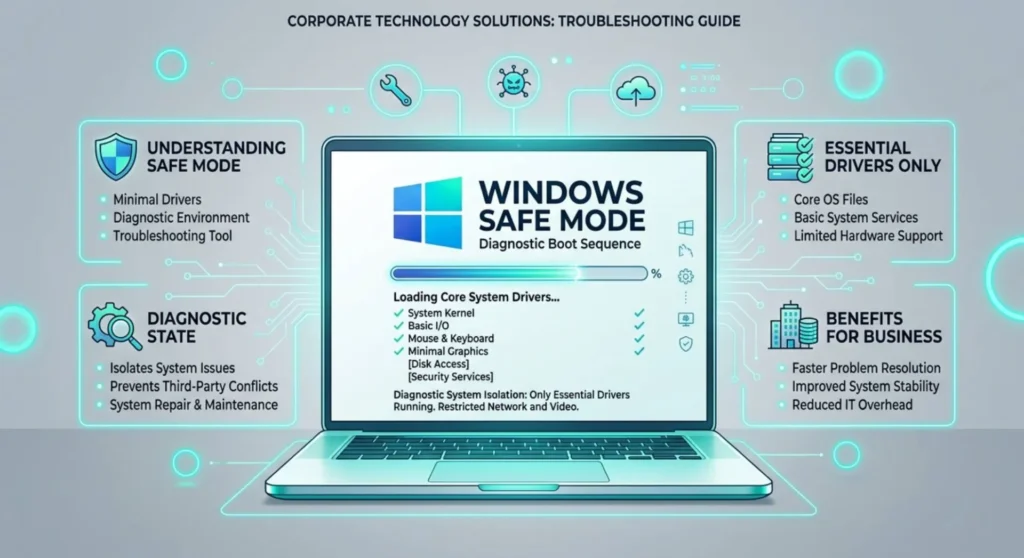
If Checks 1 through 6 haven’t identified the cause, Safe Mode is the definitive software isolation test.
Safe Mode loads Windows with only essential Microsoft drivers and services, no third-party applications, no display-enhancement software, no GPU manufacturer’s control panels. If the shaking disappears completely in Safe Mode, you have a software conflict that the msconfig isolation in Check 4 should catch. If the shaking persists in Safe Mode at the same intensity, it’s hardware.
Entering Safe Mode:
Hold Shift while clicking Start → Power → Restart → Troubleshoot → Advanced options → Startup Settings → Restart → press 4 for Safe Mode.
Observe the screen for a few minutes in Safe Mode. The display will be lower resolution and refresh rate than normal (Safe Mode uses the generic Microsoft driver) but that’s expected. Watch specifically for the same shaking or vibration pattern you see in normal mode.
Safe Mode stable → software is the cause. Return to Checks 1-6 methodically. One of them is the answer.
Same shaking in Safe Mode → hardware is the cause. No software fix will resolve this. The shaking is coming from a physical layer, the eDP ribbon cable, the panel itself, the display controller, or the backlight circuit. A hardware inspection is the appropriate next step.
The EMI Check – When the Laptop’s Environment Is the Problem
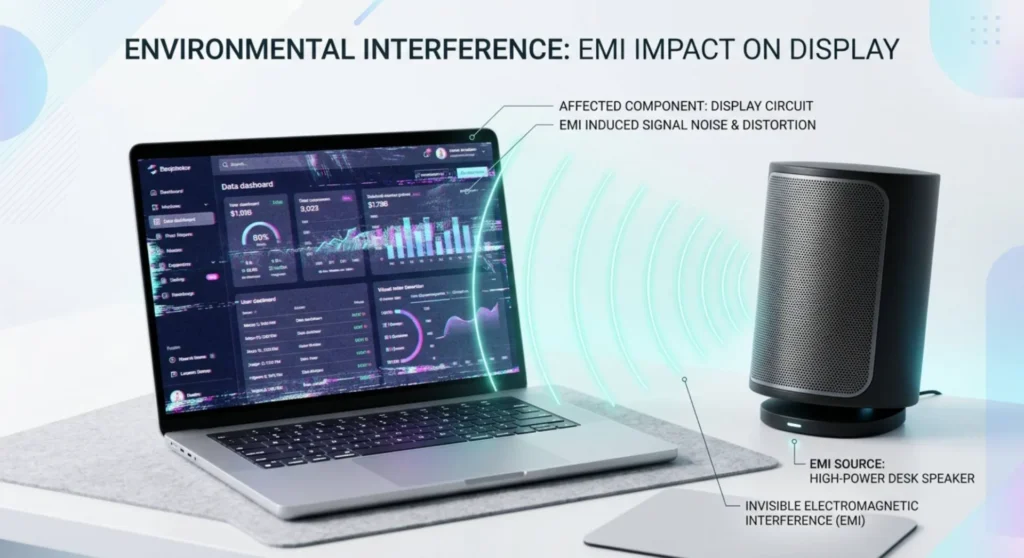
This is specific to shaking that started when something in the laptop’s physical environment changed a new desk, a new surface, a new position, a nearby device.
Laptops placed on surfaces near strong electromagnetic sources can experience display interference. Subwoofers, large speakers, wireless chargers, certain induction cooktops (in kitchen-adjacent home office setups), and high-powered electrical equipment all generate electromagnetic fields that can induce small currents in the laptop’s display cable, which the panel interprets as signal noise and renders as visible shaking.
Test: Move the laptop to a completely different surface and location, a different room if practical. If the shaking stops or significantly reduces, the original location had an EMI source. Identify what’s nearby (speakers, charging pads, power adapters) and increase separation.
Laptop power adapters specifically: Some low-quality or third-party power adapters generate EMI that couples into the laptop’s ground plane and causes display noise. If the shaking appears or worsens when the charger is connected, try a different charger, ideally the OEM charger your laptop shipped with. This is related to the charger-caused blink issue covered elsewhere in this series but produces a continuous vibration rather than a single blink.
What to Check If Nothing Above Worked
You’ve run every software check, the screen shakes in Safe Mode, and no environmental source explains it. Here’s where that leads.
eDP cable wear: The ribbon cable connecting the motherboard to the display panel runs through the laptop hinge. Flexing from lid opening and closing over years can cause micro-fractures that produce signal inconsistency, not enough to cause total signal loss, but enough to create visible display instability. This is the most common hardware cause of persistent screen shaking on laptops over two years old. A technician can inspect and replace the eDP cable for significantly less than a full panel replacement.
Panel age on high-use laptops: LCD panels used for 6+ hours daily over 4+ years can develop subtle degradation in the crystal layer that produces visible instability, particularly during motion. This degrades gradually and isn’t fixed by software, but it progresses slowly and may be livable before reaching the point where replacement is necessary.
GPU thermal issues: An overheating GPU that throttles unevenly under display load can produce frame timing instability. Check GPU temperatures using HWiNFO64 during the shaking, if temperatures are above 90°C, thermal management is likely involved. Cleaning the laptop vents with compressed air is the immediate intervention; repasting the GPU heatsink is the more thorough fix if temperatures remain high after cleaning.