Physical Address
3260 College Rd, Fairbanks, Alaska

By Derek V. Mackown | IT Technician & Display Hardware Specialist
Most people have never experienced a properly calibrated touchscreen not because well-calibrated screens are rare, but because nobody has ever told them what to look for.
A properly calibrated touchscreen responds to the first point of contact without requiring pressure. It registers the precise location where your finger makes contact, not where your finger is pointing. It doesn’t fire twice on a single deliberate tap. It doesn’t drift, meaning the on-screen cursor or interaction point doesn’t sit a few pixels away from where you’re actually touching. It responds consistently regardless of which corner or edge you’re tapping, not just in the center where sensitivity is highest.
When a touchscreen doesn’t do those things, most users adapt. They press harder. They tap twice. They adjust their grip. They never think to ask whether the screen itself could be better, because they’ve never felt what better actually is.
This guide is about getting to that better state. Not fixing a broken screen, calibrating a working one to respond the way it should.
Table of Contents
ToggleThe word “calibration” means different things depending on the platform and the goal, so let’s establish precisely what we’re talking about before touching any setting.
On a capacitive touchscreen, your finger doesn’t physically push anything. The screen’s electrode grid continuously measures the capacitance distribution across its surface. Your fingertip with its natural conductivity creates a measurable distortion in that field at the point of contact. The touch controller IC samples this field thousands of times per second, calculates the coordinates of the distortion, and sends that data to the OS.
There are three variables that determine how that process feels:
Touch sensitivity threshold — how much capacitive disturbance is required before the controller reports a touch event. Set too high, and light taps don’t register. Set too low, and the screen fires on hover, through a pocket, or from a nearby stylus without contact.
Touch report rate — how many times per second the controller sends coordinate data to the OS. Standard screens report at 120 – 240Hz. Gaming-optimized screens report at 480 – 1000Hz. A low report rate means the OS receives stale coordinates during fast gestures, producing lag or missed swipes.
Palm rejection algorithm — the logic that distinguishes intentional finger contact from incidental palm contact while holding the device. Too aggressive and it ignores legitimate touches at the screen edges. Too permissive and every grip produces ghost input.
iOS and Android approach all three of these variables differently, both in what they expose to users and in what they configure automatically. That’s why the calibration process genuinely differs between them, and why you’ll find parallel paths throughout this guide rather than a single universal procedure.
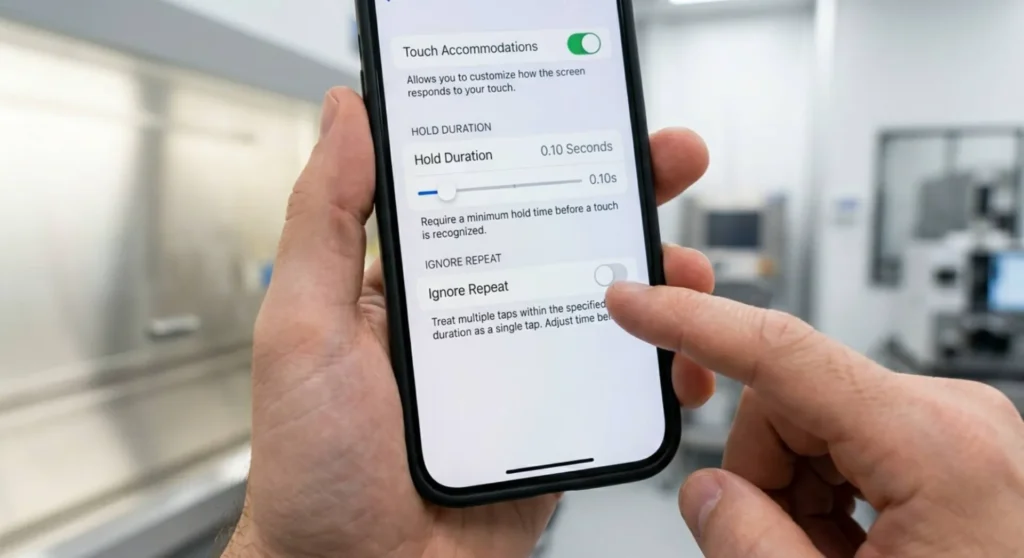
Apple doesn’t use the word “calibration” anywhere in iOS, and there’s no Settings menu that looks like a traditional calibration utility. This is intentional Apple configures touch parameters at the factory for each specific panel variant and considers them a fixed hardware characteristic. What iOS does offer is a set of accessibility and system settings that adjust how the touch system processes and responds to input, which in practice achieves the same outcome as traditional calibration.
This is where Apple’s actual touch sensitivity controls live, buried inside the Accessibility menu rather than displayed as a prominent calibration feature.
Settings → Accessibility → Touch → Touch Accommodations
Enable Touch Accommodations to access the controls below it. These settings modify how iOS interprets the raw touch data coming from the digitizer hardware.
Hold Duration: Sets a minimum time threshold a touch must be maintained before iOS registers it as intentional input. If your screen is firing on accidental brushes or seems to register touches before you intend them, increase this value. Start with 0.10 seconds and test. For users who want faster, more instantaneous response, particularly for gaming or fast typing, set this to its minimum or disable it.
Ignore Repeat: Prevents multiple touch events from registering within a set time window when you intend a single tap. If double-tapping is happening when you intend single taps, common on screens with very high sensitivity or with certain screen protectors, set Ignore Repeat to 0.10 – 0.30 seconds and test response on your keyboard and home screen.
Tap Assistance — Lift-to-Type vs. Use Initial Touch Location: This setting controls what iOS treats as the intended tap point. Use Initial Touch Location registers the tap at the first point of contact responsive, what most users want. Use Final Touch Location registers the tap at the last point before you lift your finger, useful for users whose finger slides slightly during taps. If taps are registering in slightly wrong positions, switch between these and observe which produces more accurate targeting.
Testing your Touch Accommodations settings: After each adjustment, open the Notes app and attempt to tap individual letters on the keyboard, particularly small letters at the edges. This is the most precise finger-placement test available without a dedicated calibration app. If edge letters are registering correctly at normal tap speed, the settings are properly configured for your usage pattern.
On iPhones with 3D Touch (iPhone 6s through iPhone XS), the pressure sensitivity threshold for distinguishing a tap from a press is adjustable and getting these wrong produces “unintended long-presses” or “menus that won’t trigger” complaints that users misidentify as screen unresponsiveness.
Settings → Accessibility → Touch → 3D & Haptic Touch
The 3D Touch Sensitivity slider (Light / Medium / Firm) sets the pressure threshold. A Light setting means less force produces a press, useful for users with limited grip strength but prone to accidental menu triggers. Firm requires deliberate pressure, better for fast typists who brush the screen frequently.
For Haptic Touch (iPhone XR and later, which uses long-press duration instead of pressure): the Haptic Touch speed setting (Fast / Slow) determines how long you must hold before a press-action triggers. Set to Fast for gaming and power users; set to Slow if contextual menus trigger too easily during normal use.
Test this with the Camera app: Long-press the camera icon on the home screen. The Quick Actions menu should appear exactly when you intend it to, not before, not with a delay that feels like the phone isn’t responding.
iOS has a native setting specifically for screen protectors that add air gap or increase insulation between finger and digitizer, a setting that addresses one of the most common causes of degraded touch feel.
Settings → Accessibility → Touch → Touch Sensitivity
The toggle here, simply labeled Touch Sensitivity and adjusts the digitizer’s input threshold to compensate for the additional capacitive loss introduced by a thick tempered glass or impact-resistant screen protector. Enable it and test immediately.
This setting was introduced specifically because third-party screen protectors vary so widely in thickness and material composition that factory touch calibration can’t account for all of them. Enabling this lowers the minimum capacitive disturbance required for a touch event to register, effectively recalibrating the sensitivity threshold to compensate for the protector.
If you switch screen protectors: Test with this toggle in both states. Some screen protectors are thin enough that the increased sensitivity causes false triggers on hover. If ghost touches appear after installing a new protector and enabling this setting, the protector is thin enough not to need it.
Before concluding the iOS calibration process, verify that touch registration is accurate across the full screen surface, not just the center.
Settings → Accessibility → Touch → AssistiveTouch → Enable
An AssistiveTouch button (small floating circle) will appear on screen. Drag it to each corner of the display in turn, upper left, upper right, lower left, lower right. The button should track your drag precisely to the corners, and its position when you release should be where you intended to place it.
If the button consistently drifts in a specific direction, always landing slightly to the left of where you release, for example, that region’s touch registration has a systematic offset. This is a hardware characteristic of that specific panel and typically indicates minor digitizer calibration drift that Apple’s diagnostics can address through an authorized service center.
Disable AssistiveTouch after testing if you don’t need it for accessibility purposes.
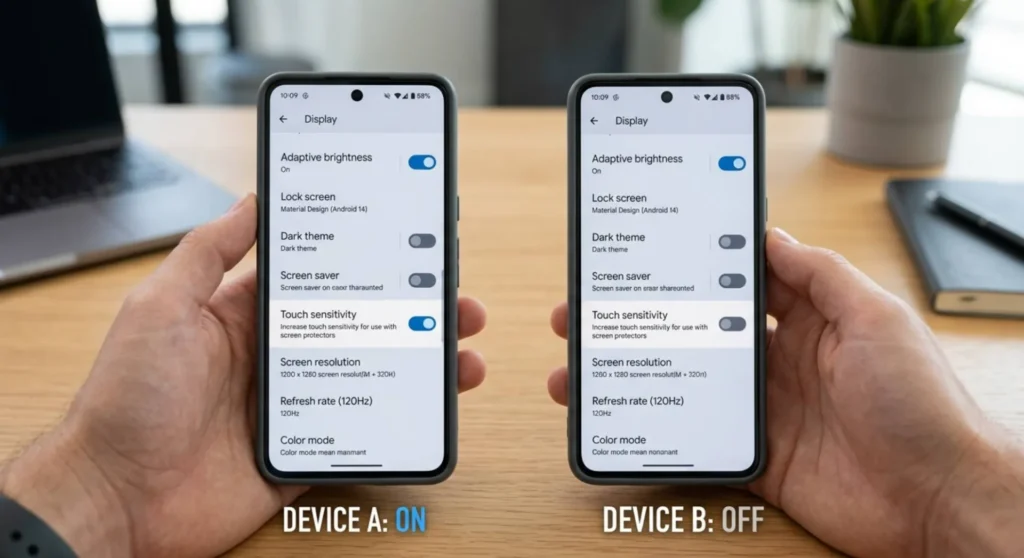
Android provides significantly more direct access to touch sensitivity parameters than iOS, both through native settings and through the developer options menu that exposes the underlying touch input stack. The specific paths vary by manufacturer, so this section covers both the universal Android approach and brand-specific paths.
Most Android 10+ devices include a native touch sensitivity setting, though its location and label vary by manufacturer.
| Manufacturer | Setting Name | Path |
|---|---|---|
| Samsung Galaxy | Touch sensitivity | Settings → Display → Touch sensitivity |
| OnePlus / OPPO | Touchscreen calibration | Settings → Display → Touchscreen calibration |
| Xiaomi / POCO / Redmi | Increase touch sensitivity | Settings → Additional settings → Accessibility → Increase touch sensitivity |
| Google Pixel | Touch & stylus (limited options) | Settings → Accessibility → Touch & hold delay |
| ASUS ROG / Zenfone | Touch sensitivity | Settings → Display → Touch sensitivity |
| Motorola | Touchscreen calibration | Settings → Display → Advanced → Touchscreen calibration (on select models) |
Samsung-specific note: Samsung’s Touch sensitivity setting on Galaxy devices is specifically designed for screen protector use, it increases the digitizer’s input gain to compensate for the capacitive attenuation from a glass protector. Enable it when using any thick tempered glass protector. Disable it if ghost touches appear when using the phone with bare glass, the elevated gain can make the bare glass too responsive in certain humidity conditions.
Xiaomi’s “Increase touch sensitivity” uses the same mechanism but is accessible regardless of screen protector status, making it useful for users in dry climates where finger conductivity is naturally lower.
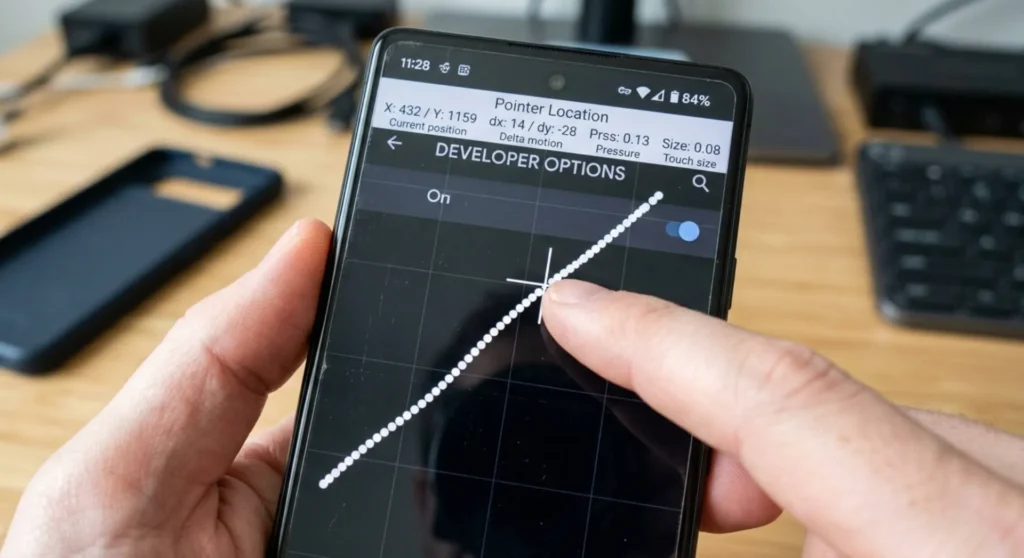
Developer Options on Android contains a set of touch input diagnostic tools that are invisible by default. Activating them doesn’t change how the touchscreen behaves, it makes the input visible so you can evaluate whether the screen is registering correctly.
Enabling Developer Options:
Settings → About phone → tap Build number 7 times. A message will confirm Developer Options are now accessible.
For Samsung Galaxy: Settings → About phone → Software information → Build number (7 taps) For Xiaomi: Settings → My device → MIUI Version (7 taps)
Settings → System → Developer Options (or Settings → Developer Options directly on Samsung)
Enable these two settings:
Show touches — displays a visible dot at every touch registration point. This tells you exactly where the system believes you’re touching. If the dot appears offset from where you’re actually placing your finger, calibration drift exists. If the dot appears only after significant pressure, sensitivity is set too high.
Pointer location — overlays a crosshair and coordinate display showing the precise screen coordinates being reported to the OS in real time. Drag your finger slowly across the screen, the coordinates should update smoothly and continuously. Stuttering coordinate updates indicate a low touch report rate or processing lag in the touch driver.
Test procedure with these enabled:
Tap individual points across all four quadrants of the screen, paying attention to whether the registered dot matches your intended contact point. Pay particular attention to the bottom 15% of the screen, this region commonly shows the largest offset because the digitizer grid is densest at the center and thins toward the edges.
Record any systematic offset you observe. “The dot always appears 5mm below my actual touch point in the top half of the screen” is actionable calibration data, it means the touch controller’s coordinate mapping has drifted in that zone and needs correction.
For users where touch accuracy during rapid gestures matters, mobile gaming, fast typing and drawing apps, the touch report rate is as important as sensitivity threshold. Standard Android touch reporting runs at 120 – 240Hz. Most gaming-oriented Android phones offer a higher rate mode.
| Device | High Touch Rate Setting | Path |
|---|---|---|
| Samsung Galaxy (gaming) | Touch sensitivity in Game Booster | Game Booster → More → Touch sensitivity |
| ASUS ROG Phone | X Mode touch boost | ROG Phone settings → X Mode → Touch response boost → 720Hz mode |
| Xiaomi Black Shark | Shark Space touch boost | Shark Space → Touch report rate → 720Hz |
| OnePlus (Pro models) | Touch response boost | Settings → Display → Touch report rate |
| Nubia Red Magic | Touch sampling rate | Red Magic space → Touch sampling rate |
For non-gaming phones, the stock Android touch report rate isn’t user-configurable through the standard settings UI. However, some manufacturers expose it through their Device Diagnostics or Hidden Settings menus accessible via dialer codes:
*#0*# → Touch → observe the touch visualization test, which also reflects report rate behavior*#*#6484#*#* → touch diagnostics sectionOn Android devices where touch accuracy changes when the device is tilted or rotated, touches registering in slightly different positions depending on screen orientation. The accelerometer or gyroscope calibration is affecting how the OS translates digitizer coordinates into screen coordinates. This is less common but genuinely exists on devices with sensor drift.
Settings → About phone → Calibration (available on select manufacturers including Xiaomi, OPPO, and Vivo)
This runs a guided sensor recalibration: place the phone on a flat surface, follow the on-screen instructions, and the gyroscope and accelerometer are reset to their baseline orientation reference. After recalibration, touch coordinates are translated correctly regardless of device orientation.
On devices without a native calibration utility: apps such as GPS Status & Toolbox (free, Play Store) include an accelerometer and compass calibration routine that achieves the same result. Run it with the phone on a flat surface, follow the figure-8 calibration motion if prompted, and test touch accuracy across orientations after completion.
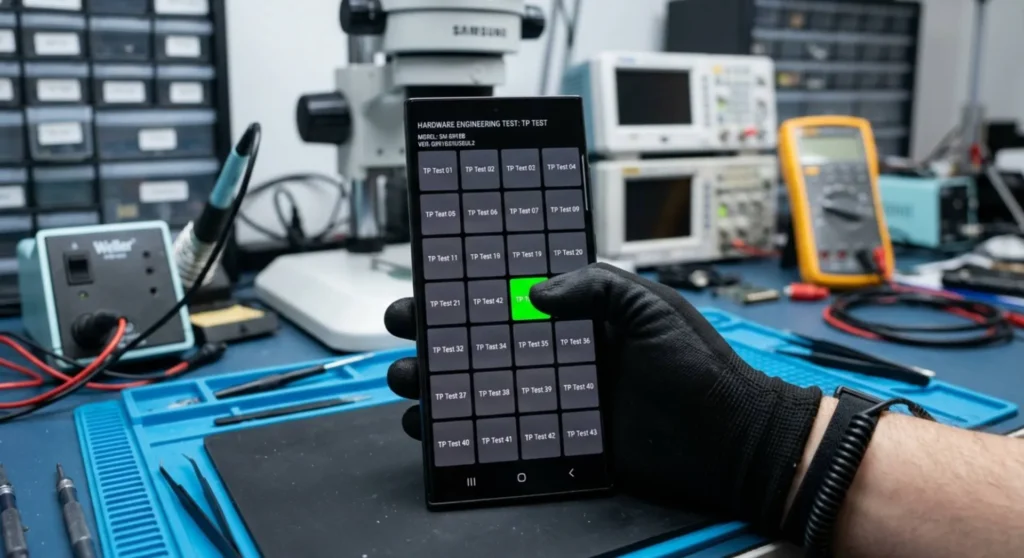
For Android devices showing systematic touch offset, where the Show Touches dot consistently misregisters across a specific screen region. A full touch panel recalibration can reset the controller IC’s coordinate mapping. This goes beyond sensitivity adjustment and rewrites the positional calibration matrix that maps raw digitizer electrode readings to screen coordinates.
Not all Android devices expose this. The ones that do provide access through the service/engineering menu:
*#0*# → Touch → the multi-point touch test here also runs a basic calibration pass. For a full recalibration, Samsung’s service menu accessed via *#*#2664#*#* on some models runs a dedicated touchscreen calibration sequence*#*#6484#*#* → TP Test → follow the test grid – tapping all points correctly updates the calibration baseline3845#*855# → Touch screen diagnosis → Touchscreen calibration##2486## → Engineering mode → Touch sensor → Calibration⚠️ Service menu caution: Engineering and service menus expose settings that can affect device stability if changed incorrectly. Only use the touch calibration and test functions, do not modify other settings in these menus unless you understand their specific function. Some manufacturers disable these menus on retail firmware; if a dialer code produces no response, the menu is not accessible on your device’s firmware version.
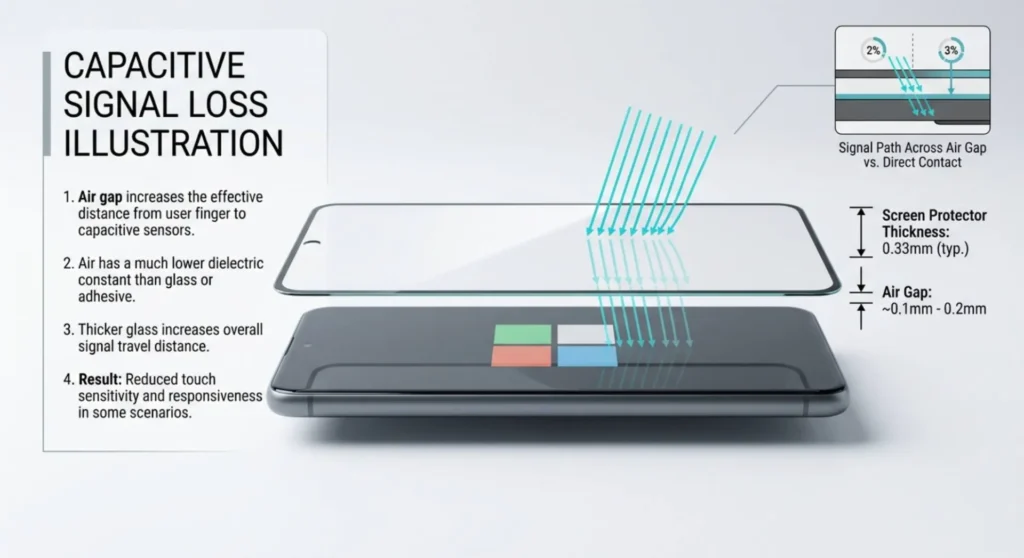
This applies equally to both platforms and deserves its own section because screen protector choice is the variable that undoes every other calibration effort.
A screen protector introduces three variables that affect touch calibration:
Thickness — every 0.1mm of additional material between your finger and the digitizer reduces capacitive coupling. Standard tempered glass protectors run 0.33mm. “Bulletproof” impact-resistant protectors run 0.4 – 0.5mm. At 0.5mm, touch sensitivity is measurably reduced without software compensation.
Air gap — a protector that doesn’t lie flat against the screen traps an air layer, which has essentially zero capacitive conductivity. Even a thin air gap, from a protector that lifted at the edges, can make entire edge zones feel unresponsive. Always inspect a newly installed protector for edge lifting before blaming sensitivity settings.
Surface coating — oleophobic coatings on the protector surface affect the smoothness of finger contact. A protector with a worn oleophobic coating increases friction and changes the tactile feedback of the touch gesture, which users often misidentify as reduced sensitivity.
The practical calibration rule: Always calibrate with your screen protector installed, not on bare glass. The protector is a permanent part of your screen’s input environment. Calibrating without it and then reinstalling it produces settings that are wrong for daily use.
Q: iOS doesn’t have a traditional calibration mode. Does that mean iPhones can’t drift out of calibration?
They can, but less commonly than Android devices, and the mechanism is different. iOS touch calibration is written to hardware at the factory and is extremely stable. What drifts is the user’s relationship to their screen, screen protector changes, iOS updates that modify touch processing parameters, or gradual oleophobic coating wear that changes touch feel. The Touch Accommodations settings in iOS Accessibility are the correct tools to restore the experience to its intended state.
Q: After enabling Developer Options on Android and using Show Touches, I can see my touch dot is offset from my finger in the top-right corner specifically. Can I fix this without a service menu?
A localized, zone-specific offset is almost always a digitizer hardware characteristic rather than a software calibration problem. Software calibration adjusts the entire coordinate mapping uniformly. It can’t selectively correct one corner while leaving the rest unchanged. If the offset is small (under 3mm), it’s within manufacturing tolerance and unlikely to cause noticeable usability issues. If it’s larger, or if it appeared suddenly rather than always having been there, the digitizer flex connection may be partially displaced, the same condition described in the touch unresponsiveness article.
Q: Can third-party calibration apps from the Play Store or App Store actually recalibrate the touchscreen hardware?
On iOS: no. Apps cannot access touch hardware parameters, they run inside Apple’s sandbox with no access to the digitizer controller. Any iOS app claiming to “calibrate” the touchscreen is either running a diagnostic visualization (which has value) or providing a placebo. Actual iOS touch parameter adjustment happens only through Apple’s own Accessibility settings or through Apple service tools.
On Android: it depends on permission level. Standard apps from the Play Store cannot write to touch controller parameters, they’re read-only from the app layer. Apps that run with root access can modify some controller parameters, but this varies by device and driver implementation. Without root, the most useful thing a third-party app can do is provide the touch visualization diagnostic, which is genuinely useful for assessing whether calibration drift exists, even if the app can’t fix it directly.
Q: My screen sensitivity feels different in hot weather versus cold weather. Is this normal or is something wrong?
Normal and physically expected. Capacitive coupling efficiency changes with temperature. Warm skin in humid conditions conducts more effectively, producing stronger digitizer signals. Cold, dry skin conducts less effectively. Seasonal sensitivity variation is a physical property of the touch system, not a calibration fault. iOS’s Touch Sensitivity setting and Android’s Touch Sensitivity toggle are specifically useful during cold-weather months, enabling them compensates for the reduced signal strength from cold fingertips without requiring hardware adjustment.

Derek V. Mackown is a veteran IT Technician and Display Hardware Specialist with over a decade of hands-on experience troubleshooting complex software-hardware interface glitches. He specializes in Windows OS display architecture, driver calibration, and panel diagnostics. Driven by a passion for pixel-perfect performance, he writes highly analytical, step-by-step guides to help everyday users achieve absolute display clarity at AurumScreen.com.