By Derek V. Mackown | IT Technician & Display Hardware Specialist
That smeared shadow trailing behind every moving object on your screen has a name, and it’s not motion blur, even though people use those terms interchangeably. Monitor ghosting is a measurable hardware artifact caused by pixels transitioning too slowly between color states. Motion blur is a perceptual effect your brain creates. The two feel similar. The fixes are entirely different.
I’ve calibrated monitors for gaming setups, broadcast studios, and design workstations for over a decade. Ghosting is among the most misdiagnosed display problems I encounter, and the most common mistake is applying the wrong overdrive setting, which makes it worse. Start with the diagnostic below before touching anything.
Run This Test Before Changing Any Settings
Go to testufo.com in your browser. Set the test speed to match your monitor’s current refresh rate (check Settings → Display → Advanced display if you’re unsure). Watch the moving UFO objects carefully.
| What You See | Type | Where to Start |
|---|---|---|
| Dark shadow trailing behind objects | Standard ghosting | Increase overdrive by one step |
| Bright white halo in front of objects | Overshoot (inverse ghosting) | Decrease overdrive immediately |
| Both the halo and trail simultaneously | Sync conflict | Fix 4 first, then recalibrate |
| Blur only, no defined ghost image | Motion blur, not ghosting | This guide may not apply |
Bookmark this test page. You’ll return to it after every adjustment.
What’s Actually Causing It
Pixels don’t switch colors instantaneously. They transition and if that transition takes longer than one frame at your current refresh rate, residual color data bleeds into the next frame. You see it as a ghost.
Hardware factors that make it worse:
Panel technology is the primary variable. IPS and VA panels have slower liquid crystal rotation than TN panels. VA panels are especially prone to smearing in dark scenes because near-black transitions are inherently slower. OLED panels have near-zero response time and are essentially immune to traditional ghosting.
Overdrive circuits exist in nearly every modern monitor to accelerate pixel transitions beyond their natural speed. When calibrated correctly, they eliminate ghosting. When set too high, they overshoot the target color, which creates the bright halo (inverse ghosting) that testufo.com lets you measure directly.
Cable signal integrity matters more than people expect. A DisplayPort or HDMI cable that can’t sustain adequate bandwidth at your refresh rate introduces timing errors that the monitor has to compensate for and that compensation often appears as smearing.
Settings that compound the problem:
- Incorrect refresh rate in Windows (monitor running at 60Hz when rated for 144Hz)
- Adaptive sync operating outside its certified frequency range
- MPRT or backlight strobing enabled simultaneously with G-Sync/FreeSync (most monitors can’t run both)
Calibration Fix 1 – Adjust Your Monitor’s Overdrive Setting
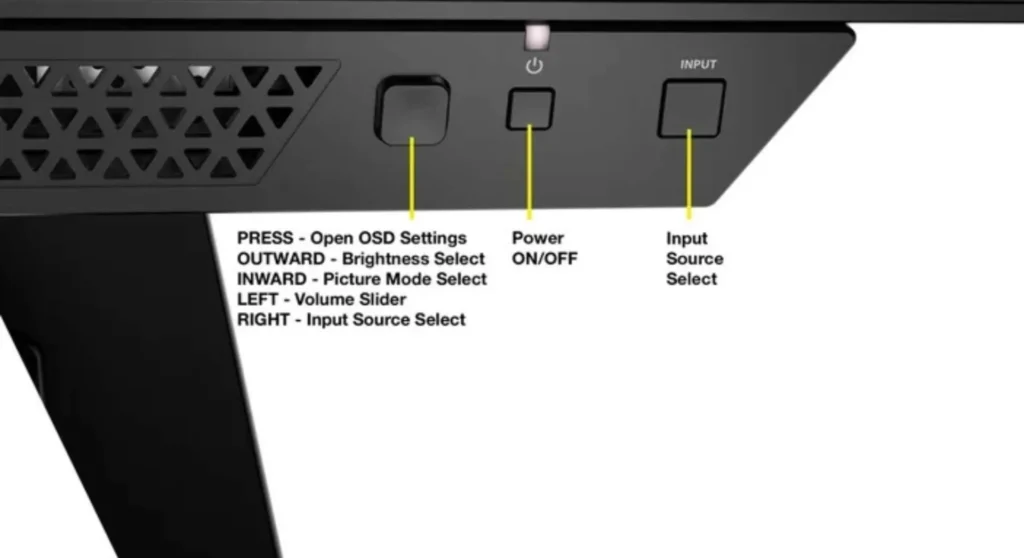
This single adjustment resolves ghosting in the majority of cases. Every monitor has it. Almost none ship with it optimally calibrated for your specific use.
Open your monitor’s OSD (On-Screen Display) using the physical buttons on the panel housing, not Windows display settings. Find the overdrive control. It goes by different names depending on the manufacturer:
| Manufacturer | Setting Name | Location in OSD |
|---|---|---|
| Dell | Response Time | Display → Response Time |
| ASUS | Trace Free | Image → Trace Free |
| BenQ | AMA | Picture → AMA |
| LG | Response Time | Picture → Adjust |
| Samsung | Response Time | Picture → Response Time |
| Acer | Overdrive | Picture → Overdrive |
Adjust one step at a time. After each change, re-run the testufo.com test. The goal is the setting where the dark trail disappears without a bright halo appearing in front of the object. For most IPS panels, the “Medium” or “Normal” level is the correct landing point. “Fastest” or “extreme” almost universally causes an overshoot.
Calibration Fix 2 – Confirm Your Refresh Rate Is Active
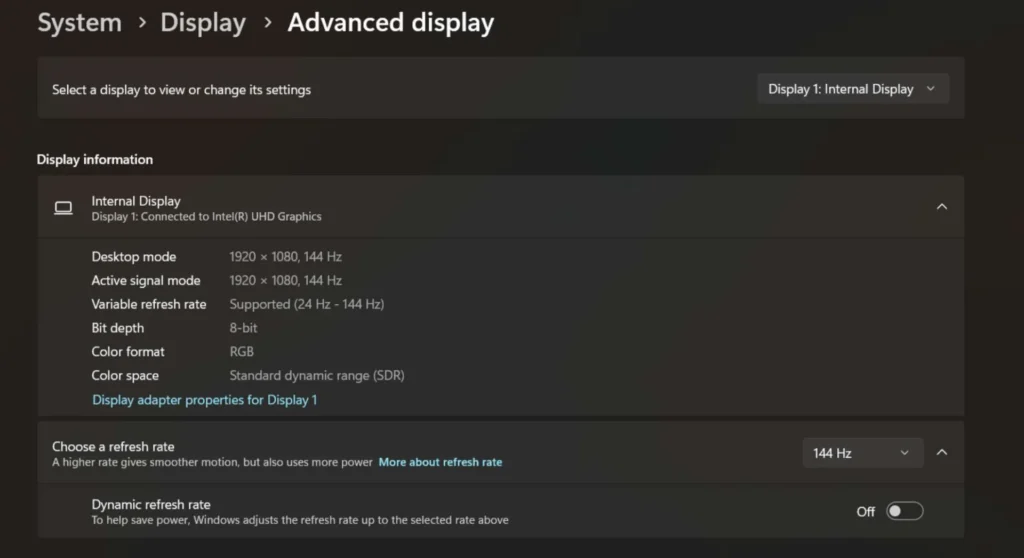
A monitor running at the wrong refresh rate will ghost regardless of the overdrive setting. Windows 11 sometimes resets the refresh rate after feature updates without notification.
- Right-click desktop → Display settings → Advanced display
- Confirm the refresh rate shown matches your monitor’s rated maximum
- Open your GPU control panel and cross-verify:
- Nvidia: Control Panel → Display → Change resolution → Refresh rate
- AMD: Radeon Software → Display → check active refresh rate
- If they conflict, set the correct value in the GPU control panel, it takes hardware priority over Windows settings
- Re-run testufo.com and re-evaluate ghosting severity
Calibration Fix 3 – Audit and Replace Your Display Cable
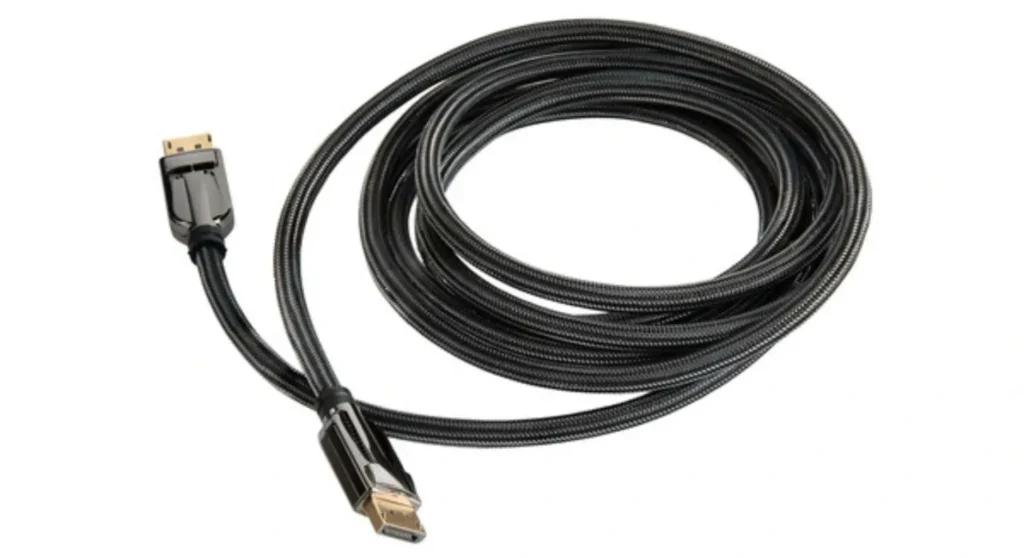
Signal integrity issues from an inadequate cable produce artifacts that look identical to slow pixel response, but no overdrive adjustment will fix them, because the problem is upstream of the panel entirely.
Cable bandwidth requirements:
| Resolution + Refresh Rate | Minimum Cable Required |
|---|---|
| 1080p @ 144Hz | HDMI 2.0 or DisplayPort 1.2 |
| 1440p @ 144Hz | DisplayPort 1.2 or HDMI 2.0 |
| 1440p @ 165 – 240Hz | DisplayPort 1.4 |
| 4K @ 60Hz | HDMI 2.0 or DisplayPort 1.2 |
| 4K @ 120 – 144Hz | DisplayPort 1.4 or HDMI 2.1 |
Check your cable’s body for a version label. Cables without labels should be treated as HDMI 1.4 until proven otherwise. Replace with a certified cable from a reputable brand Cable Matters, Club3D, and Belkin’s certified lineup are consistently reliable. After swapping, re-run your ghosting test immediately. Cable-caused artifacts disappear the moment the bandwidth constraint is removed.
Calibration Fix 4 – Disable MPRT, Backlight Strobing, and Conflicting Motion Features
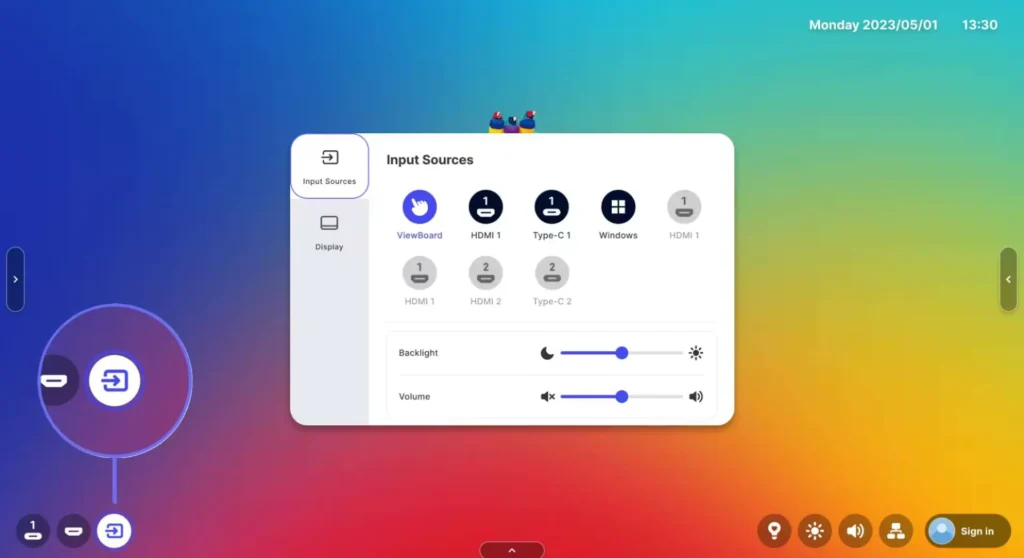
MPRT (Moving Picture Response Time), Black Frame Insertion, and backlight strobing are separate motion clarity features that interact unpredictably with both overdrive settings and adaptive sync. When they conflict, the result is worse than either feature alone.
Open your monitor OSD and locate any settings labeled:
- Motion Blur Reduction
- Black Frame Insertion
- MPRT / 1ms MPRT
- Aim Stabilizer Sync (ASUS)
- Black eQualizer in motion mode (BenQ)
Critical note: Most monitors cannot run MPRT or backlight strobing simultaneously with G-Sync or FreeSync. Attempting to do so produces strobing artifacts and can make ghosting significantly worse. Disable all motion features, re-run testufo.com, then re-enable them one at a time to identify the conflict.
Calibration Fix 5 – Adaptive Sync Frequency Verification
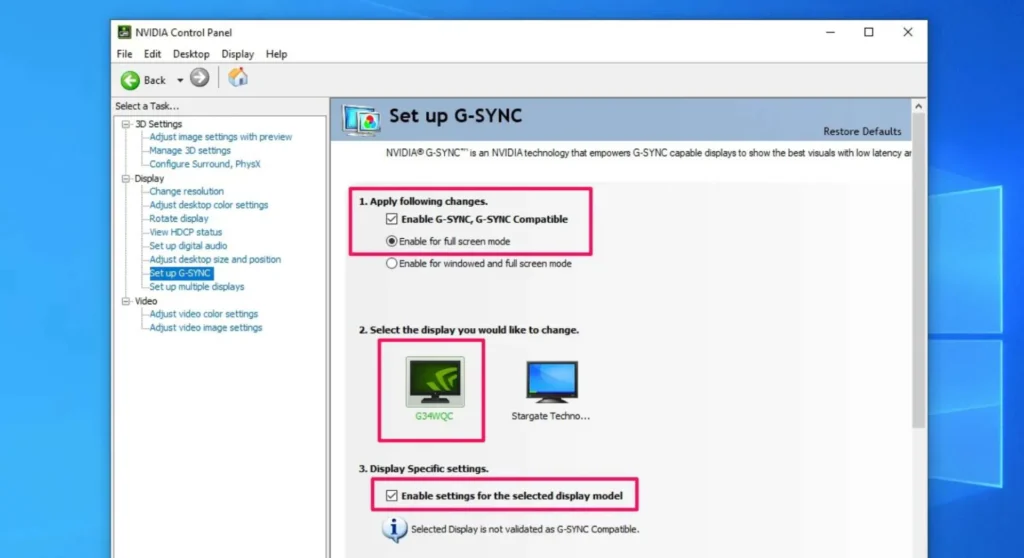
G-Sync and FreeSync only operate cleanly within their certified frequency ranges. Operating outside that range, typically below the lower threshold, causes the monitor to drop to a fixed low refresh rate, which produces motion artifacts that mimic ghosting.
- Check your monitor’s certified sync range it’s in the specs sheet or printed on the box (e.g., FreeSync 48 – 144Hz)
- In your GPU control panel, enable G-Sync or FreeSync if it isn’t active
- In-game, cap your framerate slightly above the minimum sync floor, if your range starts at 48 Hz, cap at 50fps minimum
- If framerate drops below the floor regularly, the resulting fixed-refresh fallback is what you’re seeing. Cap, limit, or lower graphics settings to keep frames within the certified window
Preventing Ghosting From Returning
Match panel technology to your use case before you buy. If fast-paced gaming is your primary activity, fast IPS or TN panels will always outperform VA in motion clarity. VA panels produce better contrast and deeper blacks, but their dark-scene smearing is a structural characteristic, not a fault. No calibration fully eliminates it.
Cable audit with every hardware upgrade. Moving from a 1080p system to a 1440p/144Hz system with the same cable you’ve used for years is one of the most common causes of unexplained smearing I see. The hardware was upgraded; the cable wasn’t.
Revisit overdrive seasonally. LCD crystal alignment drifts over years of use. A setting that was calibrated 18 months ago may need a one-step correction today. testufo.com takes 90 seconds.
Frequently Asked Questions
Q: Is ghosting the same as motion blur?
They’re distinct. Ghosting is a measurable hardware artifact, a copy of a previous frame persisting into the next one. Motion blur is a perceptual effect produced by your visual system and, on some monitors, by deliberate design. Ghosting appears as a defined, color-accurate trailing copy. Blur appears as soft smearing without a distinct second image. The testufo.com test differentiates them clearly.
Q: My monitor is advertised as having a “1ms response time.”Why is it ghosting?
The 1 ms figure refers to response time at maximum overdrive, a setting that almost universally produces overshoot at that extreme. Real-world gray-to-gray response across the full tonal range is typically 4 – 8 ms on IPS panels marketed as 1 ms. The specification is measured at a single favorable transition point, not across the full range of color states. It is a marketing figure, not a full-performance specification.
Q: Can ghosting damage the monitor permanently?
No. Ghosting is a performance characteristic, it reflects how quickly your panel’s pixels transition, not whether the hardware is degrading. The exception is image retention on VA and OLED panels caused by prolonged display of static content, which can temporarily mimic ghosting. This self-corrects with dynamic content. True OLED burn-in is permanent but requires years of extreme static content exposure under normal use.