By Derek V. Mackown | IT Technician & Display Hardware Specialist
Your screen went black after a driver update. The system is running and you can hear it, the power light is on, but the display is dark. You need it back.
This happens for a specific reason: the new driver initialized, replaced the previous display pipeline, and either failed to establish output to your monitor or established it incorrectly. Windows is running. The GPU is running. The connection between them and your display is broken at the driver layer and because the driver controls the display, you’re working blind.
Everything in this guide is written for someone who may not be able to see their screen. Keyboard shortcuts, blind navigation sequences, and audio confirmation steps are included precisely because a black screen after a driver install is a situation you recover from without necessarily being able to see what you’re doing.
Work through the three branches in order. Branch 1 takes two minutes and resolves the problem in the majority of cases. Branch 2 requires Safe Mode. Branch 3 requires the Windows Recovery Environment. Most people never need Branch 3.
Before Any Branch – Two Checks That Take 60 Seconds
Check whether the monitor has signal.
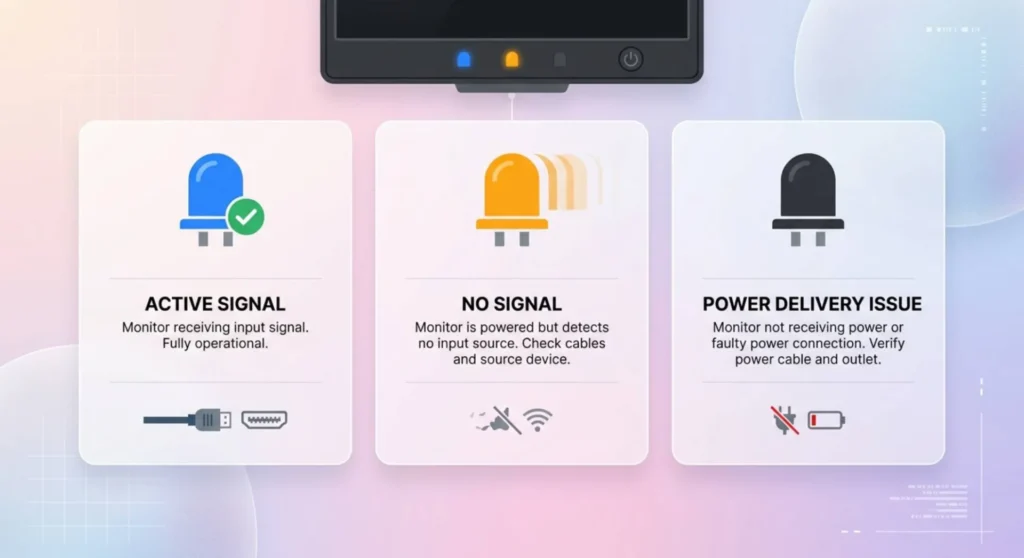
Look at the monitor’s power indicator LED. On most monitors:
- LED solid white or blue: Monitor has power and is receiving a signal from the GPU. The display pipeline is active, the image just isn’t rendering correctly. Branch 1 is your starting point.
- LED amber, orange, or blinking: Monitor has power but is not receiving a signal. The GPU driver failed to initialize display output entirely. Skip to Branch 2.
- No LED at all: Power delivery issue unrelated to the driver. Check the power cable and outlet before proceeding.
Check whether a second monitor or TV is connected. When a GPU driver installs and reinitializes, it sometimes assigns primary display output to a different port than before, particularly if a second display is connected. If you have another screen connected via a different port (HDMI vs. DisplayPort, or a second HDMI), check whether the image appeared there instead. If it did, use that screen to navigate normally.
Branch 1 – Recovery With Keyboard Shortcuts (Screen Blind)
Use this branch when: the system booted, Windows loaded, and the screen is black but the GPU appears to have signal (monitor LED is active). This branch requires no visual confirmation, every step is executed blind.
Step 1 | Wait for Windows to finish loading.
After the driver update reboot, wait a full 90 seconds before attempting anything. Driver initialization runs during and after Windows startup, and some display output failures resolve once initialization completes. Count to 90 from the moment you hear startup sounds or the drive activity stops.
If the screen comes back on its own: the driver had a delayed initialization issue. Monitor for recurrence over the next hour of use.
If the screen is still black after 90 seconds: proceed.
Step 2 | Reset the display driver pipeline without rebooting.
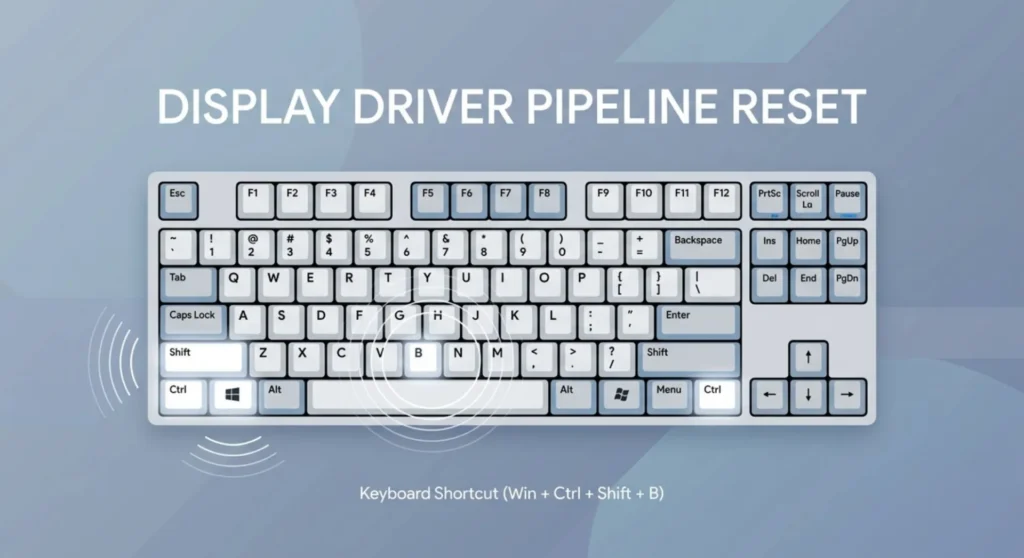
Press Windows + Ctrl + Shift + B simultaneously.
You will hear a short beep within 2 seconds if Windows received the command. The display driver resets and reinitializes its output. On many black-screen-after-driver-update situations, this single shortcut restores the display immediately because the driver installed correctly but failed to initialize output on the first attempt.
Wait 10 seconds after the beep. If the screen comes back: you’re done. The driver is working. Move the Windows Update driver defense step at the end of this guide to prevent recurrence.
If there’s no beep: Windows didn’t receive the shortcut, which means either Windows isn’t fully loaded yet (wait another 30 seconds and try again) or the situation is more severe. Try twice more, 30 seconds apart.
If two attempts produce no beep: the OS isn’t responding to keyboard input at the login state. Move to Step 3.
Step 3 | Force the display projection mode to PC screen only.
This recovers cases where the driver initialized but mapped output to a different display or mode.
Type this sequence – blind, in order, waiting 2 seconds between each:
- Windows key (opens Start menu – even blind)
- Wait 2 seconds
- Windows + P (opens projection mode selector)
- Wait 2 seconds
- Left arrow key once (navigates to “PC screen only”)
- Enter
If the screen returns: the driver assigned output to an external display or duplicate mode. The Windows + P shortcut returned it to the internal display. Set your display preferences correctly once the screen is visible.
Step 4 | Force a controlled restart from keyboard.
If Steps 1 – 3 produced no result, restart Windows cleanly from keyboard without using the power button. A hard power-off at this stage risks filesystem inconsistency.
- Windows key
- Wait 2 seconds
- Tab (moves focus to the power button in the Start menu area on Windows 11)
- Enter (opens power options)
- R (selects Restart if the menu is open)
Alternatively, if Step 4 above doesn’t work:
- Ctrl + Alt + Delete (always works regardless of Windows state, opens the security screen)
- Tab repeatedly until the power icon in the bottom-right is focused (approximately 4 – 5 tabs)
- Enter (opens power submenu)
- Up arrow to Restart
- Enter
After the restart, watch the screen from power-on. If display appears during POST or the Windows logo but goes black again as Windows loads: the driver is initializing but failing to maintain output, go to Branch 2 immediately.
If the screen comes back after the restart and stays: the driver needed a clean second initialization. Monitor stability over the next few hours.
Branch 2 – Driver Rollback via Safe Mode
Use this branch when: Branch 1 produced no result, or the screen comes back briefly and goes black again when Windows fully loads, or the monitor LED showed no signal from the start.
Safe Mode loads the Microsoft Basic Display Adapter, the same minimal fallback driver that works without any GPU specific software. It will give you a working (low-resolution, low refresh) display regardless of how broken the installed GPU driver is.
Entering Safe Mode from a black screen:
You cannot use Settings → Recovery from a black screen. Use this method instead.
Perform three interrupted boots:
- Press the power button to start the system
- When you see the Windows logo (or after approximately 10 seconds if you can’t see it), hold the power button for 5 full seconds until the machine shuts off
- Repeat twice more – power on, force off during boot
On the fourth power-on, Windows detects the repeated boot failures and automatically enters Automatic Repair → Advanced options → Startup Settings.
Navigate to Startup Settings → Restart → when the numbered list appears, press 4 for Safe Mode or 5 for Safe Mode with Networking (use 5 if you need to download a driver replacement).
If the three-interrupted-boot method doesn’t reach Recovery: Some systems require the boot to be interrupted later in the loading sequence. Force-off after the spinning circle appears under the Windows logo, not before it. The system must see enough of the boot failure to log it before the hard shutdown.
Once in Safe Mode – the display will be visible.
Resolution will be low (typically 1024×768 or 800×600) and refresh rate will be 60Hz. This is expected and the Basic Display Adapter is intentionally minimal.
Option A – Roll back the driver to the previous version:
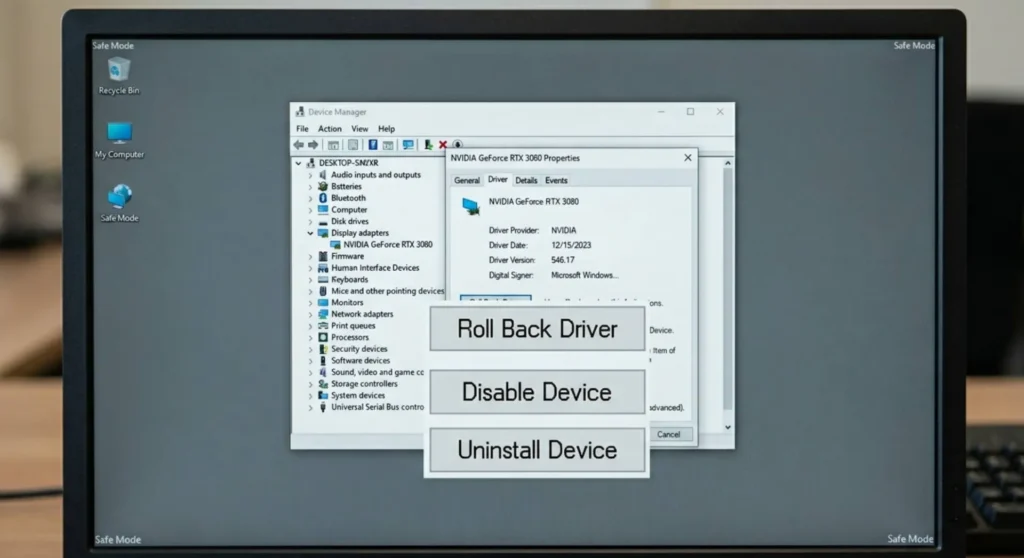
Device Manager → Display adapters → right-click your GPU → Properties → Driver tab → Roll Back Driver.
If Roll Back Driver is grayed out: Windows didn’t preserve the previous driver package. This happens when a clean install option was selected during the driver installation, or when the previous driver was removed before installing. Use Option B.
If Roll Back Driver is available: click it → select the reason (any option is fine) → confirm. After rollback, restart normally.
The system boots with the previous driver version. Your display should return to its pre-update state. If the previous driver was stable, you’re back to normal. The section at the end of this guide explains how to prevent the new driver from reinstalling automatically.
Option B – Uninstall the problem driver and install a stable version:
In Safe Mode, open Device Manager → expand Display adapters → right-click your GPU → Uninstall device → check Delete the driver software for this device → confirm.
Restart normally. Windows will boot to Basic Display Adapter, low resolution but visible. Now install a known stable driver version:
- Nvidia: nvidia.com/drivers → select your GPU → under “Show all” or “Beta/All” releases, select the driver version immediately prior to the one that caused the black screen. Check the Nvidia driver release history page for version numbers.
- AMD: amd.com/support → select your GPU → under “Previous Drivers,” download the version prior to the current release.
- Intel: intel.com/content/www/us/en/download-center → search your GPU → select “Previous Versions.”
Install the stable version. Restart. Confirm display output.
Should you use DDU instead of Device Manager uninstall here? If a Device Manager uninstall and clean reinstall resolves the black screen, you don’t need DDU. DDU is the correct tool when contamination from multiple previous driver versions is causing the problem, not when a single bad driver version is the cause and a known good version is available to replace it. Use DDU if Option B resolves the black screen temporarily and it recurs after the next update cycle.
Branch 3 – Recovery From the Windows Recovery Environment
Use this branch when: Safe Mode is inaccessible (the three-interrupted-boot method produces no Recovery Environment), or you cannot reach Device Manager in Safe Mode because the keyboard isn’t functioning in that mode.
The Windows Recovery Environment (WinRE) is a separate partition that exists independently of your Windows installation. It can access and modify driver files without loading the main Windows driver stack, which means it can fix a broken display driver even when the main OS cannot boot with any display output.
Accessing WinRE from a bootable USB:
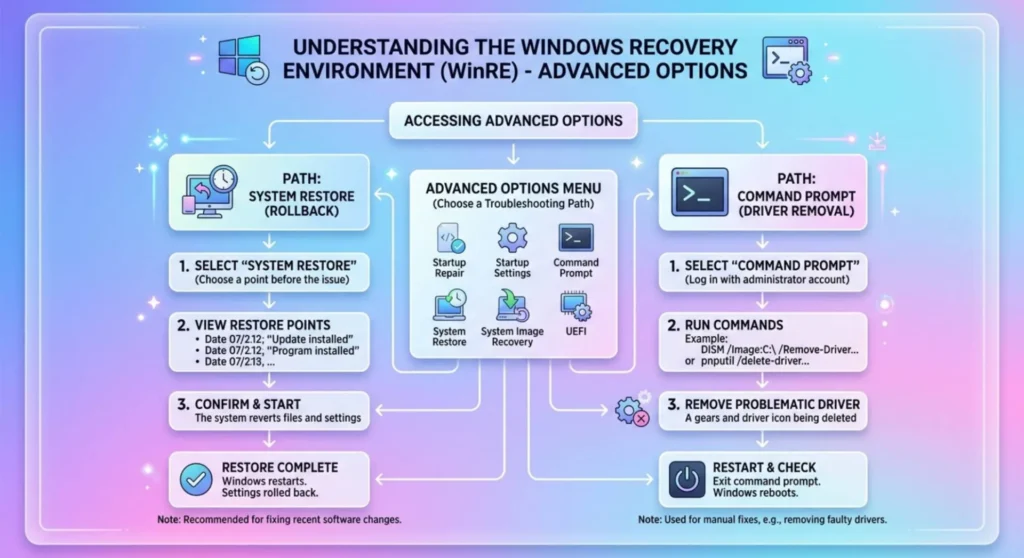
If you have a Windows 11 installation USB (created from Microsoft’s Media Creation Tool on another machine): boot from it → when the Windows Setup screen appears → click Repair your computer (bottom-left, not Install Now) → Troubleshoot → Advanced options.
From Advanced Options, two paths are available:
Path A – Startup Repair: Automated analysis and repair of boot and driver issues. Select this first, it takes 5 – 10 minutes and handles some driver initialization failures automatically.
Path B – Command Prompt: Full command-line access to the Windows file system. Use this to manually remove the problem driver package:
dism /image:C:\ /get-drivers
This lists all installed driver packages on the C: drive. Find the entry for your GPU driver — it will show the driver INF filename and version.
dism /image:C:\ /remove-driver /driver:[oemXX.inf]
Replace oemXX.inf with the exact filename shown for your GPU driver. DISM removes the driver package from the offline Windows installation.
After removal, restart without the USB. Windows boots to Basic Display Adapter. Install a stable driver version as described in Branch 2, Option B.
System Restore as an alternative in WinRE:
If a System Restore point was created before the driver update (Windows creates one automatically before some updates), Advanced Options → System Restore → select a restore point dated before the driver update → confirm. System Restore rolls back the entire system state to that point, including the driver installation. This is the fastest recovery method when a restore point exists.
After Recovery – Preventing the Problem Driver From Reinstalling
The driver that caused the black screen is still on Nvidia’s, AMD’s, or Intel’s servers. Windows Update will attempt to reinstall it unless you block it.
Block the specific driver version from reinstalling:
Microsoft provides a tool specifically for this: “Show or hide updates” troubleshooter. Download it from support.microsoft.com (search “wushowhide.diagcab”). Run it → Hide updates → the problematic driver version will appear in the list → select it → Apply. Windows Update will no longer install that specific version.
Block all GPU driver updates from Windows Update permanently:
This is the stronger protection; Windows Update should never be your GPU driver source for a graphics-intensive system.
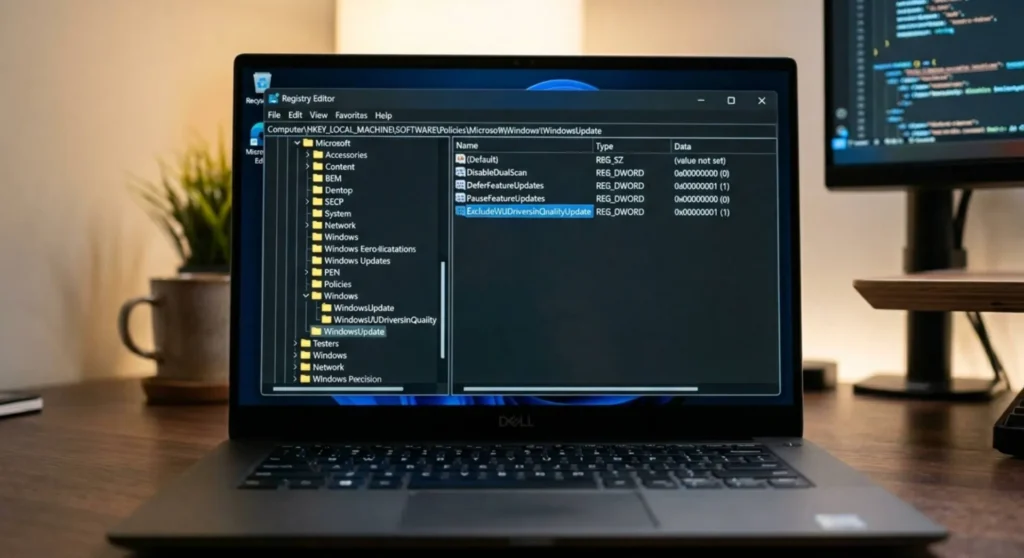
Open Registry Editor → navigate to:
HKEY_LOCAL_MACHINE\SOFTWARE\Policies\Microsoft\Windows\WindowsUpdate
Create a DWORD value named ExcludeWUDriversInQualityUpdate → set to 1. Restart.
This prevents Windows Update from installing any driver updates on any Windows edition including Home. GPU driver updates are then your responsibility, check nvidia.com, amd.com, or intel.com directly, and evaluate new releases before installing rather than letting Windows apply them automatically.
Before installing any future driver update:
Create a manual System Restore point first. Open System Properties (search “Create a restore point”) → System Protection → Create → name it with the date and current driver version. If the next update produces a black screen, System Restore in WinRE recovers you in under 10 minutes with zero driver knowledge required.
Why This Happens – The Mechanism Behind Post-Update Black Screens
Understanding the cause prevents it from catching you again.
When a GPU driver updates, it replaces the WDDM (Windows Display Driver Model) kernel-mode component, the binary that runs at the OS kernel level and controls all display output. For the duration of that replacement, Windows operates without a valid display kernel module. It bridges this gap using the Basic Display Adapter.
On a successful driver update, the new WDDM module loads, establishes output to the correct display port, negotiates the correct resolution and refresh rate via EDID, and hands the display back from Basic Display Adapter. The entire process takes a few seconds at most.
The failure modes that produce black screens:
New WDDM module initialization fails silently. The driver installed at the file system level but failed to properly register in the WDDM stack. Windows sees no error, it just has no display kernel module to fall back to. Branch 1’s reset shortcut (Windows + Ctrl + Shift + B) triggers a WDDM reinitialization that sometimes recovers this.
Driver-to-monitor EDID negotiation fails. The new driver version changed how it reads monitor EDID on startup. It reads the EDID incorrectly, calculates an unsupported display mode, attempts to initialize at that mode, and the monitor goes dark because it can’t handle the signal. Rolling back resolves this immediately.
Conflict with a residual component from the previous driver. A service or DLL from the previous driver version is still running when the new driver tries to initialize. The conflict prevents initialization. This is the DDU scenario, a clean install eliminates the residual component. Branch 2 Option B handles it without DDU; a full DDU clean handles it more thoroughly if the problem recurs.
Windows Update installed a generic driver, not the OEM version. The update replaced your manually installed OEM driver with a Windows-certified generic version that doesn’t include the hardware-specific initialization code your GPU and monitor combination requires. The generic driver initializes but outputs to a mode your monitor can’t display. Installing the correct OEM driver directly resolves it.
Frequently Asked Questions
Q: My screen flashes once then goes black after a driver update. The monitor LED stays white. What does that single flash tell me?
The GPU initialized display output successfully for one frame, enough for the monitor to receive signal and illuminate the LED and then lost it. The most likely cause is the driver detecting an unsupported display mode during its startup resolution handshake with the monitor and reverting to a mode the monitor can’t display. The Windows + Ctrl + Shift + B reset shortcut (Branch 1, Step 2) often resolves this because it triggers a fresh output initialization without a full reboot. If it doesn’t, roll back to the previous driver, the new version is negotiating an incompatible output mode with your specific monitor.
Q: Safe Mode shows my display correctly, but every time I exit Safe Mode and boot normally, the screen is black again. What does that confirm?
It confirms the GPU driver installation itself is the problem, not a hardware failure, not a cable issue, not a monitor fault. The Basic Display Adapter in Safe Mode works because it bypasses the GPU driver entirely. The normal boot black screen appears because the GPU driver initializes and fails every time. This is a clean rollback or clean reinstall situation. Follow Branch 2 and roll back the driver or uninstall and install a known-stable version.
Q: I tried rolling back but Roll Back Driver is grayed out. Why, and what do I do?
Roll Back Driver is grayed out when Windows doesn’t have a stored copy of the previous driver package to restore. This happens when the installer’s clean install option was used during the update (which deleted the previous driver), or when the previous driver was uninstalled before the new one was installed. There’s no stored version to roll back to. The correct path is Branch 2 Option B, download the previous stable driver version directly from the manufacturer’s site and install it fresh.
Q: The driver update was pushed by Windows Update while I was away. I didn’t choose to update it. Can I prevent this?
Yes, and this is one of the most important display stability practices for anyone with a GPU-dependent workflow. Apply the registry key in the post-recovery section: ExcludeWUDriversInQualityUpdate set to 1. This prevents Windows Update from ever installing GPU driver updates automatically. Combine it with the wushowhide.diagcab tool to hide the specific version that caused the problem. From that point, GPU driver updates are entirely under your control, installed when you choose them, from the manufacturer’s site, after checking release notes.