By Derek V. Mackown | IT Technician & Display Hardware Specialist
Screen tearing is one of those problems that you either live with for years without questioning it, or you see it once clearly and can never unsee it. That diagonal horizontal split cutting across a fast-moving image, the top half of the frame showing one moment, the bottom half showing the next, appearing and disappearing dozens of times per second during fast motion.
It happens because your GPU and your monitor are operating on completely independent clocks. The GPU outputs frames whenever they’re ready 87 frames per second, 143 frames per second, whatever the scene demands. The monitor refreshes at a fixed rate 60 times per second, 144 times per second, whatever it was manufactured to run. These two clocks never synchronize. Sometimes a new GPU frame arrives right after the monitor finishes a refresh clean. More often it arrives mid-refresh, the monitor is halfway through drawing the previous frame when the GPU delivers a new one, and the monitor just starts drawing the new frame from wherever it currently is. The result is two different frames visible simultaneously, split at the scan line where the refresh was interrupted.
Adaptive sync, G-Sync, Free Sync, VRR solves this with an elegant reversal: instead of the monitor running on a fixed clock and the GPU racing to keep up, the monitor’s refresh rate follows the GPU’s output rate. The monitor waits for the GPU to finish a frame, then refreshes exactly once to display it. Frame ready, monitor refreshes. Frame ready, monitor refreshes. The scan line never catches a frame mid-delivery because the monitor only starts drawing when the frame is complete.
The result is a display that feels fundamentally different. Not just no tearing, smoother motion at every framerate, reduced input lag, a connection between the GPU and the display that feels direct rather than asynchronous. Once you’ve gamed on a properly configured adaptive sync setup, a fixed-refresh display feels like trying to read a sentence while someone shakes the page.
Here’s how to get it working, including on monitors that aren’t officially certified.
The Certification Reality – What “Non-Certified” Actually Means
Before the setup: understanding why this guide exists.
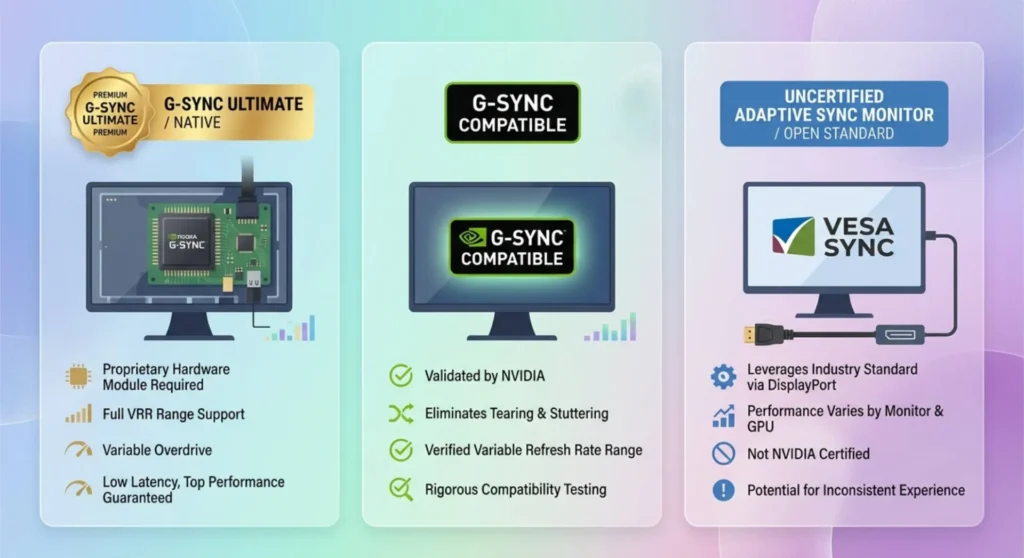
Nvidia’s G-Sync and G-Sync Compatible are two different things wearing similar names. G-Sync (without qualifier) uses a proprietary Nvidia hardware module physically installed inside the monitor, a dedicated scaler chip that handles the variable refresh rate timing at the hardware level. This module adds cost (typically $100 – $200 to the monitor price) and requires Nvidia certification. G-Sync monitors work only with Nvidia GPUs.
G-Sync Compatible is Nvidia’s certification program for monitors that implement VRR (Variable Refresh Rate) through the open VESA Adaptive Sync standard rather than Nvidia’s proprietary module. Nvidia tests these monitors, verifies they meet minimum performance thresholds (no blanking at minimum VRR frequency, no ghosting artifacts), and adds them to their certified compatible list. G-Sync Compatible monitors work with Nvidia GPUs using standard DisplayPort Adaptive Sync signaling.
Free Sync is AMD’s brand name for the same VESA Adaptive Sync standard. Three tiers: Free Sync (basic), Free Sync Premium (minimum 120Hz at 1080p, LFC support), and Free Sync Premium Pro (adds HDR requirements). Free Sync monitors work with AMD GPUs and through G-Sync Compatible mode with Nvidia GPUs.
The non-certified reality: The underlying VESA Adaptive Sync standard is built into every DisplayPort 1.2a and later connection. Any monitor with a DisplayPort 1.2a or newer port almost certainly has the hardware capability for adaptive sync, it’s part of the port specification. Whether it’s been officially tested and certified is a separate question from whether it physically works.
Thousands of monitors that aren’t on Nvidia’s G-Sync Compatible list and aren’t marketed as FreeSync products have functional adaptive sync hardware. The certification is a marketing and quality-assurance program. The hardware capability is much more widespread. What this guide does is unlock that capability.
Check Your Monitor’s Adaptive Sync Hardware First
Before enabling anything in software, confirm your monitor has the hardware capability. Two checks, two minutes.
Check 1 — DisplayPort version:
Your monitor needs to be connected via DisplayPort (not HDMI) for Adaptive Sync to work in most cases. HDMI 2.1 supports VRR, but the majority of non-certified adaptive sync setups require DisplayPort 1.2a or newer. If you’re running HDMI, switch to DisplayPort before proceeding. If your monitor only has HDMI, check its specifications for HDMI 2.1 VRR support monitors with this capability will typically list it, even if they don’t market Free Sync explicitly.
Check 2 — Monitor OSD for Adaptive Sync setting:
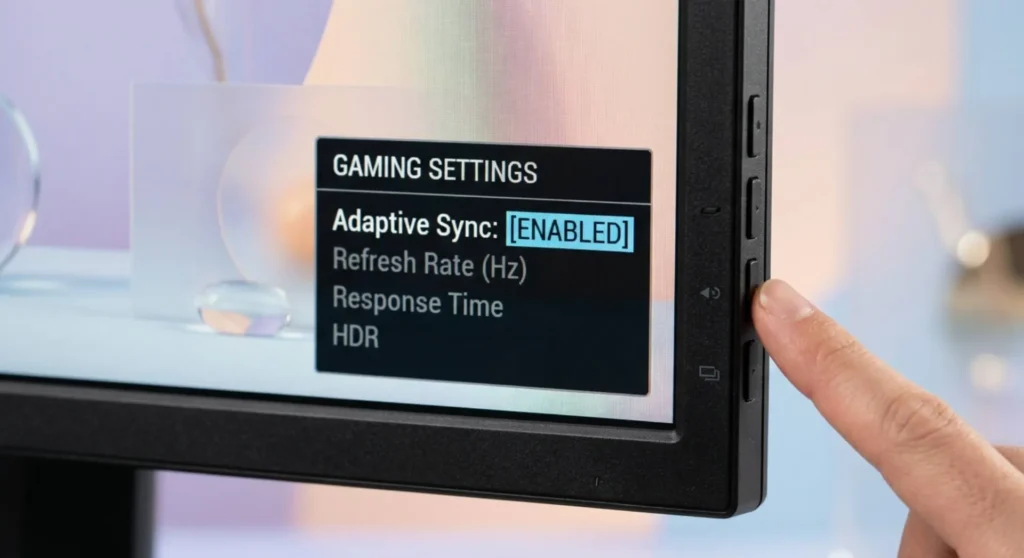
Open your monitor’s OSD (the physical buttons on the monitor housing). Navigate through the settings, look under any menu labeled Image, Gaming, Display, or Advanced. Look for settings named:
- Adaptive Sync
- FreeSync (even if not marketed as a FreeSync monitor)
- Variable Refresh Rate
- VRR
- Dynamic Refresh Rate
If any of these exist in your OSD: your monitor has adaptive sync hardware. Enable it now and this is the hardware-side activation that must be on before any GPU-side configuration will function.
If you find nothing resembling these settings: your monitor may not support adaptive sync, or the setting may be labeled unusually. Search your monitor’s model number alongside “adaptive sync OSD”, user forums often document where this setting lives on specific models even when it’s hidden under unexpected menu names.
A common discovery: Many budget gaming monitors from ASUS, AOC, MSI, and ViewSonic have FreeSync or Adaptive Sync hardware but don’t prominently market it. The setting exists in the OSD but isn’t mentioned in the product name or box. Owners of these monitors frequently don’t know it exists until they look.
Enabling on Nvidia GPUs – The G-Sync Compatible Procedure
Nvidia’s driver allows G-Sync to be enabled on monitors that aren’t on the official certified list. The setting is deliberately hidden behind an extra confirmation step. Nvidia wants users to understand they’re enabling something that hasn’t been formally validated for their specific monitor. But the procedure is straightforward.
Step 1 — Confirm you’re on DisplayPort.
G-Sync and G-Sync Compatible do not function over HDMI on most monitors with Nvidia GPUs. Confirm the cable connecting your monitor is DisplayPort. If you’re not sure: right-click desktop → Display Settings → Advanced display → the connection type is shown in the display information.
Step 2 — Open Nvidia Control Panel.
Right-click the desktop → Nvidia Control Panel. If it doesn’t appear in the context menu, search for it in the Start menu or find it in the Windows system tray.
Step 3 — Navigate to G-Sync settings.
Left panel → Display → Set up G-Sync.
If this option doesn’t appear: your GPU driver doesn’t have G-Sync support in the installed version, or the monitor isn’t being detected correctly. Update to the latest driver from nvidia.com and try again.
Step 4 — Enable for your monitor.
The G-Sync setup page shows your connected displays. Select your target monitor from the list.
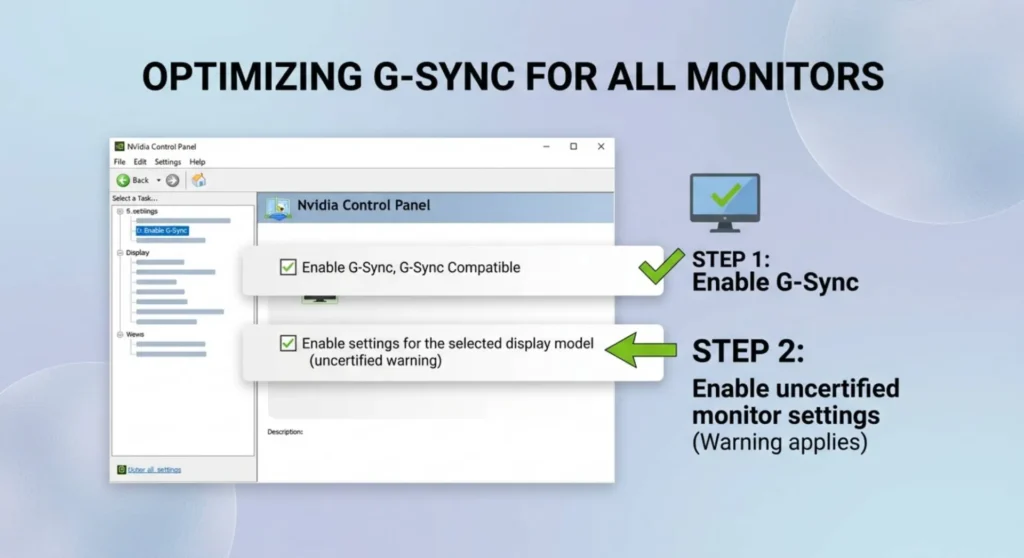
Check the box: “Enable G-Sync, G-Sync Compatible”
Below that, a second option appears: “Enable settings for the selected display model”, this controls whether G-Sync applies only to full screen applications or to windowed and full screen. Select “Enable for windowed and full screen mode” for the best experience across all applications.
Step 5 — The critical step most guides miss.
At the bottom of the page, check the box: “Enable G-Sync Compatible”, if the monitor isn’t on Nvidia’s certified list, this checkbox may show a warning that the monitor hasn’t been validated. Check it anyway. Apply.
Why this works on non-certified monitors: The “certified” status means Nvidia has tested this specific monitor model for adaptive sync artifacts. Enabling it on an uncertified monitor means you’re activating the same VRR signaling without the guarantee that Nvidia has personally verified artifact-free operation. In practice, the vast majority of adaptive sync-capable monitors work correctly, the certification gap is more about Nvidia’s testing bandwidth than about monitor capability.
Step 6 — Verify in Nvidia Control Panel → Display → Change resolution.
With G-Sync Compatible enabled, return to the resolution settings page. Confirm your refresh rate is set to the monitor’s maximum supported rate, G-Sync works best when the GPU operates within the monitor’s VRR range, which typically starts well below the maximum refresh rate and extends to it.
Enabling on AMD GPUs – Free Sync on Non-Certified Monitors
AMD’s FreeSync uses the same VESA Adaptive Sync standard as G-Sync Compatible. The enablement procedure is through AMD Radeon Software.
Step 1 — Open AMD Radeon Software.
Right-click the desktop → AMD Radeon Software. Alternatively, search for it in the Start menu.
Step 2 — Navigate to Display settings.
Click the Display tab at the top of the Radeon Software window.
Step 3 — Enable AMD FreeSync.
Under your monitor’s display card, find the AMD FreeSync toggle. If the monitor is detected as FreeSync-capable, this toggle will be present and can be switched on directly.
If the toggle is missing or grayed out: the driver doesn’t detect FreeSync support on your monitor. This can happen when:
- The monitor is connected via HDMI rather than DisplayPort
- The monitor’s OSD Adaptive Sync setting is disabled (go back and enable it first, this is the most commonly missed step)
- The monitor’s EDID doesn’t declare FreeSync support (covered in the CRU workaround below)
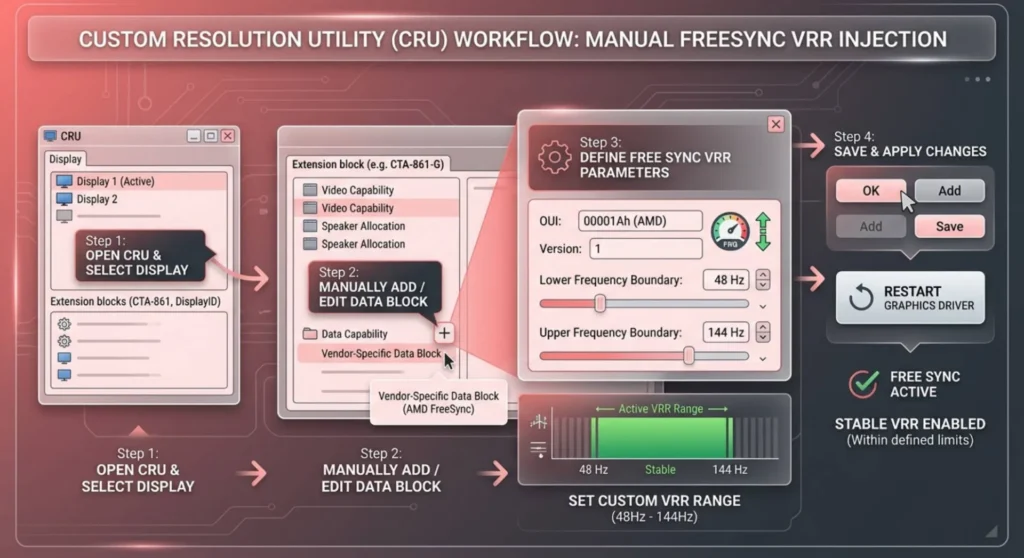
Step 4 — The CRU workaround for non-declaring monitors.
Some monitors have Adaptive Sync hardware but don’t declare it in their EDID data, the information packet the monitor sends to the GPU describing its capabilities. AMD Radeon Software reads the EDID to determine FreeSync support, so if the monitor doesn’t declare it, the Free Sync toggle doesn’t appear.
Custom Resolution Utility (CRU) – the same tool used elsewhere in this series for adding resolution entries can also add VRR range declarations to a monitor’s EDID profile. This tells AMD’s driver that the monitor supports Free Sync within a specified frequency range.
- Download CRU from CustomResolutionUtality.net
- Open CRU → select your monitor from the top dropdown
- Click Edit in the Extension blocks section → look for a DisplayID or CEA-861 extension block
- In the Extension block, look for an existing Video Capability Data Block or Adaptive Sync entry
- If none exists: click Add → select AMD FreeSync from the block type list → set the minimum and maximum VRR frequency (start conservative: minimum 48Hz, maximum = your monitor’s rated refresh rate)
- Click OK → run restart64.exe from the CRU folder
- Open AMD Radeon Software → Display → the FreeSync toggle should now appear
Setting the VRR range correctly: The range you enter should match what your monitor’s hardware can actually handle too wide a range (especially too low a minimum) can produce blanking or artifacts at the extremes. Start with 48Hz minimum and your monitor’s native maximum, then test. If you see blanking when framerates drop below 60fps, raise the minimum to 55 – 60Hz.
The Frame Cap – The Setting That Makes Adaptive Sync Actually Work
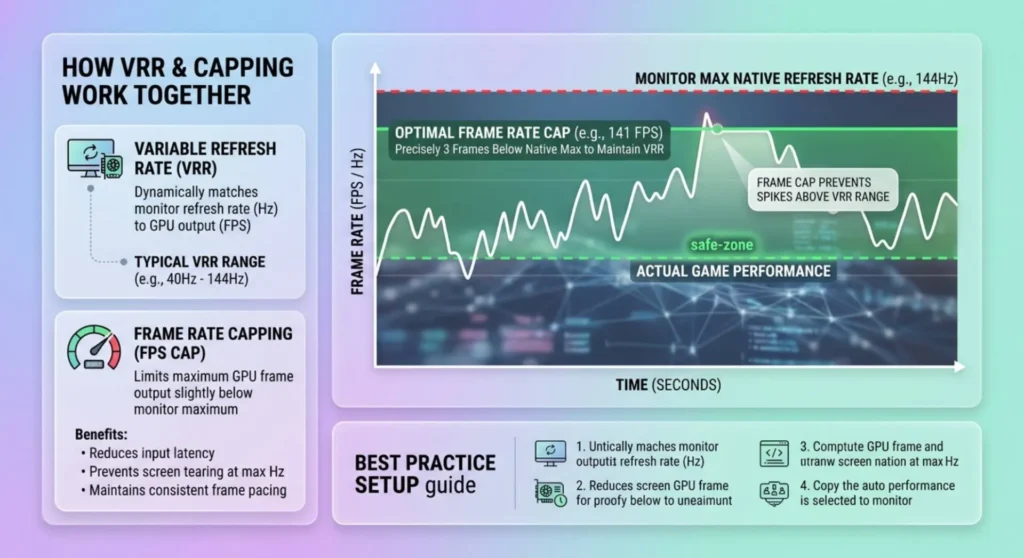
Enabling G-Sync or Free Sync in the driver is necessary but not sufficient. Without a frame cap, adaptive sync delivers a worse experience than most users expect and this is why many people enable it and immediately wonder if it’s doing anything.
Why adaptive sync without a frame cap is problematic:
Your GPU will frequently produce framerates above your monitor’s maximum refresh rate. When the GPU outputs 200fps on a 144Hz display, adaptive sync operates in its normal VRR mode only while the framerate is within the VRR range (typically 48–144Hz). Above the maximum, the monitor can’t refresh faster than its rated ceiling frames are dropped, and tearing can return if G-Sync/Free Sync isn’t managing the overage correctly.
More critically: framerate spikes above the VRR maximum can cause the adaptive sync protocol to temporarily disengage and reengage, which produces a visible stutter rather than smooth motion. This is the source of “G-Sync feels stuttery” complaints.
The correct frame cap:
Cap your in-game framerate at 3 – 5 frames below your monitor’s maximum refresh rate. On a 144Hz monitor: cap at 141fps. On a 165Hz monitor: cap at 162fps. This keeps the GPU output just below the ceiling at all times, ensuring adaptive sync never needs to handle above-ceiling framerates.
Set the cap in your GPU’s overlay tool, Nvidia Reflex (integrated into supported games), RivaTuner Statistics Server (RTSS) for a global cap, or the in-game frame limiter if one exists.
Why not cap at exactly the maximum? Variance in GPU output means capping at exactly 144fps still allows brief spikes to 145 – 146fps that disengage VRR for a frame. Capping 3 – 5fps below the ceiling creates headroom that keeps VRR continuously engaged.
The low-end: LFC (Low Framerate Compensation):
When framerates drop below the VRR minimum (typically 48Hz on most monitors), standard adaptive sync can’t operate and tearing or stuttering returns. FreeSync Premium and G-Sync modules include LFC – Low Framerate Compensation, which doubles or triples the frame display duration to keep the effective refresh rate within the VRR range. On non-certified monitors without explicit LFC support, keeping framerates above the VRR minimum is the correct strategy. In demanding games, set graphical settings to ensure frames stay above 50 – 55fps consistently.
Confirming It’s Actually Working
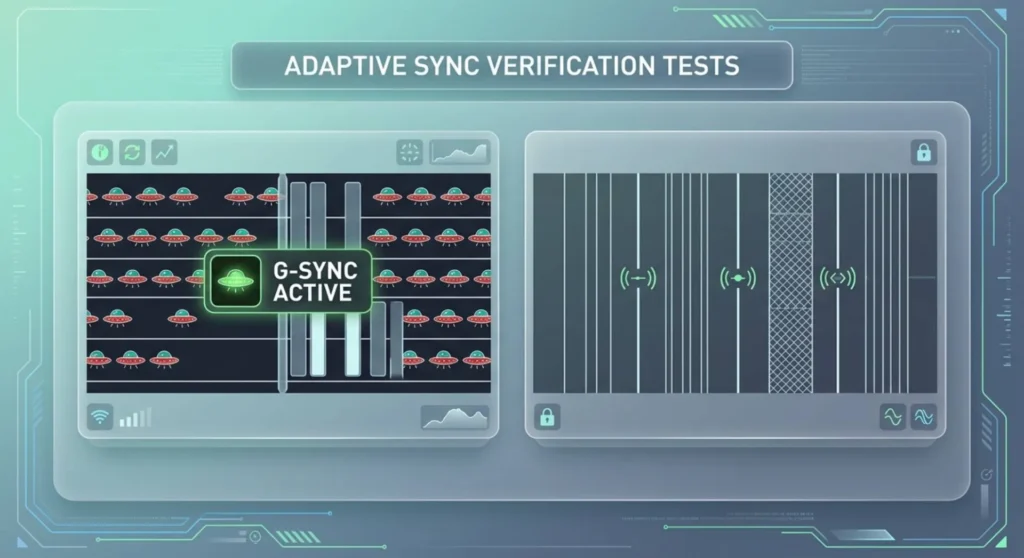
Enabling the settings doesn’t guarantee they’re active. Confirm with a test.
The pendulum test:
Navigate to testufo.com in your browser. Set it to your monitor’s maximum refresh rate. Enable the “Ghosting” or “UFO Motion Tests”, the standard moving objects tests. Open two browser windows side by side: one with adaptive sync enabled, one with it disabled (toggle in Nvidia/AMD control panel and switch between them).
With adaptive sync enabled and a frame cap active: the motion should appear dramatically smoother, with no tearing visible even during the fastest horizontal motion. Without it: tearing will appear as horizontal tears in the image during the fastest motion phases.
Nvidia’s built-in indicator:
In Nvidia Control Panel → Display → Set up G-Sync → there’s an option to display a G-Sync indicator, a small overlay icon that appears when G-Sync is actively engaged. Enable it temporarily during testing to confirm the protocol is active during gameplay. Disable it for normal use.
AMD’s FreeSync verification:
AMD Radeon Software → Display → once FreeSync is enabled, the toggle shows “Enabled” and displays the active VRR range. During gaming, the ReLive overlay (if enabled) shows the current framerate alongside the VRR status.
When Adaptive Sync Is on But Tearing Still Appears
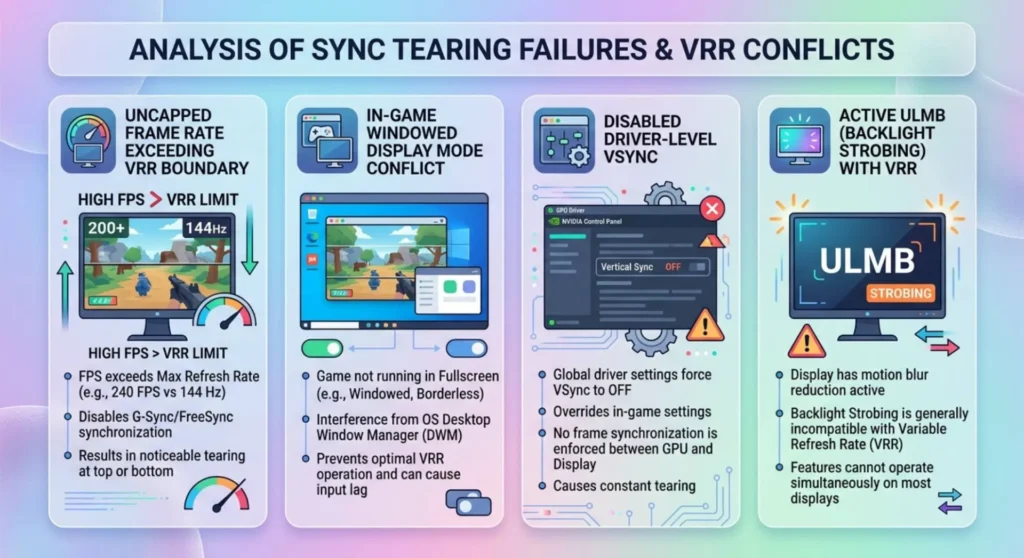
Four specific causes produce tearing despite adaptive sync being correctly configured:
Framerate above the VRR ceiling with no cap applied. The single most common cause. Apply the frame cap described above. Tearing above the ceiling is normal and expected, adaptive sync only eliminates tearing within the VRR range.
VSync is disabled in-game. Some games ship with VSync disabled by default and require explicit enabling in the game’s graphics settings. This sounds contradictory adaptive sync replaces VSync but in practice, some games require VSync enabled in their settings to engage the adaptive sync pathway through the driver. Specifically: in Nvidia Control Panel → Manage 3D Settings → set VSync to “Fast” (not On, not Off). “Fast” VSync engages Nvidia’s frame pacing alongside G-Sync, which eliminates tearing above the VRR ceiling without the input lag penalty of traditional VSync.
The game is running in windowed or borderless windowed mode with adaptive sync set to fullscreen only. Return to Nvidia Control Panel → Set up G-Sync → confirm “Enable for windowed and full screen mode” is selected.
ULMB (Ultra Low Motion Blur) is enabled. ULMB – the backlight strobing feature on G-Sync monitors and G-Sync cannot run simultaneously. If ULMB is on, G-Sync is off for that session. Disable ULMB in the monitor OSD to allow G-Sync to operate.
The HDMI Exception – VRR on HDMI 2.1
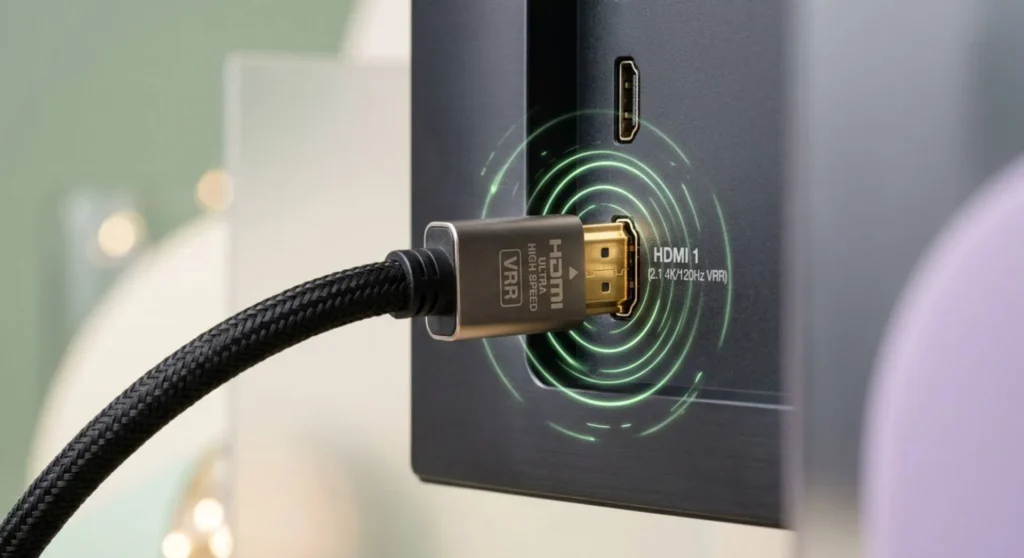
Most adaptive sync configurations require DisplayPort. HDMI 2.1 introduced native VRR support, which brings adaptive sync to consoles and HDMI-connected gaming monitors. If your monitor has HDMI 2.1 and your GPU supports HDMI 2.1 output (Nvidia RTX 30/40 series, AMD RX 6000/7000 series), VRR over HDMI 2.1 is a legitimate alternative to DisplayPort adaptive sync.
The enablement procedure for HDMI 2.1 VRR:
Monitor OSD → find the HDMI VRR or HDMI Forum VRR setting → enable it.
Then in Nvidia Control Panel → Display → Set up G-Sync → the monitor should appear as G-Sync Compatible when connected via HDMI 2.1 with the VRR OSD setting enabled.
For AMD: Radeon Software → Display → the FreeSync toggle should appear for HDMI 2.1 connections when the monitor’s HDMI VRR is enabled in the OSD.
The HDMI 2.1 VRR range caveat: HDMI 2.1 VRR typically operates at a higher minimum frequency (often 60Hz) than DisplayPort adaptive sync implementations (typically 48Hz). This means LFC may not engage below 60fps over HDMI 2.1. For the lowest-latency, widest-range adaptive sync experience, DisplayPort remains the preferred connection.