By Derek V. Mackown | IT Technician & Display Hardware Specialist
You connected a monitor to your laptop. Nothing happened. Windows 11 is showing only one display in Settings. The external screen is either completely dark or showing a “No Signal” message. And you’re not sure whether the cable is wrong, the port is broken, the driver needs updating, or something in Windows is simply ignoring the connection.
The good news is that external monitor detection failures almost always come down to one broken link in a chain and the chain is short enough to walk through quickly. The frustrating part is that the broken link can be anywhere from the physical cable all the way up to a Windows display setting, and skipping steps wastes time.
What I want to do here is take you through that chain link by link, from the physical connection inward toward the software. Each section takes two minutes or less. Most people find their problem in the first three.
Link 1 – The Monitor and Cable Themselves
Start here because it’s fast and rules out the simplest causes before touching any software.
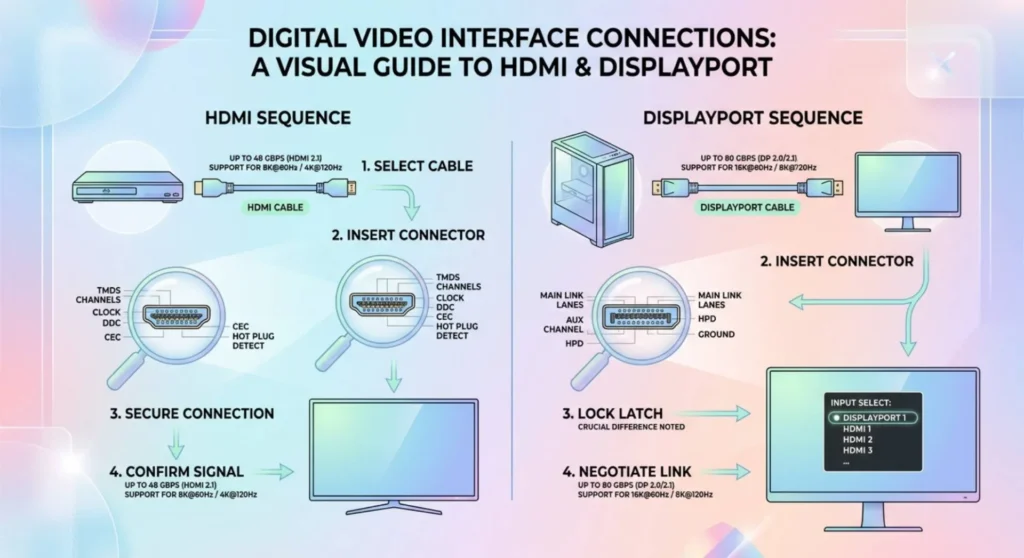
Test the monitor with a different source. Plug the external monitor into a different laptop, a desktop, a games console, anything else that outputs video. If it doesn’t work there either, the monitor or its cable is the problem, not your laptop. Most “monitor not detected” calls I handle that turn out to be hardware issues are the cable, not the monitor itself, HDMI and DisplayPort cables fail more often than monitors do.
Try a different cable. This sounds obvious but gets skipped more than anything else. HDMI cables in particular fail in ways that aren’t physically visible, internal wire fractures that prevent signal without any external damage. Borrow or buy a replacement and test. If the monitor appears with a different cable, you’ve solved it in two minutes.
Check the monitor’s input selection. The monitor has its own OSD (those physical buttons on the side or bottom). When you press the menu button, look for Input Source or Signal Input. Make sure it’s set to the correct input, HDMI 1, HDMI 2, DisplayPort, whichever port you’re using. A monitor that’s set to HDMI 1 while you’ve plugged into DisplayPort will show “No Signal” and look undetected. This catches a surprising number of cases.
Confirm the monitor has power. The LED on the monitor should indicate standby (usually amber/orange) when powered but no signal is present, or active (usually white or blue) when receiving a signal. No LED at all means the monitor isn’t getting power, check the power cable before assuming a signal problem.
Link 2 – The Port on Your Laptop
Not all ports on a laptop do the same thing. This is where most people get stuck because it looks like a simple connection but isn’t.
The HDMI port on most laptops connects to the integrated GPU, not the discrete GPU. If you’re on a laptop with both Intel/AMD integrated graphics and a discrete Nvidia or AMD GPU (Optimus or Smart Access Graphics), the discrete GPU handles 3D rendering but the integrated GPU controls most of the display outputs, including the built-in screen and often the HDMI port. The discrete GPU usually outputs only through specific USB-C/Thunderbolt ports.
This matters because if your discrete GPU’s driver is malfunctioning and the HDMI port runs through the integrated GPU, the HDMI output might work fine. But if you’re trying to use a USB-C port that routes through the discrete GPU and that driver has an issue, that specific port won’t work.
How to find which GPU controls which port:
Search your laptop’s model number alongside “display output ports GPU routing” or check the manufacturer’s support page. Alternatively: plug your monitor into each available port one at a time and see which ones produce a signal. The ports that work are connected to the functioning GPU.
USB-C ports – the most commonly misunderstood connection:
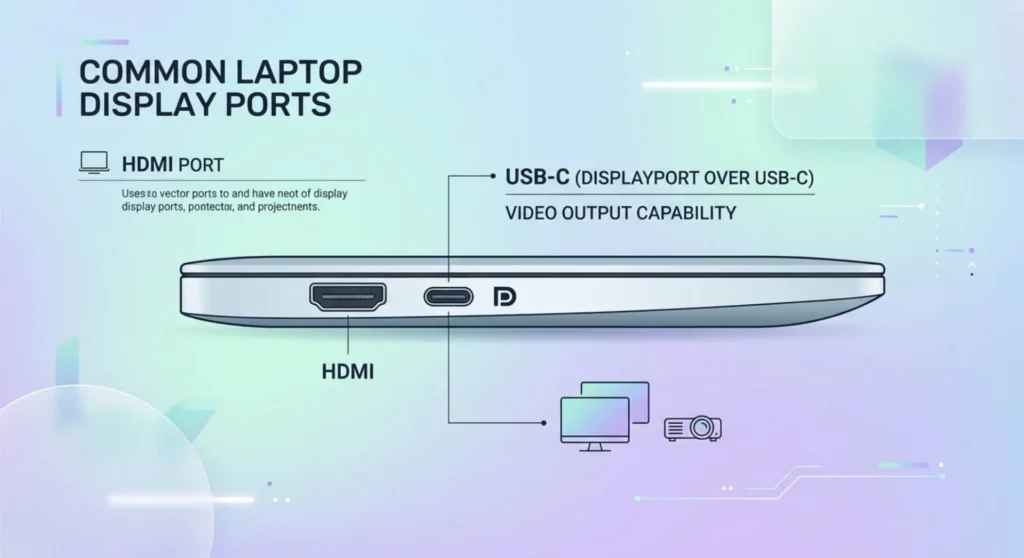
Not every USB-C port on your laptop outputs video. USB-C is a connector shape, not a single standard, a USB-C port might support USB 3.2 data only, or USB 3.2 plus DisplayPort Alt Mode (which carries video), or Thunderbolt (which also carries video but through a different protocol). Two USB-C ports on the same laptop can have completely different capabilities.
Look at the ports physically. A USB-C port that supports video output usually has a small icon next to it, a DisplayPort symbol (a D-shape with a notch), a Thunderbolt bolt symbol, or both. A plain USB-C port with no icon typically carries data only and will not output video regardless of the cable or adapter.
If you’re using a USB-C to HDMI or USB-C to DisplayPort adapter and getting no signal: first confirm the USB-C port supports DisplayPort Alt Mode, then confirm the adapter itself supports video passthrough (not all USB-C adapters do, some carry only charging). A USB-C to HDMI adapter that supports only charging passthrough will provide power to the monitor but no video signal.
Link 3 – Force Windows to Detect the Monitor
Before diving into drivers, try forcing Windows to rescan for displays. This takes ten seconds and works more often than it should.
Method 1 – The keyboard shortcut:
Press Windows + P. This opens the projection mode panel. Select “Extend” or “Duplicate.” Windows rescans all output ports during this selection and sometimes detects a monitor that it missed on connection.
Method 2 – Display Settings detect:
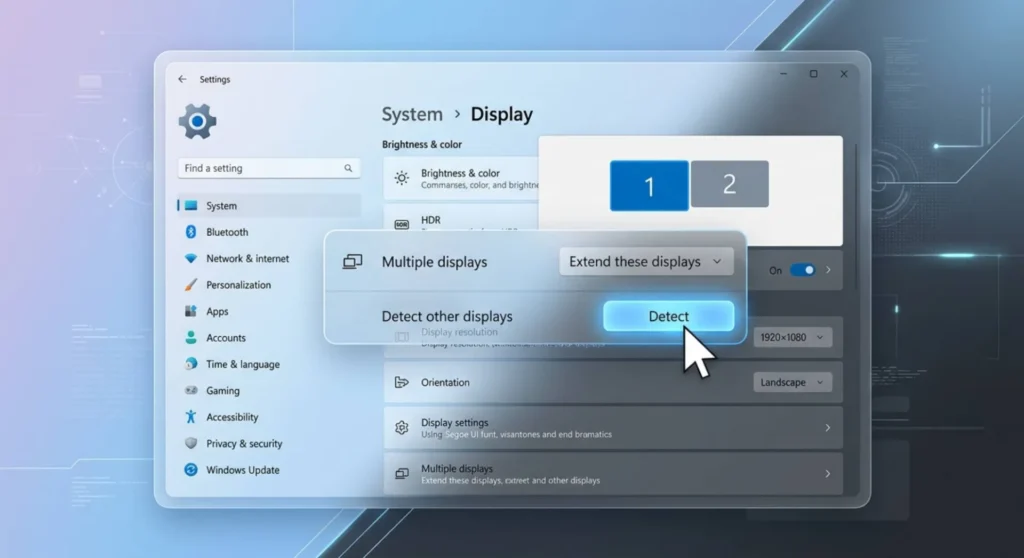
Right-click the desktop → Display settings → scroll down to the Multiple displays section → click Detect. If Windows can see any signal on any output port, this forces it to acknowledge it and add the display to the configuration.
Method 3 – Reconnect while Windows is watching:
Open Display Settings, leave it open on screen, then physically unplug and replug the monitor cable. With Settings open, Windows processes the connection event in real time and you’ll see the display count change immediately if the connection is registering at the hardware level.
If none of these three methods causes Windows to acknowledge a second display even briefly, the problem is at the hardware or driver level below Windows. If Windows does see it briefly but then loses it, skip to the cable and EDID section below.
Link 4 – The Display Driver
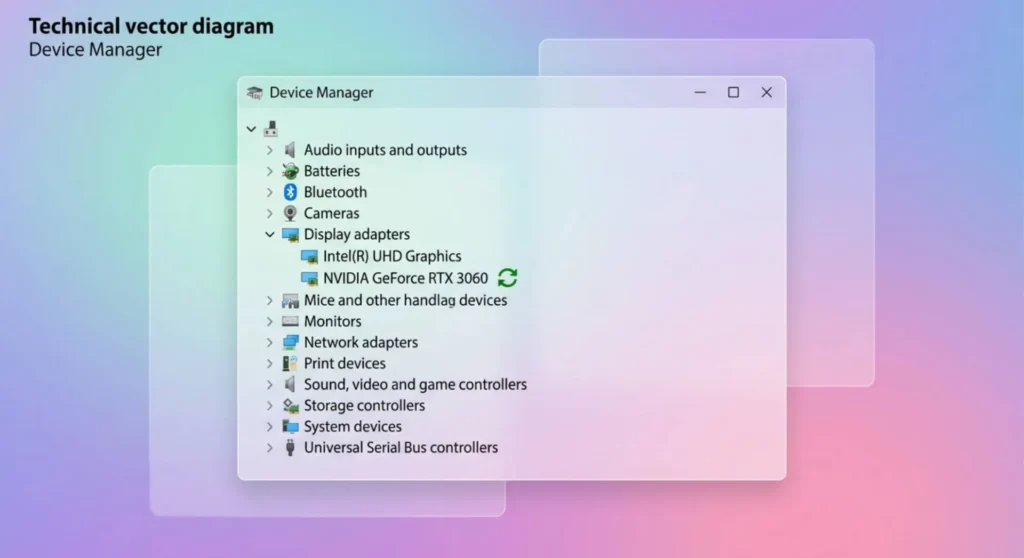
A display driver problem is the most common software cause of external monitor detection failure. Windows 11 is particularly prone to this because Feature Updates frequently replace working OEM display drivers with generic Microsoft versions that handle multi-monitor detection less reliably.
Identify what driver is running:
Press Windows + X → Device Manager → expand Display adapters. Note every entry.
| What You See | What It Means |
|---|---|
| Intel UHD Graphics / Intel Iris Xe | Integrated GPU driver – controls HDMI on most laptops |
| NVIDIA GeForce / AMD Radeon (model name) | Discrete GPU driver – controls USB-C/Thunderbolt on most laptops |
| Microsoft Basic Display Adapter | No real driver installed – multi-monitor impossible |
| Any entry with a yellow warning triangle | Driver installed but faulted |
If Microsoft Basic Display Adapter appears install the correct driver for your GPU from your laptop manufacturer’s support page, not from Nvidia or AMD’s main site. OEM-packaged drivers contain initialization parameters specific to your laptop’s display output routing that generic GPU manufacturer drivers may lack.
If the correct drivers appear but detection still fails:
Update each display adapter driver separately. Right-click → Update driver → Search automatically. Do this for both the integrated and discrete GPU if your laptop has both detection failures. Sometimes come from the integrated GPU driver being outdated even when the discrete GPU driver is current.
Clean reinstall for persistent driver problems:
If updating doesn’t resolve it, a clean reinstall using DDU (Display Driver Uninstaller) clears all driver residue before the fresh installation. The complete procedure is in the display driver reinstallation guide in this series. For this specific symptom, prioritize reinstalling the integrated GPU driver if your HDMI port routes through Intel or AMD integrated graphics. That’s the driver most commonly responsible for external detection failures on laptops.
Link 5 – The Port Routing and GPU Output Issue (Nvidia Optimus / AMD Hybrid)
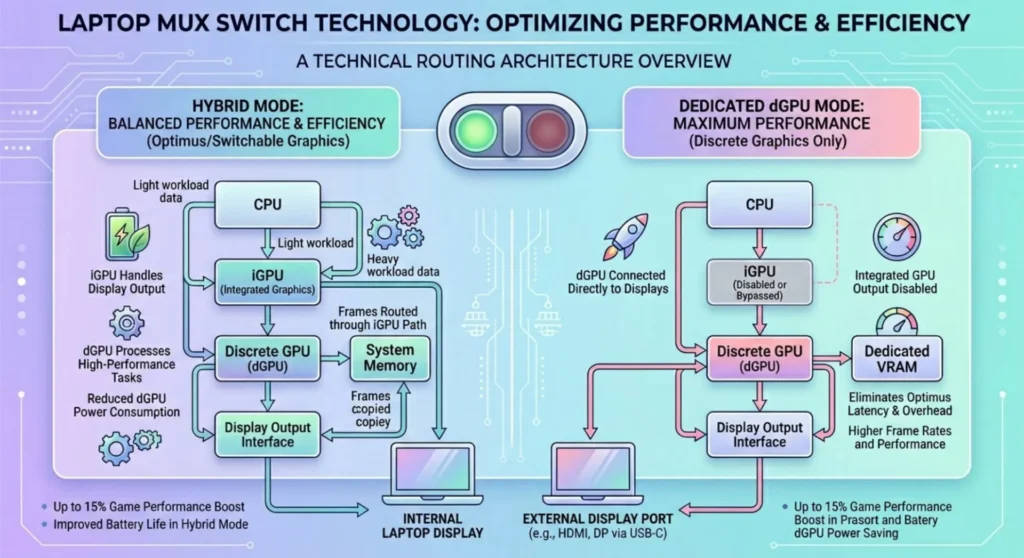
This deserves its own section because it catches people who have done everything right and still can’t get their monitor detected on a specific port.
On Nvidia Optimus laptops, the discrete GPU is connected directly to certain output ports, typically the USB-C/Thunderbolt ports and sometimes one HDMI port on gaming models. Other ports route through the Intel integrated GPU. The Windows display driver stack handles the handoff between GPUs transparently in most cases.
But in Hybrid Mode (the default on most laptops), the discrete GPU cannot directly drive the internal laptop display, it renders frames and hands them to the integrated GPU which then outputs them. This rendering pipeline adds complexity to external monitor routing, and in some configurations it causes specific ports to fail to detect monitors while others work fine.
The MUX switch test:
If your laptop has a MUX switch (check in BIOS or your manufacturer’s utility, Lenovo Vantage, ASUS Armoury Crate, MSI Center all expose this), try switching from Hybrid Mode to dGPU Mode. This routes display output directly through the discrete GPU, bypassing the Optimus handoff. A monitor that isn’t detected in Hybrid Mode sometimes appears immediately in dGPU Mode.
Accessing the MUX switch: enter BIOS on startup (F2, F10, or Delete depending on manufacturer) or use the manufacturer’s software utility. The setting is labeled “MUX Switch,” “Hybrid Mode,” “Advanced Optimus,” or “GPU Mode” depending on the brand.
Note: switching to dGPU Mode increases power consumption and reduces battery life because the discrete GPU runs continuously. It’s worth switching temporarily to diagnose the issue, then deciding whether to leave it on permanently.
For Lenovo ThinkPads:
ThinkPads route the HDMI port through the integrated GPU and Thunderbolt/USB-C ports through the discrete GPU in Hybrid Mode. If HDMI detection works but USB-C doesn’t (or vice versa), this routing is the explanation. The fix is either changing which port you use or switching GPU mode.
For Dell XPS and Inspiron:
Dell’s Optimus implementation varies significantly by model year. Check Dell’s support page for your exact Service Tag, the display output topology diagram shows which ports route through which GPU on your specific model.
For ASUS ROG and TUF gaming laptops:
ASUS exposes GPU mode switching through Armoury Crate → GPU Mode. Some ROG models have the HDMI port connected exclusively to the discrete GPU, meaning in Hybrid Mode that port is active while in iGPU mode it may be inactive.
Link 6 – The Cable Bandwidth and EDID Problem
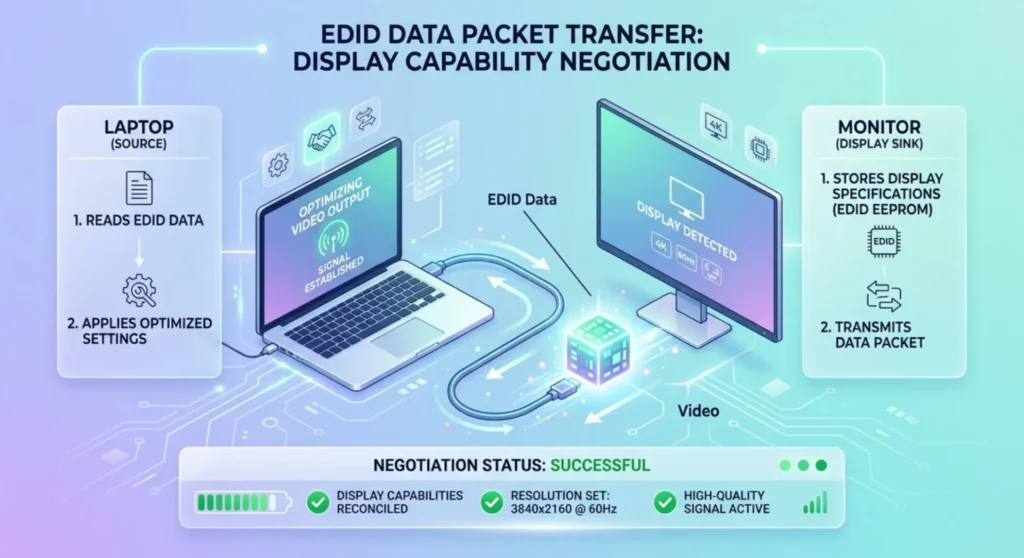
This specific cause produces a confusing symptom: the monitor appears briefly in Windows, you see it flash in Display Settings and then disappears. Or it appears only at low resolution and higher resolutions aren’t available. This is not a detection failure in the classic sense but a signal negotiation failure.
What’s happening: When a monitor connects, it broadcasts its capabilities to the GPU through EDID (Extended Display Identification Data), a small data packet carried on dedicated lines within the cable. If the cable can’t carry EDID reliably alongside the main display signal, Windows sees the connection momentarily and then loses it or receives incomplete EDID data and offers only limited resolution options.
This happens most commonly with:
- HDMI cables being used at bandwidth-exceeding configurations (HDMI 1.4 cable attempting 4K or high-refresh 1440p)
- Cheap or damaged cables where EDID signal lines are compromised
- Long cable runs (over 3 meters for HDMI, over 1.5 meters for passive DisplayPort) where signal attenuation affects the lower-power EDID lines before affecting the main display signal
The fix:
Replace the cable with a certified, labeled version rated for your configuration. For 1440p at any refresh rate: HDMI 2.0 or DisplayPort 1.2 minimum. For 4K: HDMI 2.0 or DisplayPort 1.4. After replacing the cable, restart the laptop rather than just reconnecting, Windows rereads EDID on boot and the fresh read with the new cable will resolve incomplete capability tables.
If a new cable doesn’t resolve it: install Custom Resolution Utility (CRU) from monitortests.com and check whether your monitor’s EDID data appears correctly in CRU’s display dropdown. A monitor that appears in CRU but shows an incomplete or unusually short resolution list has an EDID that isn’t being read fully, CRU can supplement it.
Link 7 – Docking Stations and USB-C Hubs
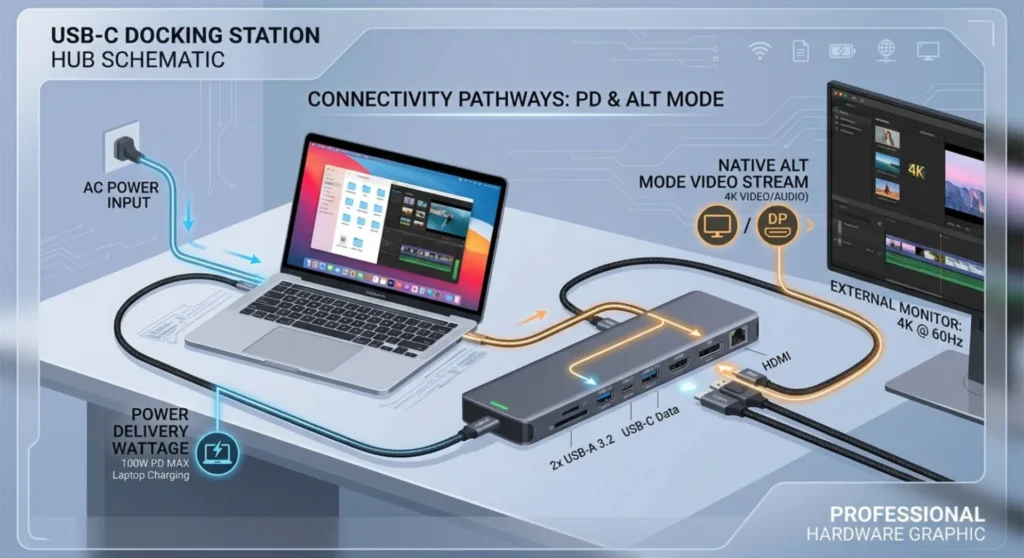
If you’re connecting through a dock or USB-C hub rather than directly to the laptop, the dock or hub is an additional link in the chain and it’s one that fails more often than people expect.
Power delivery to the dock:
USB-C docks require sufficient power from the laptop’s USB-C port to function correctly. A dock that’s receiving 45W from the laptop’s USB-C port when it requires 65W will often still function partially. USB ports work, charging starts, but video output fails or is unreliable because video output is deprioritized when power is insufficient.
Check the dock’s required input wattage (printed on the dock body or in its specifications) and confirm your laptop’s USB-C port is rated to deliver that wattage. On laptops with multiple USB-C ports, the one closest to the hinge or labeled “Thunderbolt” or “USB4” usually has the highest power delivery capability.
DisplayLink vs. native DisplayPort Alt Mode:
Docks connect to laptops through two fundamentally different display technologies. Native DisplayPort Alt Mode docks use the display signal directly from the GPU, effectively extending your GPU’s output ports. Display Link docks use a compression codec processed by the CPU and a driver. The video is encoded on the CPU, transmitted over USB, and decoded in the dock’s Display Link chip.
Display Link docks require the Display Link driver installed on the laptop (downloadable from displaylink.com). If you’re using a Display Link dock and the monitor isn’t detected: install or reinstall the Display Link driver. Windows 11 doesn’t automatically install it. Without the driver, Display Link docks show as connected USB devices but provide no video output.
Native Alt Mode docks don’t need a separate driver, but they do require the laptop’s USB-C port to support DisplayPort Alt Mode, as covered in Link 2.
Test direct to confirm dock involvement:
Bypass the dock entirely and connect the monitor directly to the laptop with a cable. If the monitor is detected directly but not through the dock, the dock is the problem, either insufficient power, a failed dock port, or a missing driver.