Physical Address
3260 College Rd, Fairbanks, Alaska

By Derek V. Mackown | IT Technician & Display Hardware Specialist
You’re reading something. The screen just dims on its own. You haven’t touched the brightness. You haven’t changed any settings. It just decided on its own to get darker.
Or the opposite happens. You walk outside on a sunny day and the screen suddenly cranks itself up so bright it almost hurts. You go back inside and it drops back down.
Or maybe it’s weirder than both of those. The screen dims randomly in the middle of games. Or it flickers between two brightness levels every few seconds. Or it dims, you adjust it manually, and five minutes later it dims again like it forgot what you did.
I’ve been fixing phones for years and this is one of the complaints I hear most. People think something is broken. A lot of the time it isn’t. Their phone is doing exactly what it was designed to do, they just don’t know why it was designed that way. Once you understand what’s actually going on, you can either leave it alone (because it’s protecting your phone) or turn it off (because it’s just annoying and you’d rather control your screen yourself).
Let me walk through every version of this problem.
Table of Contents
Toggle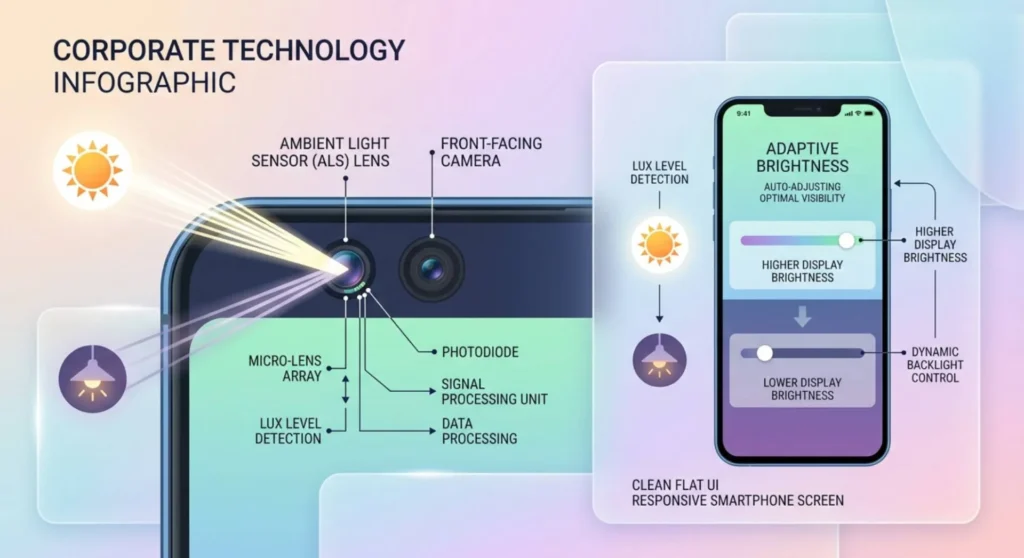
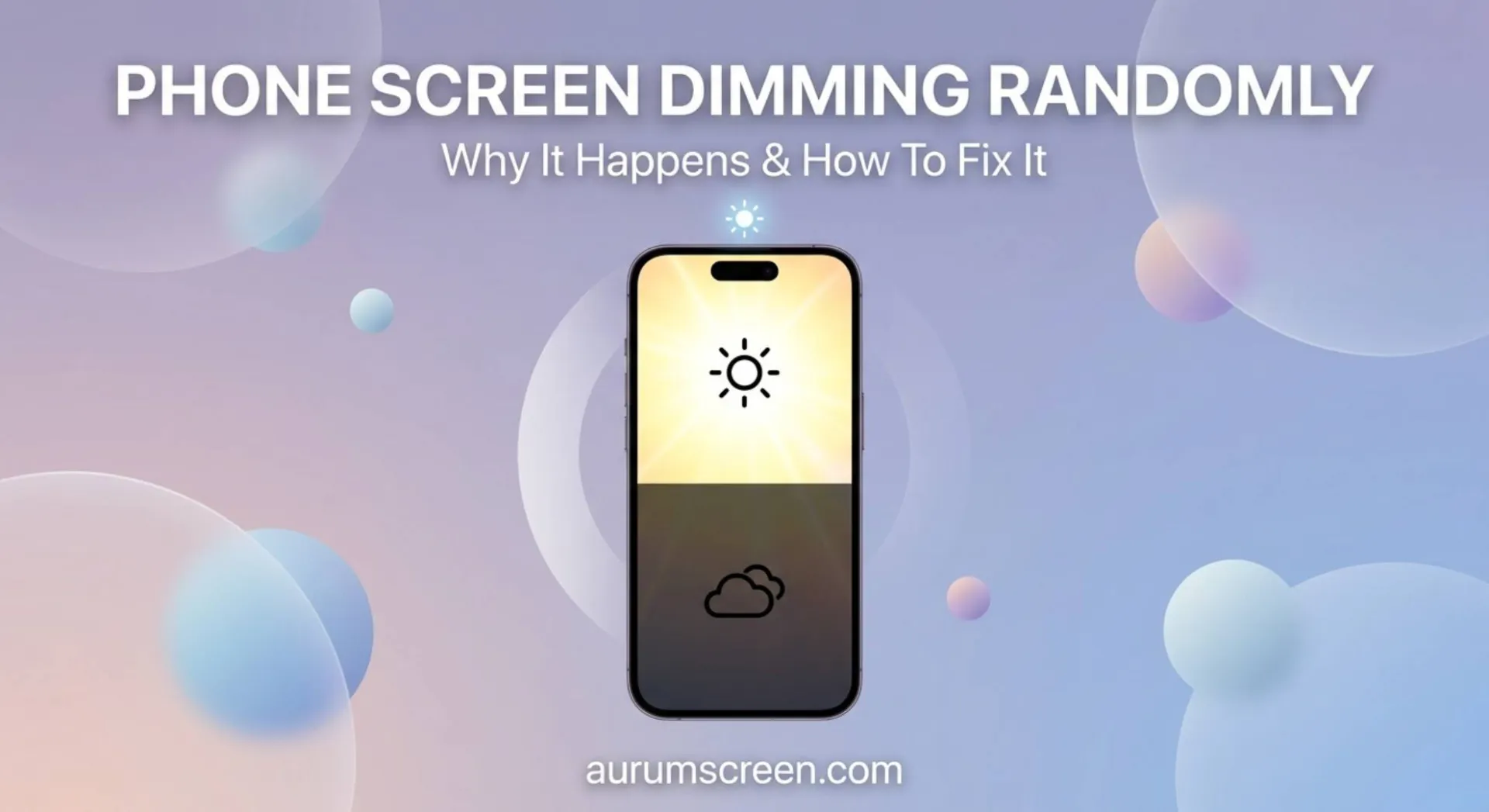
There’s a little sensor on the front of your phone, usually near the front camera. You’ve probably never thought about it. Its whole job is to measure how bright the room is and adjust your screen to match. Walk into a bright room and screen gets brighter. Sit down in a dim room and screen gets darker.
This is called auto-brightness, adaptive brightness, or automatic brightness depending on what phone you have. It’s a useful feature when it works well. When it doesn’t work well, it feels like your phone has a mind of its own.
Here’s the thing about that sensor: it’s reading light levels constantly, and it’s making decisions faster than you’d expect. If you’re near a window on a partly cloudy day, the light coming through changes every few seconds as clouds pass. Your phone notices. The screen adjusts. It looks like random dimming when it’s actually just your phone reacting to light changes you didn’t consciously register.
The fix for this depends on whether you want to keep auto-brightness or not.
If you want to keep it but make it less twitchy:
Some phones let you “train” the adaptive brightness over time. Every time it adjusts the brightness automatically and you immediately change it back to what you want, do that consistently. Android phones in particular learn from this and gradually stop fighting you as much. It takes a week or two, but it does work.
If you just want to turn it off:
On iPhone: Settings → Accessibility → Display & Text Size → scroll all the way down → Auto-Brightness → turn it off. It’s hidden in Accessibility for some reason, not in the main Display settings. A lot of people never find it.
On Samsung: Settings → Display → Adaptive brightness → turn it off.
On most other Android phones: Settings → Display → Brightness → look for “Adaptive brightness” or “Auto brightness” toggle → turn it off.
Once it’s off, your screen will stay at exactly whatever brightness you set it to. No more surprises.
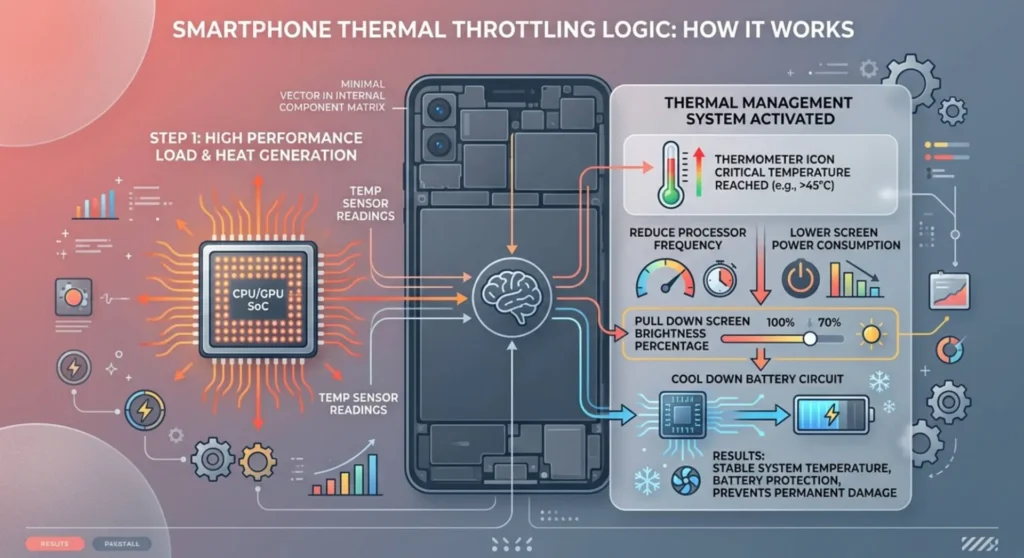
This one is different. This is your phone trying to protect itself.
Here’s what happens: phones generate heat when they’re working hard. Watching videos, playing games, charging while you’re using it all of this makes the processor and battery warm up. Past a certain temperature, your phone starts making decisions to cool itself down. One of those decisions is dimming the screen. A brighter screen uses more power, more power means more heat, so the phone pulls the brightness down to help reduce the temperature.
This is called thermal throttling and it’s not a bug. It’s the phone doing exactly what it’s supposed to do. But it can feel random and confusing if you don’t know it’s happening.
How to tell if this is what’s happening to you:
Does the dimming happen during heavy use gaming, long video calls, GPS navigation, or charging while using the phone? Does the phone feel warm or hot when it dims? Does the brightness come back up after the phone cools down?
If you answered yes to those, thermal throttling is your answer.
What you can do about it:
Stop using your phone while it’s charging if you can. The combination of charging heat and screen-on heat together is what usually pushes things over the limit.
Take the case off. Phone cases trap heat. A lot of people don’t realize this. If your phone runs warm often, taking the case off during heavy use makes a real difference.
If it’s a hot day and you’re using the phone outside in direct sunlight, the phone is absorbing heat from the environment on top of generating its own. Move into shade if you can.
Some phones, iPhones in particular will put a warning on screen that says something like “iPhone needs to cool down before you can use it.” Most Android phones just dim or throttle silently without any message, which is why it feels mysterious.
Can you prevent this long-term?
Partly. Keep your phone out of hot cars. Don’t leave it in direct sunlight. Clean the back of your phone occasionally and grime on the back can actually reduce heat dissipation a little. If your phone runs hot constantly even during normal use, the battery might be degrading, old batteries generate more heat. A battery replacement often fixes chronic overheating on older phones.
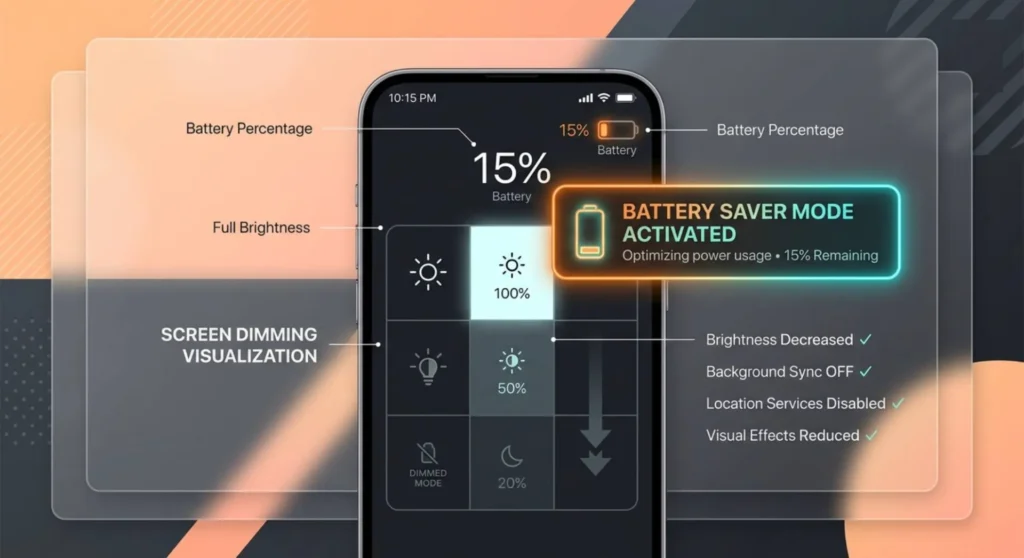
You’re using your phone normally. The battery drops to 20% or maybe 15%, depends on your settings and the screen gets noticeably dimmer. Not a lot. But enough that you notice.
This is battery saver mode doing exactly what it’s supposed to do.
When your phone switches into battery saver mode (some phones call it Low Power Mode, Power Saving Mode, or Extreme Battery Saver depending on the brand), it cuts back on everything that uses power. The screen is one of the biggest power drains on any phone, so brightness is one of the first things it reduces.
iPhone: Settings → Battery → Low Power Mode. You can turn off the automatic activation if you want, or you can just know that this is why it dims at 20%. To keep your current brightness when power saving turns on. Honestly, you’re better off just accepting the dim. That mode genuinely does extend your battery life when you need it.
Samsung: Settings → Battery and device care → Battery → Power saving. You can customize what gets limited when it turns on, including display brightness.
Google Pixel: Settings → Battery → Battery Saver. You can adjust the threshold at which it turns on, or turn off automatic activation entirely.
If you don’t want battery saver to dim your screen at all, most phones let you either disable the automatic activation entirely or adjust what it actually does when it turns on. Your call, you’ll just get less battery extension from it.
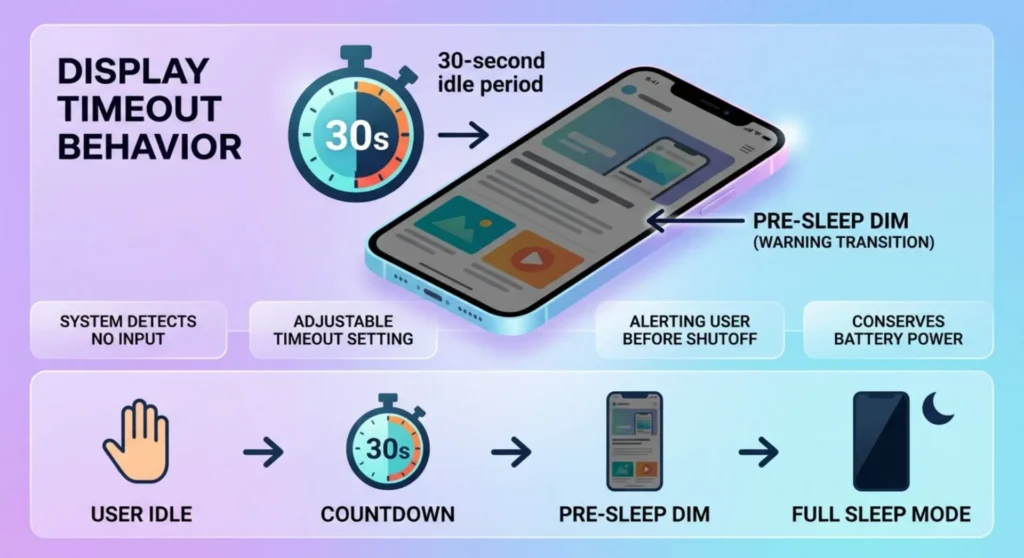
This one trips people up because they think something is wrong, but it’s just the screen timeout doing its warmup act.
Most phones do this: you stop interacting with the screen for 30 seconds or so, and the brightness drops a little as a warning before the screen turns off completely. It’s saying “hey, I’m about to go dark, just so you know.” Then if you don’t touch it, the screen turns off. If you do touch it, it comes back to full brightness.
This isn’t random dimming. It’s the pre-sleep dim. You can get rid of it the same way you’d change your screen timeout – Settings → Display → Screen timeout (on most Android phones) or Settings → Display & Brightness → Auto-Lock (on iPhone). Set it to a longer interval and the pre-dim will happen less often because the phone takes longer to decide you’ve walked away.
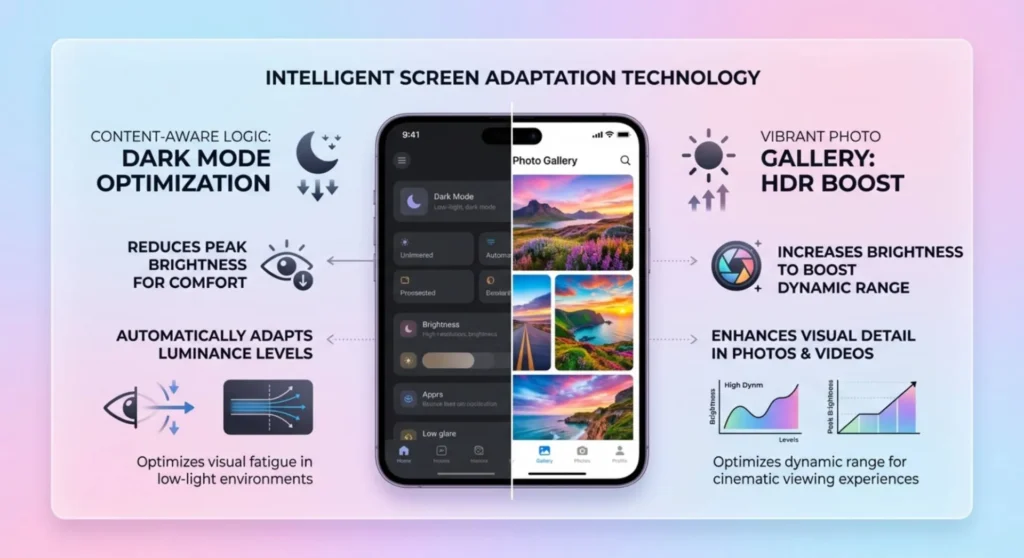
This is the most confusing one to figure out because it looks like a hardware problem but it’s almost always software.
Some phones have a feature that adjusts screen brightness based on what’s being displayed. Specifically, they make dark content (dark app backgrounds, night mode apps, etc.) appear at lower brightness and bright content (white pages, photos, video) appear at higher brightness. On OLED phones especially, this is sometimes done automatically to save battery.
Samsung has a feature called “Eye Comfort Shield” and an option called “Reduce brightness with Dark mode” that both do variations of this. Xiaomi and some other Android brands have similar things. iPhones on OLED models can also reduce the peak brightness of mostly-dark content.
This usually isn’t a problem — it’s working as intended. But if it bothers you because the constant adjusting is distracting:
On Samsung: Settings → Display → look for “Extra dim” toggle and “Eye comfort shield” – make sure these are configured the way you want them.
On iPhone: Settings → Accessibility → Display & Text Size → Auto-Brightness (as mentioned before) plus check “Reduce White Point”, these limits how bright whites can get and can make the screen look dimmer than you expect.
Sometimes the phone just has a software hiccup. The screen dims randomly with no pattern. It happens on low brightness and high brightness. It happens whether you’re gaming or just reading a text message. Nothing above explains it.
This happens. Software gets weird. An update changes something. A background app starts interfering with the brightness control.
The fastest thing to try:
Restart your phone. A proper restart, not just locking the screen, actually turning it off and on again. More problems than people admit are solved by this.
If the restart doesn’t fix it, check whether it started happening after an app you installed. Go through your recent installs and try uninstalling the most recent one or two apps to see if the problem stops.
If it started after a system software update, check whether your phone manufacturer has released another update. Sometimes an update with a bug gets a fix pushed out within a few days or weeks.
The nuclear option – if nothing else works:
Back up your phone. Factory reset it. Start fresh. I know that sounds extreme but if the brightness behavior is genuinely random and nothing explains it, there’s a software state issue that a reset will clear. It’s almost always a software issue when nothing about the pattern makes sense.
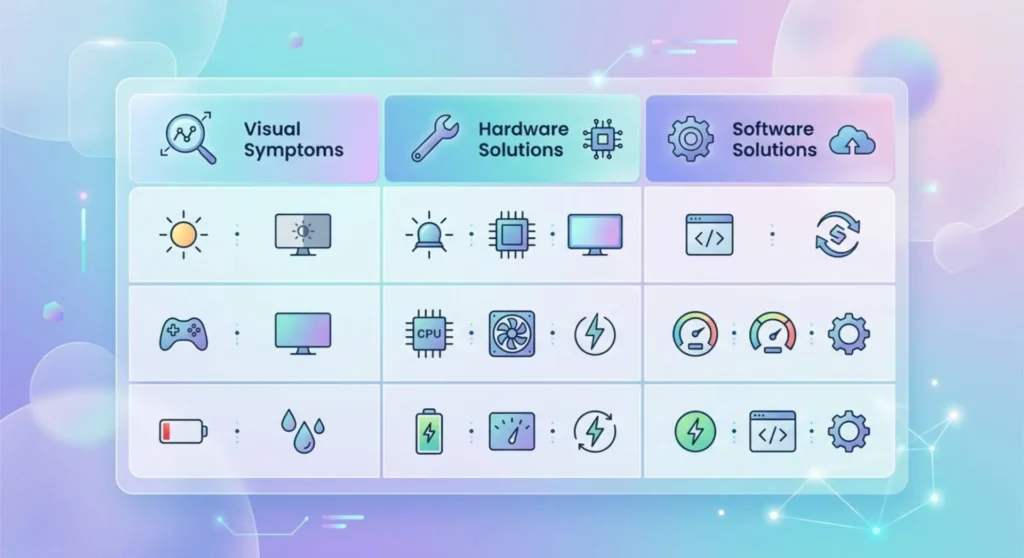
You don’t have to read everything above if you just want the short version:
Dims when you walk into different lighting conditions: Auto-brightness. Turn it off in Display settings if it bothers you.
Dims when your phone gets warm: Thermal throttling. Your phone is protecting itself. Take the case off, stop using it while charging, move to shade.
Dims at low battery: Battery saver mode. Expected behavior. Adjust the settings or accept it.
Dims right before the screen turns off: Pre-sleep dim. Change your screen timeout to a longer interval.
Brightness changes between different apps: Content-aware brightness feature on your specific phone. Dig into your Display settings and look for the relevant toggle.
Dims randomly with no pattern: Software issue. Restart first. If it keeps happening, check recent app installs. If nothing works, backup and reset.
Q: My phone dims when I’m on a call and I hold it to my ear. Is that a problem?
Not at all, that’s the proximity sensor working correctly. There’s a small sensor near your earpiece that detects when the phone is against your face and turns the screen off, so your cheek doesn’t accidentally tap buttons. The screen comes back the moment you pull the phone away from your face. If the screen isn’t coming back when you pull it away, that’s worth looking into. It means the proximity sensor is stuck in a “face detected” state. A restart usually fixes it.
Q: My screen keeps dimming even though I turned off auto-brightness. How?
A few apps, particularly video players, eBook readers, and some browsers have their own brightness settings that override your system setting while they’re open. Check within the app itself for a brightness control or display setting. Also check whether your phone’s “Reading mode,” “Comfort view,” or equivalent eye-care feature is active, these sometimes include their own brightness reduction that runs separately from the main auto-brightness setting.
Q: The screen dims after exactly 30 seconds every time. Nothing fixes it.
That’s your screen timeout set to 30 seconds with the pre-dim behavior happening just before. Go to Settings → Display → Screen timeout and change it to a longer interval. 1 minute, 2 minutes, or longer. The pre-dim will still happen but far less frequently. If you genuinely want the screen to stay on indefinitely during use, most Android phones have a “Stay awake” developer option and iPhones have “Auto-Lock → Never” for situations where you need the screen on continuously.
Q: This just started happening and I haven’t changed any settings. Why now?
Two most likely culprits: a system software update changed a default setting you didn’t know existed (auto-brightness or battery saver threshold, most often), or the weather or season changed and you’re spending more time in different lighting conditions that auto-brightness is reacting to. Check your auto-brightness setting first. Updates routinely re-enable it even if you had it off before. That catches the majority of “it just started” cases.

Derek V. Mackown is a veteran IT Technician and Display Hardware Specialist with over a decade of hands-on experience troubleshooting complex software-hardware interface glitches. He specializes in Windows OS display architecture, driver calibration, and panel diagnostics. Driven by a passion for pixel-perfect performance, he writes highly analytical, step-by-step guides to help everyday users achieve absolute display clarity at AurumScreen.com.