By Derek V. Mackown | IT Technician & Display Hardware Specialist
Windows 11 does not automatically select the highest available refresh rate when a monitor is connected. It defaults to what it considers safe, which is almost always 60Hz. Your monitor may be fully capable of 144Hz or 240Hz. Your GPU may be fully capable of driving it. And yet Windows sits quietly at 60Hz without explanation or warning.
The refresh rate you actually get is determined by a chain of dependencies: cable bandwidth, port capability, Windows Display Settings, GPU control panel configuration, and on laptops, BIOS display mode. A limitation anywhere in that chain produces the same result, 60Hz without any error indicating where the restriction occurred.
Start with the cable. It’s the most commonly overlooked variable and takes 60 seconds to verify.
Step 1 – Verify Cable Bandwidth Compatibility
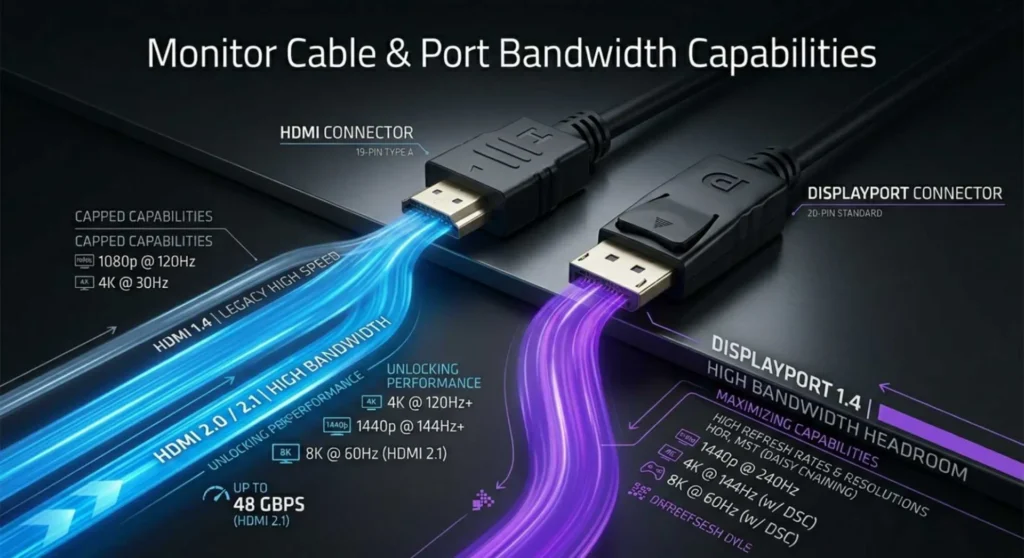
This is the most common cause of 60Hz lock I encounter and the most frequently overlooked because all HDMI cables look identical regardless of version.
Bandwidth requirements by resolution and refresh rate:
| Target Output | Minimum Cable Required | HDMI Minimum | DisplayPort Minimum |
|---|---|---|---|
| 1080p @ 144Hz | HDMI 2.0 or DP 1.2 | HDMI 2.0 | DisplayPort 1.2 |
| 1440p @ 144Hz | HDMI 2.0 or DP 1.2 | HDMI 2.0 | DisplayPort 1.2 |
| 1440p @ 165 – 240Hz | DP 1.4 preferred | HDMI 2.1 | DisplayPort 1.4 |
| 4K @ 60Hz | HDMI 2.0 or DP 1.2 | HDMI 2.0 | DisplayPort 1.2 |
| 4K @ 120Hz+ | DP 1.4 or HDMI 2.1 | HDMI 2.1 | DisplayPort 1.4 |
Check the cable body for a printed version label. Cables without labels should be treated as HDMI 1.4 until confirmed otherwise they commonly are. HDMI 1.4 tops out at 1080p/120Hz and will silently cap 1440p and 4K monitors at 60Hz without any error notification.
Recommendation: For any gaming monitor at 1440p or above, use DisplayPort 1.4. It provides more bandwidth headroom than HDMI 2.0 and is less susceptible to signal integrity issues at high refresh rates.
After swapping cables: reboot the system. Windows renegotiates the display connection on restart, and the new bandwidth ceiling will unlock refresh rate options that weren’t visible before.
Step 2 – Configure Windows Display Settings Correctly
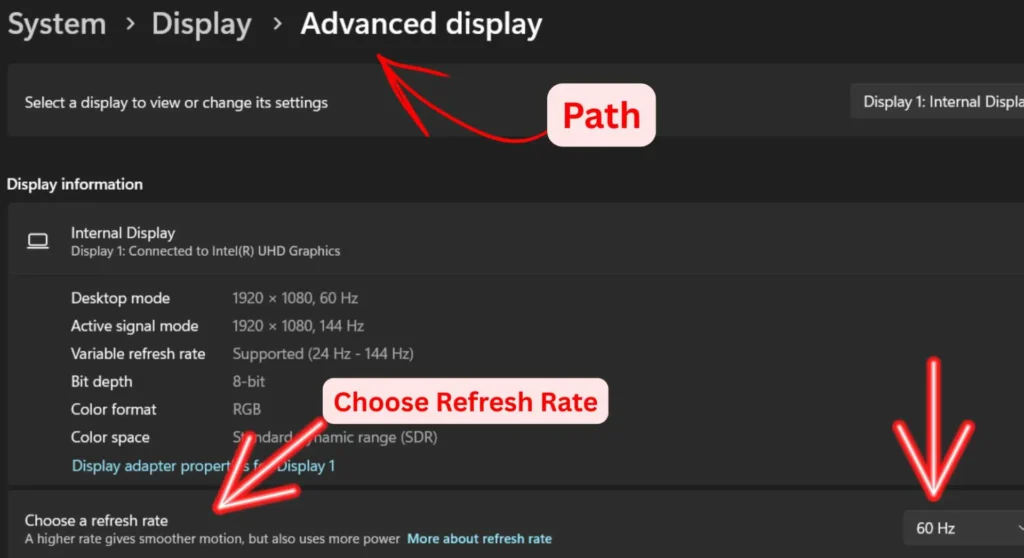
Right-click the desktop → Display settings → scroll down → Advanced display.
The refresh rate dropdown is here. Two things that guides consistently miss:
First: The dropdown only shows rates compatible with your current resolution and current cable. If you’re at 4K resolution with an HDMI 2.0 cable, only 60Hz appears not because the monitor can’t do more, but because 4K/144Hz requires more bandwidth than HDMI 2.0 provides. Lower the resolution, and higher rates become visible.
Second: Scroll through the entire dropdown. Some GPU-monitor combinations list the high refresh rate options below the “Recommended” entry rather than above it. Users miss available rates because they stop at the first option that looks correct.
Set your target rate → click Keep changes → reopen Advanced display to confirm it held. Some monitor-driver combinations silently revert if there’s an underlying configuration conflict.
Step 3 – Cross Check Your GPU Control Panel
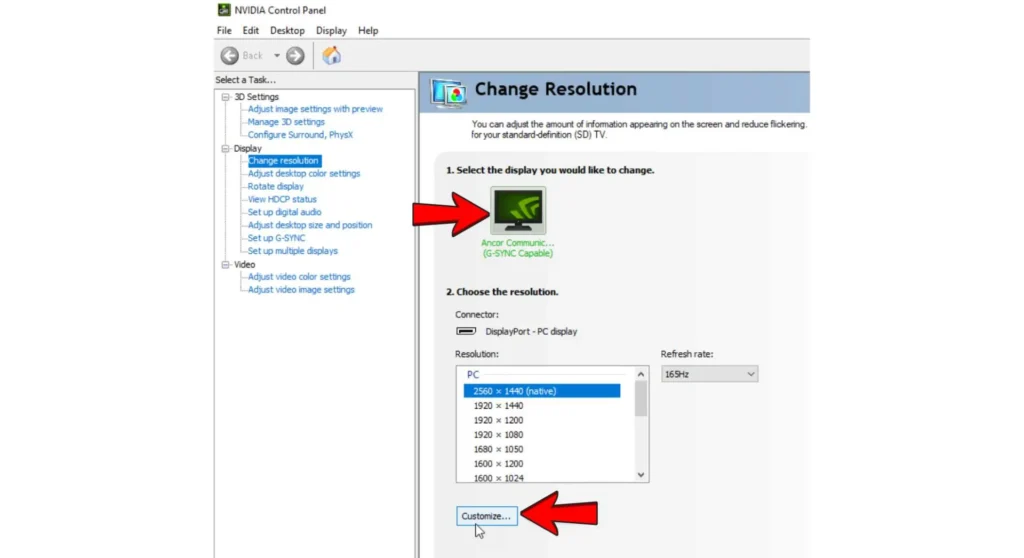
Windows Display Settings and your GPU control panel are not always synchronized. After driver updates or Windows Feature Updates, the GPU control panel can hold an override that actively limits output to 60Hz while Windows reports a higher rate or vice versa.
Nvidia Control Panel:
- Right-click desktop → Nvidia Control Panel (or search Start menu)
- Navigate to Display → Change resolution
- Select your monitor in the left panel
- Under Refresh rate, confirm the dropdown shows your target rate and it’s actively selected
- Also check: Display → Adjust desktop size and position → ensure scaling is set to “No scaling” unless intentionally running non-native resolution
AMD Radeon Software:
- Open AMD Radeon Software → Display tab
- Locate your monitor → check the active refresh rate
- If it conflicts with Windows Settings, set it correctly here, AMD’s panel can hold an independent refresh state that survives Windows changes
Intel Graphics Command Center (for integrated graphics / laptops):
- Search Start menu for Intel Graphics Command Center or Intel Arc Control
- Navigate to Display → Refresh Rate
- Intel’s iGPU maintains its own refresh rate configuration entirely separate from both Windows and discrete GPU settings
Step 4 – Add Missing Refresh Rates Using CRU
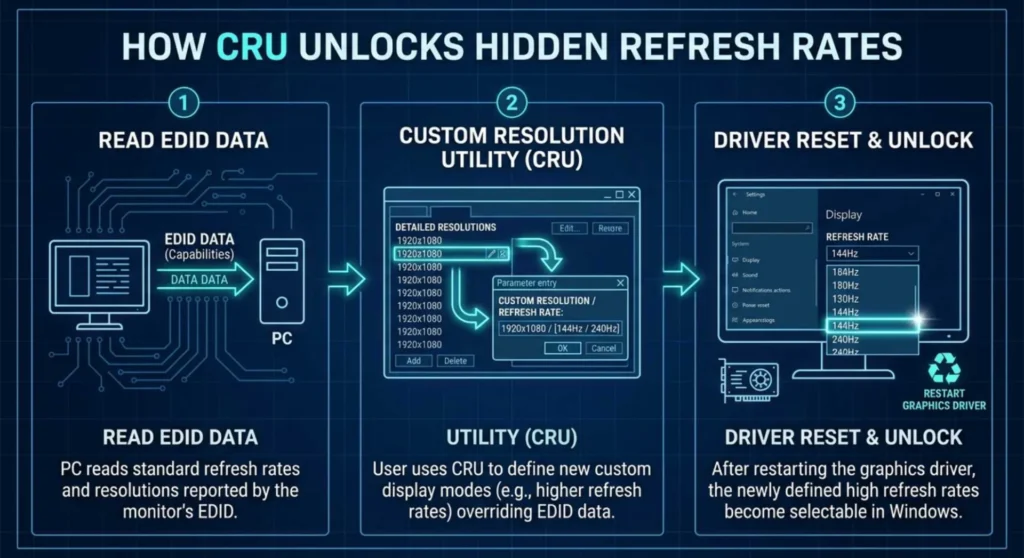
Some monitors particularly older high-refresh panels, budget 144Hz displays, and certain import models, don’t fully declare their supported refresh rates in their EDID data. Windows reads that EDID, sees no 144Hz entry, and doesn’t offer it. The monitor is capable; it’s simply not advertising itself.
Custom Resolution Utility (CRU) adds refresh rate entries that Windows then exposes in Display Settings.
- Download CRU from monitortests.com (the developer’s official source – ToastyX)
- Open CRU → select your target monitor from the dropdown at the top
- Under Detailed resolutions → click Add
- Enter your target resolution and refresh rate → leave timing set to Automatic
- Click OK → run restart64.exe from the CRU folder to restart the display driver without a full reboot
- Open Windows Display Settings → Advanced display – your new refresh rate should now appear
Note: If the new rate appears in Windows but the screen goes black when you select it, the monitor cannot actually sustain that rate despite advertising a compatible resolution. Drop back to the previous stable rate. CRU exposes options, it doesn’t create capabilities the hardware doesn’t have.
Step 5 – Check BIOS Settings (Laptops Only)
On laptops with high refresh internal displays, BIOS-level settings can cap the panel’s operating rate regardless of what Windows or the GPU driver are configured to do. This setting is almost never documented in the user manual.
Accessing BIOS:
Power off the laptop → power on → immediately press your BIOS key repeatedly:
| Manufacturer | BIOS Key |
|---|---|
| HP | F10 |
| Dell | F2 |
| Lenovo | F1 or F2 |
| ASUS | F2 or Del |
| MSI | Del |
| Acer | F2 |
Settings to look for:
Panel Overdrive / Panel Refresh Rate (ASUS ROG/TUF, MSI): explicitly sets the internal panel to its maximum rated rate. If set to 60Hz, the display cannot exceed it regardless of driver configuration.
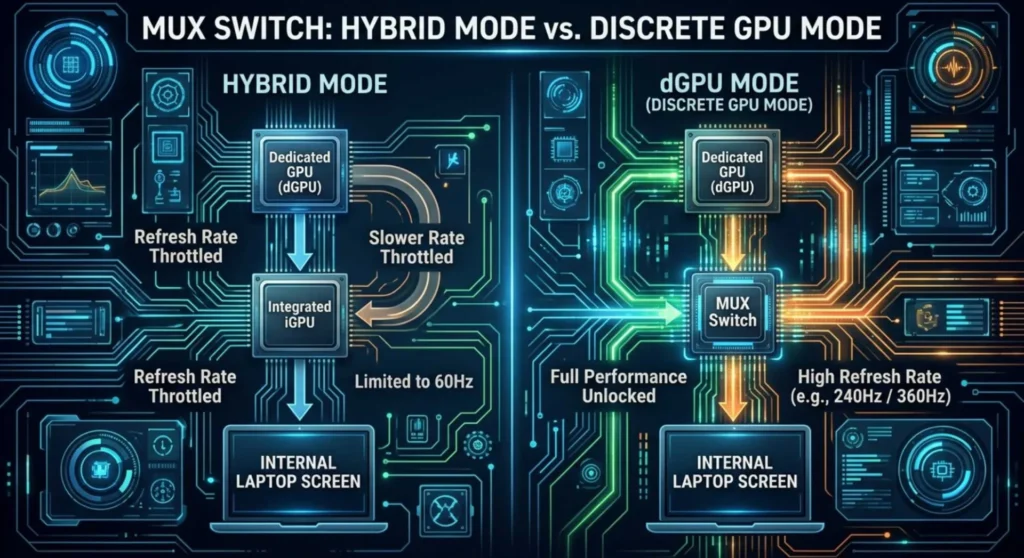
MUX Switch / Hybrid Mode (most gaming laptop brands): this is the most consequential setting for refresh rate on laptops.
| MUX Mode | How It Works | Refresh Rate Impact |
|---|---|---|
| Hybrid Mode (default) | iGPU drives internal display, dGPU handles rendering | Internal panel often capped at 60Hz due to iGPU bandwidth limits |
| dGPU Mode | Discrete GPU drives internal display directly | Full rated refresh rate unlocked – 144Hz, 240Hz, 360Hz as rated |
Switching to dGPU Mode disables hybrid graphics (Optimus/Smart Access Graphics) and increases power consumption and heat. The tradeoff is worth it for gaming; for battery focused work, Hybrid Mode is appropriate.
Set the correct values → press F10 to save and exit → allow the laptop to restart.
Confirming Your Refresh Rate Is Active
Windows Display Settings shows what it believes is active. To confirm the actual GPU-monitor handshake:
- HWiNFO64 (hwinfo.com) → Sensors → GPU section → check active display output refresh rate
- RivaTuner Statistics Server → configure an OSD overlay that shows refresh rate in-game
- Nvidia Reflex Overlay (Nvidia GPUs) → shows real-time render and display data in supported games
All three report the actual negotiated rate, not the rate Windows has stored in settings. Use them to confirm the fix took effect end to end.
Preventing 60Hz Reversion After Windows Updates
Windows Feature Updates are the most common cause of refresh rate reversion I see. They occasionally reset Advanced display settings, overwrite GPU drivers, and re-evaluate display configuration from scratch.
After every major Windows Update: open Advanced display and verify your refresh rate. It takes 15 seconds and saves the frustration of running at 60Hz for days before noticing.
Pin your GPU driver version if you’ve confirmed a stable, correctly configured installation. In Windows Update → Advanced options → Optional updates – display driver updates delivered through Windows Update can be paused individually while system security updates continue.
Frequently Asked Questions
Q: My monitor advertises 144Hz but Windows only shows 60Hz in the dropdown. Is my monitor defective?
Almost certainly not. This is the expected behavior when either the cable doesn’t support the required bandwidth or Windows is reading an incomplete EDID. Replace the cable with a confirmed DisplayPort 1.2+ or HDMI 2.0+ cable, reboot, and check again. If 144Hz still doesn’t appear, use CRU (Fix 4) to add it manually.
Q: I’m using a USB-C to HDMI adapter. Could that be capping my refresh rate?
Very likely. Most USB-C to HDMI adapters output HDMI 1.4 regardless of the host port’s capability. Confirm whether your adapter explicitly supports HDMI 2.0 output. A direct USB-C to Display Port cable, not an adapter with an attached cable is a more reliable solution and is available in certified versions for under $15.
Q: G-Sync is enabled but my refresh rate randomly drops to 60Hz during gaming. Why?
This is a frame pacing issue, not a configuration error. G-Sync operates within a certified frequency range. When your framerate drops below the minimum sync threshold (often 30Hz or 48Hz depending on monitor and driver), some setups fall back to a fixed low refresh rate. Cap your in-game framerate 5fps above the G-Sync minimum floor, if your floor is 48Hz, cap at 53fps minimum to prevent the drop-out fallback.
Q: My second monitor is 60Hz. Does having it connected cap my 144Hz monitor?
It can. Some GPU and driver configurations apply a synchronized refresh ceiling across all connected displays. Disconnect the 60Hz monitor temporarily and check whether 144Hz options appear. If they do, look in your GPU control panel for multi-display synchronization settings. On Nvidia, the G-Sync Compatibility display options affect how multi-display setups handle mismatched refresh rates.