Physical Address
3260 College Rd, Fairbanks, Alaska

By Derek V. Mackown | IT Technician & Display Hardware Specialist
Blurry text on a Windows 11 machine is not a single problem. It’s a collision between your display’s physical pixel density, Windows’ DPI scaling framework, how individual applications declare DPI awareness, and the output resolution being driven by your GPU. The symptom looks the same in every case. The cause is different in each one.
The fastest path to a fix is identifying which layer is responsible before changing anything. Use the symptom table below.
Table of Contents
Toggle| What You’re Experiencing | Most Likely Cause | Start Here |
|---|---|---|
| Everything is blurry — desktop, taskbar, all apps | Wrong output resolution or scaling percentage | Fix 1 — Resolution and Scaling |
| Some apps blurry, others sharp | Per-app DPI awareness mismatch | Fix 3 — Compatibility Override |
| Sharp on one monitor, blurry on another | DPI mismatch across multi-display setup | Fix 4 — Multi-Monitor DPI |
| Blurry only on external monitor, sharp on laptop screen | GPU output resolution or cable bandwidth issue | Fix 2 — Cable and GPU Output |
| Text looks slightly fuzzy — not sharp, not pixelated | ClearType miscalibration | Fix 5 — ClearType Calibration |
| Everything was sharp yesterday, blurry after a Windows Update | Generic driver replaced OEM driver | Fix 1 + Update GPU Driver |
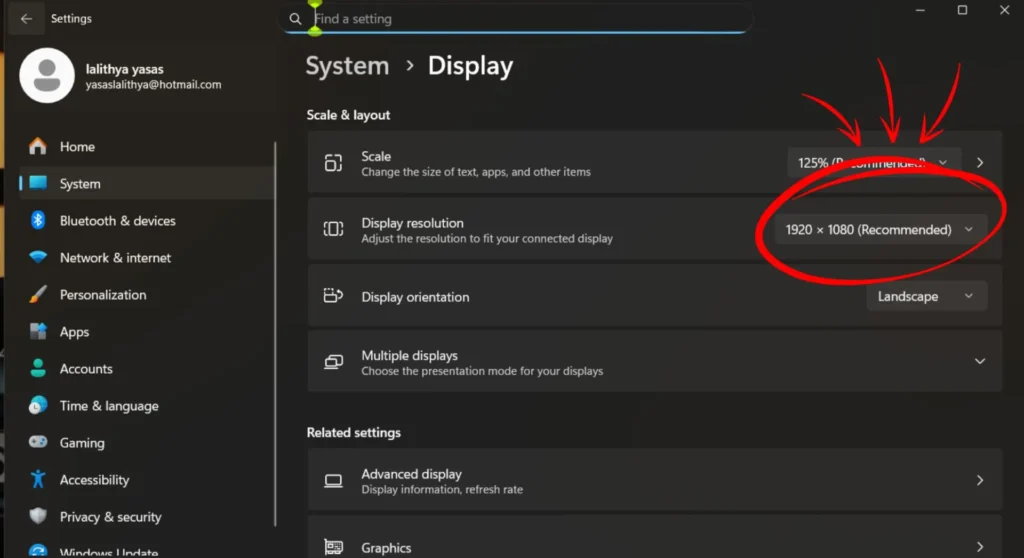
Resolution mismatch is the most disruptive cause, the GPU is outputting a lower resolution than the panel’s native pixel count, and Windows is stretching that output across more physical pixels than it should be. No scaling adjustment fixes this because the problem is upstream of scaling entirely.
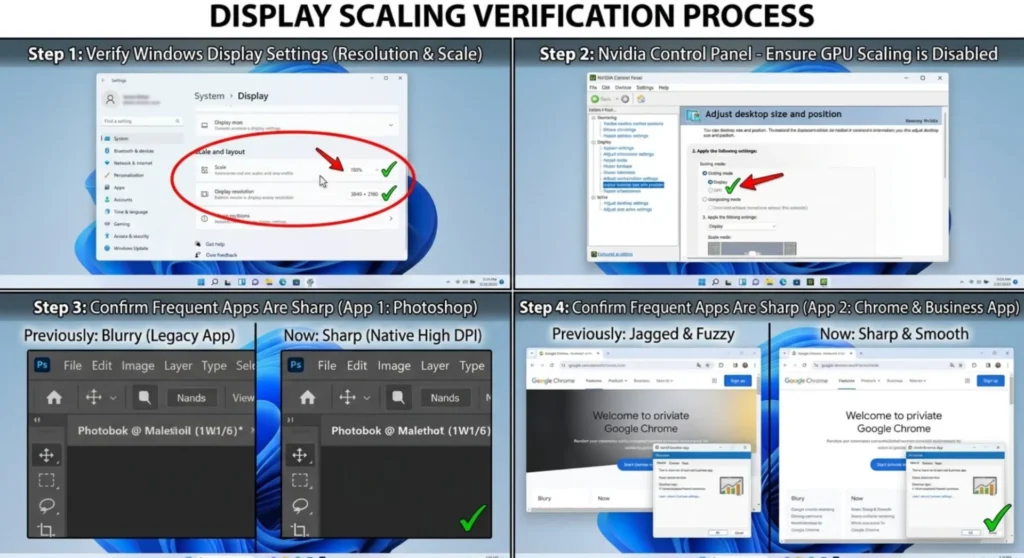
Verify your output resolution:
Set the correct scaling percentage:
Note: Scaling changes don’t take full effect until you sign out and sign back in. Applying a new scaling percentage and expecting instant improvement will produce inconsistent results.
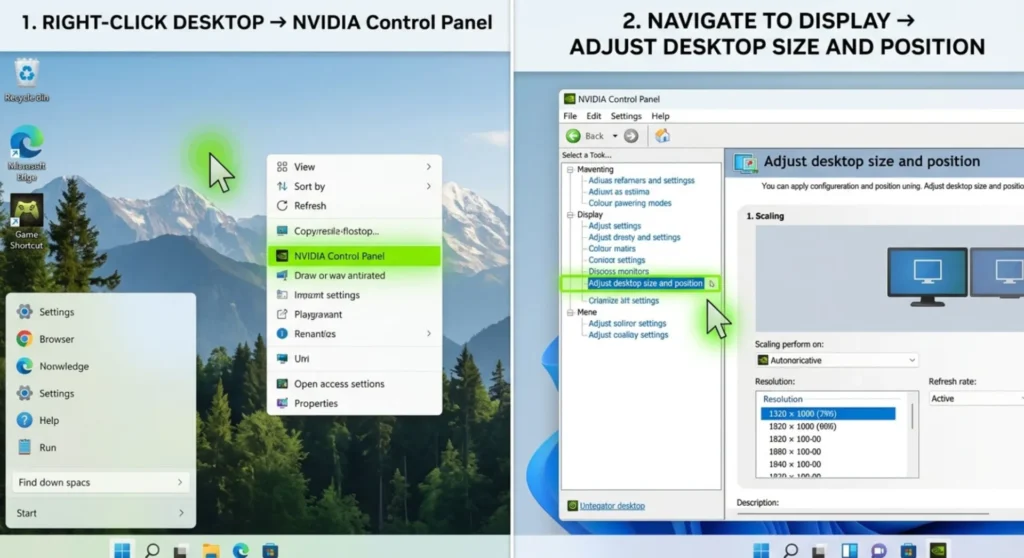
If an external monitor is blurry while a laptop’s internal display is sharp or if all monitors look soft and the resolution checks out as correct, the GPU’s scaling output configuration may be overriding native rendering.
Check GPU scaling settings:
Nvidia Control Panel:
GPU-side scaling resamples the output before it reaches the monitor, even at native resolution, this process introduces softness. Setting scaling to “Display” or “No scaling” passes a clean, unprocessed signal.
AMD Radeon Software:
Cable audit: An HDMI cable operating at or above its bandwidth ceiling introduces pixel clock timing errors that manifest as soft output regardless of resolution and scaling settings. For any display above 1080p/60Hz, confirm the cable is rated for the bandwidth you’re pushing. Replace with a labeled, certified cable if verification isn’t possible.
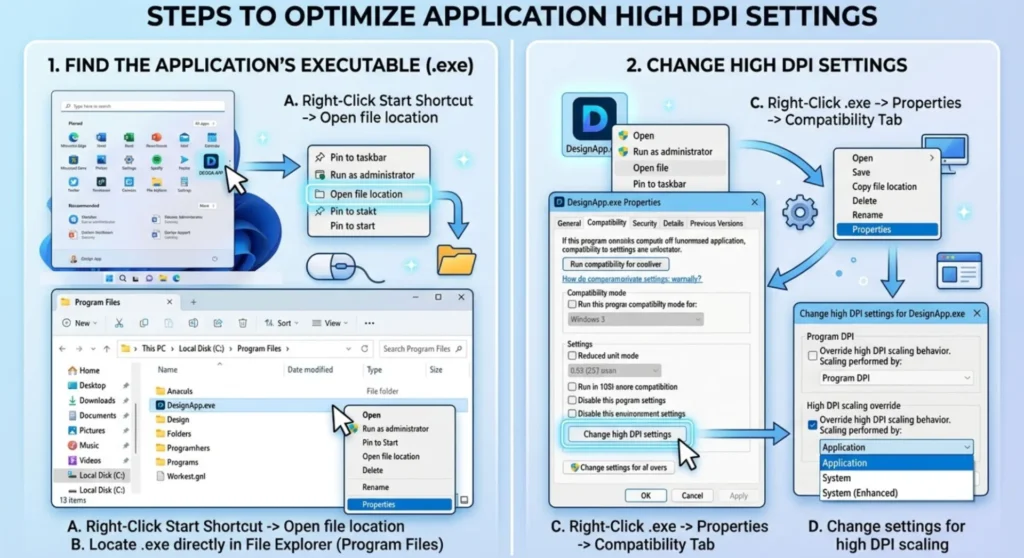
Windows 11 uses two rendering paths for scaled content. Applications that declare DPI awareness use vector-aware scaling, sharp at any DPI. Applications that don’t (legacy and older software) use a GDI bitmap path rendered at 96 DPI and then scaled up by the compositor. That upscaling is the blur you’re seeing.
How to apply an override:
Which option to choose:
| Override Setting | Use For | Result |
|---|---|---|
| Application | Modern apps (Chrome, VS Code, Office 2019+) | App handles its own DPI – best quality for DPI-aware apps |
| System | Legacy apps (pre-2015 software, old utilities) | Windows renders at 96 DPI and scales – readable but soft |
| System (Enhanced) | Mid-era apps (Office 2016, older Photoshop, legacy ERP) | GDI+ rendering with subpixel text – sharper than System, correct for most blurry app complaints |
System (Enhanced) is the fix for the most common complaints I handle. Legacy business software, accounting tools, older versions of creative applications, these respond correctly to System (Enhanced) and become measurably sharper without layout issues.
Common applications and their correct override setting:
| Application | Recommended Override |
|---|---|
| Google Chrome | Application (it handles DPI natively) |
| Microsoft Edge | Application |
| Office 365 / 2019+ | Application |
| Office 2016 | System (Enhanced) |
| Adobe Photoshop CC 2019+ | Application |
| Adobe Photoshop CS6 | System (Enhanced) |
| QuickBooks (older versions) | System (Enhanced) |
| AutoCAD LT 2018 and earlier | System |
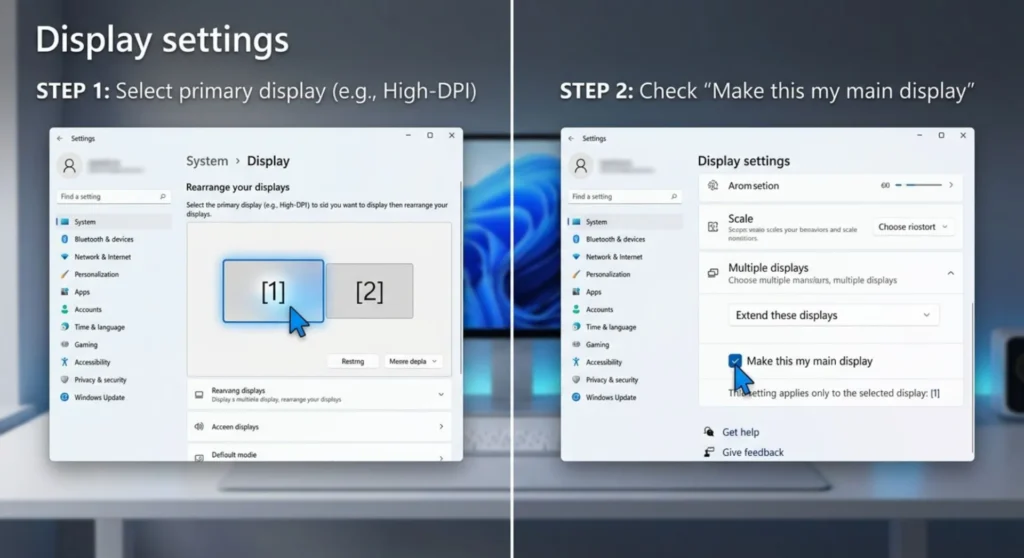
When two displays with different DPI values are connected, a 4K monitor at 200% scaling alongside a 1080p monitor at 100%, applications that lack full DPI awareness get rendered at the DPI of whichever display they launched on, then bitmap-scaled when moved to the other display. This is Windows’ legacy application compatibility behavior.
Setting the correct display as primary:
Applications launch on the display containing the taskbar by default. Making the high-DPI display primary ensures initial render DPI matches the display being used.
Per-display DPI assignment:
Each connected monitor can have its own scaling percentage set independently:
Known limitation: Some older applications cannot handle DPI changes mid-session when moved between monitors. If an application looks sharp on launch display but blurry when moved, apply the System (Enhanced) override from Fix 3, this prevents the re-render that blurry applications fail to execute correctly.
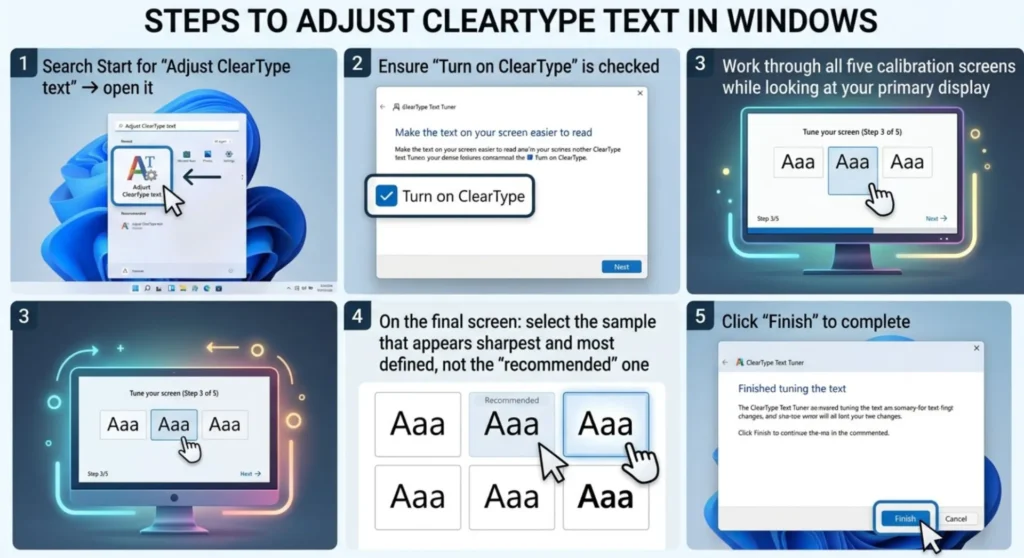
Windows’ ClearType subpixel rendering system uses a calibration profile that may have been set for a different monitor. On systems that have had multiple displays connected over time, the ClearType profile can be mis calibrated for the current panel’s subpixel layout, producing text that reads as systematically soft or slightly off.
Running the ClearType tuner:
The calibration writes subpixel rendering weights specific to your current display’s DPI and panel type. On a 4K display, a correctly calibrated ClearType profile produces measurably sharper GDI text rendering than the default uncalibrated state.
For power users: The registry path
HKCU\Control Panel\DesktopcontainsFontSmoothingGamma– a value between 1000 and 2200. Setting it to 1200 – 1400 (using Regedit, DWORD decimal) produces noticeably improved text clarity on IPS and OLED panels compared to the Windows default of 1400. Restart after changing.
Windows Feature Updates reset display scaling recommendations, occasionally overwrite per-application DPI compatibility overrides in the registry, and regularly push generic display drivers that don’t handle your monitor’s EDID as correctly as OEM versions.
After every major Windows Update:
The DPI compatibility overrides from Fix 3 are stored in the registry at:
HKCU\Software\Microsoft\Windows NT\CurrentVersion\AppCompatFlags\Layers
Export this key (File → Export in Regedit) before major updates. If overrides are cleared by an update, import the .reg file to restore them instantly.
Q: Chrome looks blurry but Edge looks sharp on the same display at the same scaling. Why?
Chrome uses a cross-platform compositor that handles DPI scaling independently of Windows’ native pipeline. Navigate to chrome://flags, search “Windows DPI,” and enable Calculate native Win32 window bounds based on DPI. This aligns Chrome’s window sizing with Windows’ DPI model and resolves the rendering offset that produces blurriness relative to Edge.
Q: My scaling is set correctly and the app still looks blurry, but only on my second monitor. What’s happening?
The application is rendering at the DPI of its launch display (your primary) and not re-rendering when moved to the secondary display with different DPI. This is a DPI change notification failure, the app renders once and doesn’t update. Apply the System (Enhanced) override from Fix 3. Additionally, making the blurry monitor your primary display so that apps launch on it directly is a practical workaround for applications that don’t handle DPI change events.
Q: Everything was sharp before a Windows Update. What likely changed?
A Feature Update most likely replaced your OEM display driver with a generic Microsoft driver. Generic drivers don’t always handle your specific monitor’s EDID output configuration correctly, which can produce resolution misdetection or incorrect scaling recommendation. Download the OEM driver from your GPU manufacturer’s website or laptop manufacturer’s support page, install it, and reconfigure scaling. This resolves the majority of post-update blurriness cases I see.

Derek V. Mackown is a veteran IT Technician and Display Hardware Specialist with over a decade of hands-on experience troubleshooting complex software-hardware interface glitches. He specializes in Windows OS display architecture, driver calibration, and panel diagnostics. Driven by a passion for pixel-perfect performance, he writes highly analytical, step-by-step guides to help everyday users achieve absolute display clarity at AurumScreen.com.