Physical Address
3260 College Rd, Fairbanks, Alaska

By Derek V. Mackown | IT Technician & Display Hardware Specialist
A monitor that randomly goes dark and comes back is one of the most disruptive display problems I deal with, not because it’s technically complex, but because the timing of it matters enormously and most people don’t pay close enough attention to it.
That timing is the entire diagnosis.
A monitor that cuts out precisely when you launch a GPU-intensive game is not experiencing the same failure as one that goes dark after exactly 20 minutes of inactivity. A screen that blacks out for two seconds then recovers is telling a different story than one that stays dark for 30 seconds before returning. A monitor that only cuts out on HDMI but runs clean on DisplayPort has already told you where the fault is most people just don’t know how to read it.
Before any fix in this guide, I want you to sit with the problem for a moment and answer three questions about your specific situation. The answers collapse a 12 variable problem down to 2 or 3.
Table of Contents
ToggleQuestion 1: When does it happen?
Write down the circumstance. Does it happen at a consistent time interval, always after about 20 minutes, or always after 2 hours? Does it happen specifically when the GPU load spikes, loading a game, opening a heavy application, switching between windows? Does it happen at random with no apparent trigger, including when the computer is sitting idle? Or does it happen only when something physical changes, you move the cable, adjust the monitor angle, or the air conditioning turns on?
Question 2: How long does it last?
One to three seconds before the image returns is a fundamentally different event from 30 seconds to a minute of darkness. A very brief blackout that recovers instantly is almost always a signal integrity failure, the cable or connection. A longer blackout that recovers is more likely a power management event. A blackout that requires you to physically interact, pressing a button or moving the mouse to recover is almost certainly a sleep or hibernation state.
Question 3: Is it truly random, or does it follow a pattern you haven’t noticed yet?
Most people report this as random. When I ask them to watch for it specifically for two days and record exactly when it happens, a pattern emerges almost every time. That pattern every 20 minutes, only under load, only on battery, only in the evening when other appliances are running and narrows the cause to a single category.
Hold those three answers in mind as you read. Every section below maps directly to a specific timing and circumstance pattern.
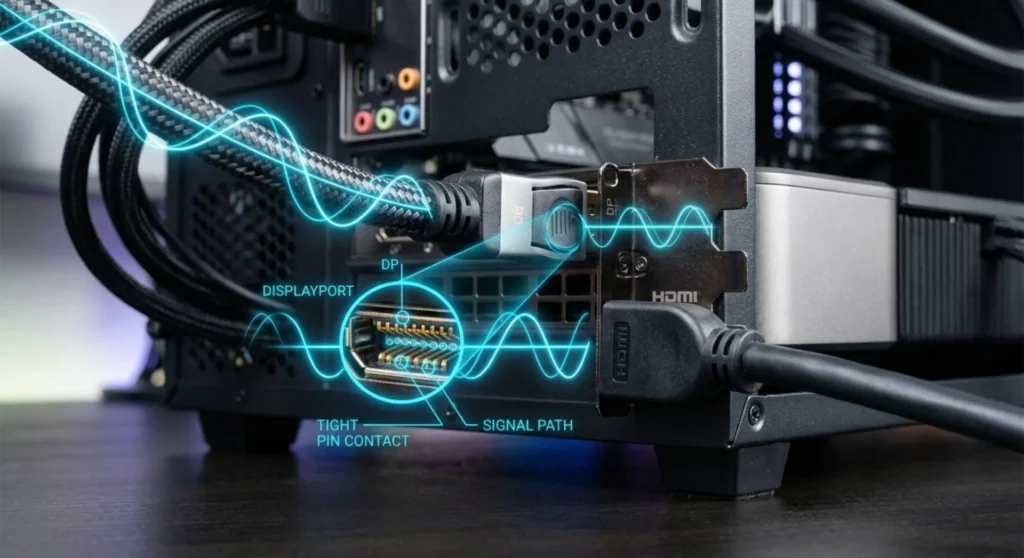
This is a signal integrity problem. The display connection, the cable, the port, or the handshake between the monitor and GPU is losing sync momentarily. The monitor interprets the loss as “no signal,” displays darkness, and re-establishes when the signal recovers. The entire event from cut to recovery takes less time than a display power cycle because no power cycle is happening, it’s purely a connection renegotiation.
Start with the cable.
Every cable in regular use is one flex away from a micro-fracture. Run your hand along the full length of your display cable while the monitor is connected and running. If the screen flickers during this test, the cable has a damaged section and needs replacement. If it doesn’t flicker during manual flex but cuts out spontaneously, the damage is at the connector ends rather than the cable body in the most common location.
Reseat both ends of the cable completely. Unplug from the monitor and from the GPU, clean the connector pins gently with a dry cloth, and reconnect firmly. A display cable that feels securely connected often isn’t, the connector has just enough contact to establish a signal but not enough to maintain it through vibration, temperature cycling, or slight positional changes.
Cable bandwidth is the second variable. An HDMI 1.4 cable running a 1440p/144Hz signal is being pushed beyond its rated bandwidth ceiling. Under these conditions it doesn’t fail cleanly, it fails intermittently, dropping signal when the data rate spikes during complex scene transitions. The monitor briefly goes dark during the renegotiation. This produces exactly the brief, random-seeming blackouts that seem impossible to reproduce deliberately.
| If Your Setup Is | Minimum Cable Required | Common Cause of Brief Blackouts |
|---|---|---|
| 1080p @ 60 – 120Hz | HDMI 1.4 or DP 1.2 | Damaged cable or loose connector |
| 1440p @ 60 – 144Hz | HDMI 2.0 or DP 1.2 | Undersized HDMI 1.4 cable |
| 1440p @ 165 – 240Hz | DisplayPort 1.4 | HDMI of any version at this spec |
| 4K @ 60Hz | HDMI 2.0 or DP 1.2 | HDMI 1.4 at 4K drops signal routinely |
| 4K @ 120Hz+ | HDMI 2.1 or DP 1.4 | Any cable below spec |
Replace with a labeled, certified cable from a reputable source. Unlabeled cables are particularly generic HDMI cables with no version printing on the body and should be treated as HDMI 1.4 regardless of how they’re advertised.
If the problem is HDMI-specific but disappears on DisplayPort: The HDMI port on your GPU or monitor has developed contact degradation. HDMI connectors have 19 pins and no locking mechanism, they loosen with repeated connect/disconnect cycles. DisplayPort’s latching connector maintains contact under conditions that HDMI can’t. Switch permanently to DisplayPort if the hardware supports it.
A monitor that cuts out after a consistent interval, 10 minutes, 20 minutes, never exactly but always in the same ballpark is almost never a hardware fault. It’s a power management event from one of three sources, and the recovery behavior tells you which one.
Recovery requires a mouse move or keypress: Windows put the monitor to sleep. This is functioning exactly as intended. You’ve hit the display timeout from your power plan.
The fix is straightforward but slightly hidden. Control Panel → Power Options → Change plan settings (on your active plan):
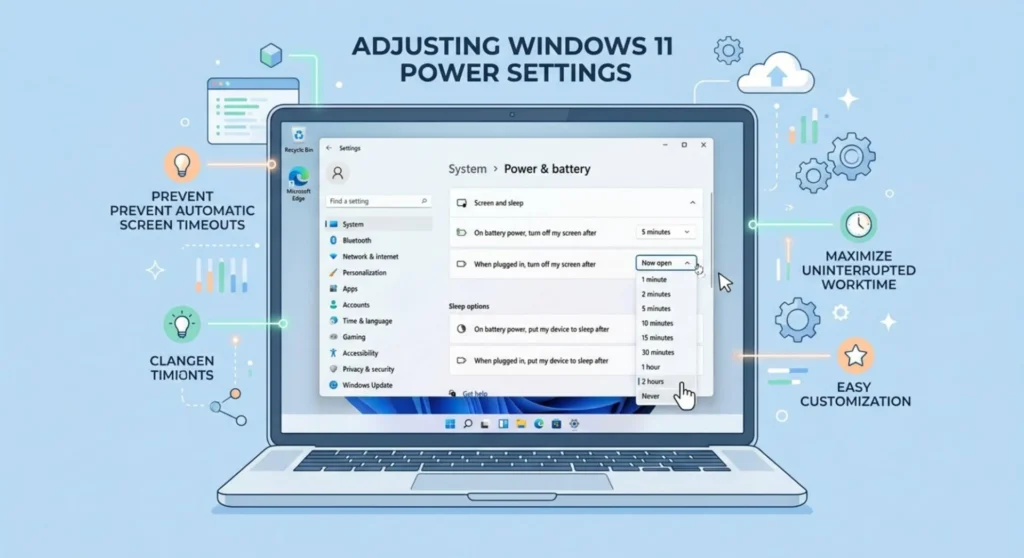
On Windows 11: Settings → System → Power & battery → Screen and sleep → adjust both when plugged in, turn off screen after and when on battery, turn off screen after.
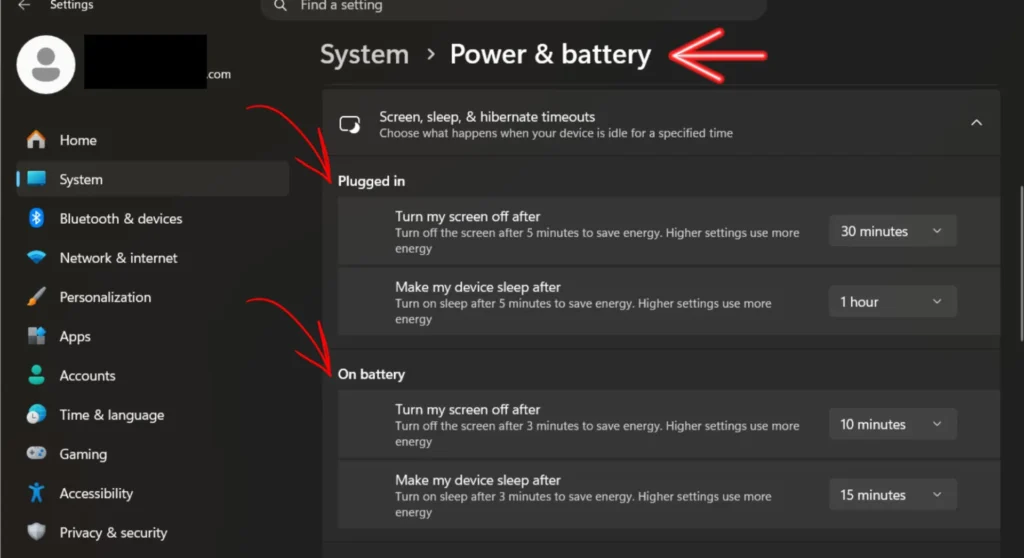
Do this for every power plan you switch between. A plan you’ve never looked at may have a 5 – minute display timeout that activates when you switch modes.
Recovery happens automatically without input but takes 20 – 60 seconds: The monitor entered its own standby mode because it detected no signal. This happens when the GPU briefly stops sending a signal for reasons unrelated to the display, or when the monitor’s own timeout is set too aggressively. Open the monitor’s OSD (the physical buttons on the monitor housing) and look for settings labeled Power Save Mode, Off Timer, Auto Power Off, or Standby Time. Extend or disable these.
Recovery requires pressing the monitor’s power button: The monitor fully powered down, either because its own power off timer triggered, or because a power management setting cut power to the USB hub or outlet that the monitor runs from. Smart power strips with usage-based outlet control are an underappreciated cause of this specific pattern. They interpret the monitor’s low standby draw as “device off” and cut power to that outlet.
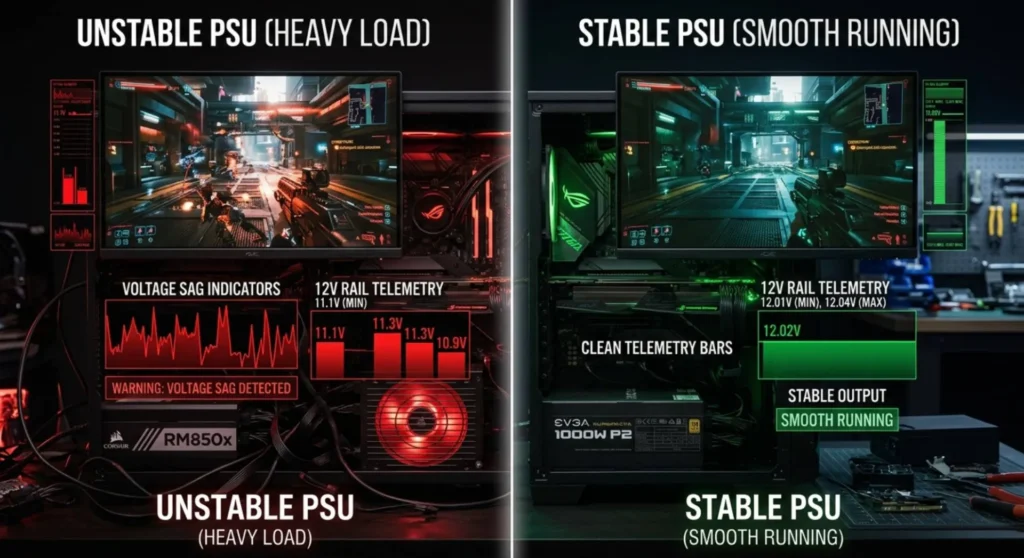
Load-correlated blackouts are GPU-related until proven otherwise. Two specific mechanisms produce this pattern:
TDR events with display recovery. When Windows’ Timeout Detection and Recovery mechanism detects a GPU that’s stopped responding, it resets the driver, which temporarily kills display output during the reset. The monitor sees no signal, goes dark, and recovers when the new driver instance initializes. The whole event takes 2 – 8 seconds. This is the same TDR mechanism covered in the display driver article, but here the symptom is monitoring blackout rather than a crash notification.
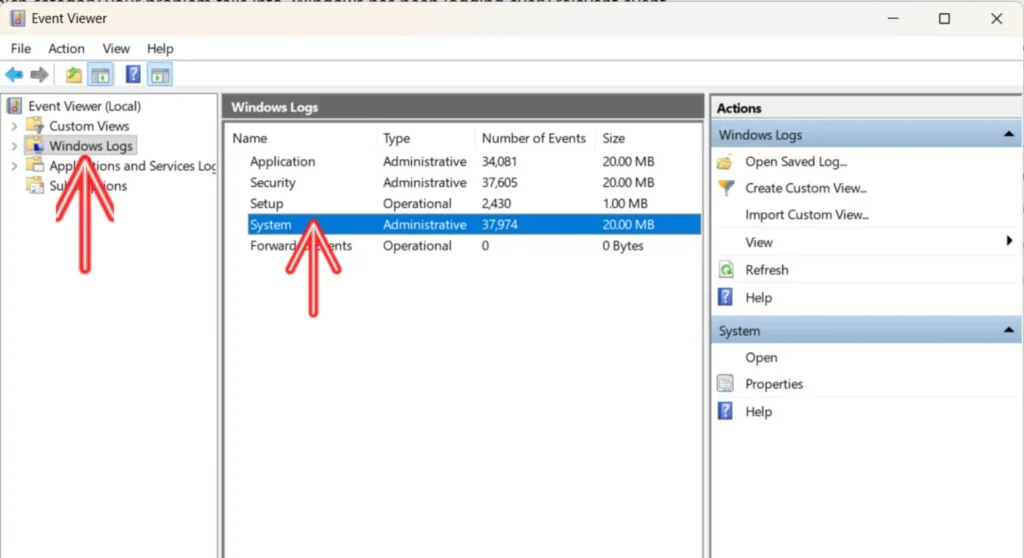
Open Event Viewer (search the Start menu) → Windows Logs → System. Filter by Event ID 4101 (Nvidia) or 4101/4002 (AMD). If these events correlate with your blackout timestamps, TDR is confirmed. Address it through GPU temperature monitoring, overclock removal, and a DDU clean driver install.
PSU voltage sag under peak load. A power supply that sags below stable voltage when CPU and GPU simultaneously draw peak power can cause the GPU to momentarily lose display signal. This produces a brief blackout specifically during the highest-demand moments, loading screens, complex scene transitions, benchmark peaks and recovers without any driver reset or TDR event.
To test this: run OCCT‘s combined CPU + GPU power test and watch your 12V rail voltage in HWiNFO simultaneously. A 12V rail dropping below 11.4V under combined load indicates PSU strain. Blackouts that correlate with these voltage dips confirm PSU as the cause.
True randomness and not a pattern you haven’t found yet, but verified random behavior with no timing correlation, no load correlation, no cable-flex correlation, narrows to three causes:
Failing display port on the GPU. Intermittent contact degradation on the GPU’s output port produces random signal loss that doesn’t correlate with anything because it’s triggered by microscopic contact variation, not by any measurable external condition. Test by switching to a different output port, if your GPU has two DisplayPort outputs, move to the second one and run for a week. If the problem stops, the original port is failing.
Monitor’s internal power supply degrading. A monitor’s internal PSU, the board that converts wall AC to the DC voltages the panel and backlight require, degrades over years of thermal cycling. Failing capacitors on this board produce random power interruptions that look exactly like external signal loss from the system’s perspective. If the problem occurs even when a different computer is connected to the same monitor, the monitor’s internal power supply is the fault.
Electrical interference from shared circuit. A monitor on the same circuit as a high-draw appliance, a laser printer, a refrigerator compressor, an air conditioner can experience voltage dips when those appliances cycle on. The monitor’s internal PSU interprets the voltage dip as a brownout and briefly enters protection mode. This produces blackouts that seem completely random unless you correlate them with appliance activity. Test by moving the monitor to a different outlet on a different circuit or by adding a UPS (Uninterruptible Power Supply) between the wall and the monitor, which conditions the incoming power and eliminates this variable entirely.
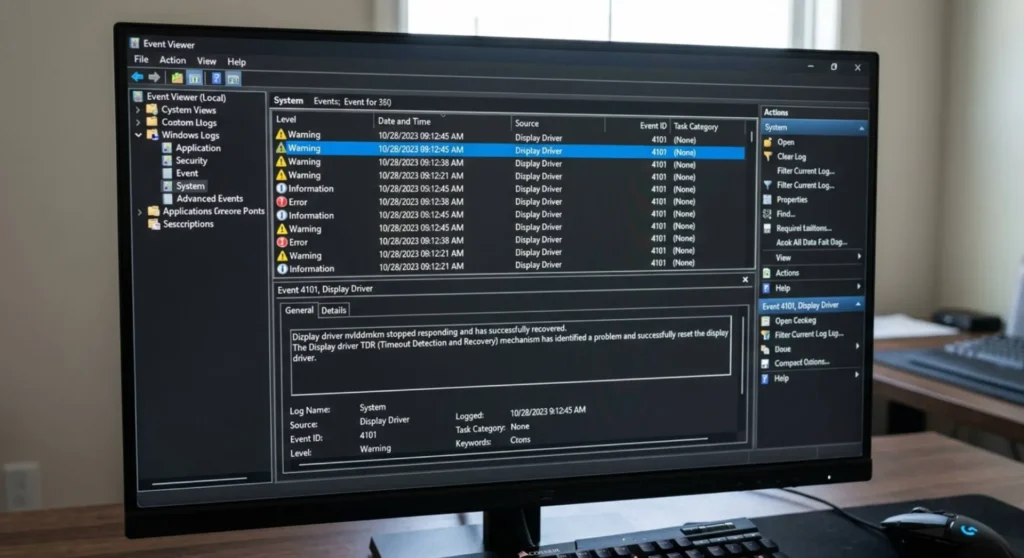
If you’re unsure which category your problem falls into, Windows has been logging every relevant event and you haven’t looked at it yet. Event Viewer is the most under-used diagnostic tool in the Windows ecosystem for display problems and for a monitor that turns off randomly, it often provides a definitive answer.
Open Event Viewer: Press Windows + X → Event Viewer, or search the Start menu.
Navigate to Windows Logs → System. Right-click → Filter Current Log.
Enter these Event IDs in the filter field (comma-separated): 4101, 4002, 41, 1, 6008
| Event ID | Source | What It Means for Your Problem |
|---|---|---|
| 4101 | Display | TDR event – GPU stopped responding, driver was reset |
| 4002 | Display | AMD-specific driver reset event |
| 41 | Kernel-Power | Unexpected shutdown – system lost power or crashed |
| 1 | Display | Display driver initialized – happens after every driver restart |
| 6008 | EventLog | Unexpected system shutdown – power loss, crash, or forced restart |
Cross-reference the timestamps of these events with your recorded blackout times. A cluster of Event ID 4101 entries exactly at your blackout times confirms TDR. Event ID 41 entries confirm a power or crash event. Event ID 1 entries without a preceding 4101 suggest a clean driver restart, possibly from Windows Update installing something during your session.
If Event Viewer shows nothing at your blackout times, no entries of any kind, the event didn’t register at the OS level. That means the display went dark without Windows knowing about it. This points to a hardware cause: the cable, the port, or the monitor’s own power circuitry, rather than any software or driver event.
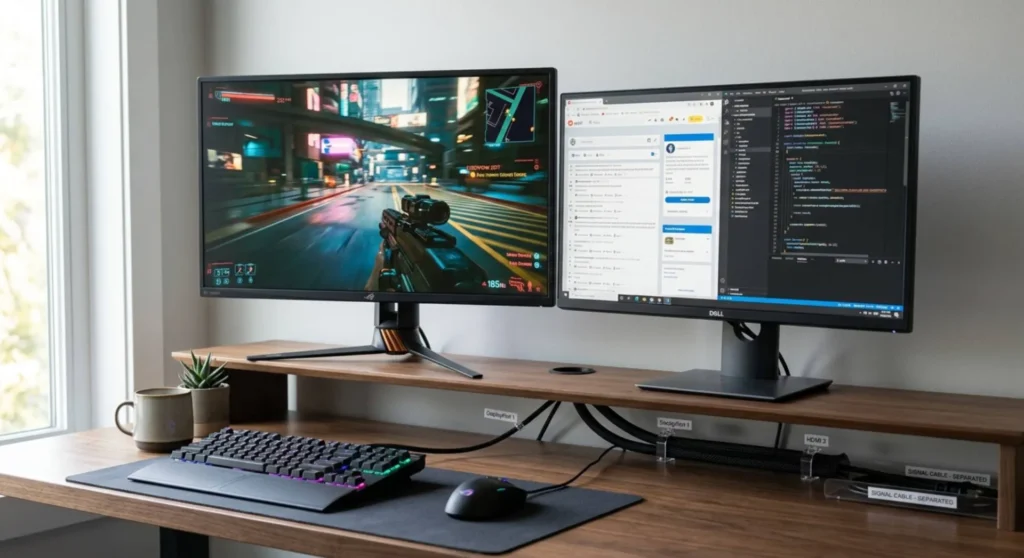
Multi-monitor configurations introduce variables that single-display setups don’t have, and a monitor that cuts out in a multi-display system isn’t always experiencing the problem I’ve described above.
Adaptive sync range conflicts. Running one G-Sync or Free Sync monitor alongside a non-adaptive-sync monitor can cause the adaptive sync display to drop signal when the GPU’s output synchronization mode switches between monitors. This happens most noticeably when a full screen application is launched that uses the primary display, the secondary display may briefly lose signal during the display mode transition.
Mixed refresh rate instability. A 144Hz primary monitor and a 60Hz secondary on the same GPU output bus can cause the 144Hz display to drop signal intermittently if the GPU driver is applying a synchronized frame cadence across both outputs. Separate the displays into different output ports (not just different cables on the same port type cluster) and test.
Display cable crosstalk. Two display cables running parallel and in contact with each other over a long run can produce electromagnetic interference that corrupts signal on both. Route display cables with physical separation, particularly near the GPU end where signal frequencies are highest.
Q: My monitor turns off once and stays off until I press its power button. Is that different from what you’ve described?
Yes, that’s a monitor power-off event, not a signal loss. The monitor fully powered down rather than entering standby or losing signal. Check the monitor’s OSD for an Auto Power Off or Off Timer setting and disable it. Also check whether the USB hub or smart power strip the monitor is connected to has usage-based power management, devices that monitor draw current and cut power when a connected device appears idle are a common cause of this exact pattern.
Q: The monitor only goes off when I’m gaming, and Event Viewer shows Event 4101 entries at exactly those times. Does that definitively mean it’s a driver problem?
Event 4101 confirms TDR, the GPU stopped responding long enough for Windows to reset the driver. Whether that’s caused by the driver itself (corruption, instability) or by hardware conditions (overheating, PSU voltage sag, unstable overclock) requires further investigation. A clean DDU driver reinstall is the first step. If TDR events continue after a clean install, move to temperature monitoring under load and PSU stability testing. The event ID tells you what happened; finding out why requires the hardware checks described in the load-correlated section above.
Q: I’ve tried every fix and the monitor still randomly turns off. The problem exists with a different cable, on a different port, and even with a different computer connected. What does that point to?
If the problem reproduces with a different source computer connected to the same monitor, the monitor’s internal hardware is the fault, specifically the internal power supply board. Failing capacitors on the monitor’s PSU produce intermittent power interruptions that are invisible to any connected computer. This is a component-level repair (capacitor replacement on the PSU board) or monitor replacement. If the monitor is under 3 years old, check the manufacturer’s warranty, intermittent power failures are covered as manufacturing defects on most standard warranties.
Q: My screen goes dark for exactly 2 seconds every time I switch between a fullscreen application and the desktop. Is this the same problem?
Not exactly, this is a display mode transition event. Many monitors require a brief re-sync period when the output resolution or refresh rate changes, which happens when some games switch between their rendering resolution and the desktop resolution. Check your GPU’s full screen optimization settings (Nvidia: Manage 3D Settings → DSR, full screen optimization; AMD: Radeon Software → Graphics → Fullscreen optimization). Enabling your monitor’s Instant Mode or reducing its Response Time Override in the OSD can shorten the transition window. Completely eliminating it requires matching your desktop resolution and refresh rate to the game’s output settings, so no mode switch occurs.

Derek V. Mackown is a veteran IT Technician and Display Hardware Specialist with over a decade of hands-on experience troubleshooting complex software-hardware interface glitches. He specializes in Windows OS display architecture, driver calibration, and panel diagnostics. Driven by a passion for pixel-perfect performance, he writes highly analytical, step-by-step guides to help everyday users achieve absolute display clarity at AurumScreen.com.