Physical Address
3260 College Rd, Fairbanks, Alaska

By Derek V. Mackown | IT Technician & Display Hardware Specialist
It appears without warning. A single vertical line almost always green, occasionally pink or white, running from the top of your screen to the bottom in a perfectly straight, pixel-wide stripe. It doesn’t move. It doesn’t respond to touch. It doesn’t disappear when you restart. It’s just there, cutting your display in half like a crack in glass that isn’t cracked.
I’ve examined this specific failure on dozens of smartphones across Samsung, iPhone, OnePlus, Xiaomi, and Google Pixel devices. The green line is one of the most visually alarming display faults users encounter and also one of the most consistently misunderstood. People assume it’s physical damage. They assume they need a new screen immediately. In a meaningful percentage of cases, they’re wrong on both counts.
The line is a diagnostic signal, not just a symptom. Read it correctly and it tells you exactly what failed and how.
Table of Contents
ToggleThe circumstances under which the line appeared tell you more than any diagnostic tool. Match your situation to the table below.
| How and When the Line Appeared | Likely Cause | Hardware or Software? |
|---|---|---|
| Appeared after a drop, impact, or screen pressure | Physical display damage — OLED panel or flex cable | Hardware — screen replacement required |
| Appeared overnight with no impact or event | OLED subpixel column failure — spontaneous degradation | Hardware — panel defect, likely warranty-eligible |
| Appeared after a software update or OS upgrade | Display driver or firmware rendering error | Software — attempt fixes before assuming hardware |
| Appeared after the phone overheated | Thermal damage to OLED panel or display IC | Hardware — heat-induced, unlikely to self-resolve |
| Appears only in certain apps or on certain colors | Software rendering artifact or GPU driver conflict | Software — high chance of resolution without repair |
| Appears on boot screen / manufacturer logo | Below OS level — display hardware or firmware fault | Hardware or Firmware — requires service |
| Flickers or changes width depending on brightness | Display driver instability or flex cable issue | Ambiguous — run software fixes first |
| Multiple lines, or line shifts position | Panel column driver IC failure | Hardware — do not delay service |
If the line appeared after a confirmed drop: Skip the software fixes entirely. Physical impact that damages an OLED panel or the flex cable connecting the display assembly doesn’t produce symptoms that software can resolve. Go directly to the service and warranty section at the end of this guide.
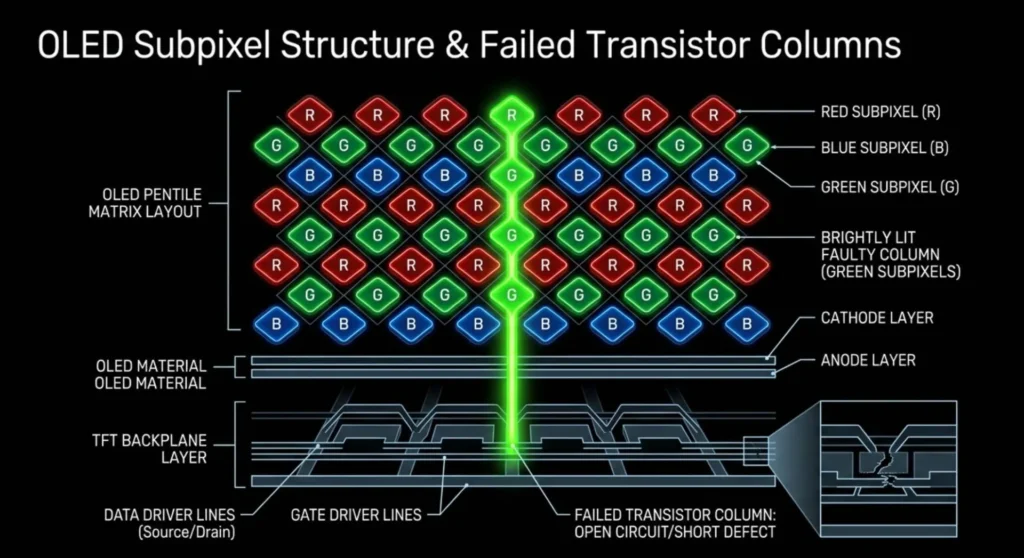
Understanding the failure mechanism changes how you approach it and whether you trust a “software fix” video you found online.
OLED and AMOLED displays are structured in vertical columns of subpixels. Each column is driven by a dedicated row of transistors in the thin-film transistor (TFT) layer, a matrix of microscopic switches that control which pixels illuminate and at what intensity. A single failed transistor column produces a line of pixels that can no longer receive accurate drive signals. Those pixels default to their last state or to a driven-on condition, which in the green channel of an RGB subpixel arrangement appears as a continuous bright green vertical stripe.
The column driver IC, a small integrated circuit bonded to the edge of the display panel, controls groups of these transistor columns. When the driver IC itself fails or partially fails, the result is typically multiple lines or a line that shift, rather than the single clean stripe of a failed transistor column.
Why green specifically? Green subpixels are the most numerous in standard RGB OLED panel layouts (Samsung’s PenTile arrangement uses more green subpixels than red or blue to compensate for green’s higher luminance efficiency). A failed column in a PenTile arrangement is statistically most likely to be predominantly green, which is why “the green line” has become the colloquial name for this entire failure category, even when the line appears pink, white, or yellow on specific panel formulations.
A software driver cannot revive a failed transistor column. What software can affect is whether the display controller is sending malformed signals that produce a falsely triggered column, which is what makes a subset of green line cases actually resolvable in software.
These steps take 15 – 20 minutes total. If the line resolves or changes behavior during any of them, the cause is confirmed as software or firmware rather than physical panel failure.
This is not the same as a normal restart. A force restart clears volatile display driver state and reinitializes the display controller from scratch, something a standard power-off/power-on does not always accomplish completely.
| Device | Force Restart Method |
|---|---|
| iPhone 8 and later | Press and release Volume Up → press and release Volume Down → hold Side button until Apple logo appears |
| iPhone 7 / 7 Plus | Hold Volume Down + Sleep/Wake simultaneously for 10 seconds |
| Samsung Galaxy (Android 10+) | Hold Power + Volume Down simultaneously for 7 – 10 seconds |
| Google Pixel | Hold Power button for 30 seconds |
| OnePlus / Xiaomi / OPPO | Hold Power + Volume Down for 8 – 10 seconds |
| Huawei | Hold Power + Volume Down for 10 seconds |
After the force restart, observe whether the line is still present, has changed position, changed color, or disappeared entirely. Any change in the line’s behavior after a force restart is diagnostically meaningful, static hardware failures don’t change. If it changed, the display controller or driver was involved.
Display driver bugs introduced in OS updates are a documented, recurring cause of green line artifacts on specific device models, and the same update channel that introduced the bug typically carries the fix within one or two subsequent patch releases.
On iPhone: Settings → General → Software Update
On Samsung Galaxy: Settings → Software update → Download and install
On Google Pixel: Settings → System → System update
On OnePlus: Settings → System → System updates
Check community forums for your specific model number alongside the term “green line” before and after updating. If a recently released patch notes “display rendering fixes” or “screen artifact correction” in its changelog, it is almost certainly addressing this exact symptom.
Known affected models (documented software-cause green line incidents):
- Samsung Galaxy S22 series — multiple reports of green line after One UI updates; Samsung acknowledged and issued patches
- iPhone 13 / 14 series — isolated reports of green line following iOS point updates
- OnePlus 10 Pro — documented display driver artifact on OxygenOS 13 builds
- Google Pixel 6 Pro — isolated display driver artifact reports on Android 13 builds
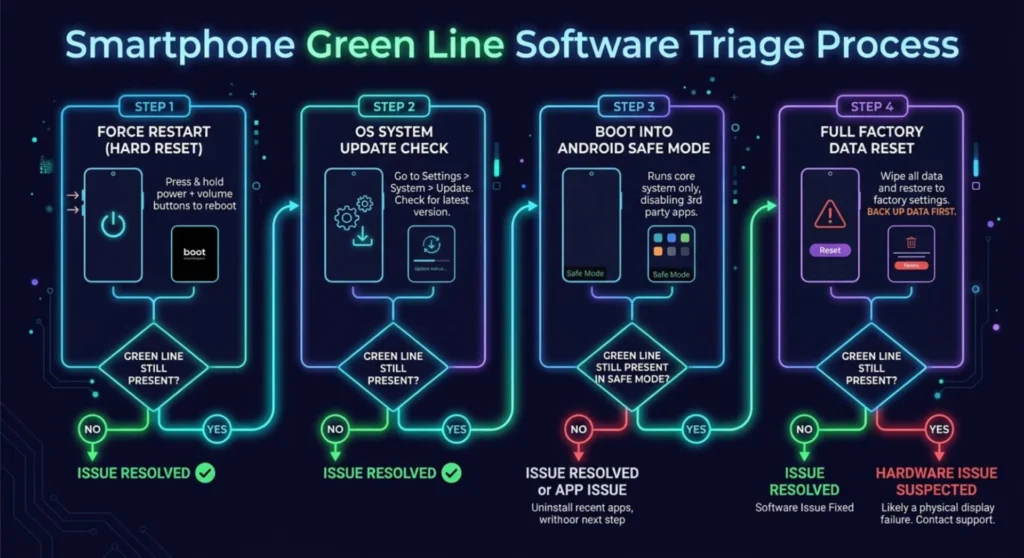
Safe Mode loads only the base operating system without third-party applications. If the green line disappears in Safe Mode and reappears in normal mode, a third-party application is interfering with the display rendering stack, a software cause with a software fix.
Android Safe Mode: Hold the Power button → long-press the “Power off” option on screen → tap “Safe mode” when prompted → device restarts in Safe Mode (indicated by “Safe mode” text in the bottom-left corner of the display)
iPhone: iOS does not have a traditional Safe Mode. Perform a factory reset (see below) as the equivalent triage step.
In Safe Mode: observe the line for 10 – 15 minutes across different screen activities. A line that persists in Safe Mode is not caused by a third-party app. A line that clears in Safe Mode, open your recently installed app list and uninstall the most recent additions one at a time to identify the culprit.
A factory reset eliminates every software variable simultaneously, OS configuration corruption, display driver state, app conflicts, firmware settings. If the green line survives a factory reset, the cause is hardware and no further software intervention will resolve it.
⚠️ Back up your data first. A factory reset erases all user data, photos, apps, and settings. Use Google Backup, Samsung Cloud, iCloud, or a manual PC backup before proceeding.
Android (Settings path): Settings → General Management → Reset → Factory data reset → Reset
iPhone: Settings → General → Transfer or Reset iPhone → Erase All Content and Settings
After the reset, observe the screen during the initial setup process before restoring any backup. If the line is present on a freshly reset device with no apps installed and no backup restored, this is confirmed hardware failure. If it appeared after restoring a backup, a corrupted backup file is contributing.
If the green line survived a force restart, a software update, Safe Mode testing, and a factory reset, the cause is hardware. Specifically, one of three components:
The OLED panel itself — transistor column failure, subpixel row damage, or physical delamination of the display layers. This is the most common hardware cause and requires full display assembly replacement. The line will not change, will not worsen rapidly in most cases, but will not self-resolve.
The display flex cable — the ribbon cable connecting the display assembly to the motherboard can develop micro-fractures or partially unseat at its connector. This typically produces a line that changes with physical pressure on the device body or slight twisting of the frame. Pressing lightly on different areas of the phone body while observing the line can confirm flex cable involvement, a line that momentarily clears or shifts under specific pressure is cable, not panel.
The display controller IC — a partially failed driver IC typically produces multiple lines, a line that shifts, or a line accompanied by other display anomalies (color banding, region dimming). Single clean lines from driver IC failure are less common but not rare on certain device models with known IC quality issues.
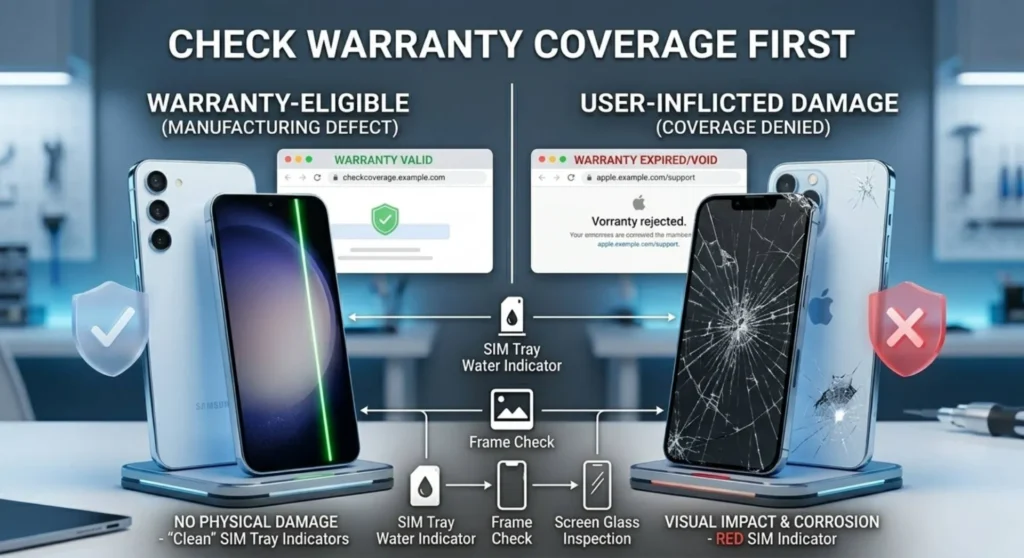
Before paying for any repair, confirm your warranty status. A spontaneous green line with no physical damage history is covered under manufacturer warranty on most major brands, it is a manufacturing defect, not user damage.
| Manufacturer | Warranty Check | Service Contact |
|---|---|---|
| Apple | checkcoverage.apple.com | apple.com/support or Apple Store |
| Samsung | samsung.com/us/support | Samsung Members app or 1-800-SAMSUNG |
| support.google.com/pixelphone | Google Store or authorized service center | |
| OnePlus | oneplus.com/support | OnePlus Service Center |
| Xiaomi | xiaomi.com/support | Mi Service Center |
Important: If your device shows physical damage (cracked glass, bent frame, liquid damage indicators triggered), manufacturers will typically deny warranty coverage for the green line even if the line itself was caused by a spontaneous panel defect. Document your device’s physical condition with photos before contacting support.
If warranty coverage doesn’t apply, display replacement is the correct repair. Costs vary significantly by brand, model, and repair channel.
| Device Category | OEM Service Center | Authorized Third-Party | Independent Repair |
|---|---|---|---|
| iPhone 14 / 15 series | $279 – $379 | $180 – $260 | $120 – $180 |
| Samsung Galaxy S23/S24 series | $220 – $350 | $150 – $230 | $100 – $160 |
| Google Pixel 8 series | $199 – $279 | $140 – $200 | $90 – $150 |
| OnePlus 12 / Open | $180 – $260 | $120 – $180 | $80 – $130 |
| Mid-range Android (general) | $80 – $150 | $60 – $120 | $40 – $90 |
On independent repair shops: The quality of OLED panel replacements varies significantly. OEM panels (original manufacturer) produce the correct color profile, brightness calibration, and touch sensitivity. Aftermarket panels particularly those described as “incell” or “hard OLED” are typically lower quality and may produce visible color inaccuracy, reduced brightness, or touch latency. For flagship devices, OEM or OEM-equivalent panels are worth the price premium.
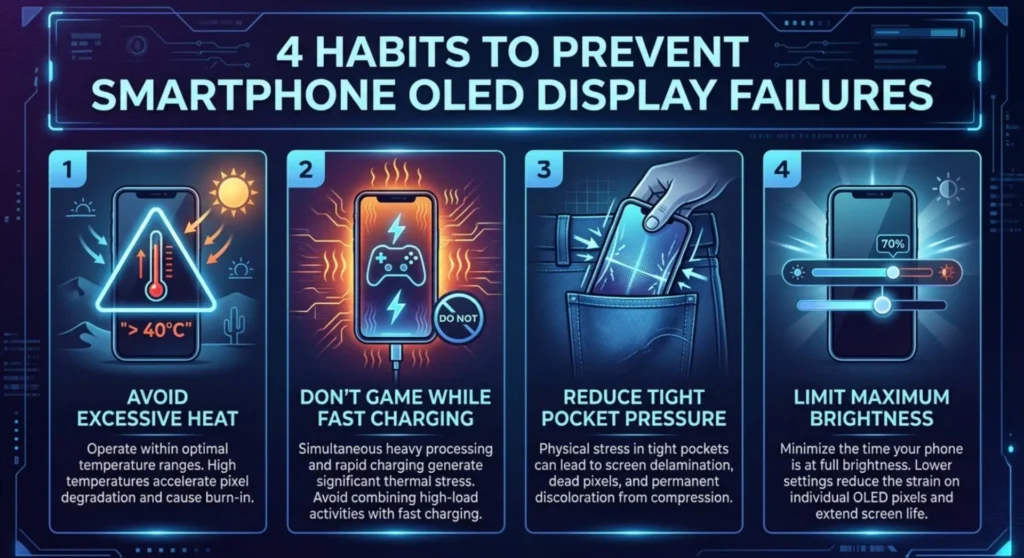
The green line isn’t always preventable, spontaneous transistor column failure is a manufacturing quality issue, not purely a usage issue. But certain habits consistently reduce the risk of heat-induced and pressure-induced display failures.
Avoid extended gaming or video streaming in high-temperature environments. OLED panels operating above 40°C ambient temperature over extended periods accelerate the electrochemical processes that lead to both burn-in and column transistor degradation. Phone cases that trap heat particularly thick silicone cases on already-warm devices compound this.
Do not use the device while charging at high wattage for extended periods. Fast charging generates significant heat. The combination of charging heat and screen-on thermal load stresses the display assembly more than either condition alone.
Never place the device under consistent mechanical pressure in a back pocket while seated, under a stack of books, or in a tight bag slot. The display flex cable connector and the OLED panel bonding layer are sensitive to sustained compression. This is a documented cause of spontaneous line failures that appears weeks after the compressive event rather than immediately.
Use screen brightness at or below 70% for sustained daily use. High sustained brightness isn’t just a burn-in accelerator, it increases operating temperature of the OLED emitter layer, which degrades the TFT transistor matrix over time.
Q: The green line appeared on its own with no damage. Why would a brand-new display fail like this?
OLED manufacturing involves bonding millions of microscopic organic compounds and thin-film transistors at nanometer scales. Defects in this process, a microscopic void in a transistor, a partial bond failure in the TFT matrix can remain stable for months before the thermal cycling of daily use causes them to propagate to a visible failure. This is why spontaneous green line failures cluster around the 12 – 24 month mark on affected devices they were defective from manufacture but took time to become visible. It is a quality control issue, not user damage.
Q: Can I use my phone with the green line present? Will it spread?
In most hardware failure cases, a single stable green line does not spread or worsen rapidly. The failed transistor column is fixed in location, neighboring columns are independently driven and unaffected by a single column’s failure. The exception is driver IC failure, if the line shifts, widens or multiplies, the IC is progressively failing, and the visible damage will expand. Use the verdict table to confirm which failure mode you have. A stable single-column failure can typically be used for weeks or months without worsening. A progressing IC failure should be serviced promptly.
Q: My phone is out of warranty. Is it worth repairing or should I replace it?
The answer depends on the device’s age and the repair cost relative to replacement value. As a general rule: if the repair costs more than 50% of a comparable replacement device’s current market value, replacement is the more rational financial decision. For flagship devices less than 2 years old, repair typically makes economic sense. For devices over 3 years old with other wear factors (battery degradation, software support end-of-life), replacement is often the better long-term investment.
Q: Someone told me the green line is caused by water damage. Is that true?
Water or liquid damage can cause green line failures, liquid that reaches the display assembly or flex cable connector can corrode contacts and produce column failures. However, liquid damage is not the only cause, and it’s not the most common one. If your device has never been exposed to liquid and shows no triggered liquid damage indicators (the small strips inside the SIM tray slot that turn red on contact with moisture), liquid is not the cause. Do not accept a liquid damage diagnosis as an explanation for a spontaneous green line on a device with clean liquid indicators.

Derek V. Mackown is a veteran IT Technician and Display Hardware Specialist with over a decade of hands-on experience troubleshooting complex software-hardware interface glitches. He specializes in Windows OS display architecture, driver calibration, and panel diagnostics. Driven by a passion for pixel-perfect performance, he writes highly analytical, step-by-step guides to help everyday users achieve absolute display clarity at AurumScreen.com.